Siri Read Web Articles Safari iPhone | Easy Guide
Siri Read Web Articles Safari iPhone: My Experience
I discovered the siri read web articles safari iphone feature on a busy day when my eyes were tired but I still wanted to finish an article. I did not want to scroll or strain my eyes anymore. That is when I tried letting Siri read the page out loud. 📱
To my surprise, the siri read web articles safari iphone option felt smooth and natural. Instead of staring at my screen, I could just listen while making coffee or relaxing. It honestly changed how I consume content on my iPhone.

What Is Siri Read Web Articles Safari iPhone?
Before I fully understood siri read web articles safari iphone, I thought it was just a simple voice assistant trick. But it is actually part of the iPhone’s accessibility tools, specifically the Speak Screen feature.
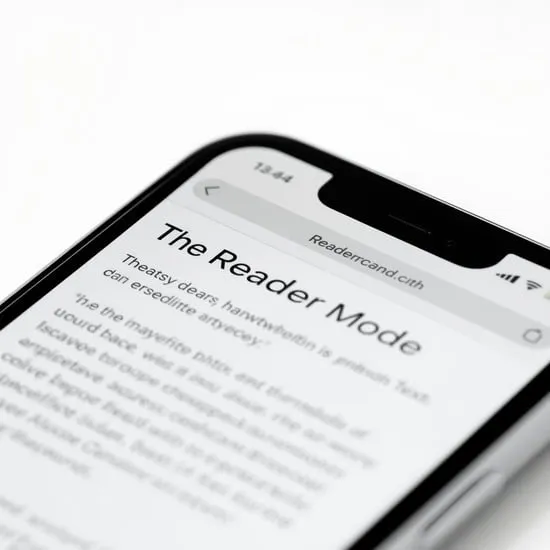
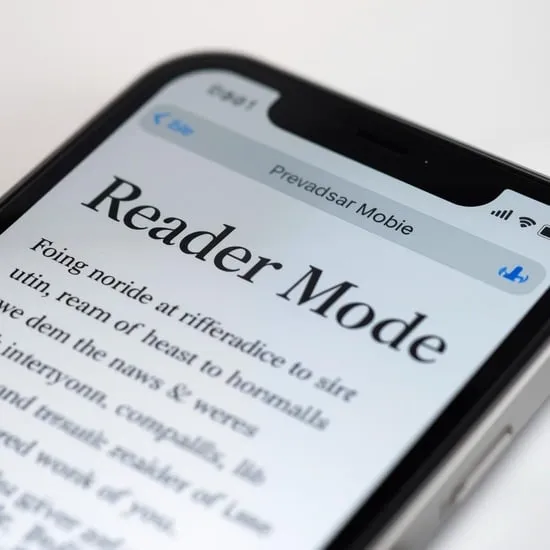
This feature allows Siri to read webpages, blog posts, and online content directly from Safari. It works with Reader Mode, which makes the text cleaner and easier for text-to-speech playback.
How to Enable Speak Screen on iPhone
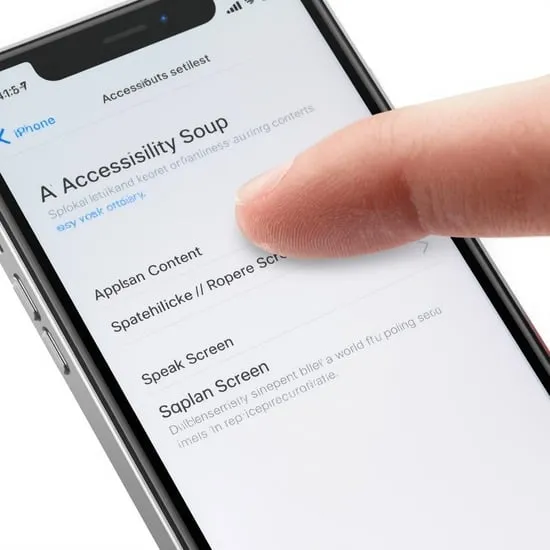
To use siri read web articles safari iphone, I first enabled Speak Screen in Settings. I went to Accessibility, tapped Spoken Content, and turned on Speak Screen.
Once enabled, I could swipe down with two fingers from the top of the screen to activate it. Hearing the webpage read aloud felt surprisingly natural and easy to follow. ✨
How I Use Siri to Read Web Articles in Safari
When I open a webpage in Safari, I usually switch to Reader Mode first. This removes ads and clutter, making siri read web articles safari iphone much smoother and clearer.
Then I swipe down with two fingers, and Siri begins reading the article from top to bottom. I can adjust playback speed, pause, or skip sections using the on-screen controls.

Adjusting Voice and Reading Speed
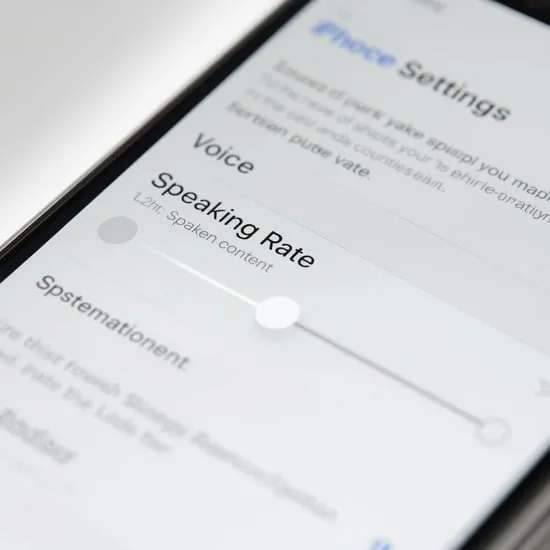
One thing I loved while exploring siri read web articles safari iphone was customizing the voice settings. In Spoken Content, you can choose different voices and adjust the speaking rate.
I slowed the speech slightly to match my listening comfort. This made long web articles easier to absorb without feeling rushed or overwhelmed.
When This Feature Is Most Helpful
I use siri read web articles safari iphone when I am cooking, walking, or resting my eyes. It turns my iPhone into a mini audiobook player for online content.
This feature is also helpful for accessibility, especially if reading small text feels tiring. It adds convenience and comfort to everyday browsing.

Does It Work on All Websites?
In my experience, siri read web articles safari iphone works best with websites that support Reader Mode. If a page is cluttered, switching to Reader View improves clarity.
Sometimes certain layouts may not read perfectly, but most blogs and news sites work smoothly. Testing it on different pages helped me understand its strengths.
My Honest Thoughts After Using It
Using siri read web articles safari iphone made me appreciate Apple’s accessibility tools more than ever. It is simple, free, and built directly into the system.
If you enjoy multitasking or want a more relaxed way to read online content, I truly recommend trying it. It feels like giving your eyes a gentle break while still staying informed. 💛