Wi-Fi Calling Not Working on iPhone? Let’s Fix It Together.
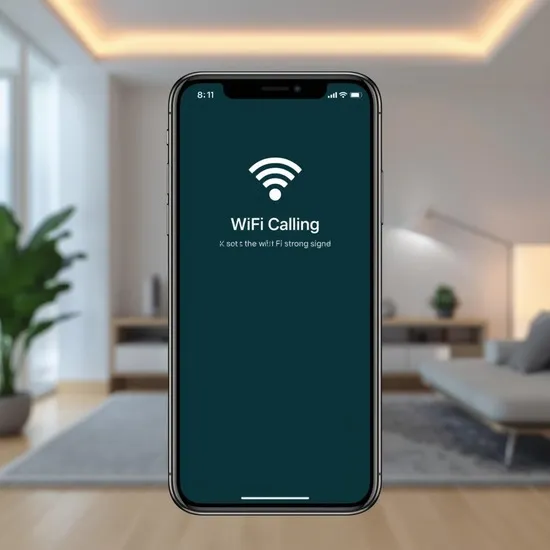
I rely on Wi-Fi Calling to stay connected, especially when my cellular signal is just a ghost of a bar. So when it suddenly stops working on my iPhone, it’s more than a little frustrating. That little “Wi-Fi” tag next to the carrier name is a lifeline, and when it disappears, calls drop or won’t connect at all.
If you’re here, you’re probably staring at your phone wondering why this handy feature has decided to take a break. The good news? I’ve been through this, and it’s almost always something simple we can fix ourselves. Let’s walk through the most effective solutions, step by step.
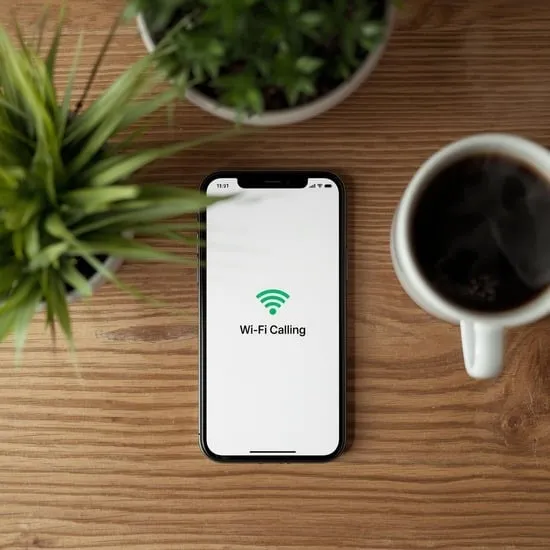
1. First, Check the Obvious: Is Wi-Fi Calling Even On?
It sounds silly, but sometimes settings get changed without us realizing. A software update or even a random glitch can toggle Wi-Fi Calling off. This is always my first stop.
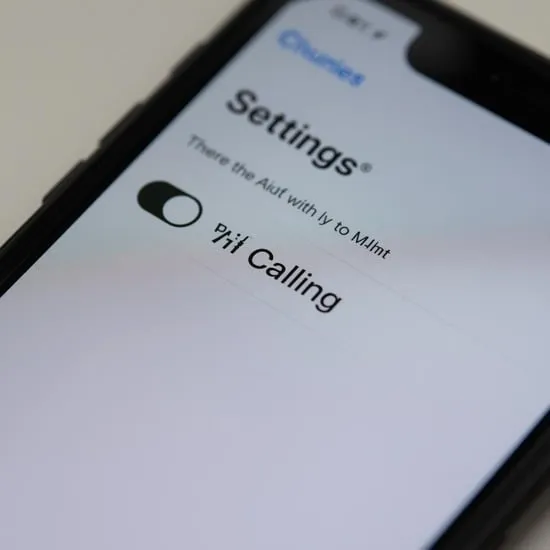
Go to Settings > Phone > Wi-Fi Calling. Make sure the main “Wi-Fi Calling on This iPhone” switch is green and on. If it was off, turn it on and give your phone a minute to re-register with your carrier.
While you’re here, also check that your emergency address is correctly listed. Some carriers require this to be up-to-date for the feature to activate properly.
2. Toggle Airplane Mode On & Off
This is my go-to magic trick for almost any network issue. It resets all your iPhone’s radios—cellular, Wi-Fi, and Bluetooth—in one quick move.
Swipe into your Control Center and tap the airplane icon. Wait a solid 15 seconds, then tap it again to turn it off. Let your phone reconnect to your Wi-Fi network. Often, this simple refresh is all it takes for the Wi-Fi Calling icon to pop right back up.
3. Reboot Your iPhone and Your Router
Never underestimate the power of turning things off and on again. Start with your iPhone: a full restart clears out minor software hiccups.
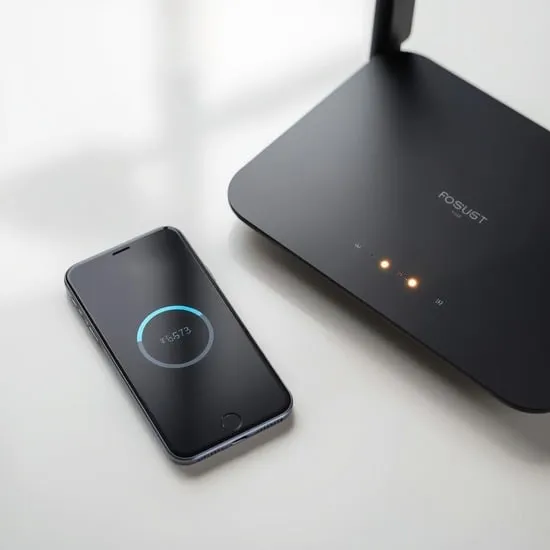
If that doesn’t do it, move to your router. Unplug it from power for 30 seconds, then plug it back in. Wait for it to fully reboot and for your iPhone to reconnect. An old router or one that’s been running for weeks can cause all sorts of connection weirdness.
4. Forget and Re-Join Your Wi-Fi Network
Your iPhone might be connected to Wi-Fi, but the connection could be unstable or configured in a way that blocks Wi-Fi Calling. Let’s start fresh.
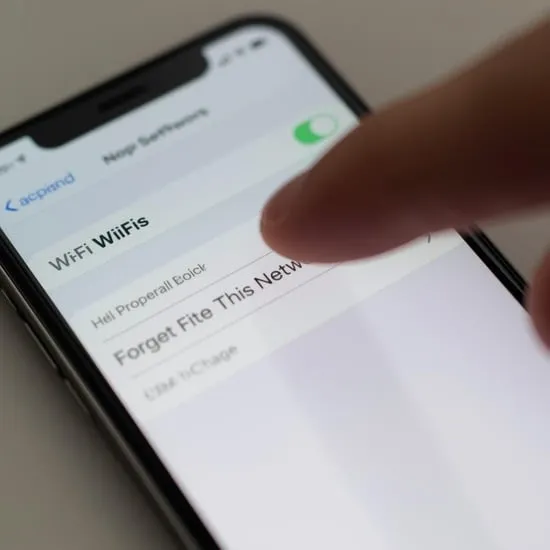
Go to Settings > Wi-Fi, tap the “i” icon next to your network name, and select “Forget This Network.” Confirm, then search for the network again, re-enter the password, and reconnect. This establishes a clean connection.
5. Check for a Carrier Settings Update
Your carrier occasionally sends small updates that fine-tune network features like Wi-Fi Calling. These install silently, but sometimes they need a prompt.
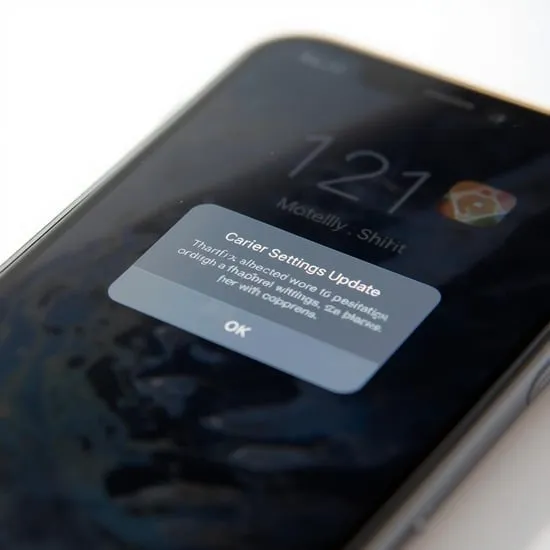
Go to Settings > General > About. If a carrier update is available, a pop-up will appear. If not, try turning Airplane Mode on for a minute, then off, and check again. Keeping this updated is crucial.
6. Verify Your Carrier Supports It & It’s Enabled on Your Account
Wi-Fi Calling must be supported by your carrier *and* activated on your specific line. Most major carriers do, but it’s worth confirming.
I once spent an hour troubleshooting only to realize it wasn’t enabled on my account! The quickest way to check is to log into your carrier account online or give them a quick call. They can flip the switch on their end if needed.
7. Disable Any VPN or Content Blocker
VPNs and Safari content blockers are great for privacy, but they can interfere with the special connection Wi-Fi Calling needs to your carrier.
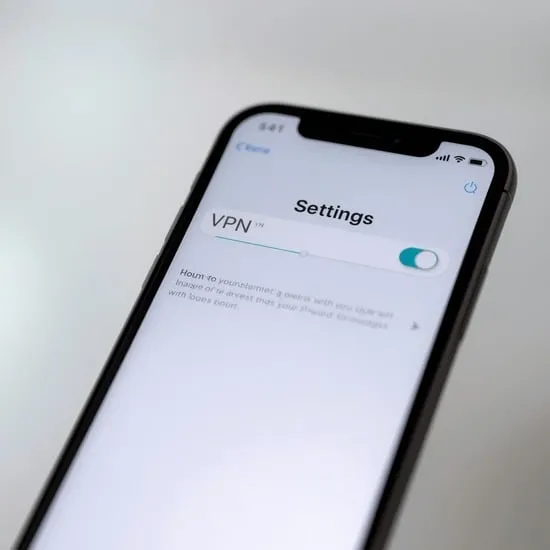
Try temporarily turning off your VPN in its app or in Settings > General > VPN & Device Management. Also, check Settings > Safari > Extensions to disable content blockers. See if Wi-Fi Calling returns. If it does, you know the culprit.
8. Reset Your Network Settings
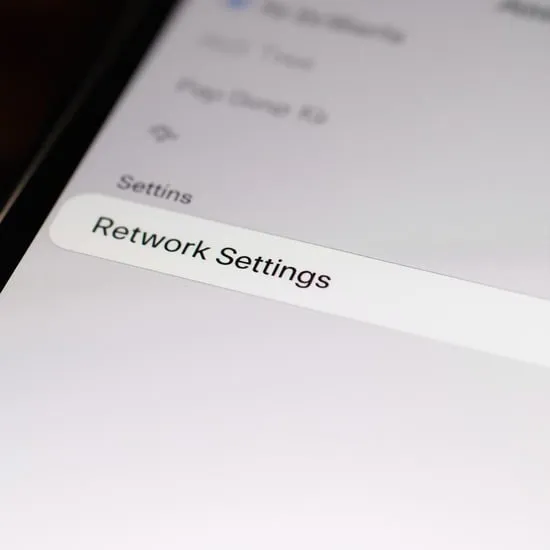
This is a bigger step, but it fixes a multitude of sins. It will erase all saved Wi-Fi networks, passwords, cellular settings, and VPN configurations. You’ll have to re-join Wi-Fi networks afterward.
Go to Settings > General > Transfer or Reset iPhone > Reset. Then choose “Reset Network Settings.” Your phone will restart. This often clears deep-seated glitches preventing Wi-Fi Calling from working.
9. Ensure iOS is Up to Date
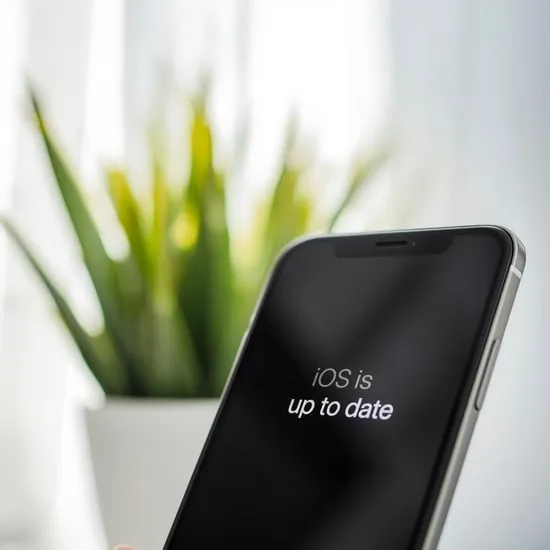
Apple frequently releases iOS updates that include bug fixes for connectivity issues. An outdated version could be the root of your problem.
Head to Settings > General > Software Update. If an update is available, install it. It’s best to do this while connected to Wi-Fi and plugged into power. Many Wi-Fi Calling gremlins have been squashed in past updates.
10. Last Resort: Contact Your Carrier or Apple Support
If you’ve tried everything and that “Wi-Fi” tag is still MIA, it’s time to call in the experts. There might be a service outage in your area or an account-specific issue only they can see.
Contact your carrier’s support first. If they confirm everything is fine on their end, then reach out to Apple Support. There’s a small chance it could be a hardware issue with your iPhone’s antennas.
Conclusion
Getting Wi-Fi Calling back is usually a matter of methodically checking a few settings and connections. Start with the simple toggles and reboots, then move to the more involved steps like resetting network settings. I’ve found that 90% of the time, it’s fixed by step 4 or 5. Persistence pays off!
Quick FAQ
Q: Why does my Wi-Fi Calling keep turning off?
A: It’s often due to an unstable Wi-Fi connection, a carrier settings glitch, or a minor iOS bug. The steps above, especially updating software and resetting network settings, usually stop this.
Q: Can I use Wi-Fi Calling internationally?
A: Yes! That’s one of its best features. As long as you’re connected to Wi-Fi, you can make and receive calls as if you were back home, often avoiding international roaming charges. Check with your carrier for specifics.
Q: Why does Wi-Fi Calling say “Calling using cellular network” instead?
A: Your iPhone will automatically switch to cellular if the Wi-Fi signal is weak or unstable. It prioritizes the best available connection to ensure call quality.
Q: Does Wi-Fi Calling use my data plan?
A> No, it doesn’t count against your cellular data. It uses your internet connection (Wi-Fi or, if enabled, cellular data in an emergency), but it’s considered a call, not data usage.
Q: I don’t see the Wi-Fi Calling option at all in Settings. Why?
A: This usually means your carrier doesn’t support it, it’s not enabled on your account, or you have an older iPhone model that doesn’t support the feature. Check with your carrier first.