My Apple Watch Froze on the Apple Logo—Here’s How I Fixed It
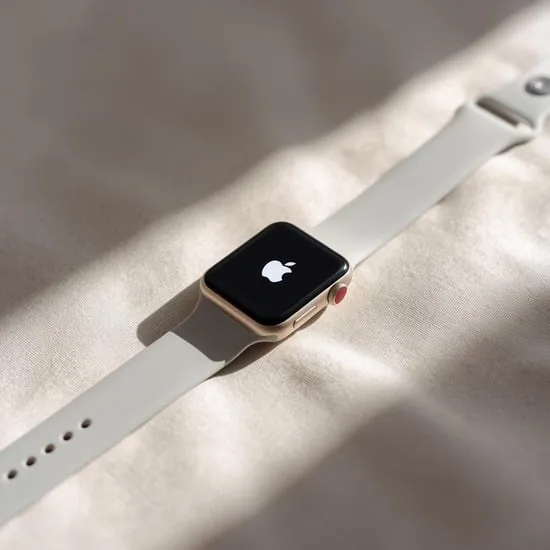
I was getting ready for a morning run when I saw it: my Apple Watch was stuck on the glowing Apple logo. The screen wouldn’t budge. Panic set in for a second—was all my data gone? Was it broken for good?
After a deep breath, I started troubleshooting. Turns out, this “Apple logo loop” is a surprisingly common hiccup. It’s usually a software glitch, not a hardware death sentence. I tried everything from simple restarts to more involved resets.
In this guide, I’m sharing the exact steps that worked for me and others. You don’t need to be a tech wizard. Most fixes take just a few minutes. Let’s get your watch back on your wrist where it belongs.
1. First, Try a Simple Force Restart
This is always step one. It’s like giving your watch a quick nap to clear its head. A force restart doesn’t delete any data or settings. It just forces the system to reboot from scratch, which can knock it out of that frozen state.
Here’s how to do it: Press and hold both the side button and the Digital Crown at the same time. Keep holding them for at least 10 seconds, until you see the Apple logo appear and then disappear. Release the buttons when you see the black screen with the white logo. Wait for it to fully restart.
If the logo comes back and the watch boots up normally, you’re done! If it gets stuck on the logo again, don’t worry. Move on to the next step.
2. Put It on the Charger & Be Patient
Sometimes, the issue is simpler than we think: a dead or critically low battery. If the battery is completely drained, the watch might not have enough power to complete its startup process, causing it to hang on the logo.
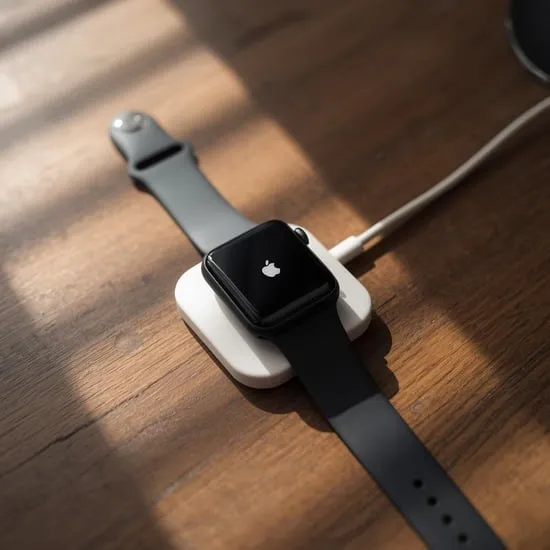
Place your watch on its magnetic charger. Make sure the charger is plugged into a working power outlet and the cable is snug. Let it charge for at least 30 minutes to an hour. Don’t try to restart it during this time.
After a good charge, try the force restart again (Side button + Digital Crown for 10+ seconds). The combination of fresh power and a reboot often does the trick.
3. The “Double Press” Method for Unresponsive Buttons
If the buttons feel unresponsive during a force restart, there’s a little trick. I found this worked when my watch was being stubborn. It helps engage the system more deeply.
- Press and release the side button quickly.
- Then, immediately press and hold both the side button and Digital Crown together for 10 seconds.
That initial quick press can sometimes “wake up” the button commands. It’s a small nuance, but it made a difference for me when the standard hold wasn’t working.
4. Force Restart from a Computer (For Older Watches)
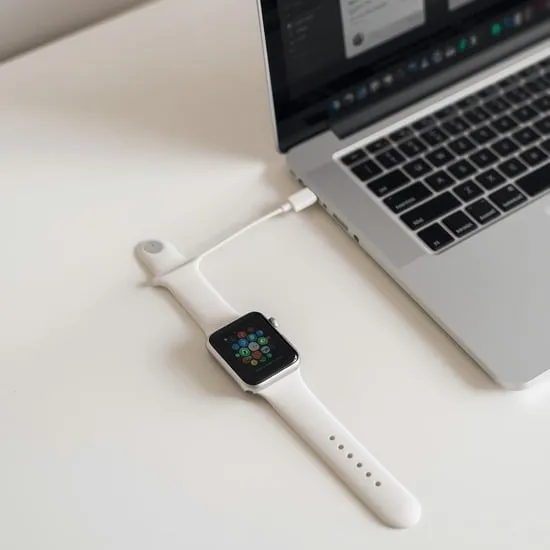
This is a lesser-known method for older Apple Watch models (Series 3 and earlier). If you have the original magnetic charging cable that plugs into a USB port, you can use it to force a restart.
Connect the watch’s charger to your computer’s USB port. Then, press and hold both the side button and Digital Crown while it’s connected to this power source from the computer. Hold for at least 10 seconds until the logo reappears.
The stable power from the computer can provide a cleaner reboot environment. It’s a great backup plan if the regular charger method didn’t work.
5. Enter Recovery Mode & Repair with iPhone
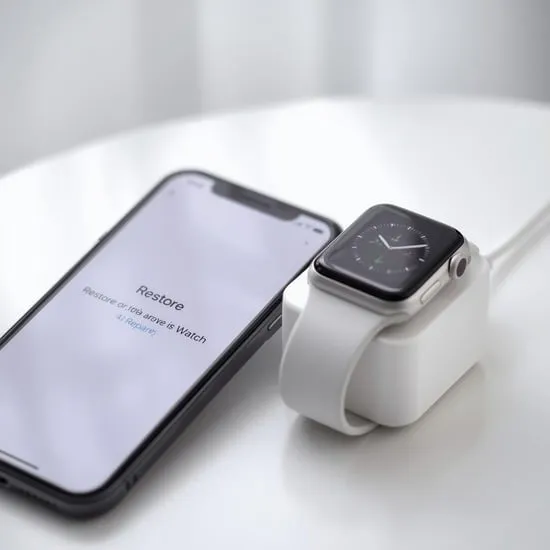
When a restart isn’t enough, Recovery Mode is the next step. This lets your iPhone reinstall the watchOS software without erasing your data—if possible. Think of it as a repair operation.
Place your watch on its charger. Open the Watch app on your iPhone and go to General > Software Update. If an update is available, try to install it. The app might detect the stuck watch and prompt you to start a repair.
Follow the on-screen instructions on your iPhone. It will guide you through putting the watch into recovery mode (usually involving holding the side button) and then reinstalling the software. This process can take a while.
6. The Full Factory Reset (Erase All Content)
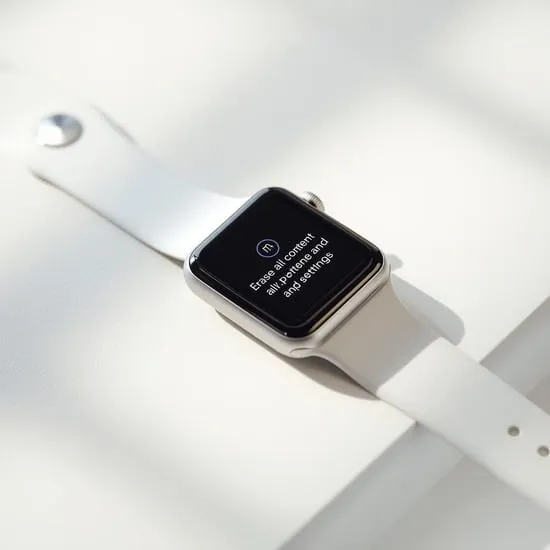
Warning: This will erase everything on your watch. Only try this if you have a recent backup or don’t mind starting fresh. This is the nuclear option to clear any corrupted software causing the boot loop.
You’ll need to use the buttons since the screen is stuck. Quickly press the side button, then press it again to open the Power Off slider. Firmly press the “Power Off” slider (don’t just tap), then tap “Erase all content and settings.”
If you can’t get to that menu, you may need to erase it from your iPhone’s Watch app or via iCloud.com. After the erase, you can pair it as a new watch or restore from a backup.
7. Check for Pending Software Updates
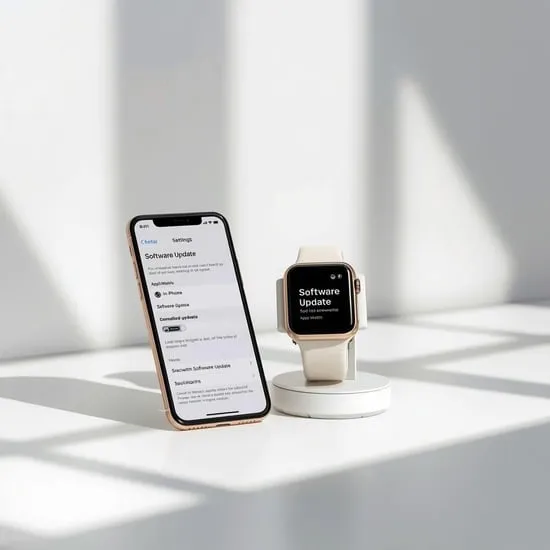
A failed or interrupted software update is a prime suspect for a boot loop. Sometimes the watch gets stuck trying to finalize an update. We need to check this from the paired iPhone.
On your iPhone, open the Watch app. Tap General > Software Update. If there’s an update pending or failed, you might see an option to retry or install. Make sure your iPhone is on Wi-Fi and connected to power.
If an update is available, try to install it. The process might force the watch out of its frozen state to complete the installation. Keep both devices close and on their chargers.
8. Unpair and Re-pair Your Watch from iPhone
Unpairing is a more thorough reset than just erasing the watch. It severs the connection with your iPhone and creates a fresh backup in the process. This often resolves deep software conflicts.
Open the Watch app on your iPhone, tap “All Watches,” then tap the “i” icon next to your stuck watch. Tap “Unpair Apple Watch.” Confirm. Even if the watch is stuck, this process can sometimes trigger a reset on the watch itself.
After unpairing, restart your iPhone. Then, begin the pairing process again by holding the watch’s side button near your iPhone. You can choose to set it up as new or restore from the backup you just made.
9. Let the Battery Drain Completely
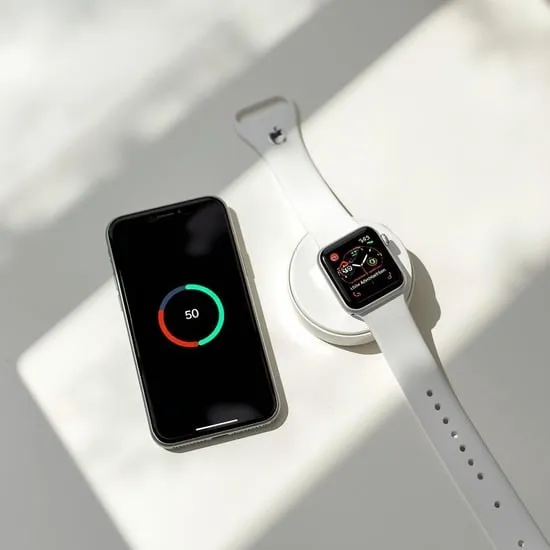
If all else fails, a full, natural battery drain can act as a hard reset. When the watch powers off on its own from zero battery, it can clear temporary system errors that a forced restart can’t.
Take the watch off the charger and leave it alone. Let it sit until the screen goes completely black and it shows no signs of life—this could take a day or two. Be patient.
Once it’s fully dead, place it on the charger and let it power up naturally. Don’t press any buttons. This slow, natural reboot has solved some of the most stubborn logo loops for me.
10. When to Contact Apple Support
If you’ve tried every software fix here and your watch is still stuck, it might be a hardware issue. This isn’t common, but it happens. Potential culprits could be a faulty logic board or a damaged battery.
Before you call, note your watch model and serial number (it’s on the original box or in the iPhone Watch app under General > About). Be ready to describe all the steps you’ve already tried.
You can contact Apple Support via their website, the Support app, or by visiting an Apple Store. If your watch is under warranty or AppleCare+, a repair or replacement might be covered.

Conclusion & Final Thoughts
Getting stuck on the Apple logo is frustrating, but it’s rarely permanent. In my experience, the force restart or the charger method fixes it 90% of the time. Always start simple and work your way to the more involved resets.
The key is not to panic. Your data is likely safe, especially if you have regular iCloud backups. Work through these steps methodically. One of them will almost certainly get your watch ticking again. Now, go enjoy that workout tracking!
Quick FAQ: Apple Watch Stuck on Logo
Q: Will I lose my data if I force restart?
A: No! A force restart does not erase any data. It’s completely safe.
Q: How long should I let it charge before trying again?
A> Give it a solid 30-60 minutes on the charger to ensure it has enough power to boot properly.
Q: My buttons aren’t working. What now?
A> Try the “double press” method or let the battery drain completely. Both can work around unresponsive buttons.
Q: Can a recent update cause this?
A> Yes. A failed or corrupted software update is a common cause. Using Recovery Mode to reinstall the software often fixes it.
Q: Is this a sign my watch is dying?
A> Usually not. It’s almost always a software glitch. Only consider hardware failure if none of the software fixes work.