How to Delete Apps on Apple Watch: A Clean & Simple Guide
I love my Apple Watch, but sometimes it feels a little cluttered. Apps I downloaded for a one-time use or that I never open start to fill up my app grid, making it harder to find the tools I actually need every day.
Freeing up that space is easier than you might think. Whether you want to remove a built-in Apple app or something you downloaded from the App Store, I’ll walk you through every method. Let’s tidy up your watch face and make your device feel fresh and focused again.
Here are the best ways to manage your apps, directly from your wrist or your paired iPhone.
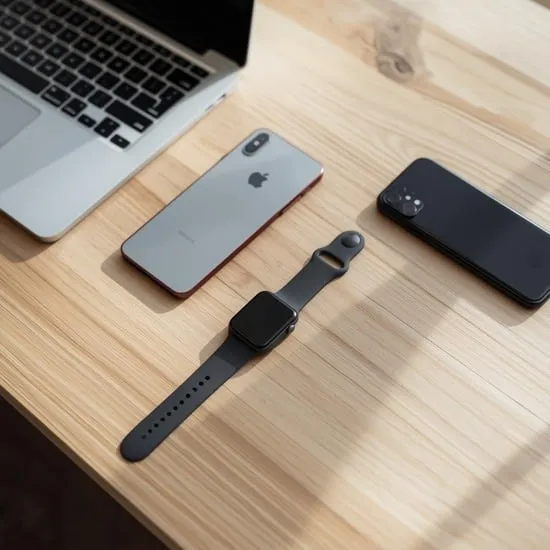
1. Delete Directly from Your Watch Face
This is my go-to method for quick clean-ups. If you can see the app icon on your watch’s Home Screen, you can remove it in just a few seconds.
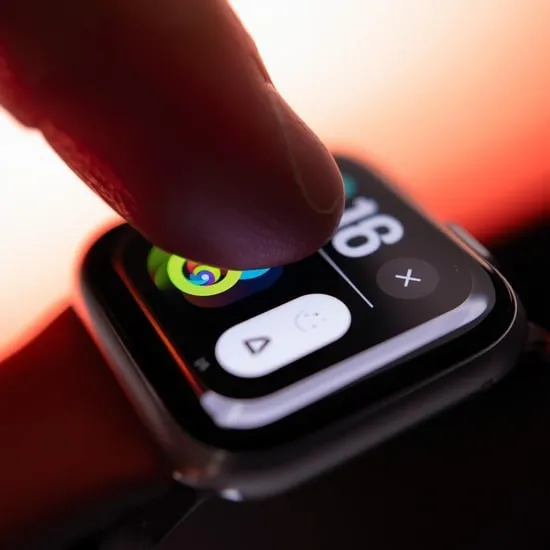
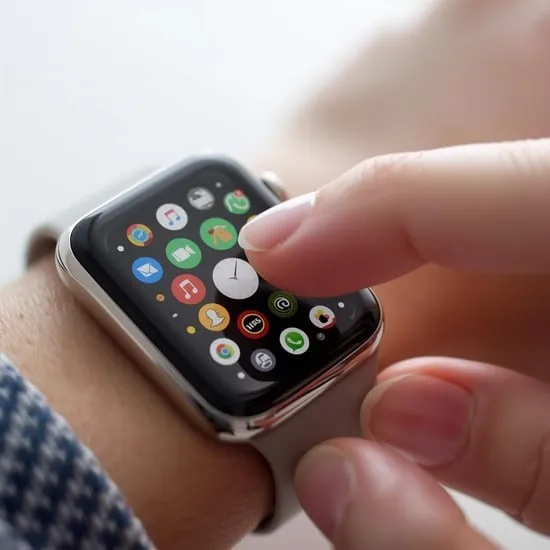
First, press the Digital Crown to see all your apps. Find the one you want to remove. Press and hold its icon firmly until all the icons start to jiggle—just like on your iPhone.
You’ll see a small “X” appear in the corner of some app icons. Tap that “X” and confirm “Delete App.” The app will vanish from your watch instantly. Press the Digital Crown again to exit edit mode.
2. Use the Settings App on Your Watch
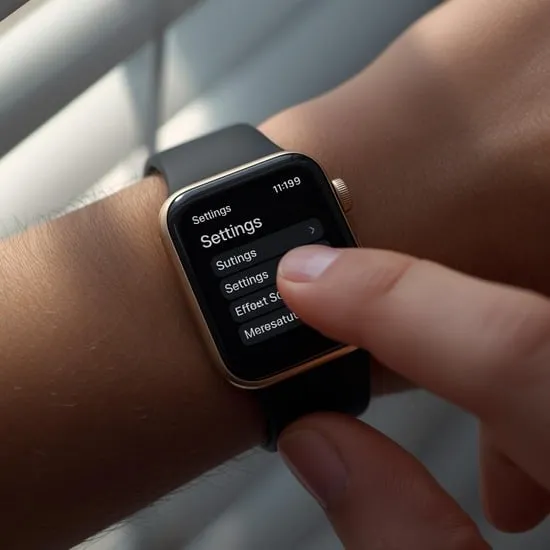
Can’t find the app on your grid? No problem. The Settings app on your watch is a powerful hub for managing everything, including storage.
Open Settings on your Apple Watch, then tap General > Storage. You’ll see a list of all installed apps, sorted by how much space they use.
Tap the app name you want to remove. On the next screen, tap Delete App and confirm. This is perfect for finding and removing space-hogging apps you might have forgotten about.
3. Uninstall from the Paired iPhone’s Watch App
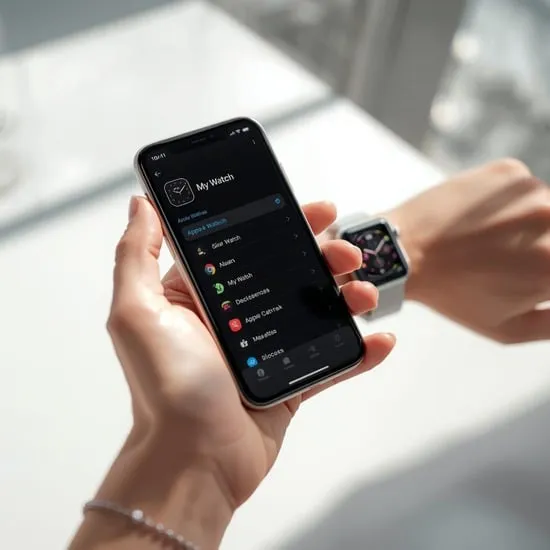
Sometimes, it’s easier to manage things from the bigger screen of your iPhone. The Watch app is your command center.
Open the Watch app on your iPhone and go to the My Watch tab. Scroll down to see the list of Installed on Apple Watch apps.
Find the app you want to remove and toggle its switch off (gray). This immediately uninstalls it from your watch, but keeps it on your iPhone if you want to reinstall it later.
4. Remove Built-in Apple Apps You Don’t Use
Yes, you can remove some of Apple’s own apps! Think Mail, Stocks, or Voice Memos. This helps declutter if you never open them.
The process is exactly the same as deleting any other app. On your watch’s Home Screen, press and hold the built-in app’s icon until it jiggles and tap the “X.”
Don’t worry—you can always get them back for free from the App Store on your watch if you change your mind. It’s a reversible way to customize your device to your lifestyle.
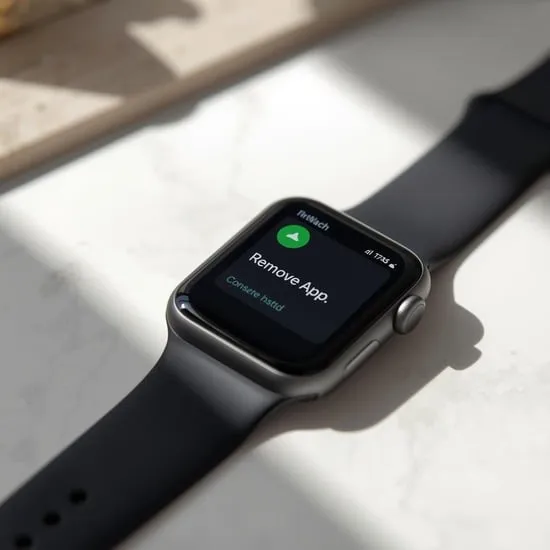
5. Delete Apps from the App Library (watchOS 7+)
If you use list view or have a very full app grid, finding a specific icon can be tricky. The App Library, introduced in watchOS 7, offers another way.
Scroll to the bottom of your app list or grid and tap App Library. Here, you can browse all your apps in a categorized list.
Simply swipe left on any app name and tap the red Delete button. It’s a clean, list-based method that feels very intuitive.
6. Free Up Space by Removing Large Apps First
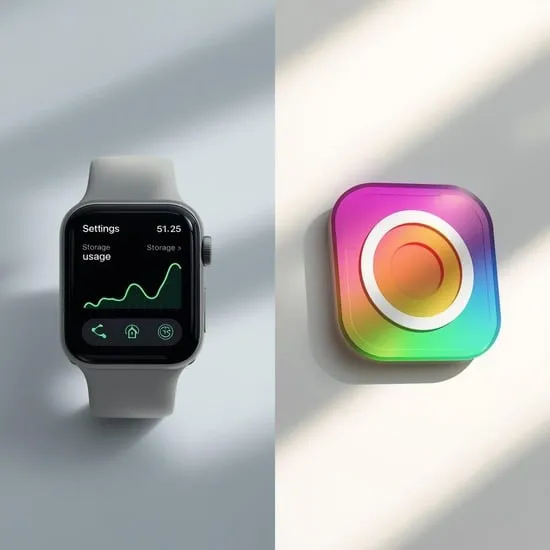
If your goal is to reclaim storage, target the biggest apps first. You can see exactly what’s taking up room right on your wrist.
Head to Settings > General > Storage on your Apple Watch. The list shows apps from largest to smallest.
I start at the top. Deleting one or two large workout, music, or podcast apps can free up gigabytes instantly, making room for new photos or music.
7. Reinstall Deleted Apps Easily
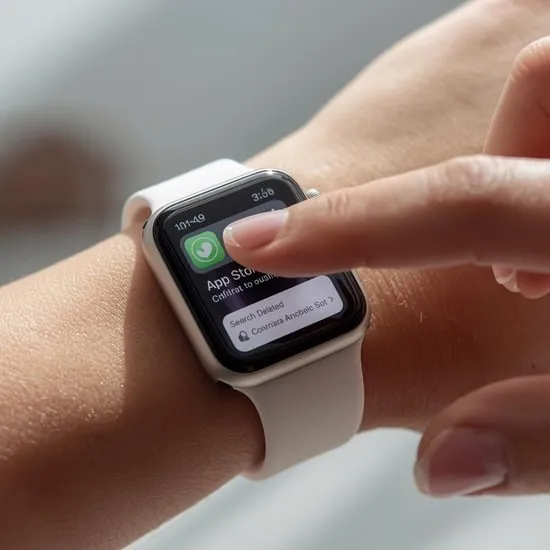
Changed your mind? Reinstalling an app you’ve deleted is simple. If it was a downloaded app, just visit the App Store on your Apple Watch.
Tap the Search icon (magnifying glass) and find the app again, then tap the download (cloud) icon. For built-in Apple apps, search for the app name (like “Mail”) in the App Store—they’ll be available to download at no cost.
Any app you toggle back on in the iPhone Watch app will also reinstall automatically.
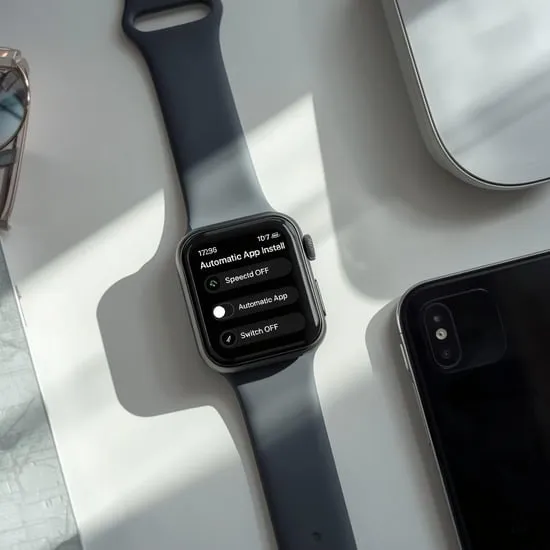
8. Manage Automatic App Installs
Frustrated by apps appearing on your watch without asking? This is likely due to automatic installation. You can take control.
On your iPhone, open the Watch app and go to General > Automatic App Install. Toggle this off.
With this setting disabled, new apps you download on your iPhone will stay on your iPhone unless you manually choose to install them on your watch. It’s a game-changer for keeping things tidy.
9. Reset & Start Fresh (Last Resort)
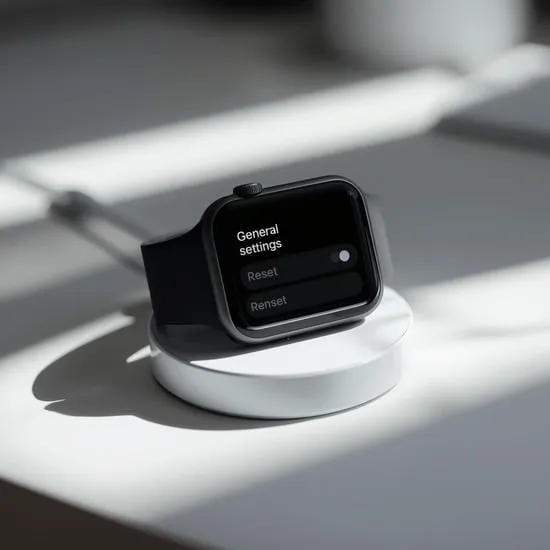
If you want to wipe everything and start over, you can erase all content and settings. This will delete every app and all data from your watch.
Go to Settings > General > Reset on your Apple Watch. Tap Erase All Content and Settings.
Remember, this is a full reset. You’ll need to pair your watch with your iPhone again and set it up as new or from a backup. Use this only for a major clean slate or before selling your watch.
10. Keep Your Home Screen Organized
Deleting apps is half the battle—keeping them organized is the other. After a cleanup, take a moment to arrange your favorites.
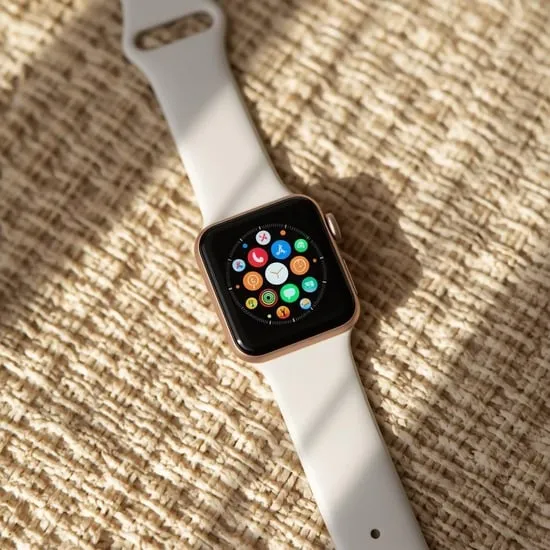
On the watch Home Screen, press and hold an icon to enter jiggle mode. Then, you can drag apps around, group them, or move your most-used ones to the center for easy access.
I love creating little zones: fitness apps together, utilities in another spot. It makes my watch feel personal and efficient.
And that’s it! Managing apps on your Apple Watch is all about knowing these few simple tricks. A quick declutter every few months keeps your watch feeling fast, organized, and truly yours. Start with one method and see how much cleaner your digital wrist feels.
Quick FAQ
Q: Why don’t some apps show the “X” when they jiggle?
A: Core system apps (like Phone or Messages) and any currently running apps won’t show the “X.” For others, try deleting from the iPhone Watch app.
Q: Does deleting an app from my watch delete it from my iPhone?
A: No, it only removes it from your watch. The app and its data remain safe on your iPhone.
Q: How do I delete multiple apps quickly?
A: There’s no multi-select, but using the iPhone Watch app is fastest. You can toggle off several apps in a row without going back and forth.
Q: Will I lose my data (like workout history)?
A: For most health and Apple apps, data syncs to your iPhone and iCloud. Deleting the watch app won’t erase that synced history. Always check the specific app’s details.
Q: My watch storage is still full after deleting apps. Why?
A: Check other storage like music, podcasts, and photos. Go to Settings > General > Storage on your watch to see a full breakdown.