My Apple TV Remote Stopped Working—Here’s Exactly What I Did to Fix It
There’s nothing more frustrating than settling in for a movie night and finding your Apple TV remote completely unresponsive. I’ve been there—pressing buttons, shaking the remote, even changing the batteries, with nothing happening on the screen. It feels like a tiny, expensive brick in your hand.
Before you consider buying a new one, take a deep breath. In my experience, the remote is rarely “broken.” It’s usually a simple glitch, a setting, or just needs a little reset. I’ve fixed mine more times than I can count, and I’m sharing all the steps that actually work.
This guide walks you through the ten most effective fixes, from the simplest battery check to the slightly more involved resets. Let’s get your remote—and your streaming—back on track.
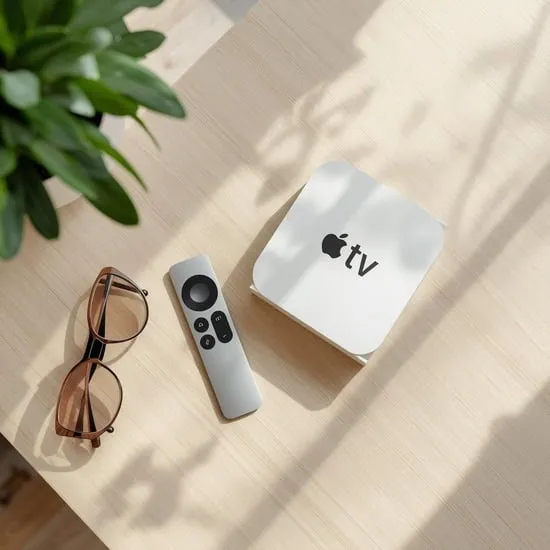
1. The Obvious First Step: Check & Replace the Batteries
It sounds too simple, but this is the most common culprit. The remote might still light up with low power, but it won’t send a reliable signal. I always start here.
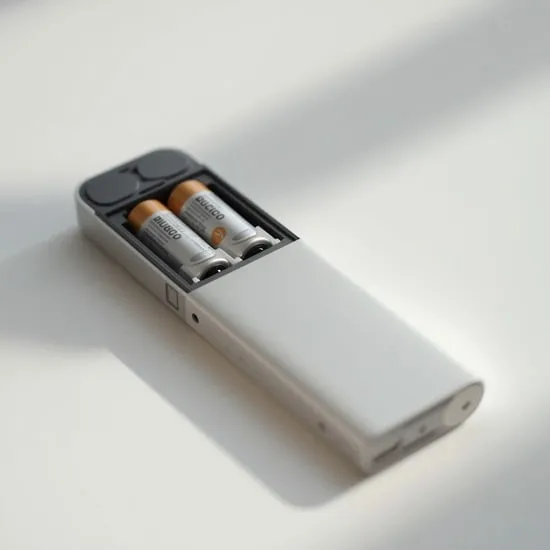
Pop open the battery compartment on your Siri Remote (the silver one slides off at the bottom) and take the batteries out. Check for any corrosion—those little white or green flakes. If you see any, clean the contacts gently with a cotton swab dipped in a tiny bit of vinegar or rubbing alcohol.
Then, put in a fresh set of batteries. Don’t just reuse old ones from another device; use brand new ones to be sure. Close it up and give it a try.
2. Give Your Apple TV a Quick Reboot
Sometimes the issue isn’t the remote at all—it’s the Apple TV itself. A quick reboot can clear out any temporary software bugs that are causing the communication to fail.
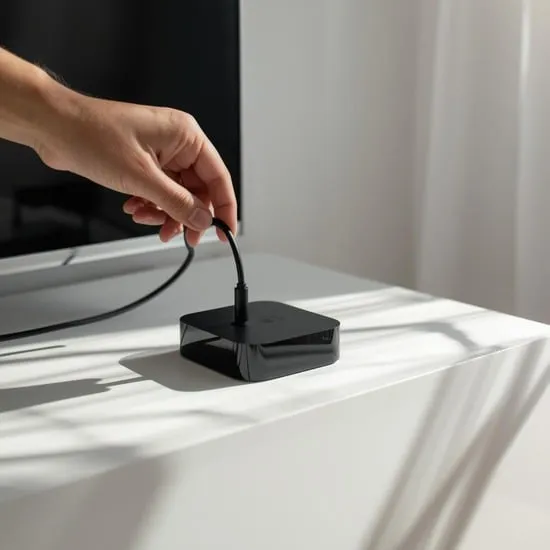
You can do this even without the remote! Just unplug the power cable from the back of your Apple TV or from the wall outlet. Wait a full 30 seconds. This lets the device fully power down and clear its memory.
Then, plug it back in. Wait for the white light on the front to come on and for your TV screen to show the home screen. Now try the remote again. This fixes the problem for me about half the time.
3. Re-Pair Your Remote to the Apple TV
Think of this like re-introducing two friends who have forgotten each other. The remote and Apple TV need to be paired via Bluetooth. If that connection is weak or lost, they won’t talk.
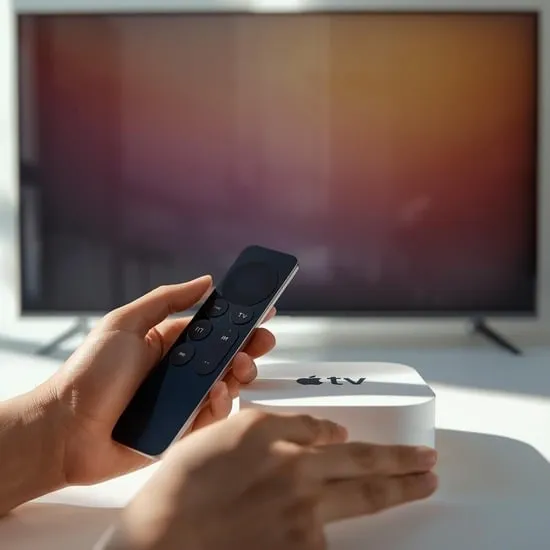
To re-pair, hold the remote very close to your Apple TV—just a few inches away. Then, press and hold the Menu and Volume Up buttons together for about five seconds. You should see a pairing notification on your TV screen.
If that works, you’re all set! If not, don’t worry, we have more steps to try.
4. Charge Your Remote Overnight (For USB-C Models)
If you have a newer Siri Remote with a USB-C port on the bottom, it has a built-in battery. It might be completely drained, even if it doesn’t look dead.
Grab a standard USB-C cable (like the one for many Android phones or newer iPads) and plug it into a power adapter. Let it charge overnight, not just for 15 minutes. A deeply drained battery needs time to wake up.
In the morning, unplug it and try again. A full charge often brings it right back to life.
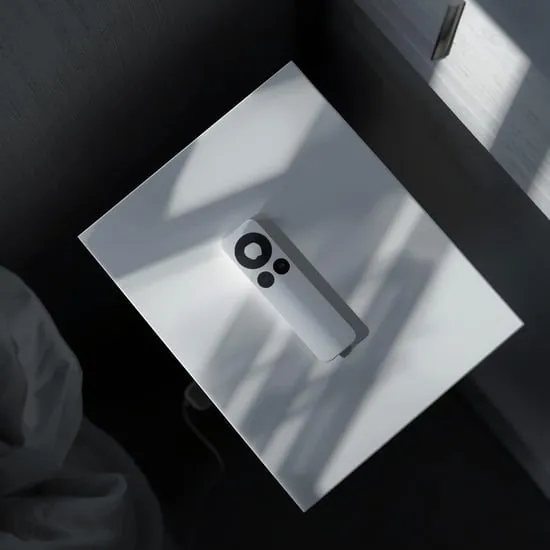
5. Clean the Remote (Seriously, It Gets Grimy)
Our hands have oils, lotions, and crumbs that build up over time. This gunk can get into the tiny spaces around the buttons and the touchpad, making it less responsive.
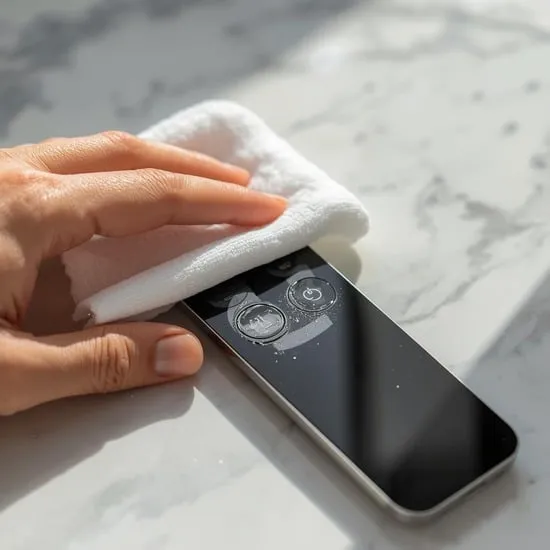
Power off the remote (take out the batteries or let it die). Dampen a soft, lint-free cloth with a little water—just barely damp, not wet. Gently wipe down the entire surface, especially the clickpad area.
Use a dry cotton swab to clean around the edges of each button. Let it dry completely before putting the batteries back in. You’ll be surprised how often this helps.
6. Check for Interference from Other Devices
Wireless signals can clash. If you have a lot of Bluetooth or wireless devices near your Apple TV—like speakers, headphones, or even a microwave—they might be interfering.
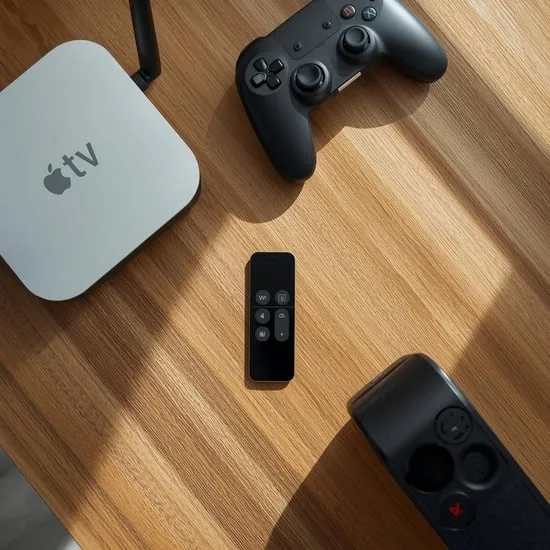
Try turning off other Bluetooth devices in the room one by one to see if the remote starts working. Also, make sure there isn’t a large metal object or another electronic device directly in front of the Apple TV, blocking the signal path.
Sometimes, simply moving a soundbar or a game console a few inches to the side can make all the difference.
7. Update Your Apple TV Software
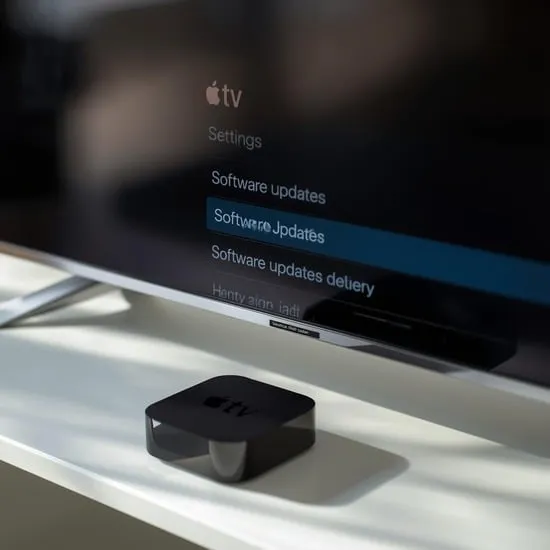
An outdated software version can cause all sorts of bugs, including remote issues. You’ll need to use the Apple TV Remote app on your iPhone to do this if your physical remote is dead.
On your iPhone, open the Apple TV Remote app (it’s pre-installed). Make sure your phone is on the same Wi-Fi network as your Apple TV. Select your Apple TV and navigate to Settings > System > Software Updates.
If an update is available, install it. This has fixed persistent remote problems for me after major tvOS updates.
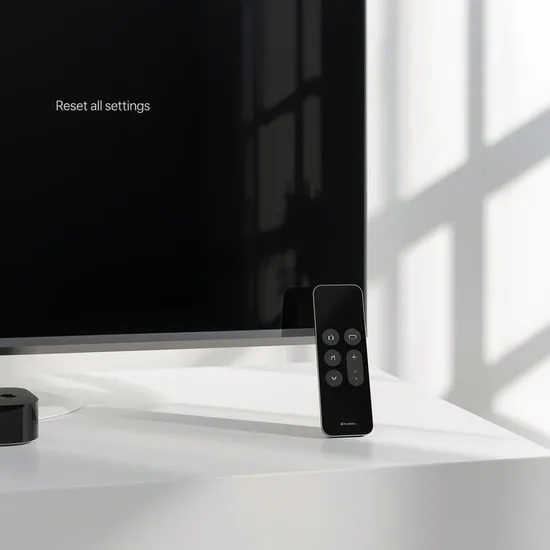
8. Reset All Settings on Your Apple TV
This is a bigger step, but it doesn’t delete your apps or log you out of most services. It just resets all system settings (like Wi-Fi, audio, and remote pairings) back to factory defaults.
Again, use the Remote app on your iPhone. Go to Settings > System > Reset. Choose “Reset All Settings.” Confirm your choice.
Your Apple TV will restart. After it boots up, you’ll need to re-pair your remote (see step 3) and re-join your Wi-Fi network, but it can solve deep-seated glitches.
9. Use Your iPhone as a Remote Immediately
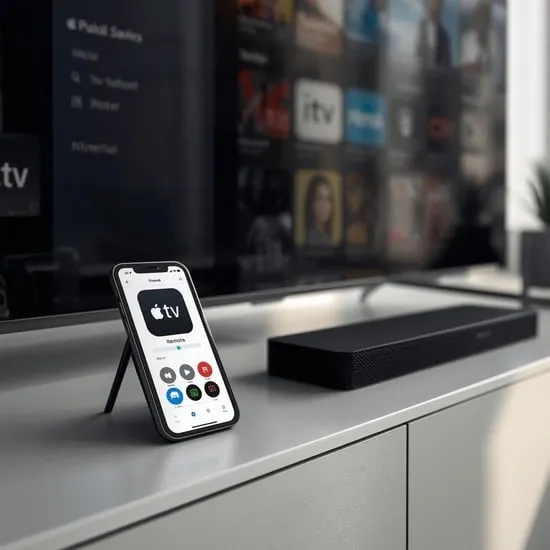
While you’re troubleshooting, you don’t have to be stuck! Your iPhone is the perfect backup remote. Open the Control Center on your iPhone and tap the Apple TV Remote icon.
Select your Apple TV. You’ll get a full virtual remote on your screen with a touchpad, menu button, and volume control. It works over Wi-Fi, so it’s perfect for navigating to settings to try other fixes or just watching your show tonight.
I use this app all the time, even when my physical remote is working, because typing with it is so much easier.
10. The Last Resort: Factory Reset Your Apple TV
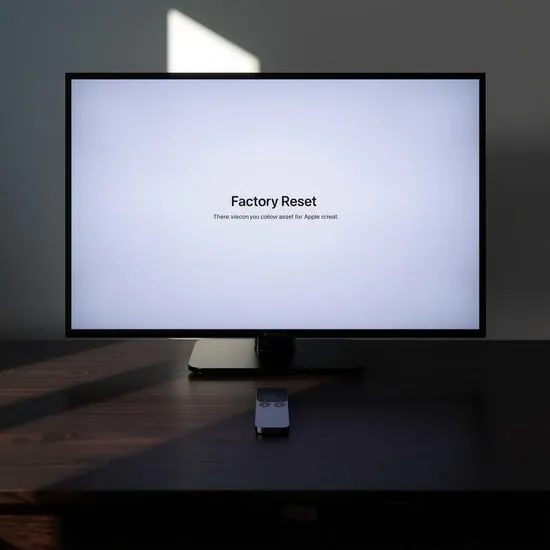
If absolutely nothing else has worked, a full factory reset is the final step. Warning: This will erase everything and restore the Apple TV to how it was when you first took it out of the box.
Using the iPhone Remote app, go to Settings > System > Reset. This time, choose “Reset and Update” or “Reset” (the most thorough option). The process will take several minutes.
After it’s done, you’ll go through the initial setup process again. Set it up as new and try pairing your remote one last time. If it still doesn’t work, the remote itself may have a hardware issue.
Wrapping It Up: Patience Saves the Day
Dealing with a non-working remote is a test of patience, but I’ve found that one of these ten solutions almost always works. The key is to start simple (batteries, reboot) and work your way down the list. Using your iPhone as a remote is a lifesaver during the process.
Remember, these devices are more resilient than they seem. A little reset or cleanup is usually all it takes. Now go enjoy that movie you’ve been waiting to watch—you’ve earned it!
Quick FAQ: Your Remote Questions, Answered
Q: My remote’s touchpad is working, but the buttons aren’t. What’s wrong?
A: This is often a software glitch. Try a reboot of the Apple TV (Step 2) first. If that fails, re-pair the remote (Step 3).
Q: Can I use a universal remote with my Apple TV?
A: Yes! Many universal remotes can be programmed to work with Apple TV. Check your remote’s manual for Apple TV codes, or use its learning function with your working iPhone remote app.
Q: The white light on my remote is blinking. What does that mean?
A: A blinking light usually means the remote is trying to pair or has very low battery. Try re-pairing it (Step 3) and/or replacing/charging the batteries (Steps 1 & 4).
Q: I dropped my remote in water. Will it ever work again?
A> Maybe! Immediately remove the batteries (if possible) and don’t try to turn it on. Place it in a bag of uncooked rice or silica gel packets for at least 48 hours to absorb moisture. Then try new batteries. There’s a chance it could recover.
Q: Is it worth buying a new remote, or should I just use my iPhone?
A> I love the convenience of the physical remote, especially for quick volume adjustments and tactile feedback. If you’ve tried all fixes and it’s truly dead, a replacement is worth it for the seamless experience. But the iPhone app is a fantastic free backup.