12 Best Content Creation Tools I Use Every Day
Let’s be real: creating amazing content can feel overwhelming. Between writing, designing, editing, and planning, it’s easy to get lost in a sea of tabs and tools. I’ve been there, wasting hours on tasks that should take minutes.
After years of trial and error, I’ve built a toolkit that saves my sanity and boosts my creativity. These are the 12 tools I genuinely rely on to produce better content, faster. Whether you’re a blogger, social media manager, or small business owner, these picks will streamline your workflow.

1. Canva: My Design Powerhouse
When I need to create stunning graphics without being a graphic designer, Canva is my go-to. Its drag-and-drop interface is incredibly intuitive. I use it for everything from Pinterest pins and Instagram stories to blog graphics and simple logos.
The vast library of templates, fonts, and stock photos (both free and premium) is a game-changer. It keeps my visual branding consistent and saves me from starting from a blank canvas every single time.

2. Grammarly: My Always-On Editor
This tool is like having a friendly editor looking over my shoulder. I use the free browser extension daily. It catches typos, suggests clearer phrasing, and helps me maintain a confident tone in everything I write, from emails to long-form blog posts.
It’s more than just a spell-checker; it helps me communicate my ideas more effectively and professionally, which is essential for building trust with my audience.
3. Trello: My Visual Content Calendar
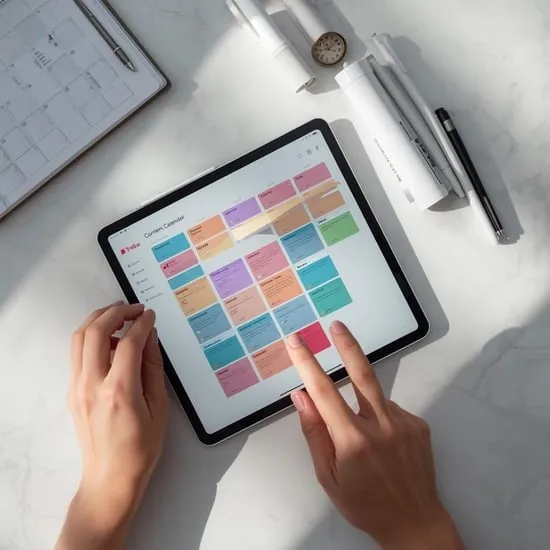
For organizing my content ideas and workflow, Trello’s board-and-card system is perfect. I create boards for each platform (like Pinterest, Blog, Instagram) and use lists for stages like “Ideas,” “To Create,” “Scheduled,” and “Published.”
I can drag and drop cards, add checklists, due dates, and labels. It gives me a crystal-clear, visual overview of my entire content plan, which keeps me focused and prevents great ideas from slipping through the cracks.
4. Later: My Social Media Scheduler
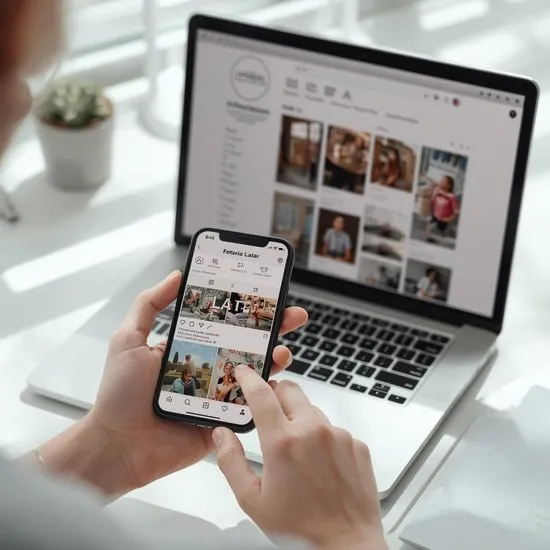
Scheduling posts visually is a huge time-saver, and Later excels at this, especially for Instagram and Pinterest. I can upload my visuals, see exactly how my feed will look, and schedule everything in advance.
Its “Linkin.bio” feature is also fantastic for turning my Instagram profile into a mini-website. This tool helps me stay consistent on social media without being glued to my phone all day.
5. Google Docs: My Collaborative Writing Hub
For any writing project, especially those involving collaboration, Google Docs is indispensable. The real-time editing, commenting, and suggestion features make feedback loops seamless.
I love that I can access my drafts from any device and that it auto-saves every change. It’s simple, reliable, and integrates perfectly with the rest of my workflow.

6. Unsplash & Pexels: My Free Image Libraries
High-quality visuals are non-negotiable, and I never run out of options with these two sites. Both offer a massive collection of beautiful, royalty-free photos contributed by talented photographers.
When I need a hero image for a blog post or a background for a graphic, I search here first. It elevates my content’s look without breaking the budget.
- Unsplash: Artistic, atmospheric shots.
- Pexels: Great for lifestyle and business imagery.
7. Loom: My Screencast & Explainer Sidekick
Sometimes, typing out an explanation is too slow. Loom lets me quickly record my screen, voice, and face to create short video messages. I use it to give feedback, explain a process, or create simple tutorial content.
It’s incredibly easy—just hit record, share the link, and you’re done. It adds a personal touch and clarity that text alone often can’t achieve.

8. Headline Studio: My Click-Worthy Title Helper
Writing headlines is hard. This tool from CoSchedule analyzes my title and gives it a score based on word balance, sentiment, and clarity. It suggests power words and common structures that perform well.
I run all my blog post titles and email subject lines through it. It’s like a workout for my headlines, making them stronger and more engaging.
9. Otter.ai: My Meeting & Brain Dump Transcriber
When I have a brilliant idea during a walk or need notes from an interview, Otter.ai is a lifesaver. It records audio and generates surprisingly accurate transcripts in real-time.
I can search the text for keywords, highlight important parts, and never lose a spoken thought again. It turns audio content into editable, usable text in minutes.
10. Notion: My All-in-One Workspace
For the days when I need one place for everything, I turn to Notion. It’s incredibly flexible. I use it as a content database, a note-taking app, a project wiki, and a personal planner.
I can create tables for my blog posts, embed Canva designs, and link related documents together. It’s the digital brain where I connect all my content dots.

11. CapCut: My Go-To Video Editor
For quick, polished video edits for Reels, TikTok, or YouTube, CapCut is my favorite. It’s powerful yet user-friendly, with tons of trendy templates, transitions, and effects.
The auto-captions feature is a massive time-saver for making accessible social videos. Best of all, the core features are completely free, which is perfect for getting started.
12. ChatGPT: My Creative Spark & Draft Assistant
I use this as a brainstorming partner and a first-draft engine. Stuck on ideas for a blog post? I’ll ask it for outlines. Need 10 variations of a social media caption? Done. It helps me overcome creative blocks quickly.
The key is to give it clear, specific prompts and then edit and refine its output with my own voice and expertise. It’s not a replacement for my creativity; it’s a catalyst for it.

Wrapping It Up
Building the right toolkit isn’t about using every shiny new app. It’s about finding the few that truly fit your workflow and solve your specific problems. These 12 tools help me create more, stress less, and keep my content looking and sounding professional.
Start by picking one or two that address your biggest pain point. Master those, and then consider adding another. The goal is to work smarter, freeing up your time and mental energy for the creative work that matters most.
Your Content Tools FAQ
Q: Are all these tools free?
A: Most have excellent free plans to get started (like Canva, Grammarly, Trello, Google Docs). Some offer premium features for power users, but you can do a lot without spending a dime.
Q: I’m just starting out. Which tool should I try first?
A: I’d start with Canva for visuals and Grammarly for writing. They have an immediate, positive impact on the quality of your content with a very gentle learning curve.
Q: How do I avoid getting overwhelmed by too many tools?
A> Focus on your process: one tool for planning (Trello), one for creation (Canva/Docs), one for editing (Grammarly). Only add a new tool when you have a repeated task that’s taking too long.
Q: Do I need a separate tool for every social media platform?
A: Not necessarily. A good multi-platform scheduler like Later can handle several key networks. Check if your chosen tool supports the platforms you focus on most.
Q: What’s the most important feature in a content tool?
A: For me, it’s time-saving. The best tool either automates a tedious task or makes a complex one so simple that I actually do it consistently.