5 Smart Ways to Reduce Data Usage on Your Android (Plus 5 Bonus Tips!)
Is your mobile data vanishing faster than your morning coffee? I’ve been there. One minute you’re casually scrolling, the next you’re hit with that dreaded “data limit” warning. It’s frustrating, especially when you’re not even sure what’s eating up all your gigabytes.
The good news is your Android phone is packed with tools to help you take control. You don’t have to stop using your favorite apps; you just need to use them smarter. As someone who’s learned to stretch a data plan, I’m sharing my top strategies to keep you connected without the surprise overages.
Let’s dive into five essential fixes and five extra-powerful tips to turn you into a data-saving pro.
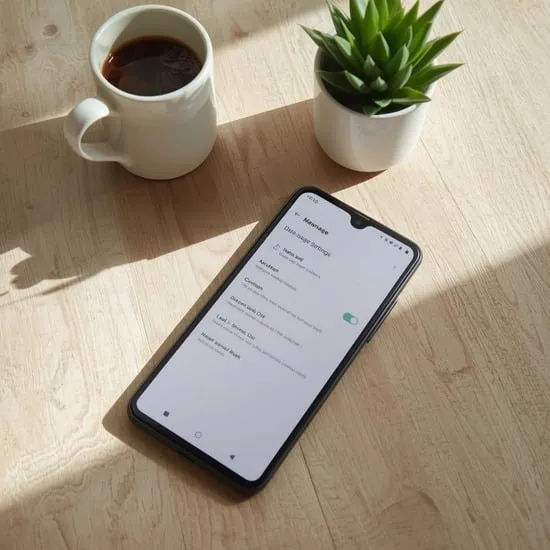
1. Find & Restrict Your Biggest Data Hogs
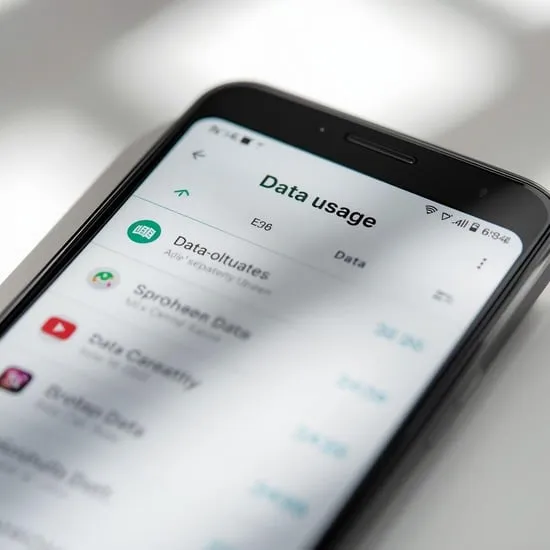
First things first: you need to see what’s actually using your data. Head to Settings > Network & internet > Data usage. Here, you’ll see a full breakdown by app. I was shocked to find a social media app I barely used was quietly updating in the background!
Tap on any app to see details and set a background data restriction. This stops the app from using data when you’re not actively using it. Do this for any non-essential apps, and you’ll see an immediate difference.
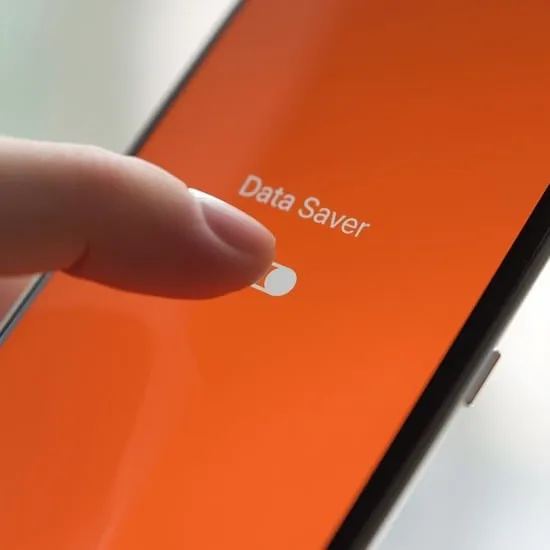
2. Turn On Data Saver Mode (Your New Best Friend)
This is the single easiest win. Data Saver mode restricts background data for almost all apps. You can find it in the same Data usage menu or even in your quick settings panel. Just swipe down and tap the icon—it’s that simple.
When enabled, most apps won’t update or send notifications unless you open them. Your messaging apps are usually whitelisted, so you won’t miss important texts. I keep mine on almost all the time; it’s a true set-and-forget lifesaver.
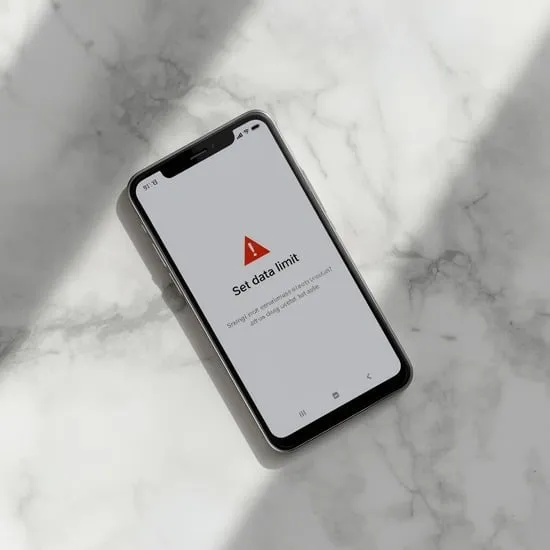
3. Set a Data Limit & Warning Alert
Don’t wait for your carrier to tell you you’re over. Your phone can do it first. In the Data usage settings, tap on “Data warning & limit.” You can set a monthly cycle and a hard limit that will actually turn off mobile data when reached.
More importantly, set a warning level—like at 75% of your plan. This gives you a heads-up to check your usage and tighten up for the rest of the month. It’s like a budget for your data, and it prevents those scary billing surprises.
4. Change Your Social Media & Video Settings
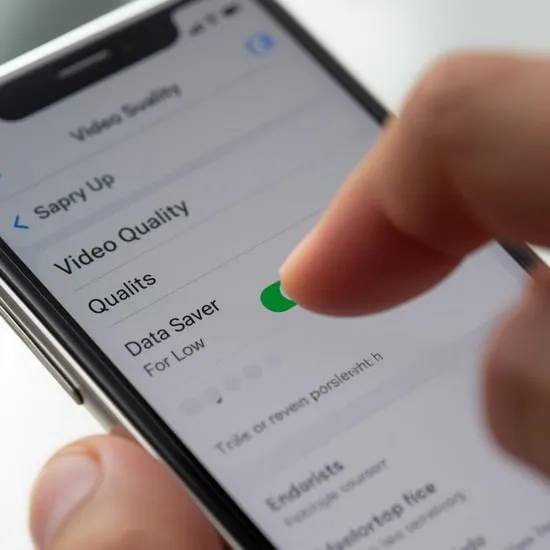
Streaming video and auto-playing social media are the biggest culprits. For apps like Instagram, Facebook, and TikTok, go into their individual settings and disable “Autoplay” or set it to “Wi-Fi Only.”
For YouTube, tap your profile picture, go to Settings > General, and turn on “Limit mobile data usage.” You can also manually choose a lower video quality when you’re out and about. A little less HD means a lot more data saved.
5. Download Content on Wi-Fi for Offline Use
This is my favorite proactive trick. When you’re on strong Wi-Fi at home or work, download what you’ll need later.
- Download Spotify playlists or podcasts.
- Download Netflix, Disney+, or Prime Video shows and movies.
- Download map areas on Google Maps for navigation without data.
It turns your phone into a self-contained entertainment and navigation hub, using zero mobile data when you’re on the go.
6. Bonus: Tame Your App Updates
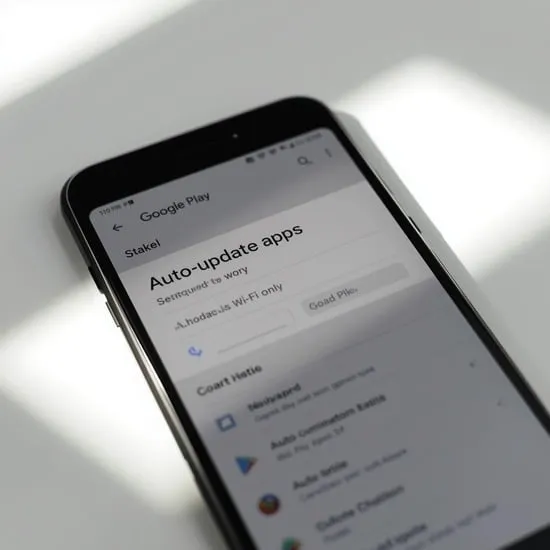
By default, the Google Play Store auto-updates apps over any network. Change this! Open the Play Store, tap your profile, go to Settings > Network preferences > Auto-update apps, and select “Over Wi-Fi only.”
This ensures those large game updates or app refreshes only happen when you’re connected to Wi-Fi, not silently chewing through your precious data allowance.
7. Bonus: Disable Cloud Backup Over Mobile Data
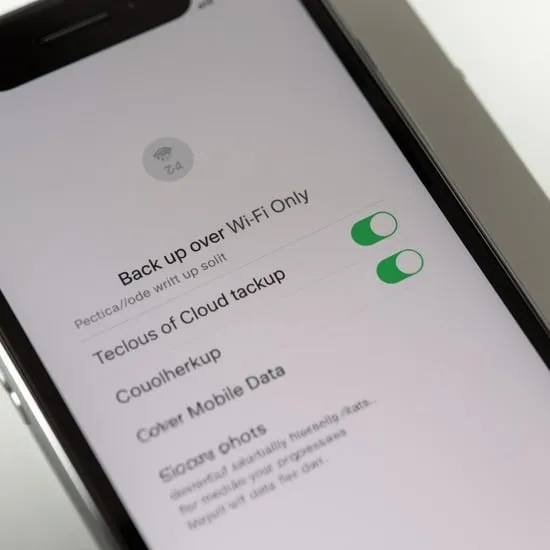
Services like Google Photos and Google Drive can be set to back up your photos and files automatically. If this happens over mobile data, it can use a massive amount. Open these apps, find their backup settings, and make sure the option for “Use cellular data to back up” is turned OFF.
Let those precious vacation photos sync only when you’re safely on a Wi-Fi connection.
8. Bonus: Use a Lite or Browser Version of Apps
Many popular apps like Facebook, Twitter, and Spotify offer “Lite” versions. These are designed to use less data, storage, and battery. They often have the core features you need without the heavy data-loading elements.
If there’s no Lite app, try using the service through your mobile browser (like Chrome) instead. The browser version is often more streamlined and data-efficient than the full app.
9. Bonus: Check for Rogue Widgets & Live Wallpapers
This is a sneaky one. Widgets on your home screen (like a news feed, weather, or email widget) constantly refresh to show new info. Each refresh uses a tiny bit of data that adds up. Consider removing non-essential widgets.
Similarly, live, animated, or weather-based wallpapers need to fetch data to update. Switching to a static wallpaper is a small change that contributes to big savings.
10. Bonus: Manually Manage Your Email Sync
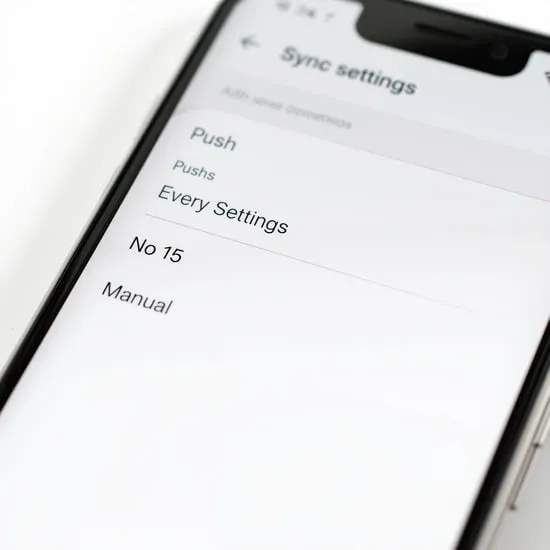
Your email app is likely checking for new messages every few minutes. Change its sync schedule. Open your email app (like Gmail), go to Settings > your account > Data usage.
Here you can change sync settings to sync less frequently (like every hour) or even switch to “manual sync” where you only check for new mail when you open the app. You’ll still get all your emails, just without the constant background polling.
Conclusion
Taking control of your Android data isn’t about deprivation; it’s about smart management. Start with the big five—checking usage, enabling Data Saver, setting limits, adjusting video settings, and downloading offline content. Then, layer in the bonus tips for maximum effect.
I promise, once you set these up, you’ll barely notice a difference in your experience but a huge difference in your data peace of mind. No more panic as the month-end approaches!
Quick Data-Saving FAQ
Q: Will Data Saver mode stop my messages from coming through?
A: No! It’s designed to restrict non-essential apps. Your default messaging app and critical services are usually whitelisted, so you’ll still get texts and important notifications.
Q: How often should I check my data usage?
A: I check mine once a week, right after setting my weekly warning. It takes 30 seconds in Settings and helps me stay on track before it’s too late.
Q: Does lowering video quality really save that much data?
A: Absolutely. Streaming in HD can use up to 3GB per hour, while standard definition may use less than 1GB. For casual watching on a small screen, the difference in enjoyment is minimal, but the data savings are huge.
Q: What’s the single most effective tip?
A> For immediate results, turn on Data Saver. For long-term control, set a data limit and warning. Combining these two gives you both automatic protection and personal awareness.
Q: I’ve done all this and still run out. What now?
A> Contact your carrier. You might genuinely need a larger plan. Alternatively, make a habit of connecting to trusted Wi-Fi networks more often, and double-check that no apps have bypassed your background data restrictions.