How to View Saved WiFi Passwords on Android Without Rooting
Ever had a guest ask for your WiFi password, and you just can’t remember it? You typed it in once years ago, and your phone has been happily connecting ever since. We’ve all been there. The good news is, you don’t need to be a tech wizard or reset your router to find it.
I used to think I needed to “root” my Android phone—a complicated process that voids warranties—just to see a simple password. Turns out, there are perfectly safe, non-technical ways to do it. This guide is all about those simple methods. Whether you want to share the password or just note it down for yourself, I’ll show you how.
Let’s walk through the easiest, most reliable ways to reveal those hidden WiFi keys. No special permissions or scary procedures required.

1. Use Your Phone’s Built-In QR Code Share Feature
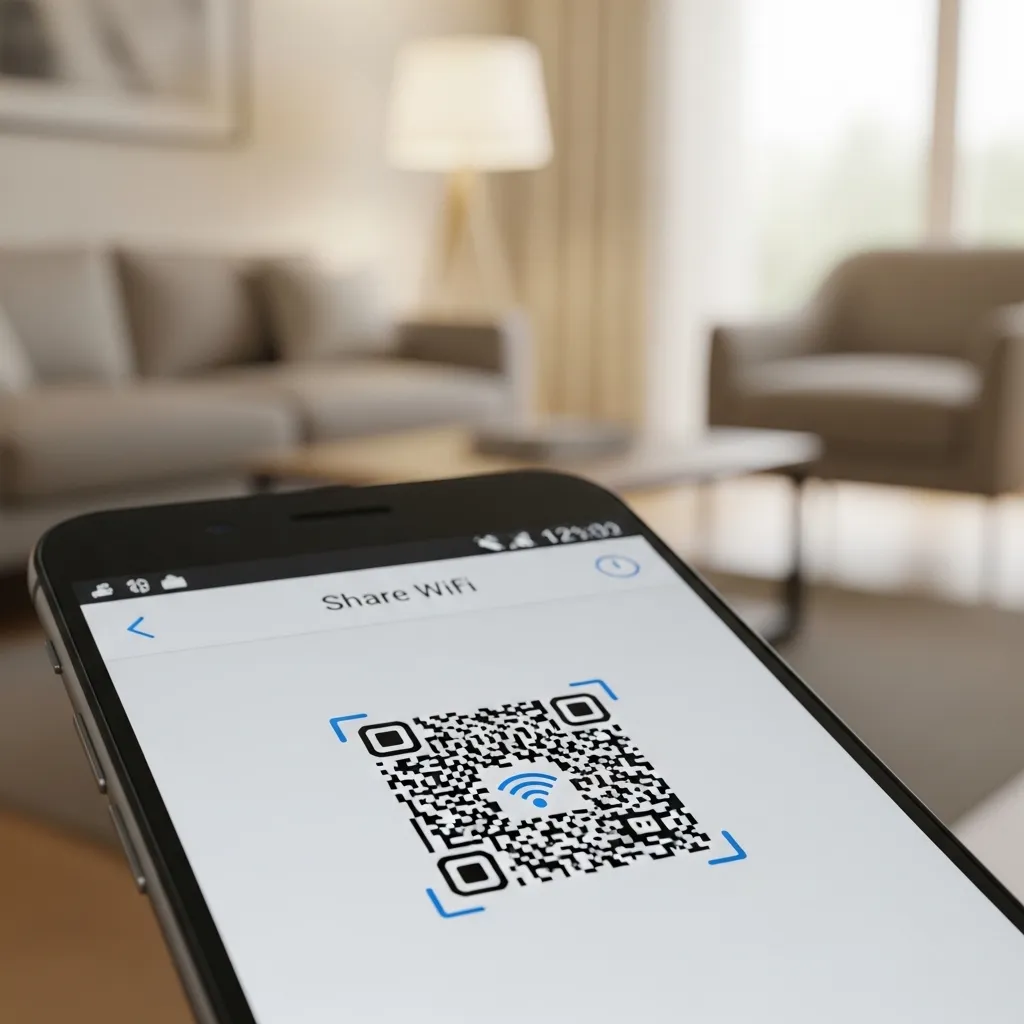
This is my absolute favorite method because it’s built right into modern Android phones (Android 10 and up). Your phone can generate a QR code for your current network that other phones can scan to connect instantly. The trick? We can sometimes see the password in plain text within this process.
Here’s how I do it: Go to Settings > Network & Internet > WiFi. Tap on the network you’re connected to. Look for a “Share” or QR code icon. You might need to verify your identity with a fingerprint or PIN.
A QR code will appear. On many phones, the actual WiFi password is written in small text beneath the code! If not, you can use a second device to scan the code and see the network details, which often include the password.
2. Check Your Router’s Admin Panel or Sticker
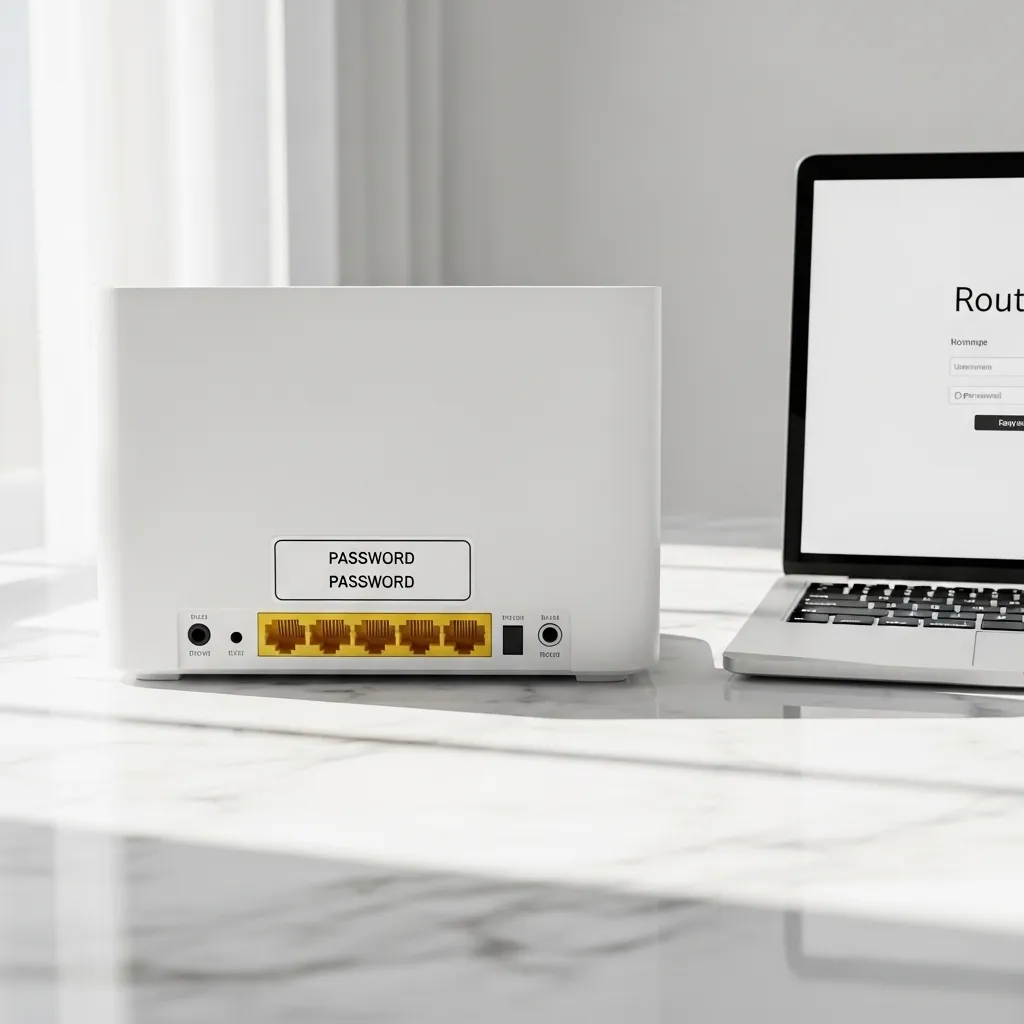
Sometimes the simplest solution is the best. Before digging deep into your phone, check the physical router itself. Most routers have a default password printed on a sticker on the back or bottom. This is often the password you first used to connect.
If you changed it, you can log into your router’s admin panel. Connect to your WiFi, open a browser, and type in your router’s gateway address (like 192.168.1.1). The login details are usually also on that sticker. Once inside, navigate to the Wireless or Security section to view or change the password.
3. Use the Google Pixel’s Native Password Reveal
If you’re a Google Pixel user, you’re in luck! Google has integrated a nifty feature directly into the settings. It’s straightforward and feels very secure.
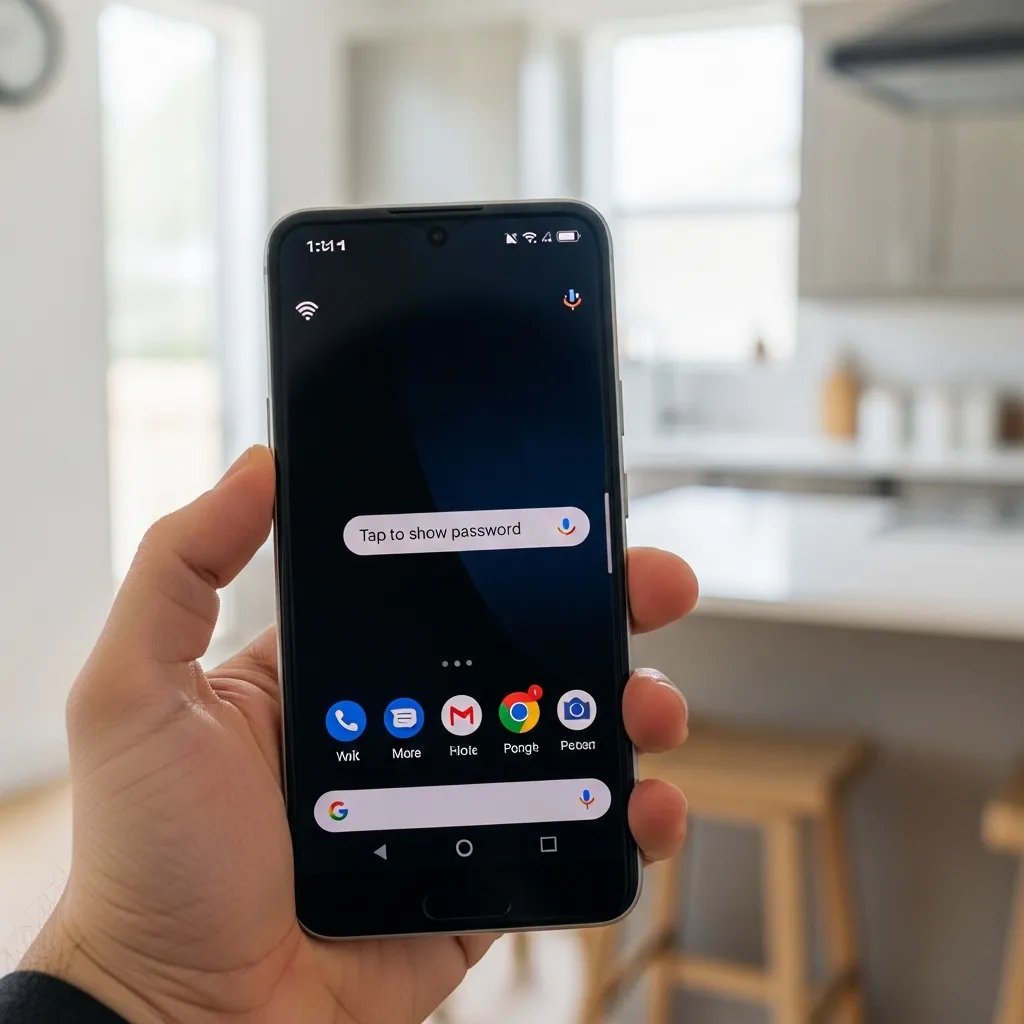
Just head to Settings > Network & Internet > Internet. Tap the gear icon next to your saved network. Then, tap “Share” and authenticate. You’ll see the QR code, and right there—often clearly displayed—is your WiFi password in text form. It’s a clean, official way to get what you need.
4. Leverage Samsung’s “SmartThings” or Connectivity Settings
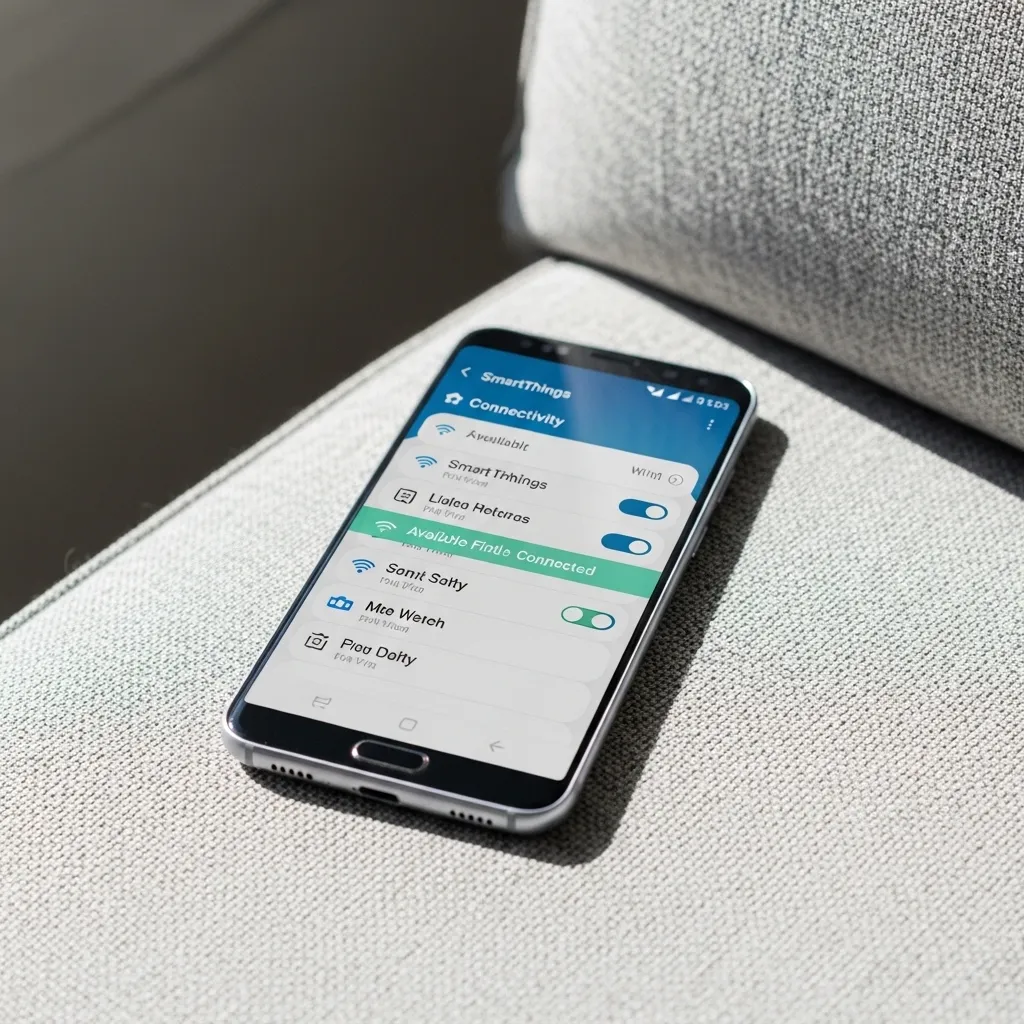
Samsung phones have their own ecosystem with helpful tools. For newer models, try the SmartThings app. You might find your network listed there with management options that could reveal details.
Alternatively, on many Samsung devices, you can go to Settings > Connections > WiFi. Tap on your network, then tap “Manage Network” or the three-dot menu. Look for an option like “Show Password“—it might be hidden behind a biometric check. This is a seamless way if your model supports it.
5. Try the “WiFi Password Viewer” Type of Apps (Use Caution!)
The Play Store has apps that claim to show saved passwords without root. I approach these with caution. They typically work by accessing the QR code share function for you, not by hacking your phone.
If you try one, look for apps with high ratings and lots of downloads. Read the recent reviews. Remember, never grant unnecessary permissions. An app asking for “root” access is not what we want for this non-root method.
6. Look in Your Google Account’s Saved Networks
Android often backs up your WiFi passwords to your Google Account. You can’t easily view them in a list, but this backup can be a lifesaver when setting up a new phone—it automatically restores your connections.
To check if this is enabled, go to Settings > Google > Backup. See if “WiFi passwords” is listed as part of your backup data. While you can’t directly peek at the passwords here, knowing they’re backed up is reassuring.
7. Ask Another Already-Connected Device
If you have another Android device that’s already connected to the same WiFi network, use it! Follow the QR code method (Idea #1) on that second phone or tablet. Scan the generated code with your current phone’s camera, and the network details, including the password, may be revealed during the process.
This is a brilliant workaround. It turns any connected device into a key for finding the password.

8. Use ADB (Android Debug Bridge) on a Computer
This is the most technical method on the list, but it doesn’t require root, just some setup. You’ll need a computer, a USB cable, and to enable “USB Debugging” in your phone’s Developer Options.
With ADB installed on your computer, you can run a specific command that pulls a file containing your WiFi configurations. Searching through this file can reveal the password. It’s a bit more hands-on but is a powerful non-root option for tech-savvy users.

9. Check If Your Phone Manufacturer Has a Secret Menu
Some Android skins from brands like Xiaomi, OnePlus, or older LG phones had hidden testing menus. You could dial a code like *#*#4636#*#* in the phone app to access a “Testing” menu.
Within these menus, there was sometimes a “WiFi information” section. It’s a long shot on modern phones, but if you have an older model, it’s worth a quick try. Just type the code into your dialer and see what appears.

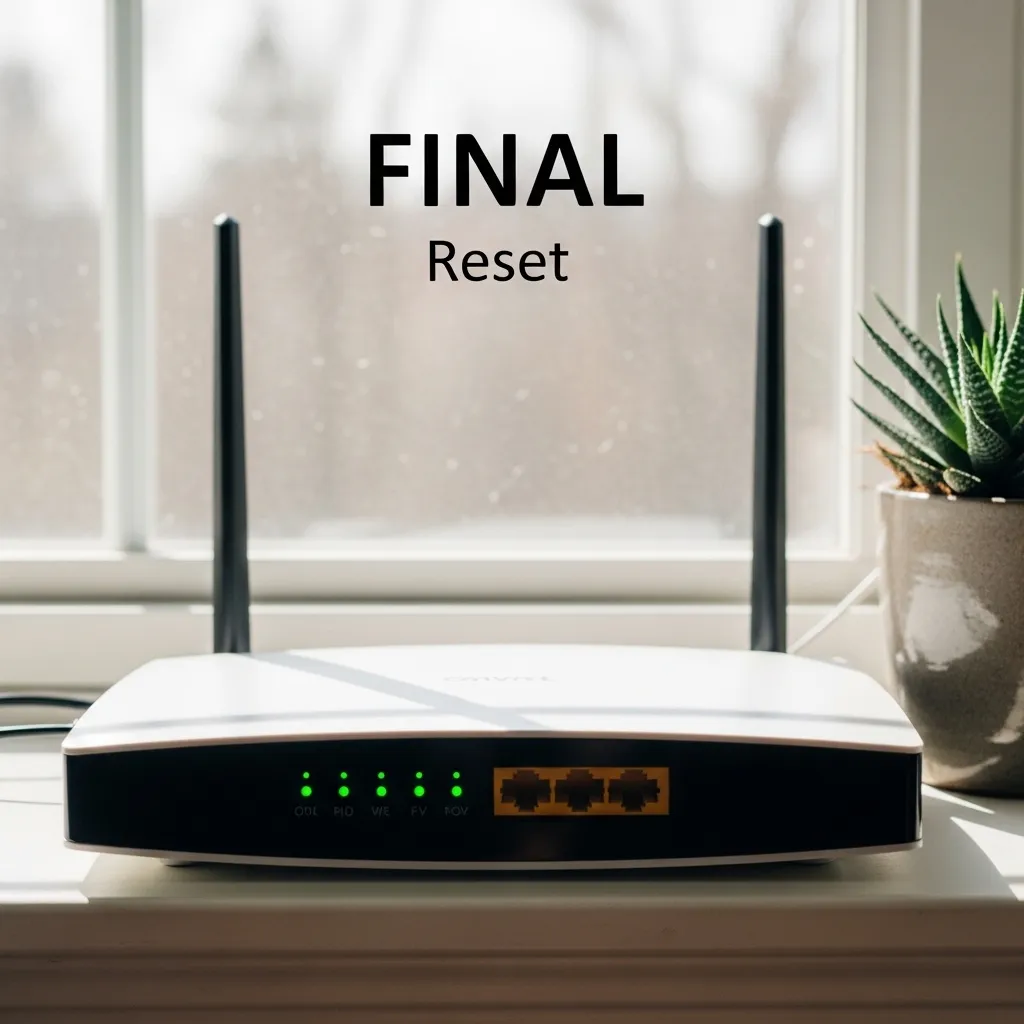
10. The Last Resort: Reset Your Router
If all else fails and you absolutely must know the password, resetting your router will restore it to the default one on the sticker. This is a nuclear option because it will disconnect every device and erase any custom settings (like port forwarding).
To do this, find the small reset button on your router (usually a pinhole). Hold it down with a paperclip for about 10-15 seconds until the lights flash. After it reboots, you can connect using the default password and then set a new, memorable one.
Wrapping It Up
Finding a saved WiFi password on Android is much easier than most people think. You don’t need root access. Start with the simplest method: the built-in QR code share feature in your WiFi settings. For most of us, that will do the trick in seconds.
Remember, the goal is to get connected and share access easily. Whether you use a native feature, check the router, or use a connected device, one of these methods will work for you. Save this guide for the next time a friend asks, “What’s the WiFi password?”
Quick FAQ
Q: Is it safe to use a WiFi password viewer app?
A: Be very selective. Use only highly-rated apps from reputable developers and avoid any that request suspicious permissions. The built-in QR method is safer.
Q: Will these methods work on any Android version?
A: The QR code method works best on Android 10+. Older versions may require different steps, like using a third-party app or checking the router.
Q: I don’t see a “Share” button. What now?
A> Your phone model or Android version might have it in a different place. Try tapping the gear icon next to your network or look for a QR code symbol. Alternatively, try one of the other methods listed.
Q: Does this require me to be currently connected to the WiFi?
A> For the QR code method, yes, you usually need to be connected. To view passwords for other saved networks, you might need a different approach, like using ADB.
Q: What if none of these work for my phone?
A> Your best bet is then to check the router’s admin panel or perform a reset. The default password on the router’s sticker will always work after a reset.