Connection Problem or Invalid MMI Code? Your Simple Fix-It Guide
Ever tried to check your mobile data balance or activate a new plan, only to be met with a frustrating “Connection Problem or Invalid MMI Code” message? I’ve been there, staring at my phone, feeling completely stuck. It’s one of those vague errors that can mean a dozen different things.
Don’t worry, you’re not alone, and it’s almost always something you can fix yourself. An MMI (Man-Machine Interface) code is simply those short USSD strings like *#100# or *123# you dial for services. When they fail, it’s usually a small glitch in the connection between your phone and your carrier’s network. Let’s walk through the fixes, from the quickest to the more detailed.

1. The Instant Reboot: Your First & Best Step
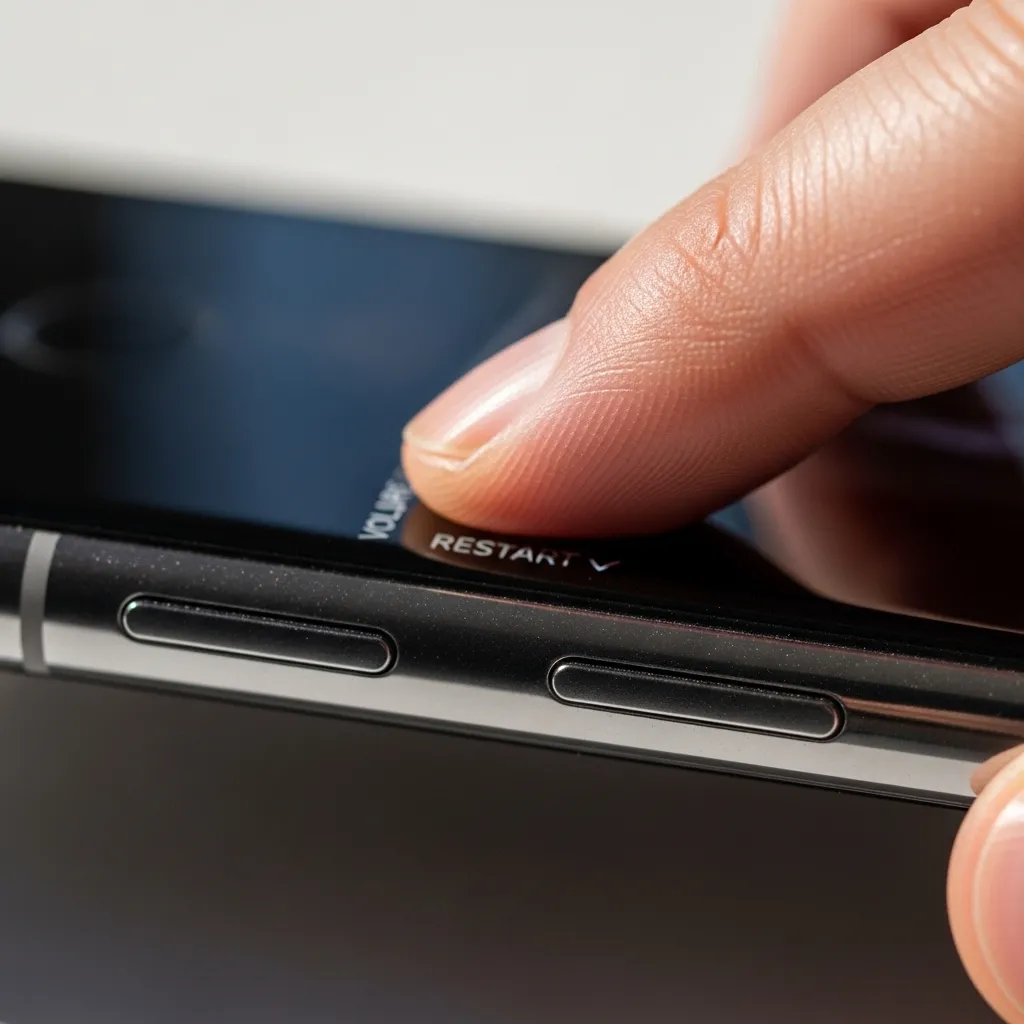
I know it sounds too simple, but trust me, restarting your phone is the number one fix for a huge range of tech issues, including MMI code errors. This clears the phone’s temporary memory and re-establishes a fresh connection to the network.
Just power your device down completely, wait 30 seconds, and turn it back on. Once it’s fully booted, try dialing the USSD code again. You’d be surprised how often this is the only step you need.
2. Check Your Signal & Airplane Mode Toggle
MMI codes need a clear, stable network signal to work. If you’re in a basement, elevator, or remote area, this could be the culprit. First, check your signal bars. Are they low or showing an “R” for roaming?
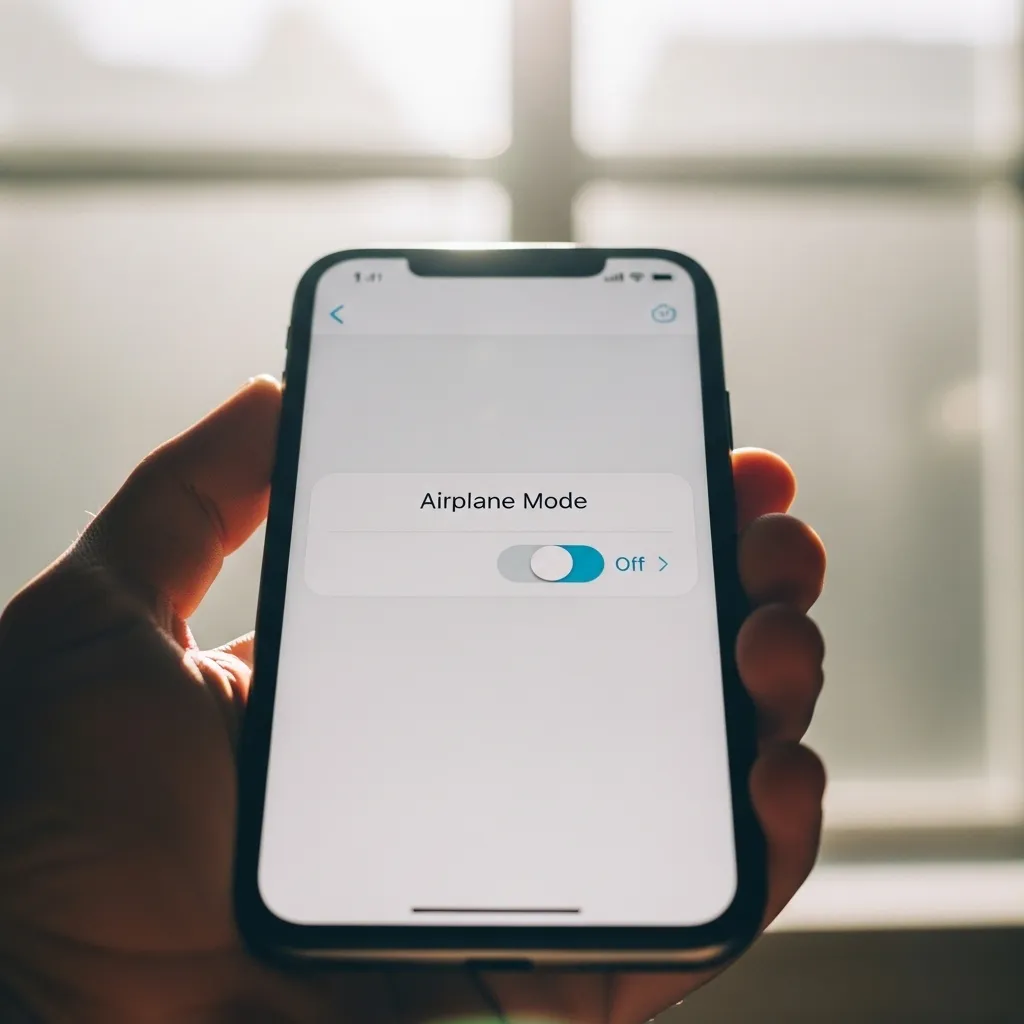
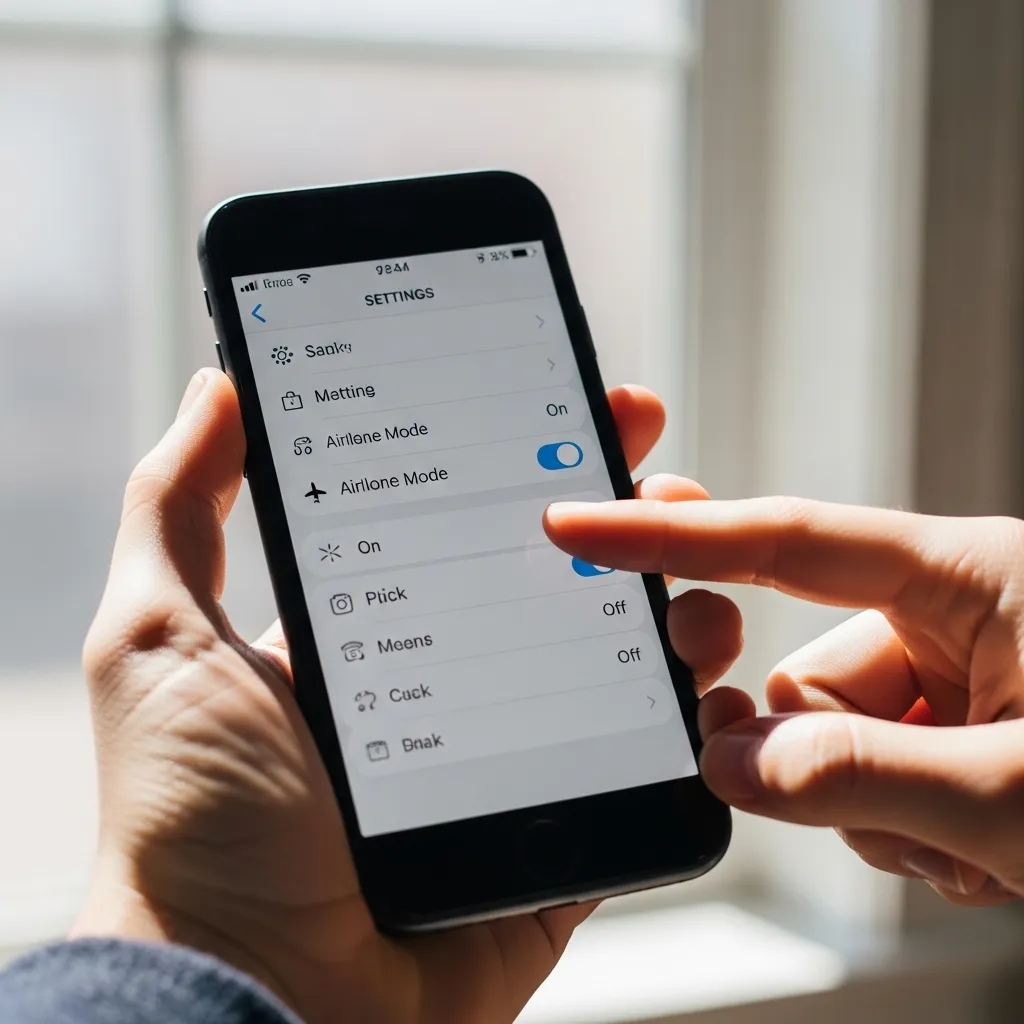
If your signal seems weak, try toggling Airplane Mode on and off. This forces your phone to disconnect from and then reconnect to the nearest cell tower, often cleaning up a poor connection. Swipe down your quick settings, tap the airplane icon, wait 10 seconds, and tap it again.
3. Inspect Your SIM Card
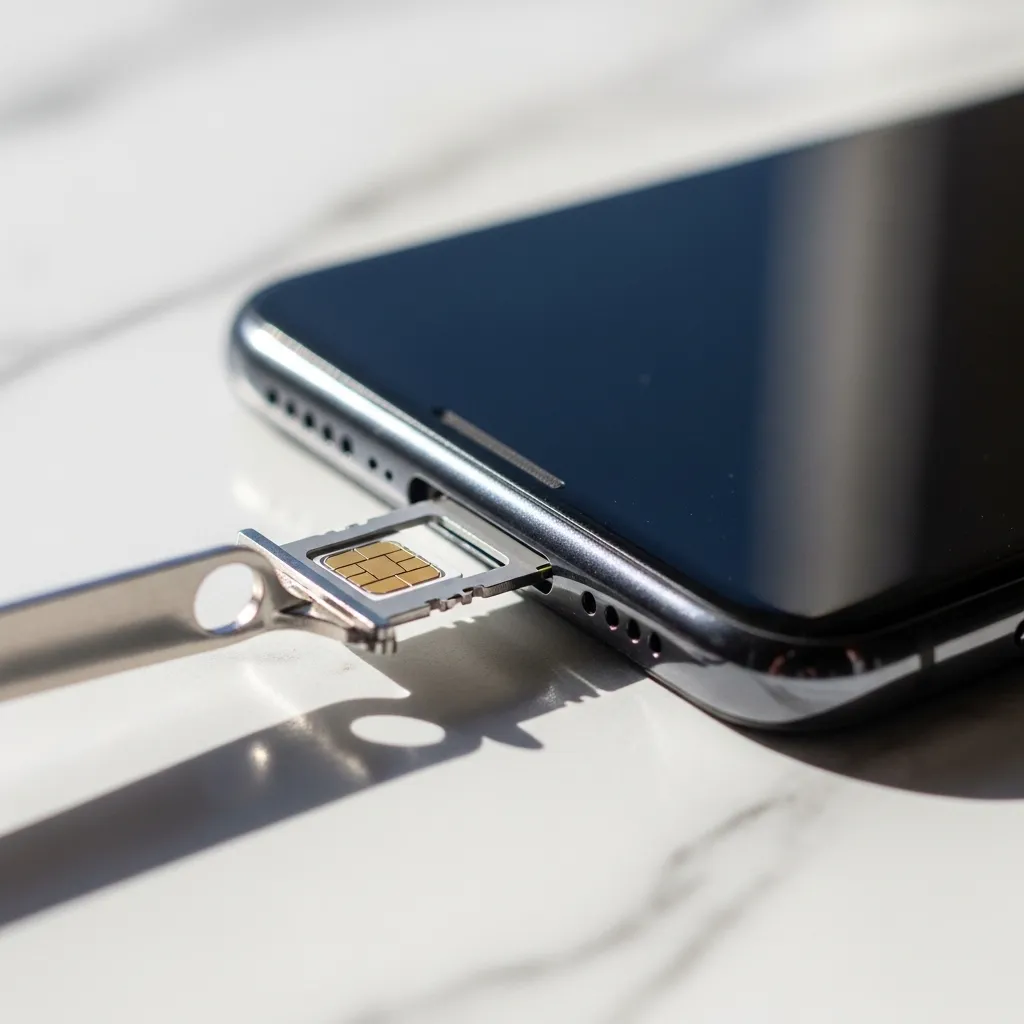
A loose, dirty, or faulty SIM card can interrupt communication with your carrier. Start by powering off your phone completely. Then, carefully remove the SIM tray and take out the SIM card.
- Gently wipe the gold contacts with a clean, dry cloth.
- Check for any visible damage or bending.
- Re-insert the SIM firmly into its tray and push it back into the phone.
Power on and test your code. A clean connection can make all the difference.
4. Re-enter the Code Carefully
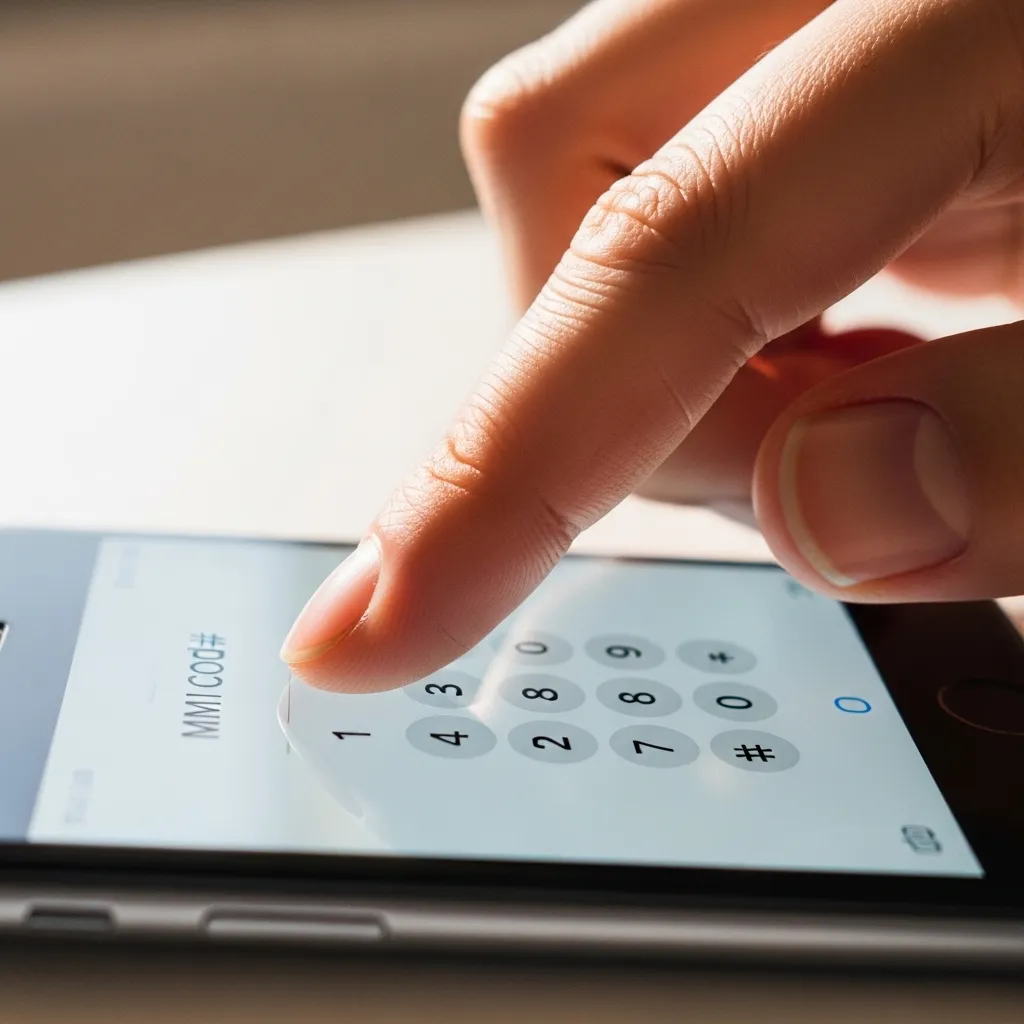
It’s easy to make a typo, especially with codes full of stars (#) and pounds (*). Double-check the exact code for your carrier. Did you use *123# or #123*? Is there an extra digit?
Type it slowly and deliberately directly into your phone’s dialer. Avoid copying and pasting from notes or messages, as sometimes hidden formatting characters can sneak in and cause the “invalid” error.
5. Update Your Carrier Services
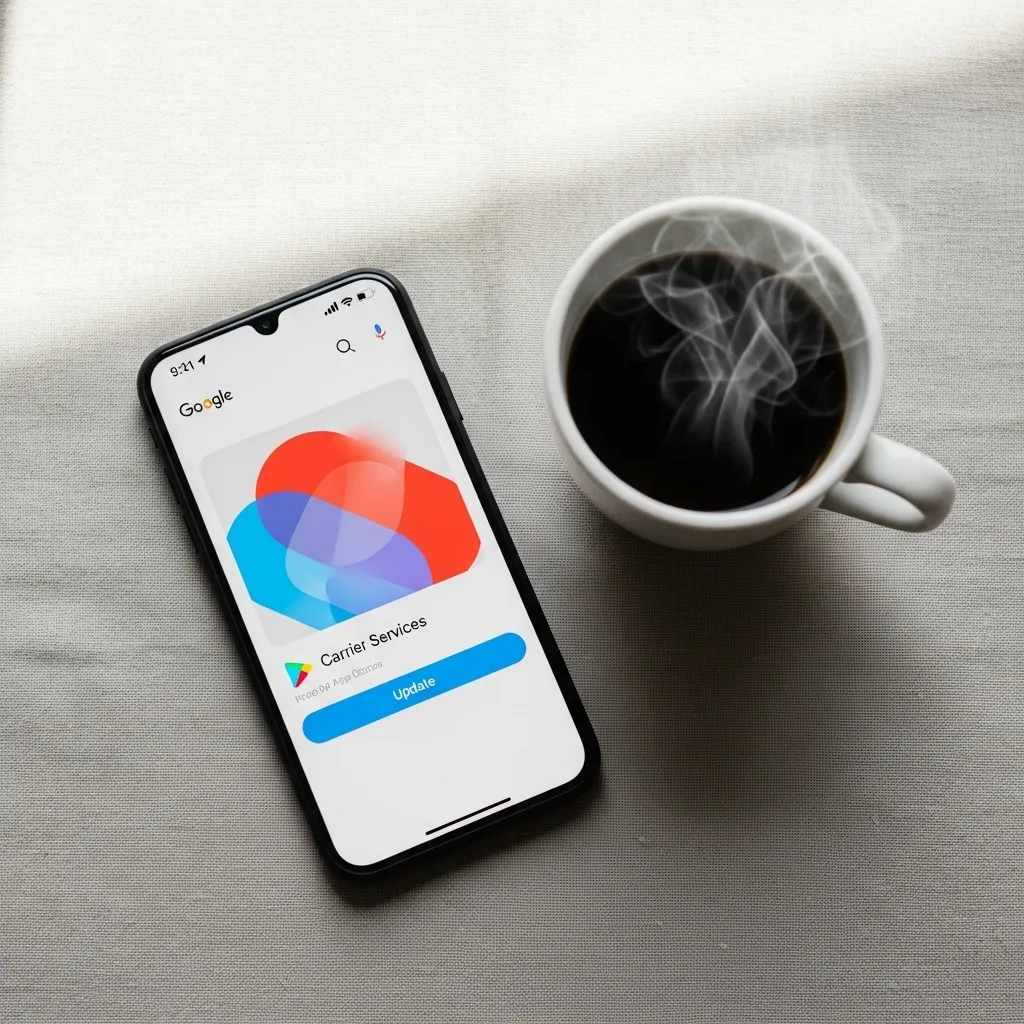
Your phone uses a system app (often called “Carrier Services” or similar) to manage communication with your network provider. If this app is outdated, it can cause MMI code failures.
Head to your app store (Google Play Store or Apple App Store) and search for “Carrier Services.” If an update is available, install it. Also, check for any general system software updates in your phone’s Settings, as these often include connectivity improvements.
6. Clear Your Phone App’s Cache
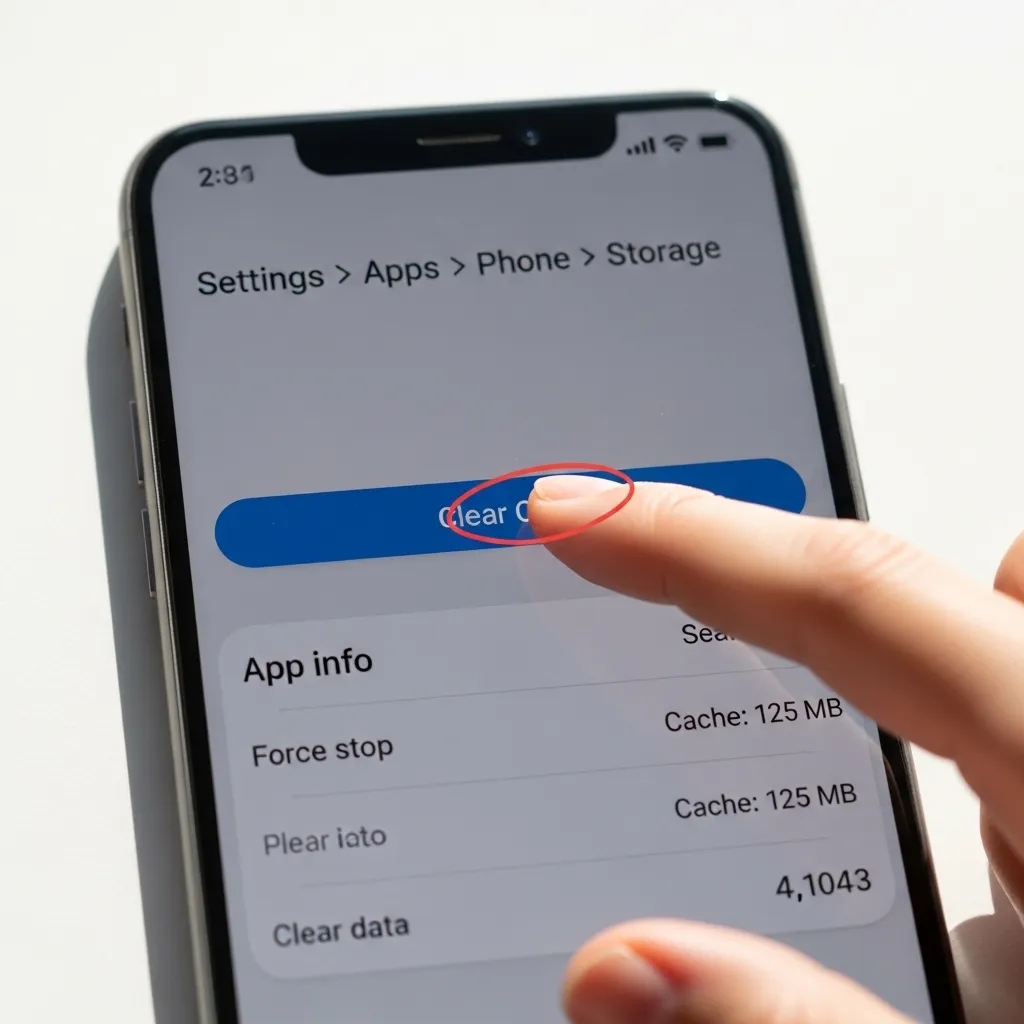
The app you use to dial codes—your Phone or Dialer app—stores temporary data (cache). If this data gets corrupted, it can cause errors. Clearing it is safe and won’t delete your contacts or call history.
Go to Settings > Apps > Phone (or Dialer) > Storage. Tap “Clear Cache.” Then, force stop the app and reopen it. This gives the dialer a fresh start and can resolve the glitch.
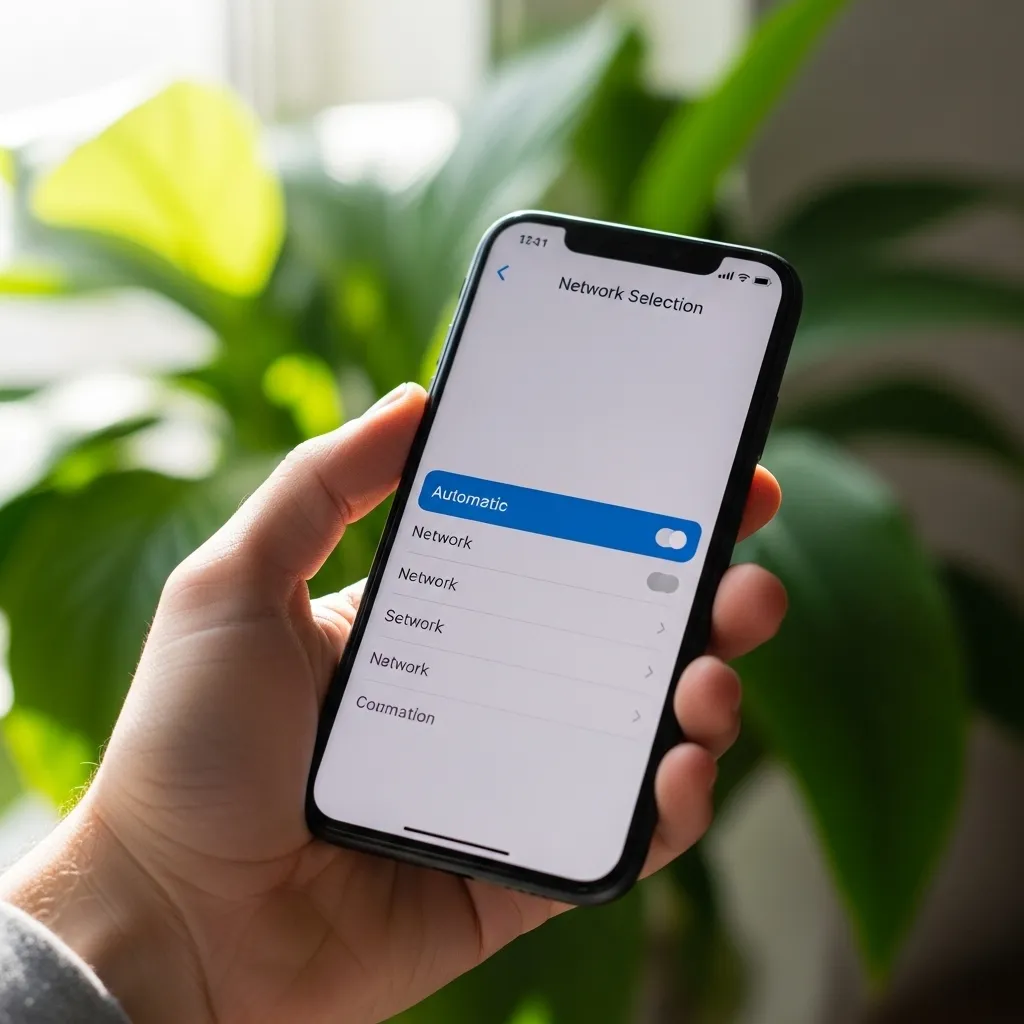
7. Verify Network Selection Settings
Sometimes, if your phone is set to manually select a network or is stuck on an incompatible one, MMI codes won’t go through. Let’s fix that in your network settings.
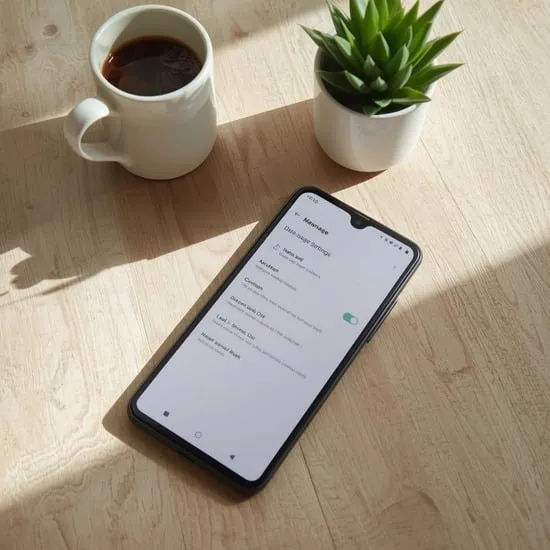
Go to Settings > Connections/Network > Mobile Networks > Network Operators. Select “Choose automatically” or “Automatic registration.” Your phone will search and connect to your home network, which should support the USSD codes.
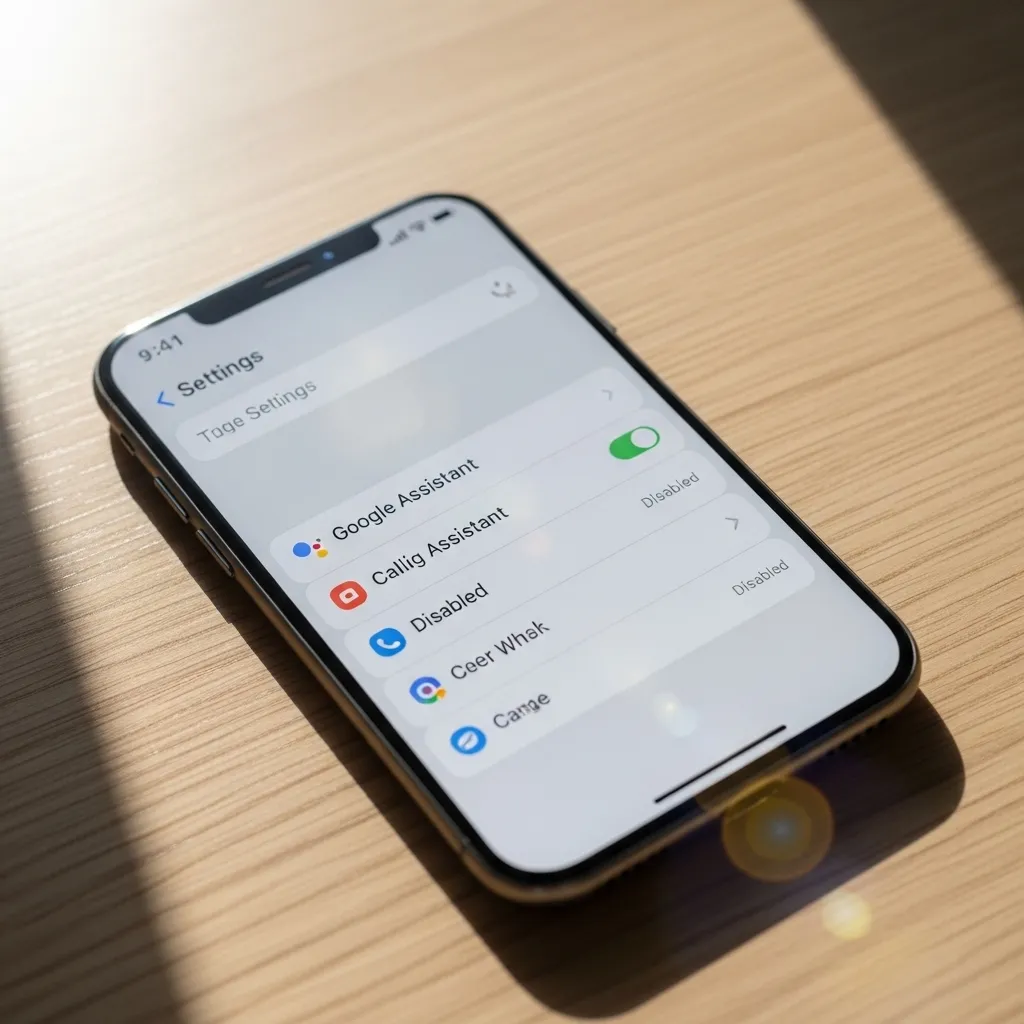
8. Disable Any Calling Apps or Assistants
Third-party dialer apps, call recorders, or even voice assistants like Bixby or Google Assistant that overlay on the dialer can sometimes interfere with USSD commands.
Try switching back to your phone’s default dialer app temporarily. Also, go to the settings of any call-related apps and disable any “assist” features for dialing, then test the MMI code again with the basic, default phone app.
9. Check for Network Outages in Your Area
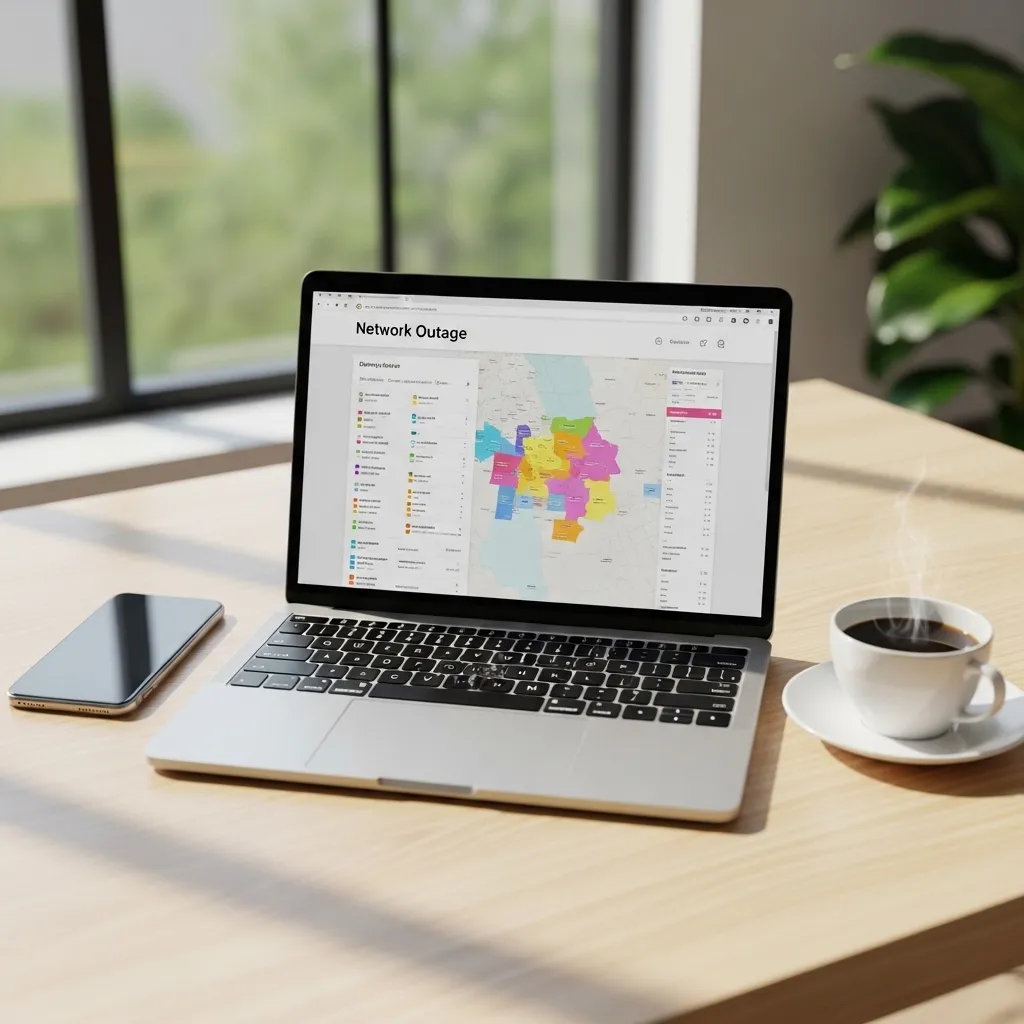
Before diving deeper into phone settings, it’s worth considering the problem might not be your phone at all. Your carrier could be experiencing a temporary local network outage or system maintenance.
Check your carrier’s official social media accounts or website for service status alerts. You can also ask a friend or family member on the same network in your area if they’re having the same issue.
10. The Last Resort: Factory Reset (Backup First!)
If you’ve tried everything and the problem persists across multiple SIM cards, a deep software issue might be the cause. A factory reset will wipe all your phone’s settings and return it to its original state.
Warning: This will erase all data on your phone. You MUST back up your photos, contacts, and important files first. If you proceed, go to Settings > General Management > Reset > Factory data reset. After the reset, set up your phone as new and test the MMI code before restoring your backup.
Wrapping Up & Getting Connected
Seeing “Connection Problem or Invalid MMI Code” is annoying, but it’s rarely a permanent problem. Start with the simple fixes: reboot, toggle airplane mode, and check your SIM. Most of the time, the solution is in those first few steps.
If those don’t work, move through the list methodically. The goal is to re-establish a clean handshake between your device and your network. You’ve got this!
Quick FAQ
Q1: What does MMI code mean?
A1: It stands for Man-Machine Interface code. They’re the short numbers you dial (like *#06# for your IMEI) to interact with your carrier’s network for services like balance checks.
Q2: Why does it say “invalid” for a code I used yesterday?
A2: It’s likely a temporary network glitch, a poor signal, or a cached error in your dialer app. A phone reboot usually fixes this.
Q3: Can a bad SIM card cause this?
A3: Absolutely. A loose, dirty, or physically damaged SIM can disrupt communication. Try removing, cleaning, and re-seating it.
Q4: Do I need to visit a service center?
A4: Not usually. 95% of cases are fixed with self-troubleshooting. Only consider it if the problem continues with multiple SIMs from different carriers.
Q5: Will clearing my phone app’s cache delete my contacts?
A5: No! Clearing the cache only removes temporary files. Your contacts, call log, and saved data are stored separately and will be safe.