Hide Photos on iPhone | Keep Pictures Private
Hide Photos on iPhone: How I Keep My Pictures Private
I never thought much about privacy until someone casually grabbed my phone to look at a picture. In that moment, I realized I needed to learn how to hide photos on iPhone quickly. Not because I had anything dramatic to hide, but because some memories are simply personal. 📱
After figuring out how to hide photos on iPhone, I felt so much more relaxed handing my phone to friends or family. It gave me a sense of control over my private pictures and sensitive images without deleting anything important.

Why I Decided to Hide Photos on iPhone
There are certain photos that are meaningful, emotional, or just not meant for everyone’s eyes. Learning how to hide photos on iPhone helped me protect those moments without moving them to another device.
Sometimes it is screenshots, personal documents, or private memories. The hidden album feature gave me a simple way to manage photo privacy directly inside the Photos app.
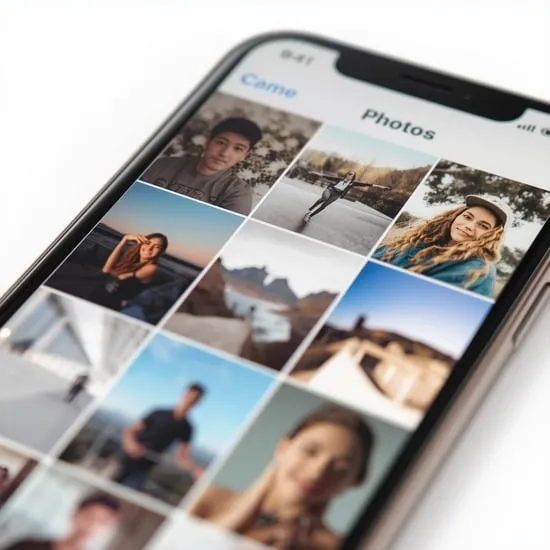
How to Hide Photos on iPhone Step by Step
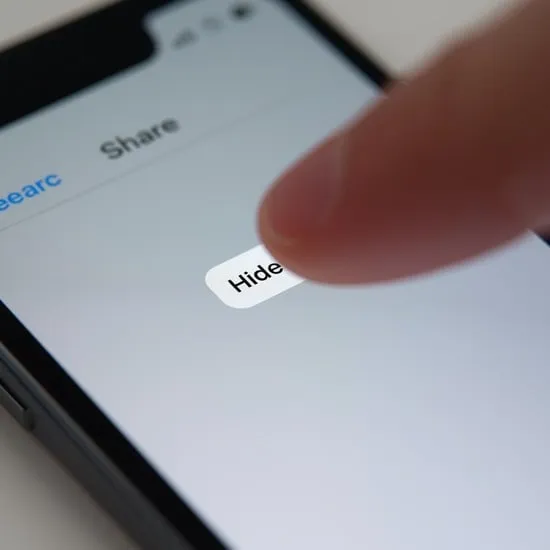
When I first searched how to hide photos on iPhone, I was relieved to see how easy it was. I opened the Photos app, selected the images I wanted to keep private, tapped the share icon, and chose Hide.
The photos instantly moved to the Hidden album. They disappeared from my main library and moments view, which made everything feel much more secure and organized.
Locking the Hidden Album for Extra Privacy
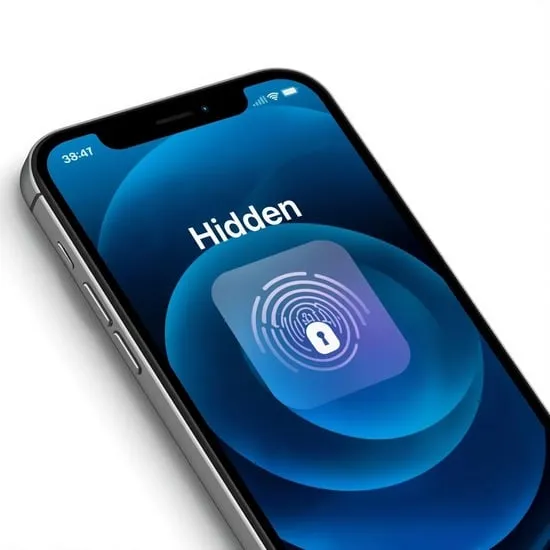
Simply learning how to hide photos on iPhone was not enough for me. I wanted extra security. That is when I discovered you can lock the Hidden album using Face ID or Touch ID.
By going into Settings and enabling Face ID for Hidden Album, I added an additional privacy layer. Now, even if someone opens my Photos app, they cannot access those hidden pictures without authentication. 🔒
How to Show or Unhide Photos Again
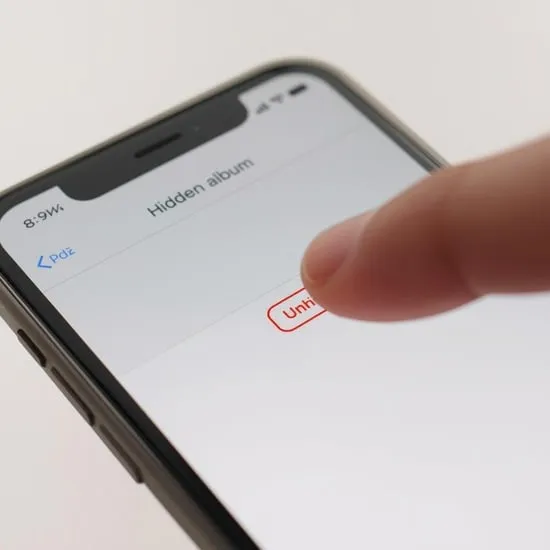
At one point, I needed to restore a photo back to my main gallery. Thankfully, understanding how to hide photos on iPhone also made it easy to unhide them.
I simply opened the Hidden album, selected the image, tapped Share, and chose Unhide. The photo returned to my library without losing quality or data.
Using Notes App for Extra Private Storage
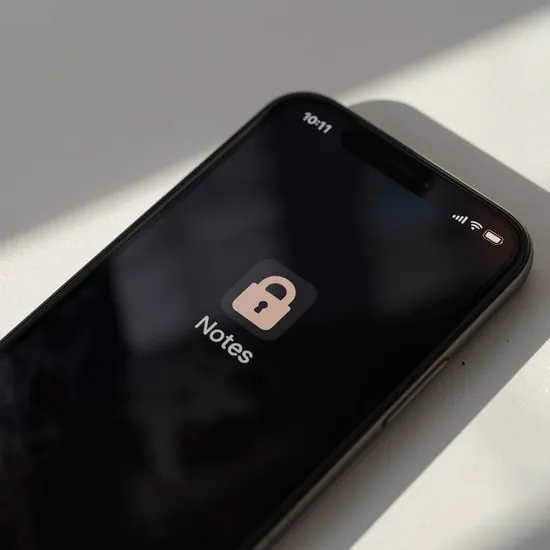
While learning how to hide photos on iPhone, I also found another trick. You can save pictures inside the Notes app and lock the note with a password or Face ID.
This method feels even more discreet, especially for sensitive documents or confidential images. It gave me an added sense of protection for truly private content.
Does Hiding Photos Save iCloud Privacy?
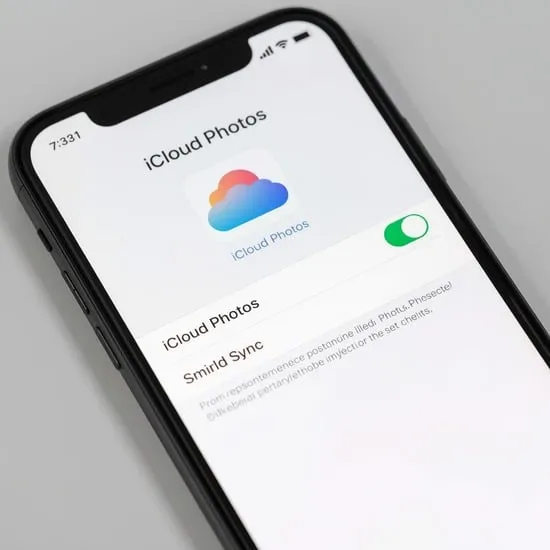
One question I had while figuring out how to hide photos on iPhone was about iCloud backup. Hidden photos are still backed up to iCloud if photo syncing is enabled.
That means hiding photos protects them from casual viewing, but not from your own cloud storage. It is important to understand the difference between local privacy and cloud backup settings.
My Honest Thoughts About Photo Privacy
After I learned how to hide photos on iPhone properly, I felt much more confident about my digital privacy. It is a simple feature, but it makes a huge emotional difference.
We all deserve control over our personal memories. Taking a few minutes to adjust privacy settings can protect your pictures and give you real peace of mind. 💛