How to Turn Off Low Data Mode on iPhone (Easy Fix)
Why Low Data Mode Was Slowing My iPhone
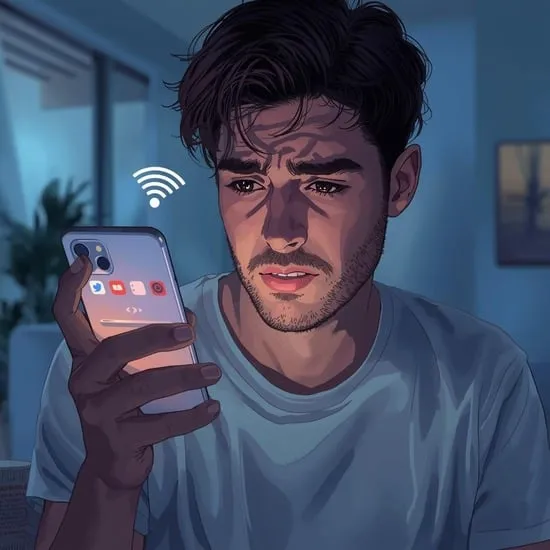
I remember feeling so frustrated when my iPhone internet suddenly felt slow. Apps weren’t refreshing properly, videos kept buffering, and even simple browsing felt painful. That’s when I realized Low Data Mode was turned on without me noticing.
Low Data Mode is designed to save mobile data, but it can limit background activity, pause updates, and reduce streaming quality. While it’s useful sometimes, keeping it on all the time made my iPhone feel broken.
How I Turned Off Low Data Mode on iPhone
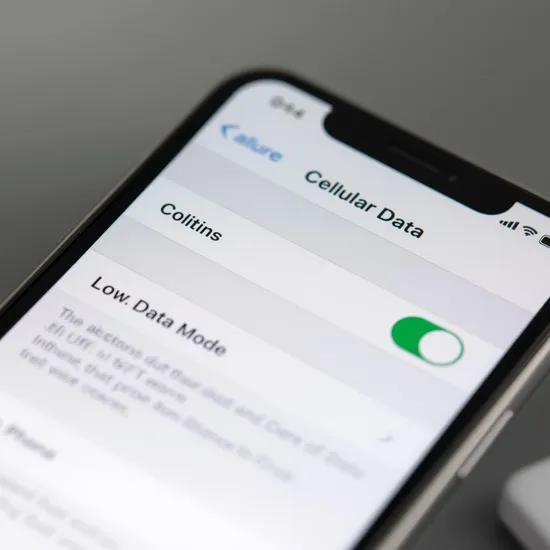
Turning off Low Data Mode on iPhone was surprisingly easy once I knew where to look. I opened Settings, tapped Cellular, then Cellular Data Options, and finally switched off Low Data Mode.
If you’re using Wi-Fi, you’ll need to go to Settings, tap Wi-Fi, select your connected network, and turn off Low Data Mode there too. I did this and instantly noticed apps loading faster.
What Changed After Disabling Low Data Mode
The difference was immediate. My apps refreshed normally, photos loaded in full quality, and streaming felt smooth again. It honestly felt like my iPhone came back to life.
If you’re struggling with slow internet or missing notifications, learning how to turn off Low Data Mode on iPhone can make a huge emotional relief. You can always turn it back on when you truly need to save data.