How to Use Touch Accommodations iPhone | Easy Guide
How Use Touch Accommodations iPhone: My Real Experience
I never thought I would need to learn how use Touch Accommodations iPhone, but after struggling with accidental taps and missed touches, I decided to explore it. My screen sometimes felt too sensitive, especially when I was tired or multitasking. It was frustrating. 📱
Once I discovered how use Touch Accommodations iPhone settings properly, everything changed. This accessibility feature helped me control touch sensitivity and adjust how my iPhone responds to taps and gestures. It honestly made daily use feel calmer and more manageable.
What Is Touch Accommodations on iPhone?
Before I understood how use Touch Accommodations iPhone, I needed to know what it actually does. Touch Accommodations is an accessibility feature that allows you to adjust how the screen reacts to your touch input.
You can set hold duration, ignore repeat touches, and customize tap assistance. These settings are especially helpful if you experience shaky hands, slower reaction time, or just want more control over touch sensitivity.
How to Turn On Touch Accommodations
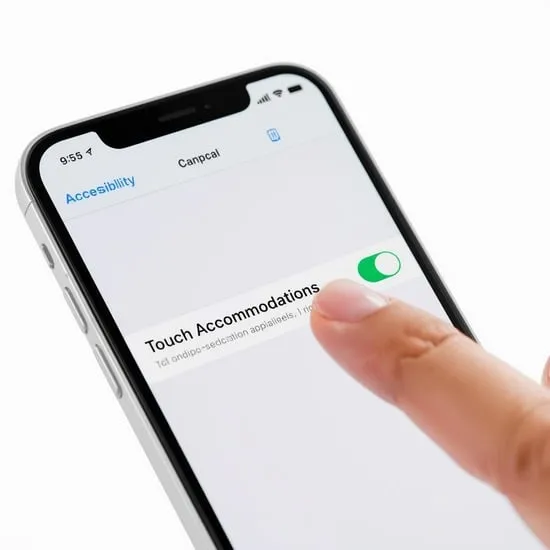
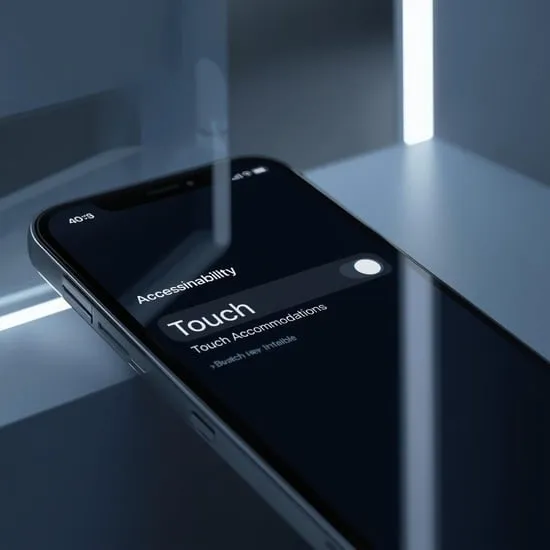
When I decided to learn how use Touch Accommodations iPhone, I started in Settings. I tapped Accessibility, then Touch, and found the Touch Accommodations option waiting there.
Once you toggle it on, new customization options appear. I remember feeling relieved seeing how simple and clear the controls were. It did not feel complicated at all.
Adjusting Hold Duration for Better Accuracy
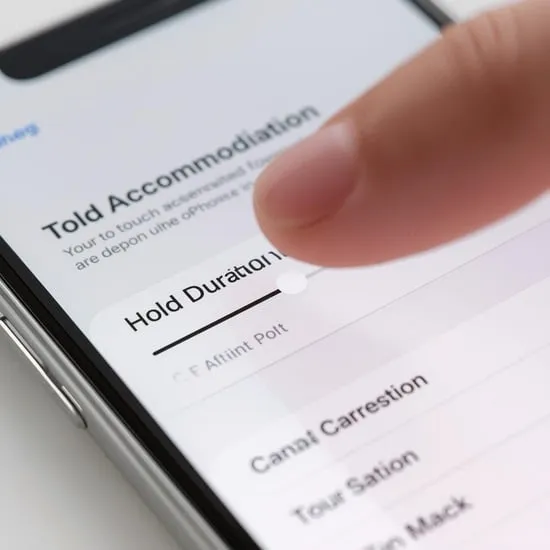
The first setting I adjusted while learning how use Touch Accommodations iPhone was Hold Duration. This feature lets you decide how long you need to press the screen before it registers as a touch.
I increased the hold duration slightly, and it immediately reduced accidental taps. It may sound small, but that change gave me so much more confidence while typing and navigating apps. ✨
Using Ignore Repeat for Extra Control
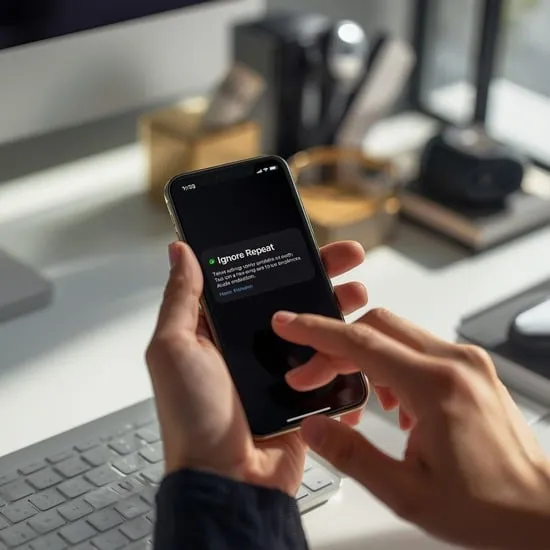
Another helpful setting I found while exploring how use Touch Accommodations iPhone was Ignore Repeat. This option prevents multiple taps from registering within a short time frame.
If you sometimes double tap unintentionally, this setting can really help. It made scrolling and selecting items feel smoother and less chaotic for me.
Exploring Tap Assistance Options
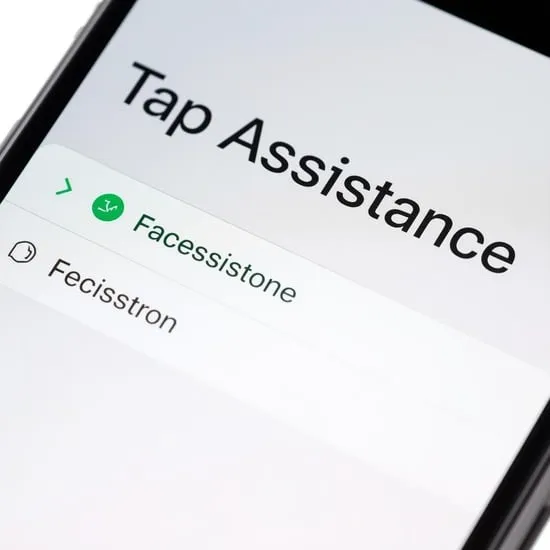
As I continued learning how use Touch Accommodations iPhone, I tried the Tap Assistance feature. You can choose whether the iPhone uses the initial touch location or the final touch position.
This flexibility improved my screen accuracy in subtle but meaningful ways. I did not realize how much small adjustments could improve the overall user experience until I tried it myself.
How It Improved My Daily iPhone Experience
After I fully understood how use Touch Accommodations iPhone, I felt more in control of my device. Simple tasks like typing messages or browsing felt less stressful and more precise.
Accessibility features are not just for specific situations. They are for anyone who wants a more personalized experience. This setting helped me create a screen response that fits my pace perfectly. 💛
My Honest Recommendation
If you ever feel like your screen is too sensitive or not responsive enough, I truly suggest learning how use Touch Accommodations iPhone. It takes only a few minutes to explore the options.
Not every adjustment will suit everyone, but experimenting helped me find the perfect balance. Sometimes the best improvements come from hidden settings we rarely think about. 😊