Mac Stuck on Checking for Updates? Real Fixes That Worked
I still remember how helpless I felt when my Mac got stuck on checking for updates. I had planned to update quickly and move on with my work, but instead I kept staring at that spinning wheel. If your Mac is stuck on checking for updates, I want you to know you’re not alone, and yes, this problem is fixable.
I’ve dealt with this macOS update issue more than once, and every time it brought stress and confusion. In this article, I’m sharing my real experience, what actually caused the problem, and the simple fixes that finally worked for me without any technical headache.
Why My Mac Was Stuck on Checking for Updates
The first thing I learned was that when a Mac is stuck on checking for updates, it’s often related to internet or server issues. Apple servers can get overloaded during major macOS releases, which slows everything down. Even a small network hiccup can make your Mac freeze on the update screen.
Another reason I discovered was system-related problems like corrupted update files, background apps interfering, or insufficient storage. My Mac looked fine on the surface, but internally it struggled to process the update request, causing the endless checking for updates loop.

A Simple Restart Fixed the Update Stuck Issue Once
I honestly didn’t expect this to work, but restarting my Mac made a big difference. After the restart, I waited a minute, opened System Settings, and checked for updates again. This time, the Mac didn’t stay stuck on checking for updates and actually started loading.
Restarting clears temporary glitches, refreshes background processes, and reconnects network services. If your Mac is stuck on checking for updates, this is the easiest and safest fix to try first before doing anything complicated.

Internet and Storage Problems I Didn’t Notice at First
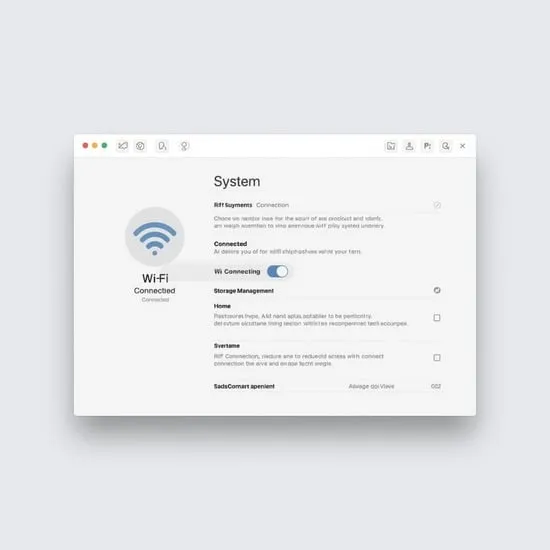
One time, my Mac was stuck on checking for updates simply because my Wi-Fi was unstable. I switched to a stronger connection and suddenly the update screen started responding. A slow or unstable internet connection is a very common reason for macOS update problems.
I also realized my storage was nearly full. macOS updates need free space to download and install properly. After deleting unused files and freeing space, the checking for updates issue disappeared completely. This step alone saved me hours of frustration.
Safe Mode and Software Update Reset Saved Me
When nothing else worked, I booted my Mac into Safe Mode. Safe Mode runs macOS with minimal background apps, which helped my system process the update request properly. After rebooting normally, my Mac no longer stayed stuck on checking for updates.
I also learned that closing System Settings and reopening Software Update can reset the process. Sometimes the update screen just needs a fresh start. This simple trick finally helped my Mac download the update smoothly.

Dealing with a Mac stuck on checking for updates can feel overwhelming, especially when you rely on your device daily. I’ve felt that frustration and panic myself, wondering if something was seriously wrong.
The good news is that most macOS update issues are temporary and easy to fix. If your Mac is stuck on checking for updates, try these steps calmly and patiently. In my experience, one of these fixes will almost always get your Mac updating again.