Master Your iPhone’s Autofill Password Feature
I used to be the person who forgot passwords constantly. I’d stare at the login screen, trying every variation of my pet’s name and birth year I could think of. Then, I truly learned how to use my iPhone’s built-in autofill password feature. It wasn’t just about convenience; it was a total game-changer for my digital security and sanity.
This powerful tool, baked right into iOS, does more than just remember your login info. It creates, stores, and fills strong, unique passwords for every site and app. Think of it as your personal, ultra-secure keychain that’s always with you. Let me walk you through how to make it work for you.
1. Find Your Passwords Hub in Settings
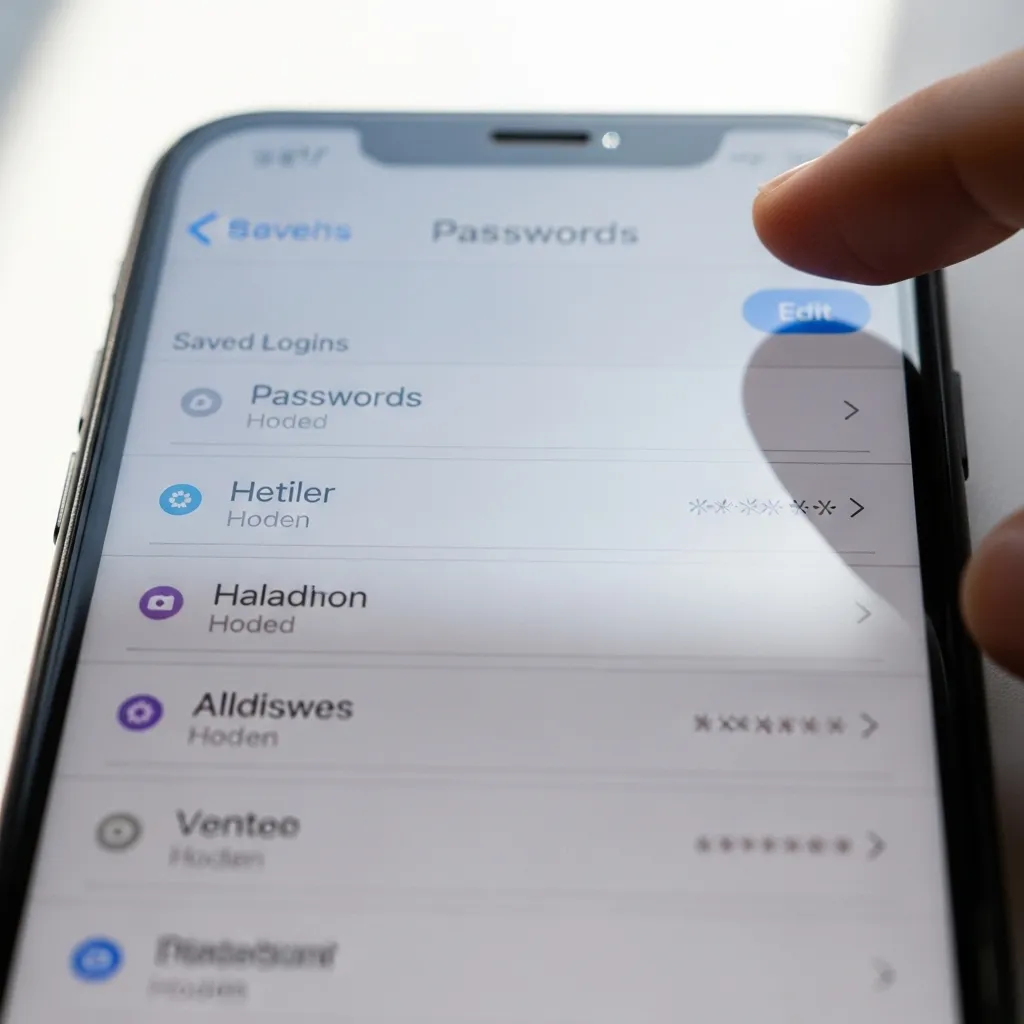
Everything starts in the Settings app. Scroll down and tap on “Passwords.” You’ll need to authenticate with Face ID, Touch ID, or your device passcode. This is your vault—a clean, alphabetical list of every website and app login you’ve ever saved.
Here, you can see your usernames, edit details, or check if any passwords have been compromised. It’s the command center for your entire login ecosystem. Getting familiar with this screen is your first step to password peace of mind.
2. Let Your iPhone Suggest Strong Passwords
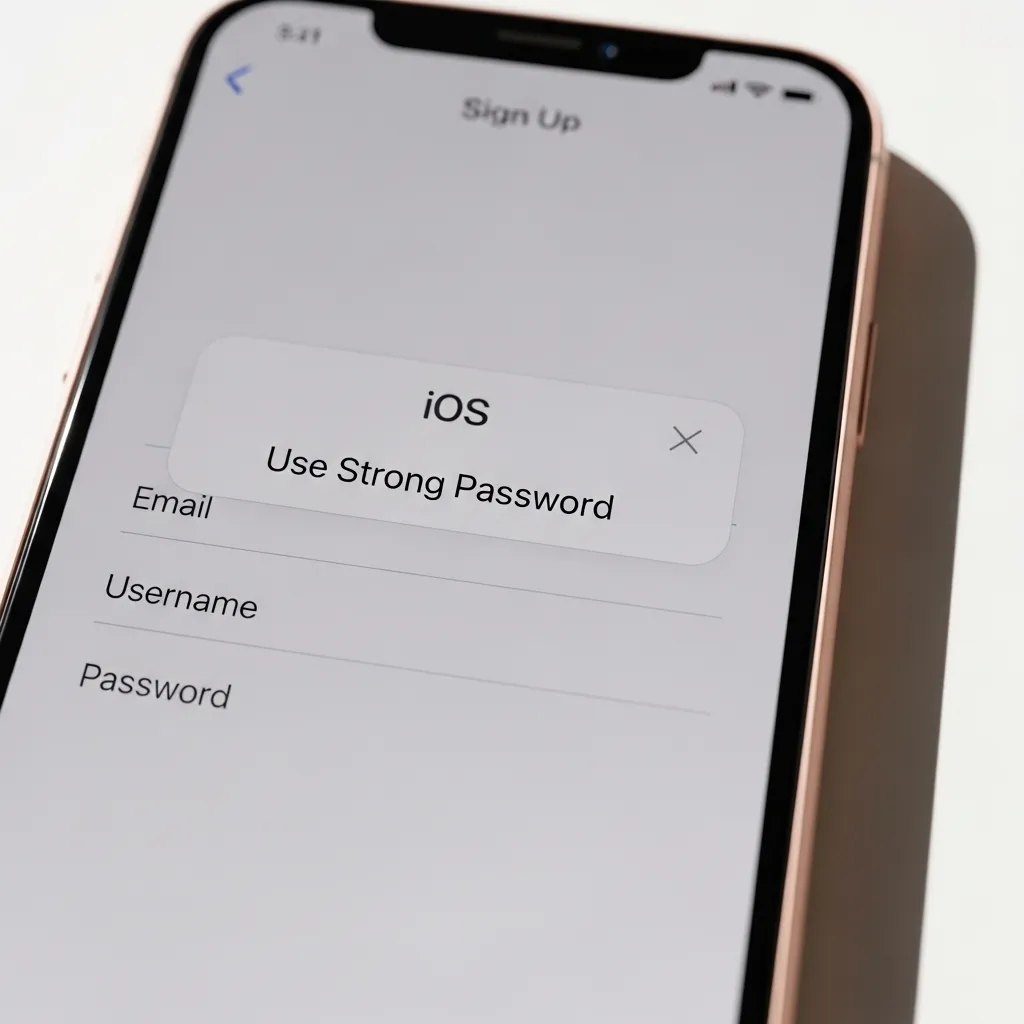
This is my favorite trick. When you sign up for a new account, your iPhone will automatically offer to create a strong password. It looks like a random jumble of letters, numbers, and symbols. Tap “Use Strong Password” to accept it.
Don’t try to memorize it! You don’t have to. Your iPhone securely saves it directly to your password list. The next time you log in, it will fill it for you automatically. This is the easiest way to ensure every account has a unique, hacker-resistant key.
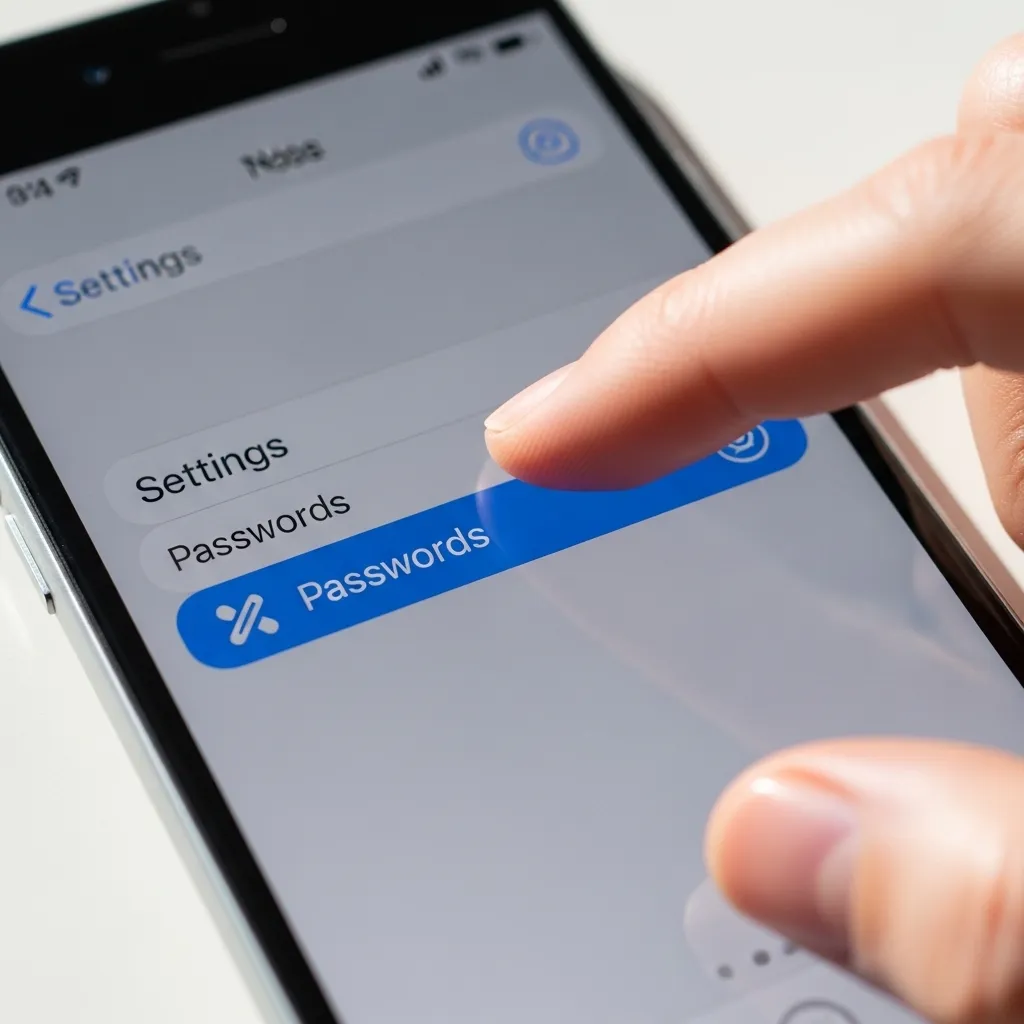
3. Save Existing Logins as You Go
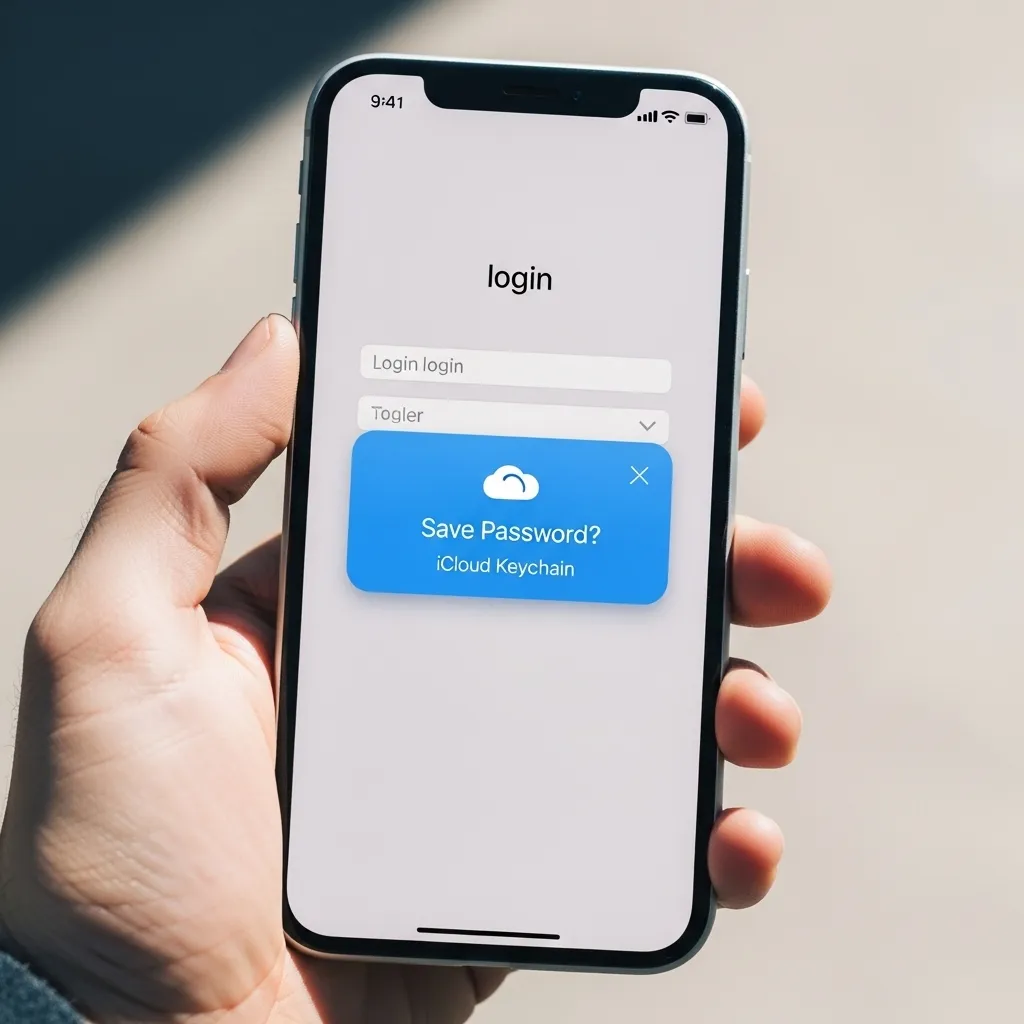
Already have accounts? No problem. The next time you log into an app or website, your iPhone will pop up a little prompt above the keyboard asking, “Save this Password to iCloud Keychain?” Always tap “Save Password.”
This seamlessly adds your current login credentials to your vault. It learns your habits, so you only have to do this once per account. Soon, you’ll have your entire digital life neatly organized and ready to autofill.
4. Use Autofill in Apps & Safari
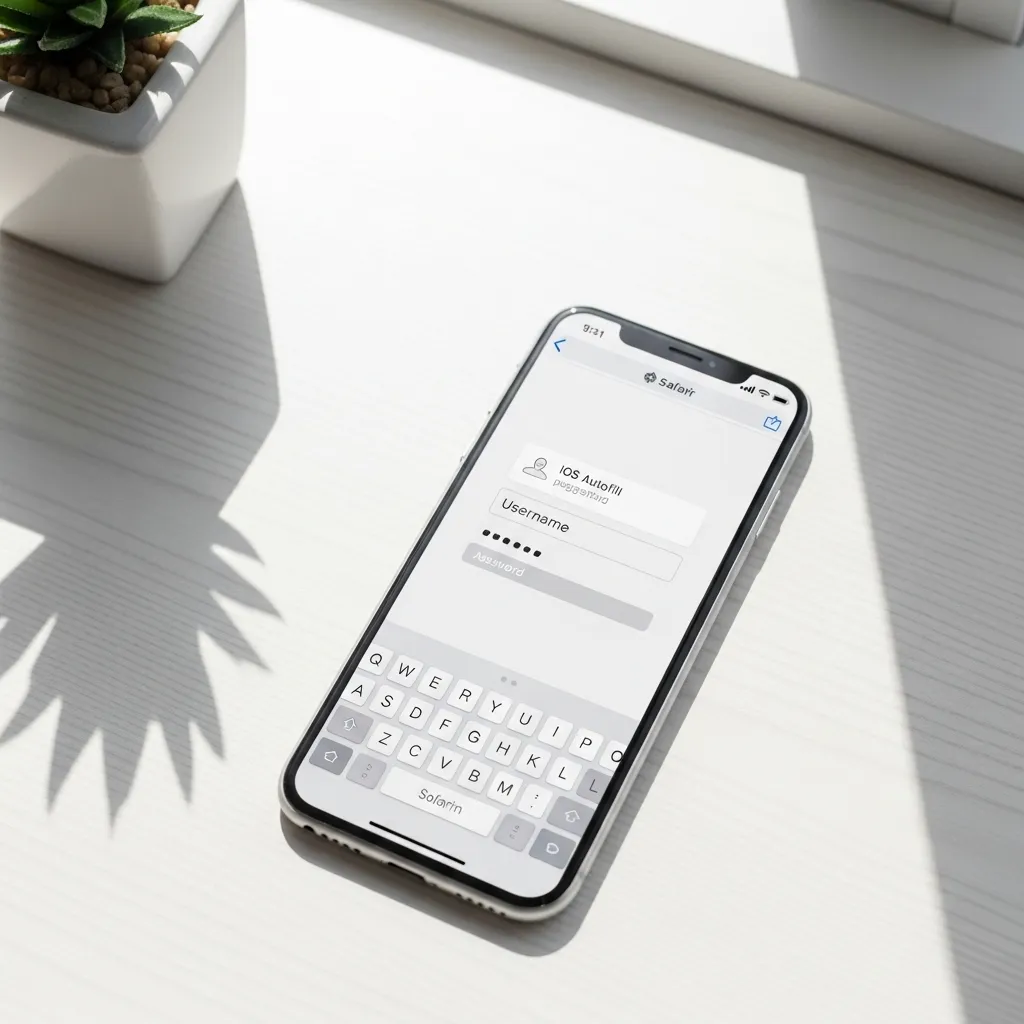
Autofill works everywhere. In Safari, tap the username field, and a key icon will appear on your keyboard. Tap it, authenticate, and select your saved login. In other apps, just tap the login field, and a prompt with your saved username will appear from the bottom of the screen.
It’s incredibly fast. Often, Face ID authenticates and fills the fields in less than a second. You’ll go from opening an app to being logged in with just a tap and a glance.
5. Manage & Edit Saved Passwords Easily
Made a typo or need to update a password? Head back to Settings > Passwords. Tap any entry to view its details. Here, you can:
- Copy your username or password.
- Edit the website URL or your login info.
- Change a password if you’ve updated it elsewhere.
Keeping this list accurate ensures autofill works perfectly every single time. It’s your responsibility to keep the info current, and it’s so simple to do.
6. Share Passwords Securely with Family
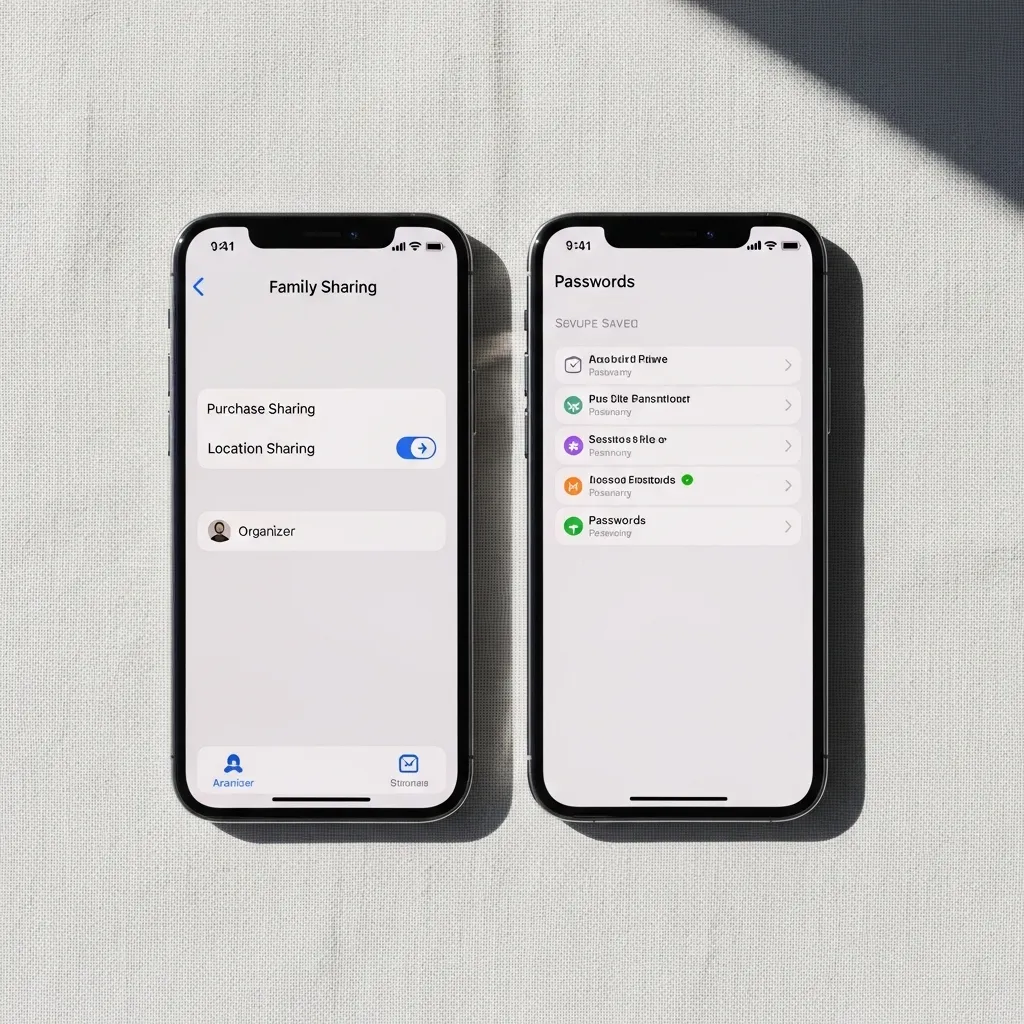
Need to share a streaming service login with your household? You don’t have to text it. In your password list, tap an entry, then tap “Set Up Family Sharing.” You can invite family members from your Family Sharing group.
They’ll get the login details added directly to their own iPhone password vaults, securely and privately. It’s a much safer method than sending passwords through messages or email.
7. Audit Your Passwords for Security
Your iPhone actively watches out for you. In the Passwords settings, check the “Security Recommendations” section. It flags passwords that are weak, reused across sites, or have appeared in known data leaks.
It gives you a clear, actionable list. Tap any warning, and you can instantly change that password, often with a direct link to the website’s change-password page. It’s like having a free security consultant in your pocket.
8. Set Up Autofill for Two-Factor Codes
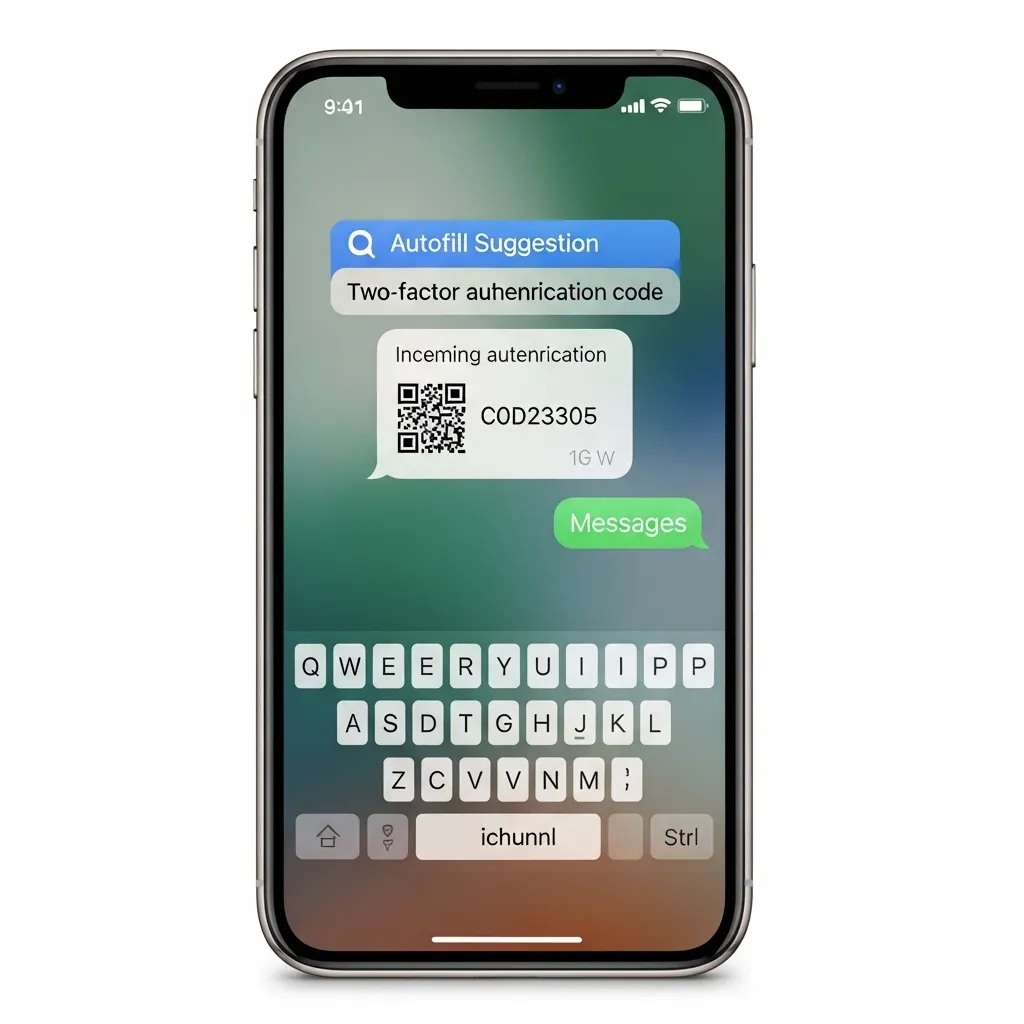
For accounts with two-factor authentication (2FA), this feature is magic. When a text message with a verification code comes in, iOS detects it and suggests the code right above your keyboard.
Just tap it to autofill. It works in most apps and Safari. This tiny feature saves so much time and fumbling between the Messages app and the site you’re logging into. It makes using 2FA—which you absolutely should—effortless.
9. Sync Across All Your Apple Devices
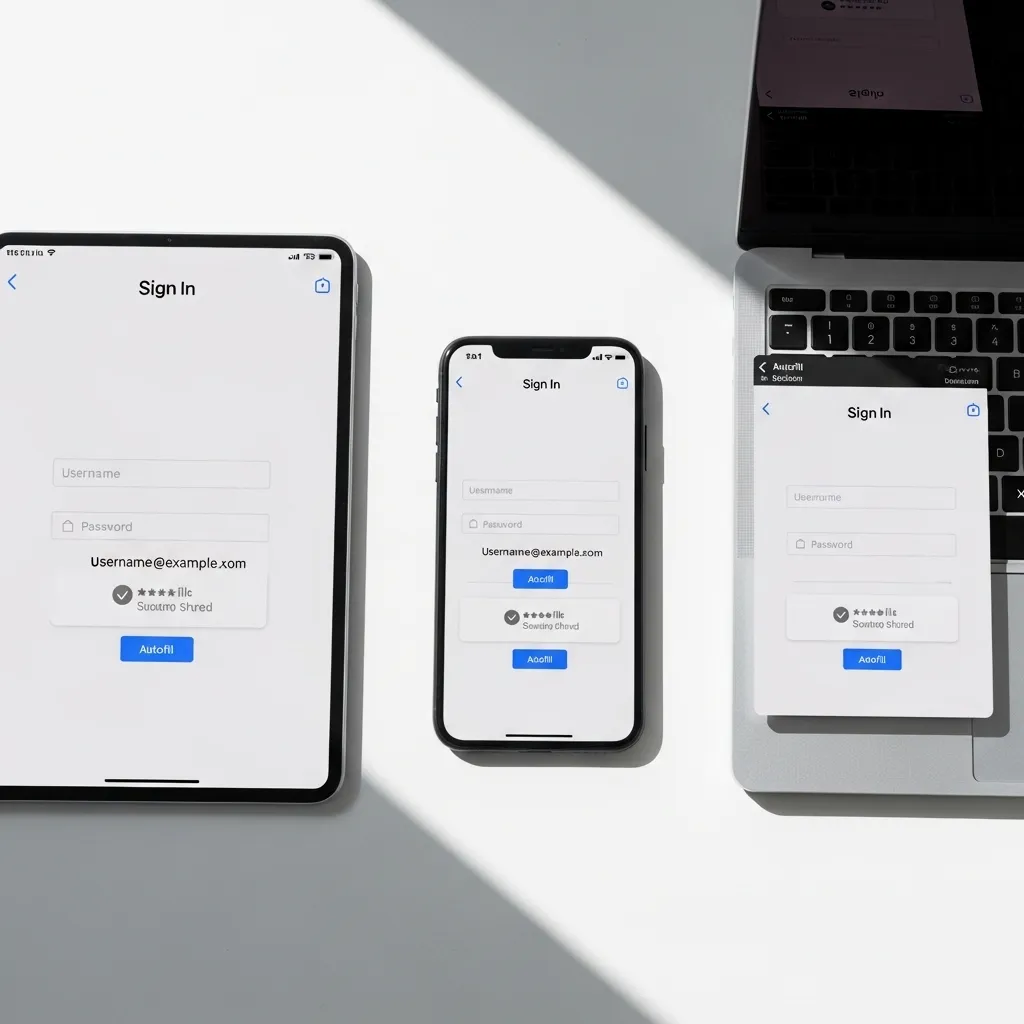
The beauty of iCloud Keychain is that it syncs. Once a password is saved on your iPhone, it’s available on your iPad and Mac (if you have iCloud Keychain enabled on them).
You never have to manually enter a password on another device again. Start a signup on your phone, finish it on your Mac—it all just works together seamlessly, creating a unified web of security.
10. What to Do When Autofill Doesn’t Pop Up
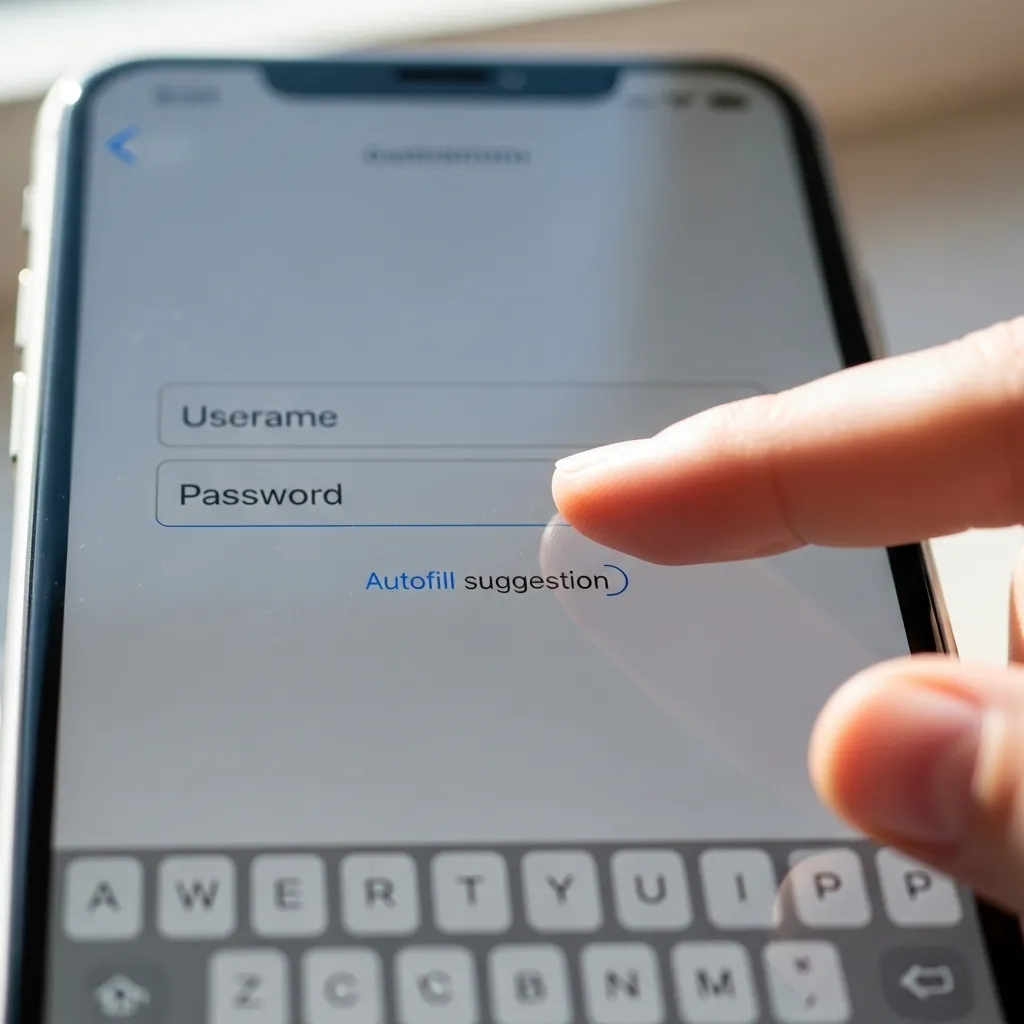
Sometimes the prompt doesn’t appear. Don’t panic. First, double-check that “AutoFill Passwords” is turned on in Settings > Passwords. If it is, try these tricks:
- Tap the username field and look for the small key icon on the keyboard.
- Long-press the password field—sometimes a “Passwords” option appears.
- Manually copy the password from your Settings vault and paste it.
It’s usually just a minor glitch. One of these methods will almost always get you in.
Conclusion: Embrace the Convenience & Security
Trusting my iPhone with my passwords was one of the best digital decisions I’ve made. It removed the daily friction of forgotten logins and, more importantly, upgraded my security overnight by using strong, unique passwords everywhere.
It turns a tedious chore into a silent, seamless part of using your phone. Set it up once, let it do its job, and enjoy a smoother, safer online experience. You’ll wonder how you ever managed without it.
Your iPhone Autofill Password FAQ
Q: Is it safe to let my iPhone store all my passwords?
A: Yes, it’s very safe. Passwords are encrypted in your iCloud Keychain and protected by your device passcode, Face ID, or Touch ID. Even Apple can’t read them.
Q: What happens if I get a new iPhone?
A: As long as you use the same Apple ID and have iCloud Keychain enabled, all your passwords will restore to your new device during setup or sync over shortly after.
Q: Can I use it for apps that aren’t from the App Store?
A: Autofill primarily works with Safari and apps from the App Store. For other browsers or apps, you may need to use their built-in password managers.
Q: Does it work with non-website logins, like my bank app?
A> Absolutely. It works with almost any app that has a standard login screen, including banking, social media, and shopping apps.
Q: Can I see the actual password if I need to tell someone?
A: Yes. Go to Settings > Passwords, select the account, and authenticate. You can then tap and hold on the password to copy it or tap “Edit” to view it plainly.