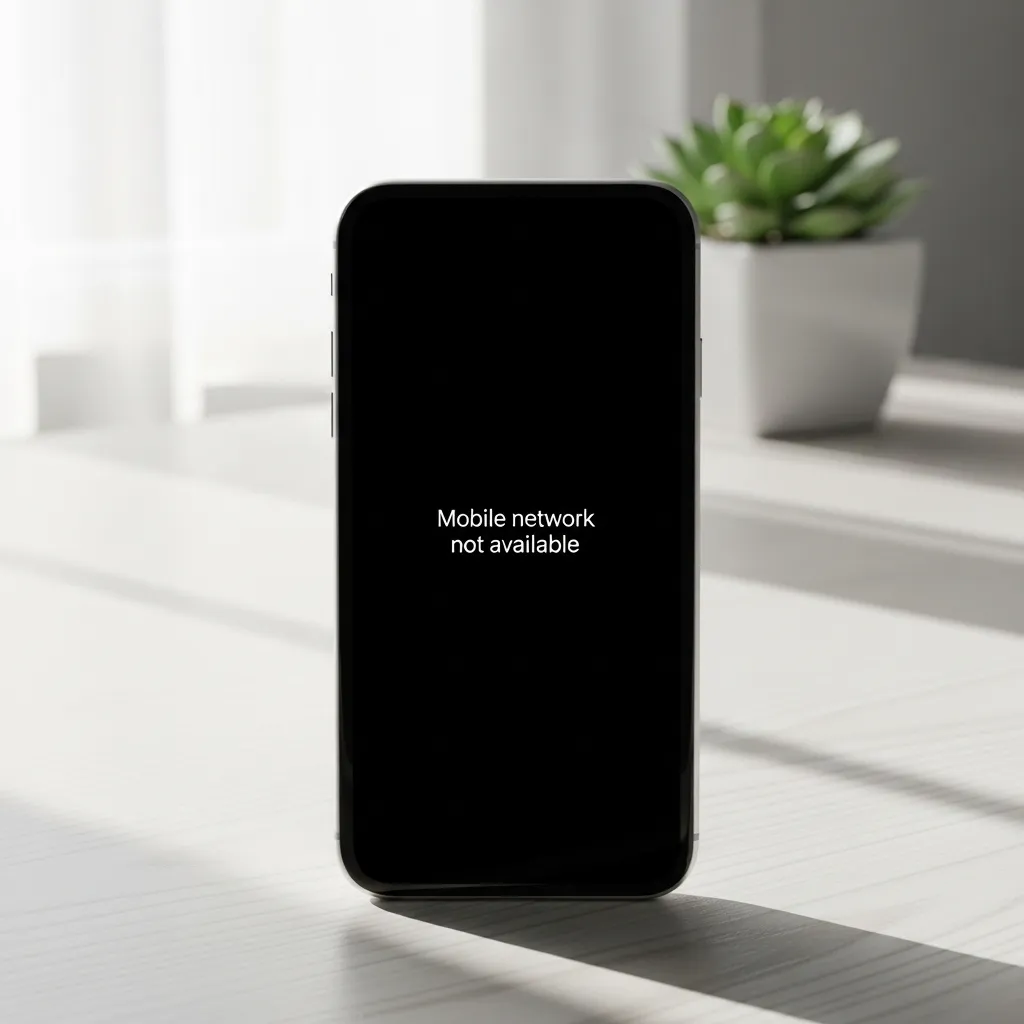
Mobile Network Not Available? Let’s Fix It Together
That sinking feeling when you see “Mobile Network Not Available” is all too real. You’re trying to send a message, make a call, or just scroll, and suddenly you’re disconnected from the world. It’s frustrating, but take a deep breath—you’re not powerless.
This error doesn’t always mean there’s a major outage. Often, it’s a simple glitch between your phone and the network that we can troubleshoot ourselves. I’ve been there many times, and I’ve learned that a little patience and the right steps can usually get you back online.
Let’s walk through the most effective fixes, from the quickest checks to the more involved solutions. Grab your phone, and let’s get your connection restored.
1. The Instant Fix: Toggle Airplane Mode
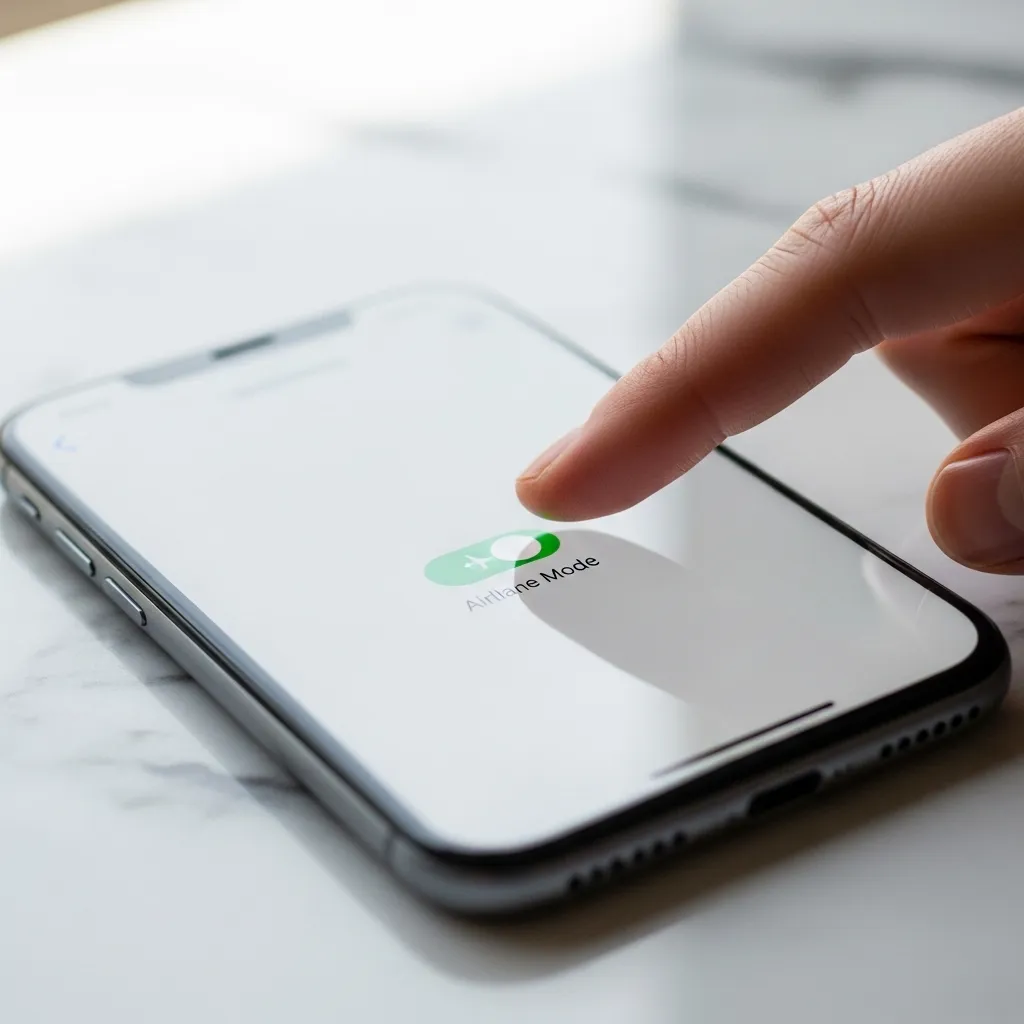
This is my absolute go-to first step. It’s like giving your phone’s radio a quick power nap. Turning Airplane Mode on and off forces your phone to disconnect from and then reconnect to the nearest cell tower.
Simply swipe down from the top of your screen to access Quick Settings. Tap the airplane icon to turn it on, wait about 10-15 seconds, and then tap it again to turn it off. Watch as your phone searches for a signal. More often than not, this little reset does the trick.
2. Give It a Fresh Start: Restart Your Phone
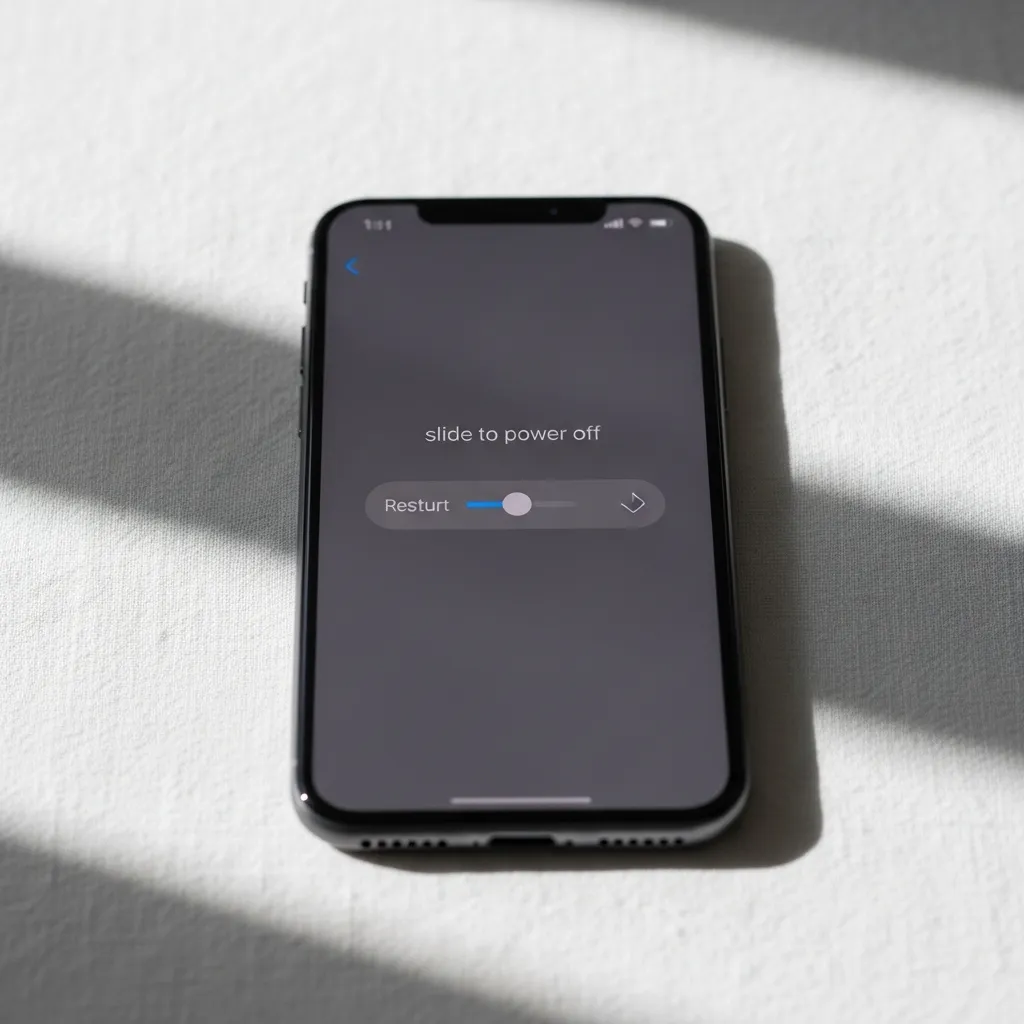
If the airplane trick didn’t work, it’s time for the classic reboot. A restart clears out temporary software bugs and memory glitches that might be blocking your network connection.
Hold down the power button and select “Restart.” Don’t just turn it off and on; choose the restart option for a full refresh. Once it boots back up, give it a minute to re-establish service. You’d be surprised how many mysterious issues this solves.
3. Check Your Physical Location
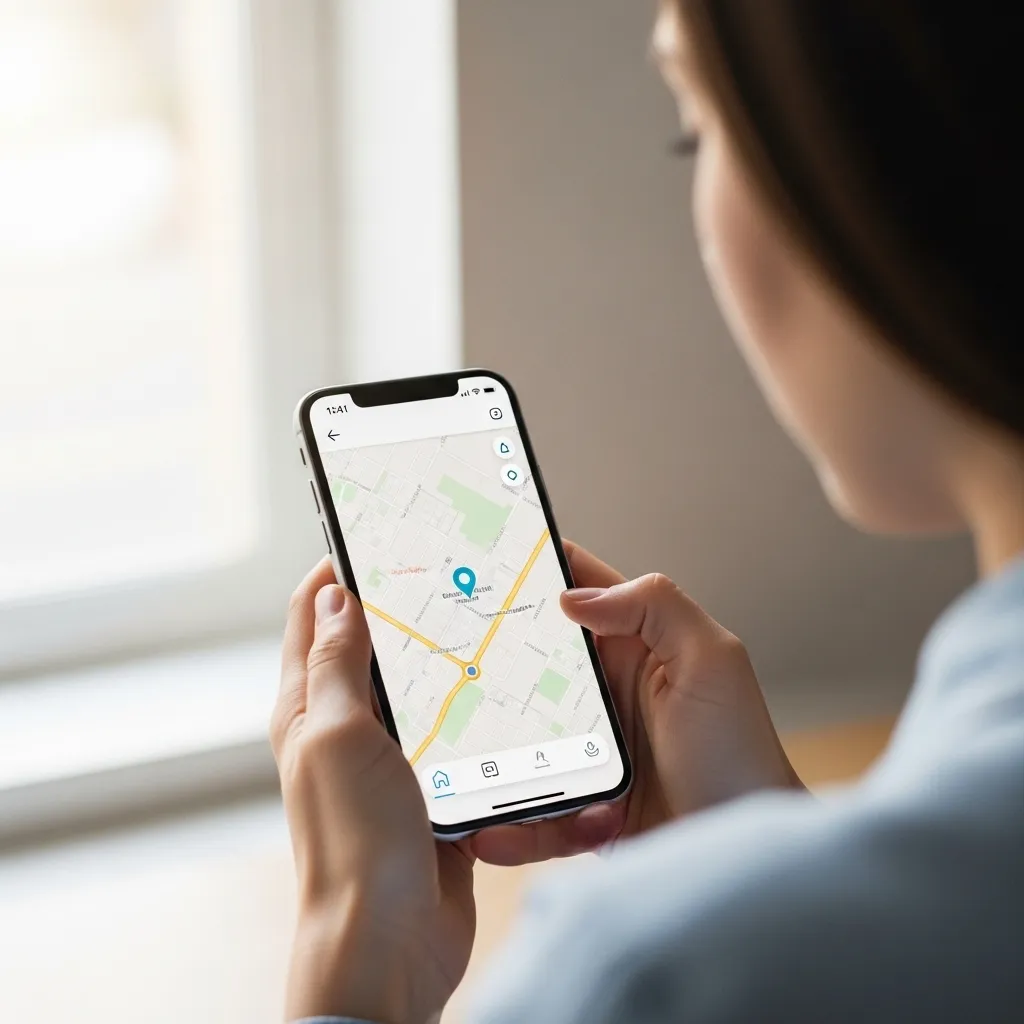
Sometimes, the problem isn’t your phone—it’s where you’re standing. Thick walls, basements, elevators, and remote areas are notorious for killing signals.
- Try moving near a window or stepping outside.
- If you’re in a building, see if moving to a different floor or room helps.
- Check if others around you on the same network are having issues.
This quick environmental check can save you a lot of unnecessary troubleshooting on your device.
4. Inspect Your SIM Card
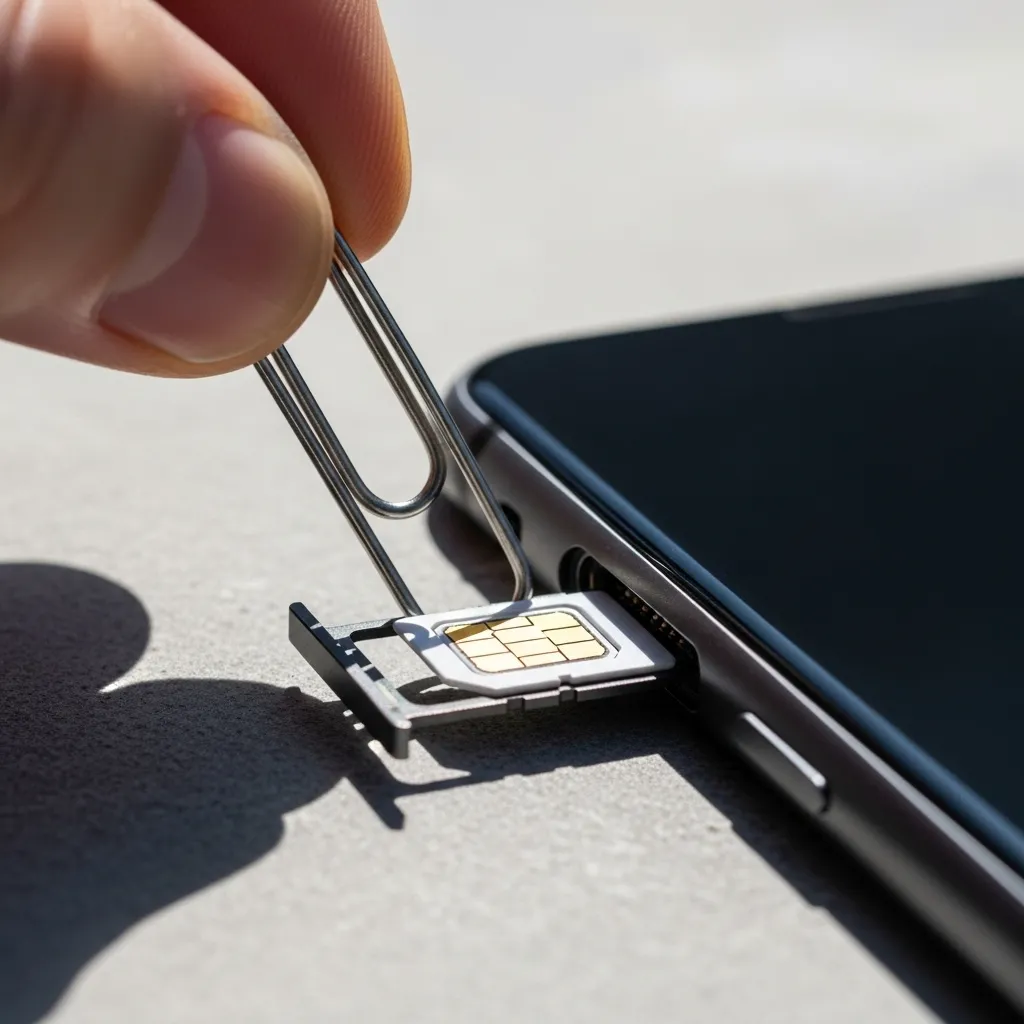
A loose, dirty, or faulty SIM card is a common culprit. It’s the tiny chip that authenticates you on the network, and if it’s not seated properly, you’ll lose service.
Power off your phone completely. Use the SIM ejector tool (or a careful paperclip) to remove the SIM tray. Gently take out the SIM card, wipe the gold contacts with a soft, dry cloth, and reinsert it firmly. Power your phone back on.
5. Manually Select Your Network Operator
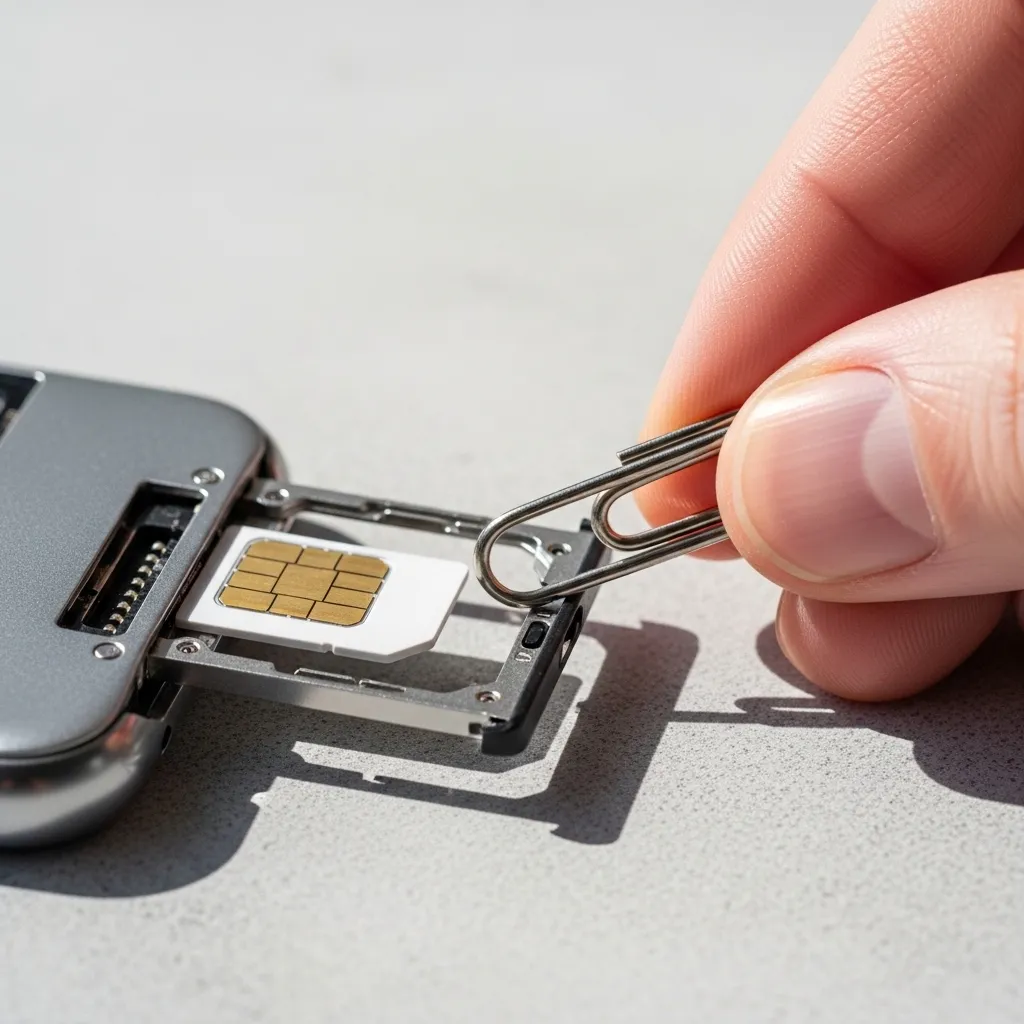
Your phone usually picks the best network automatically, but sometimes it gets stuck. Manually selecting your carrier can kick it back into gear.
Go to Settings > Connections > Mobile Networks > Network Operators. Turn off “Select automatically.” Your phone will search and show a list. Choose your specific carrier’s name from the list. Wait a moment for it to register.
6. Reset Your Network Settings
This is a stronger reset that clears all your Wi-Fi, Bluetooth, and cellular connections without deleting your personal data. It’s incredibly effective for persistent network errors.
Navigate to Settings > General Management > Reset > Reset Network Settings. Confirm the action. Your phone will reboot. Afterwards, you’ll need to rejoin Wi-Fi networks and re-pair Bluetooth devices, but your cellular connection should be fresh.
Note: The exact menu name might vary slightly by phone model.
7. Check for a Carrier Settings Update
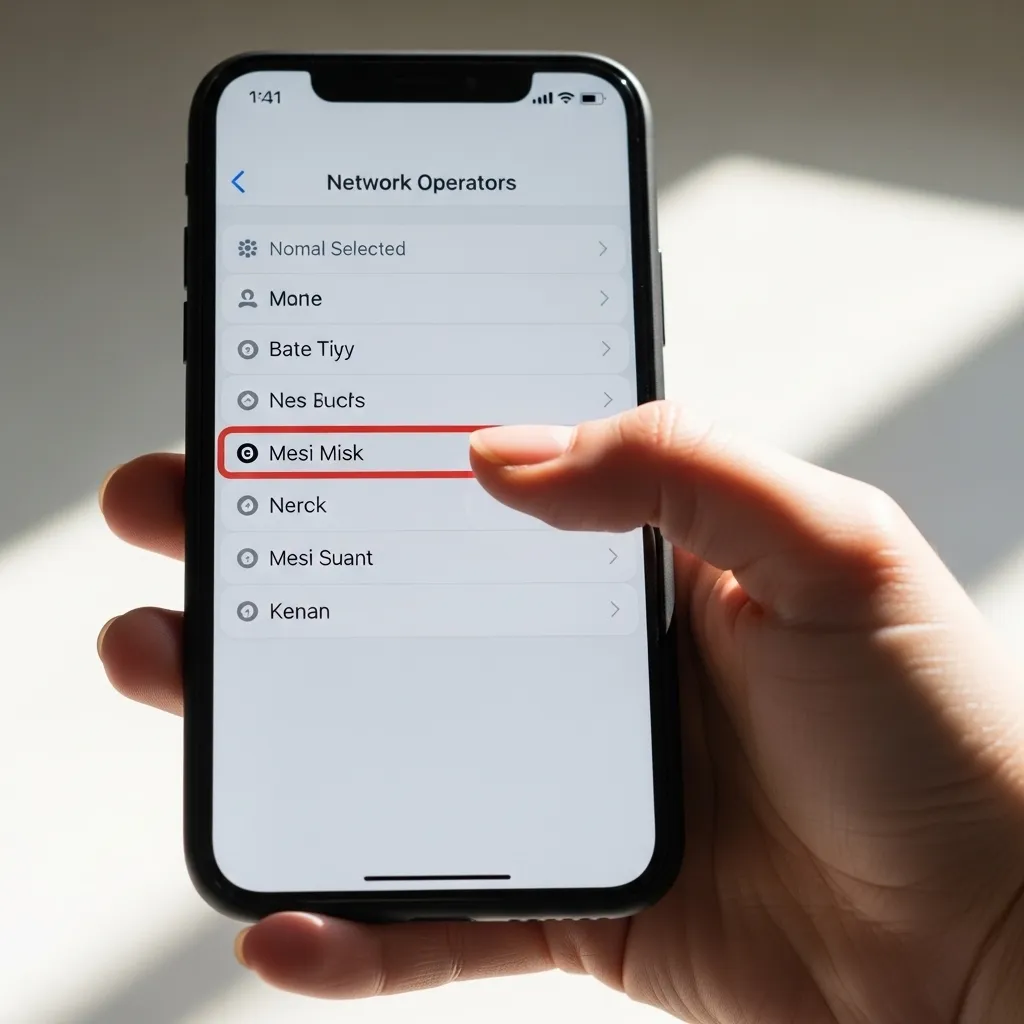
Your mobile carrier occasionally sends small updates to improve network connectivity. These happen in the background, but sometimes they need a nudge.
For iPhone, go to Settings > General > About. If an update is pending, a prompt will appear. For Android, it’s often in Settings > Software Update or your carrier’s own app. Keeping this updated ensures your phone can communicate properly with the towers.

8. Look for Broader Service Outages
Before diving deeper into phone settings, check if the issue is on your carrier’s end. Widespread outages do happen.
- Visit your carrier’s official website or social media pages for status updates.
- Use a friend’s phone or Wi-Fi to check sites like Downdetector.
- Ask neighbors or colleagues if they’re experiencing the same problem.
If it’s an outage, the only fix is to wait patiently for them to resolve it.
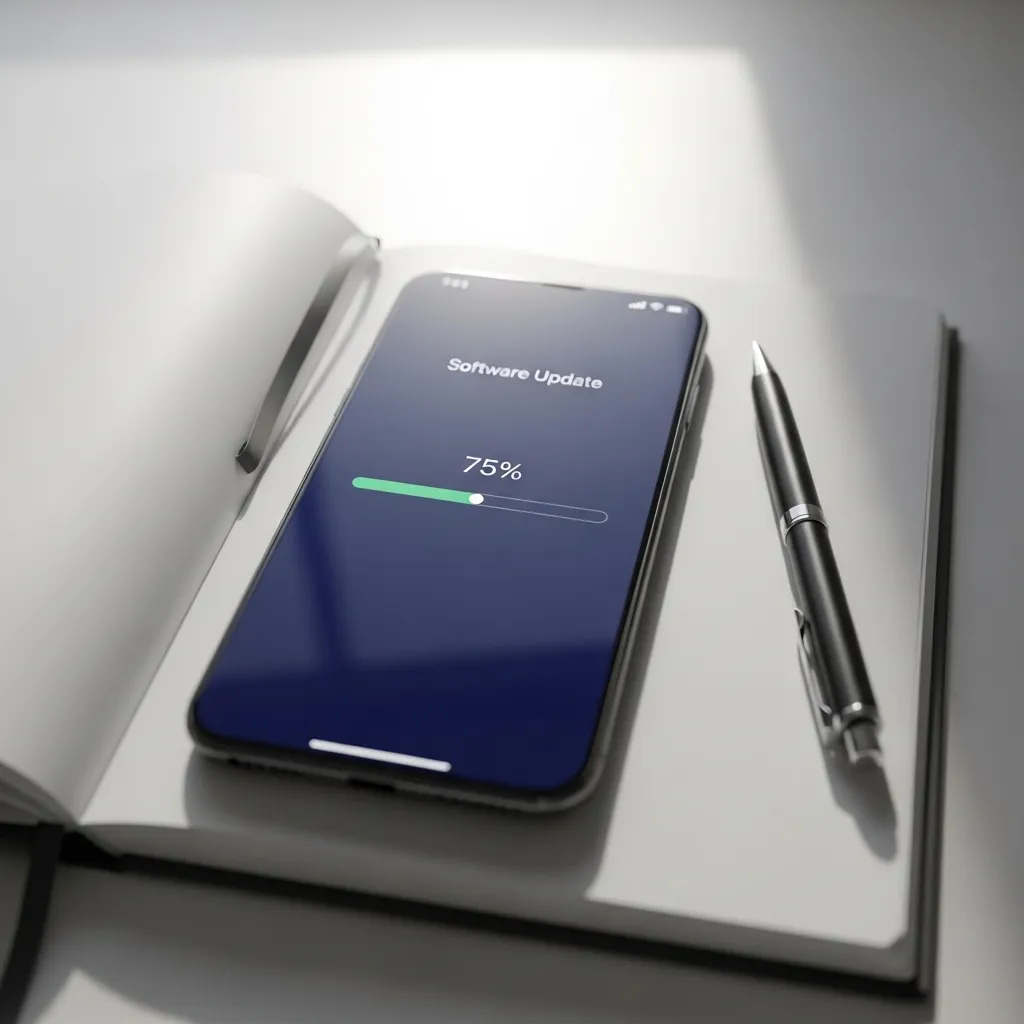
9. Update Your Phone’s Software
An outdated operating system can have bugs that affect network performance. Software updates frequently include patches for connectivity issues.
Head to Settings > Software Update and tap “Download and Install” if an update is available. Make sure your phone is charged and on Wi-Fi before starting. An update can introduce crucial fixes you didn’t even know you needed.
10. The Last Resort: Factory Reset (Backup First!)
If nothing else has worked, a factory reset will wipe your phone back to its original settings, removing any deep-seated software corruption. This is a major step.
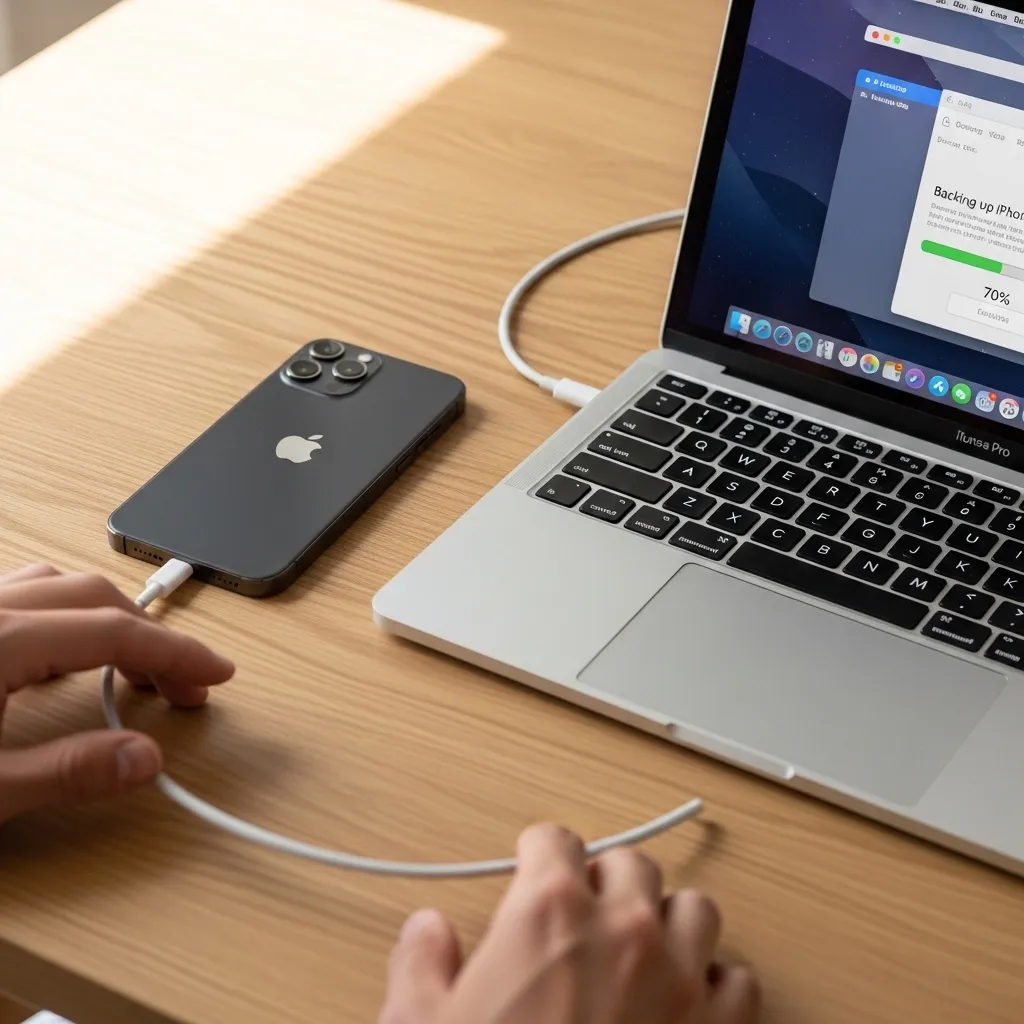
CRUCIAL: First, ensure all your photos, contacts, and important data are fully backed up to the cloud or a computer. Then, go to Settings > General Management > Reset > Factory Data Reset. After the reset, set up your phone as new to see if the network error is gone.
Conclusion: Regain Your Connection
Seeing “Mobile Network Not Available” doesn’t have to ruin your day. Start with the simple steps—Airplane Mode, a restart, and a location check. Then move logically through checking the SIM, network selection, and resets. Most of the time, you’ll find your fix in the first few steps.
I keep this mental checklist handy for myself, and it almost always saves me a trip to the carrier store. Stay connected!
Quick FAQ
Q: Why does this error happen suddenly?
A: It’s often a temporary network handoff failure, a software glitch, or your phone losing then failing to reacquire a signal from a tower.
Q: Should I remove my SIM card often?
A: No, only if you suspect it’s the issue. Frequent removal can wear the contacts or damage the tray.
Q: Will resetting network settings delete my photos?
A> No! It only erases saved Wi-Fi passwords, Bluetooth pairings, and VPN settings. Your personal data is safe.
Q: Can a bad phone case cause this?
A: It’s rare, but a metal or very thick, poorly designed case can interfere with antenna reception. Try removing it to test.
Q: When should I contact my carrier?
A> If none of the self-fixes work, you’ve confirmed there’s no outage, and the error persists in multiple locations, it’s time to call them. You may need a new SIM or there could be an account issue.