My Android Phone Won’t Ring! Your Step-by-Step Fix Guide
There’s nothing more frustrating than missing an important call because your phone decided to go silent. You check it later and see a missed call notification, but you never heard a ring or felt a vibration. I’ve been there, and it feels like your phone is working against you.
This common Android glitch can have many causes, from a simple software hiccup to a more involved setting. The good news is you can almost always fix it yourself without a trip to the repair shop. Let’s walk through the most effective solutions, starting with the quickest checks.
Grab your phone, and we’ll troubleshoot this together. By the end of this guide, you’ll have a checklist to get your phone receiving calls reliably again.
1. First, Check the Obvious: Silent Mode & Do Not Disturb
It sounds silly, but this is the most common culprit. I’ve accidentally toggled silent mode more times than I can count, especially when pulling my phone from a tight pocket or bag.
- Check your physical volume buttons. Press the volume-up key and see if the on-screen slider shows it’s set to ring.
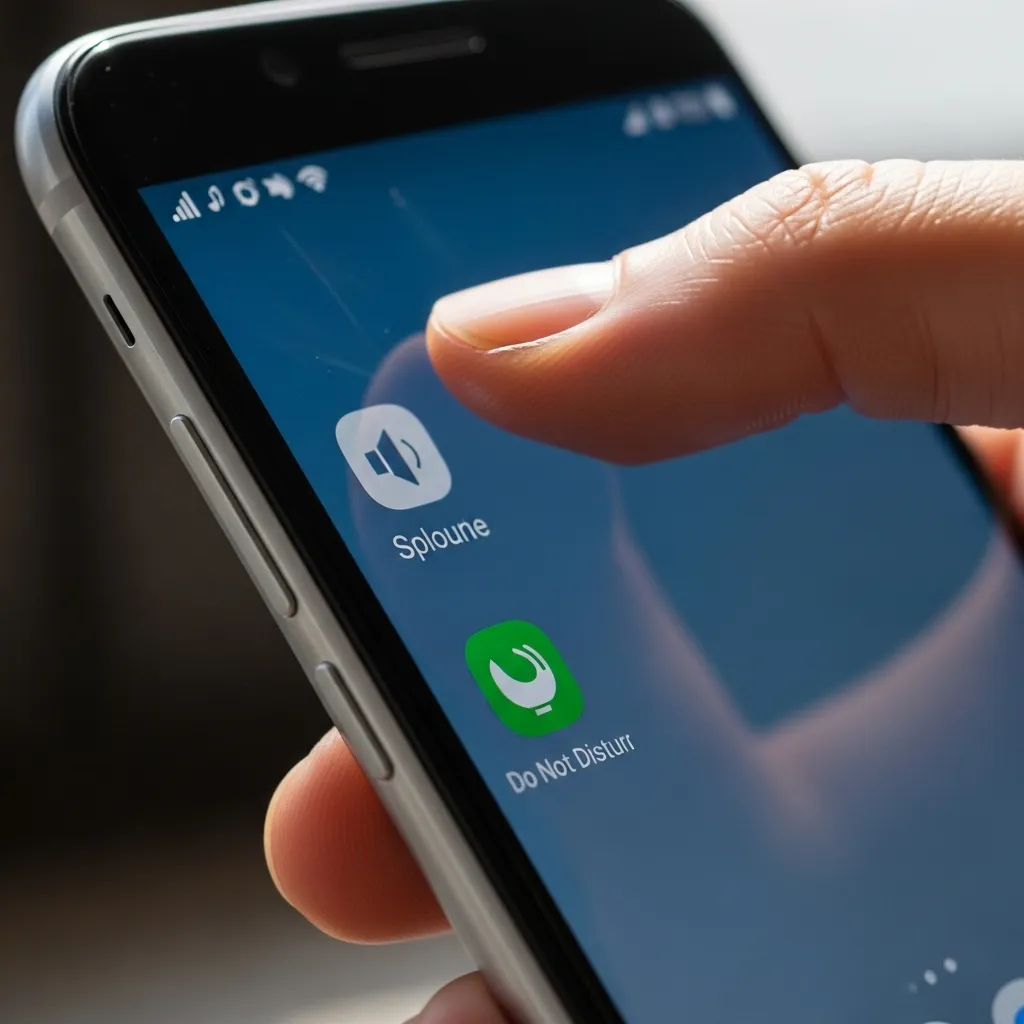
- Swipe down from the top of your screen to open the Quick Settings panel. Look for icons like a speaker with a slash or a “Do Not Disturb” moon symbol. Tap them to turn them off.
- Don’t forget to check scheduled “Do Not Disturb” times in your settings, which can automatically silence your phone.
2. Dive Into Your Call Settings & Block List
Android has powerful call management features, but sometimes they can work a little too well. It’s worth a quick look to make sure a setting isn’t blocking all incoming calls.
Open your Phone app, tap the three-dot menu, and go to Settings. Look for sections like “Blocked numbers” or “Call rejection.” Ensure you haven’t accidentally enabled “Block unknown callers” or added a broad rule that’s filtering your calls.
Also, check if “Call Forwarding” is accidentally enabled. If all your calls are being forwarded to another number (or a non-existent one), your phone won’t ring.

3. Inspect Your SIM Card Connection
A loose or faulty SIM card can cause call reception issues. Your phone might show signal bars for data but fail when a call tries to come through.
Power your phone off completely. Use the SIM ejector tool (or a small paperclip) to open the SIM tray. Gently remove the SIM card, wipe the gold contacts with a clean, dry cloth, and carefully reinsert it. Power your phone back on.
If you have another phone available, try your SIM card in it to see if the problem follows the card. If it does, you may need a replacement SIM from your carrier.

4. Review Your Network & Signal Strength
Are you in a known low-signal area like a basement or a rural spot? Weak signal can definitely lead to missed calls. Try moving to a different location or near a window.
You can also manually refresh your network connection. Toggle Airplane Mode on for 10 seconds, then turn it off. This forces your phone to reconnect to the cellular network from scratch, which can clear up temporary glitches.
For a more thorough reset, go to Settings > Network & Internet > Mobile Network and look for a “Network operators” or “Carrier” option. Select “Choose automatically” to re-register on the network.
5. Check for App Conflicts (Especially Call Blockers)
Third-party apps, especially call blockers, dialers, or battery savers, can sometimes interfere with the core calling function. I once had a battery optimizer app that was aggressively putting my phone app to sleep.
Think about any apps you recently installed before the problem started. Try booting your phone into Safe Mode. This temporarily disables all third-party apps. If calls work in Safe Mode, you know an app is the cause. You can then uninstall recent apps one by one to find the offender.
6. Clear the Cache & Data for Your Phone App
Over time, the data stored by your Phone app can become corrupted. Clearing this cache is like giving the app a fresh start without deleting your personal info.
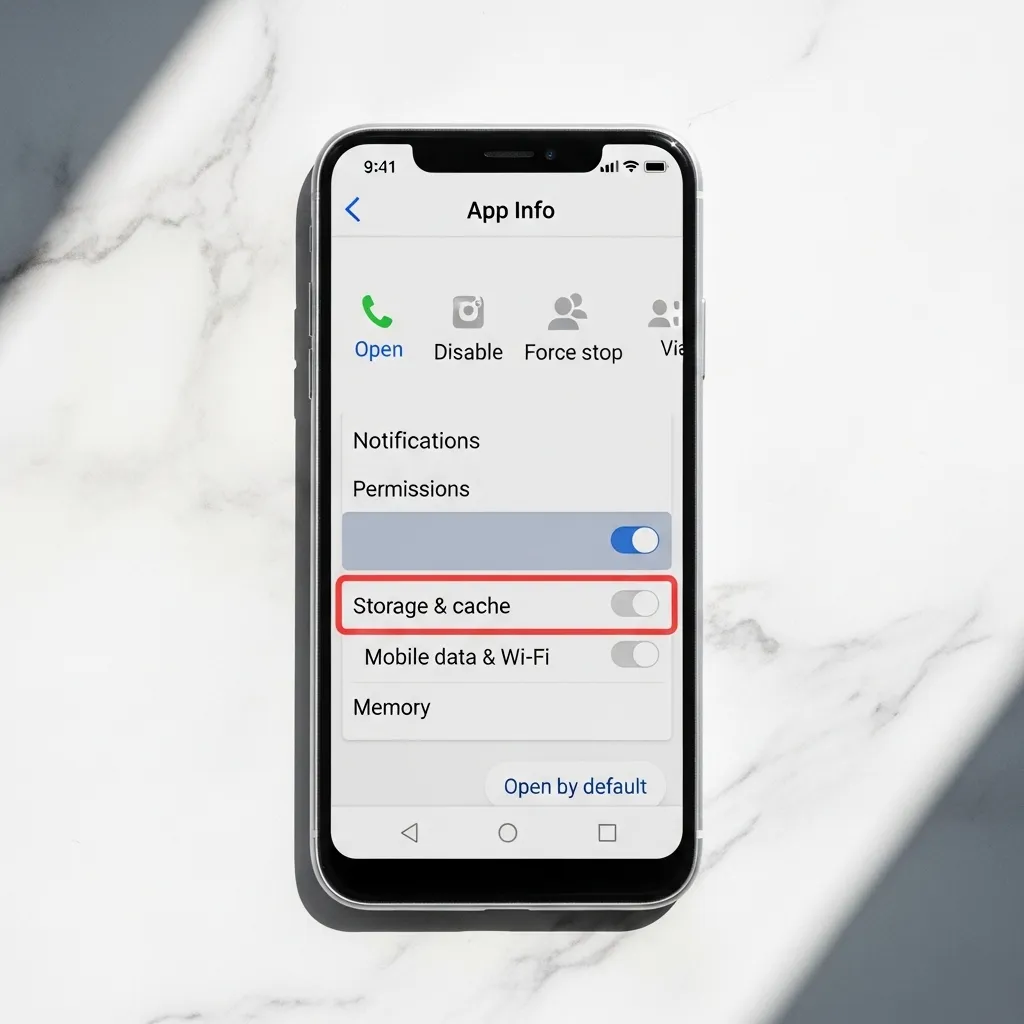
Go to Settings > Apps > See all apps. Find and select your “Phone” app (it might be called “Dialer” or something similar). Tap on “Storage & cache.” First, tap “Clear cache.” If that doesn’t work, you can try “Clear storage” or “Clear data.” Note: This may reset your call history and favorites within the app, but it won’t delete your contacts.
7. Ensure No Accessibility Features Are Interfering
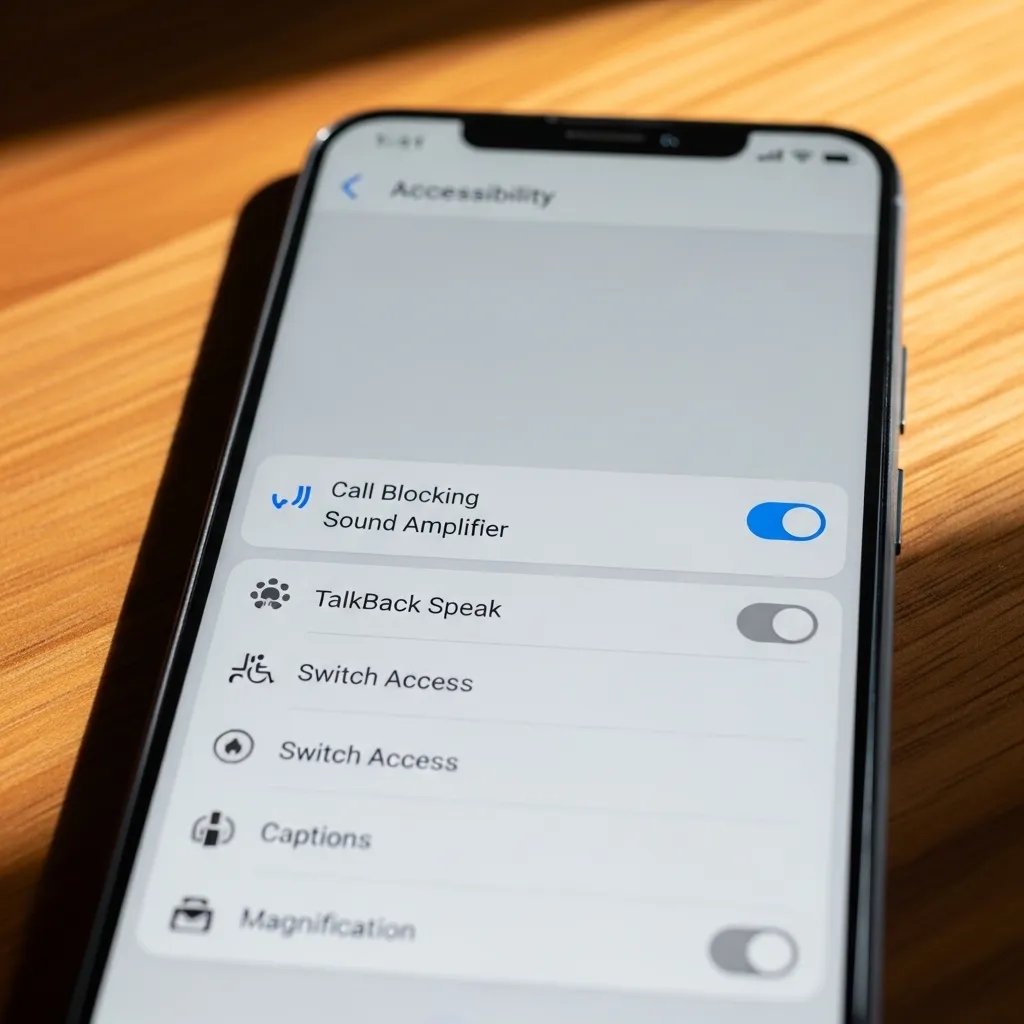
Android’s accessibility features are amazing, but some, like “TalkBack” or certain sound amplifiers, can change how calls are handled. It’s a less common issue, but worth a quick glance.
Navigate to Settings > Accessibility. Look through the list of installed services. If you see any that are turned on that you don’t actively use, try turning them off temporarily to test if your calls come through. Also, check the “Hearing aids” section if available.
8. Update Everything: System & Carrier Services
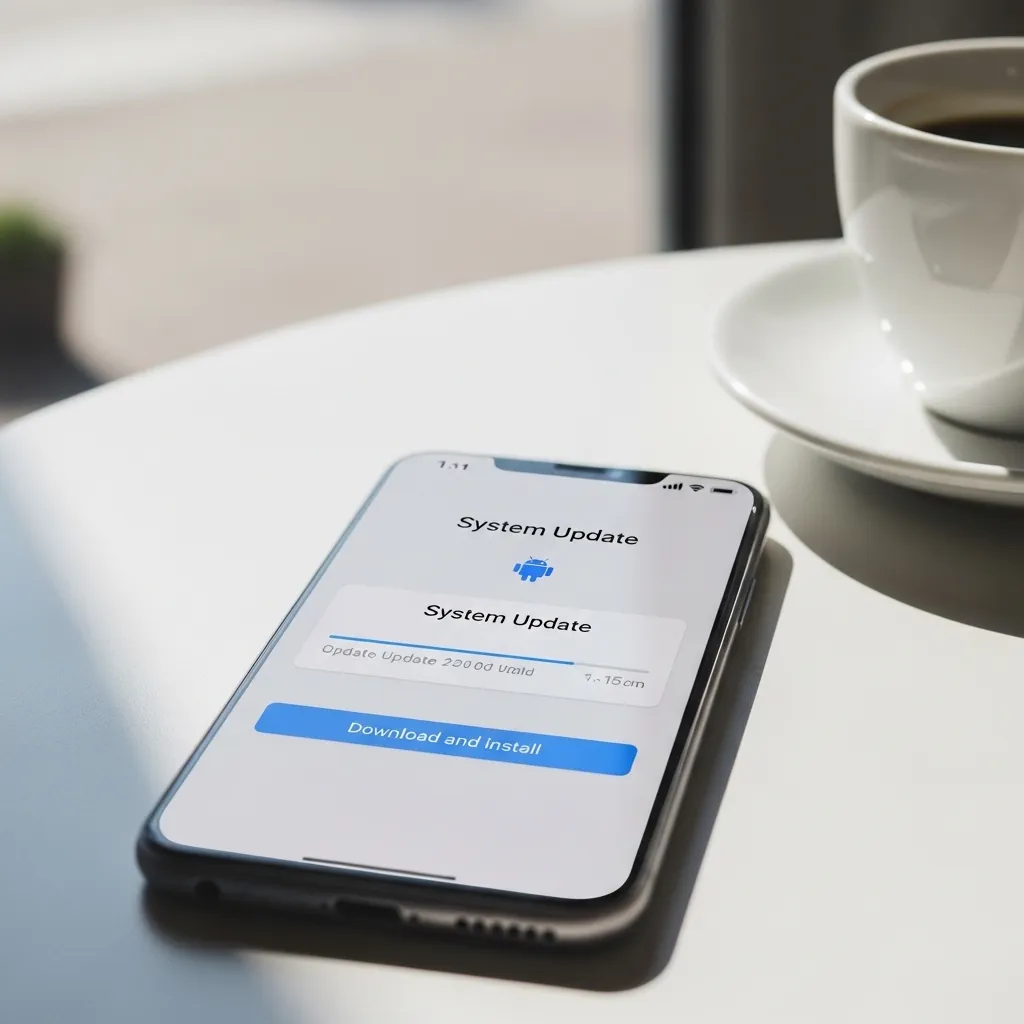
Running outdated software is a common source of bugs, including calling issues. Google and your phone manufacturer regularly release updates that fix these problems.
Go to Settings > System > System Update to check for Android OS updates. Also, open the Google Play Store, tap your profile icon, and go to “Manage apps & device” to update all your apps. Don’t forget about “Carrier Services” in the Play Store—this app is crucial for call connectivity on many phones.
9. Reset All Network Settings
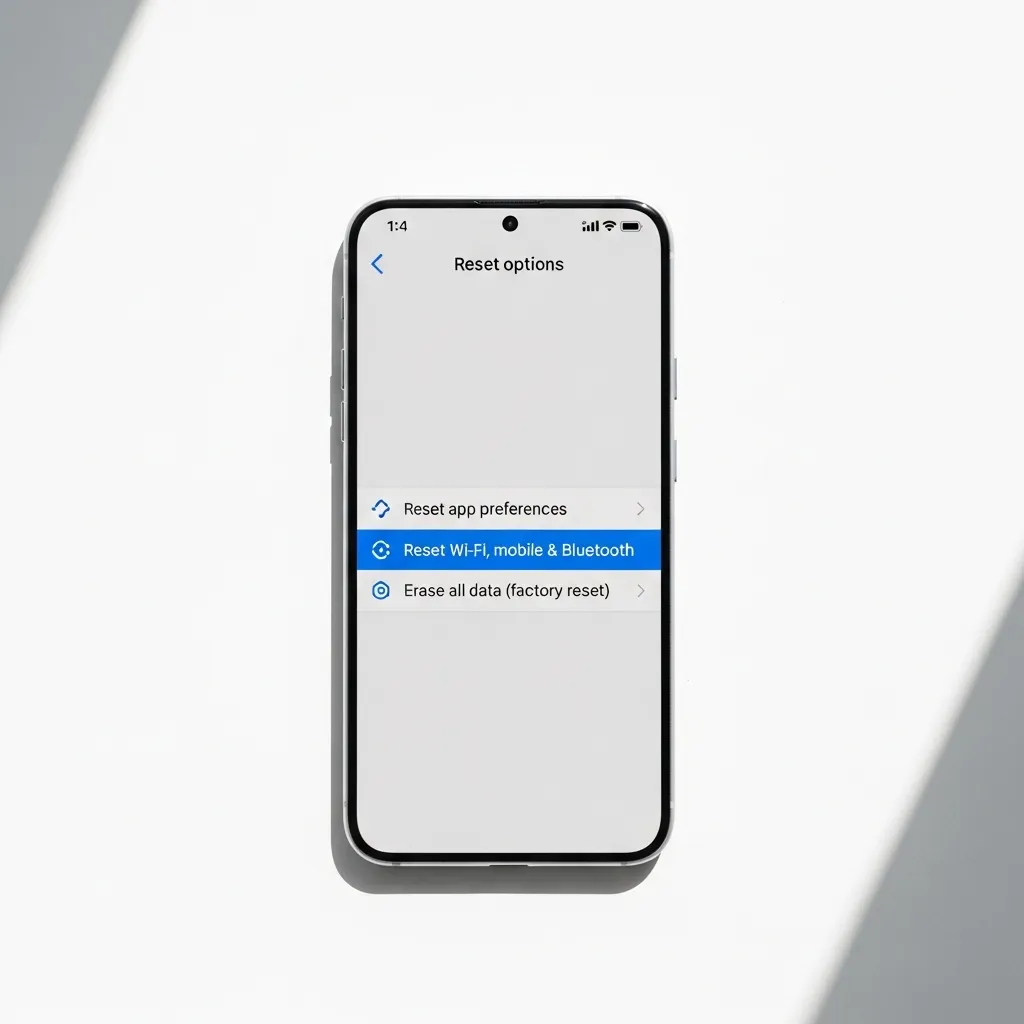
This is a stronger step that resets Wi-Fi, mobile data, and Bluetooth connections back to factory defaults. It won’t delete your photos or apps, but you will have to re-enter Wi-Fi passwords.
This fix is great for persistent, weird network-related issues. You’ll typically find this option under Settings > System > Reset options > Reset Wi-Fi, mobile & Bluetooth. After the reset, your phone will reboot. Test your calls immediately after it powers up.

10. The Last Resort: Factory Reset (Backup First!)
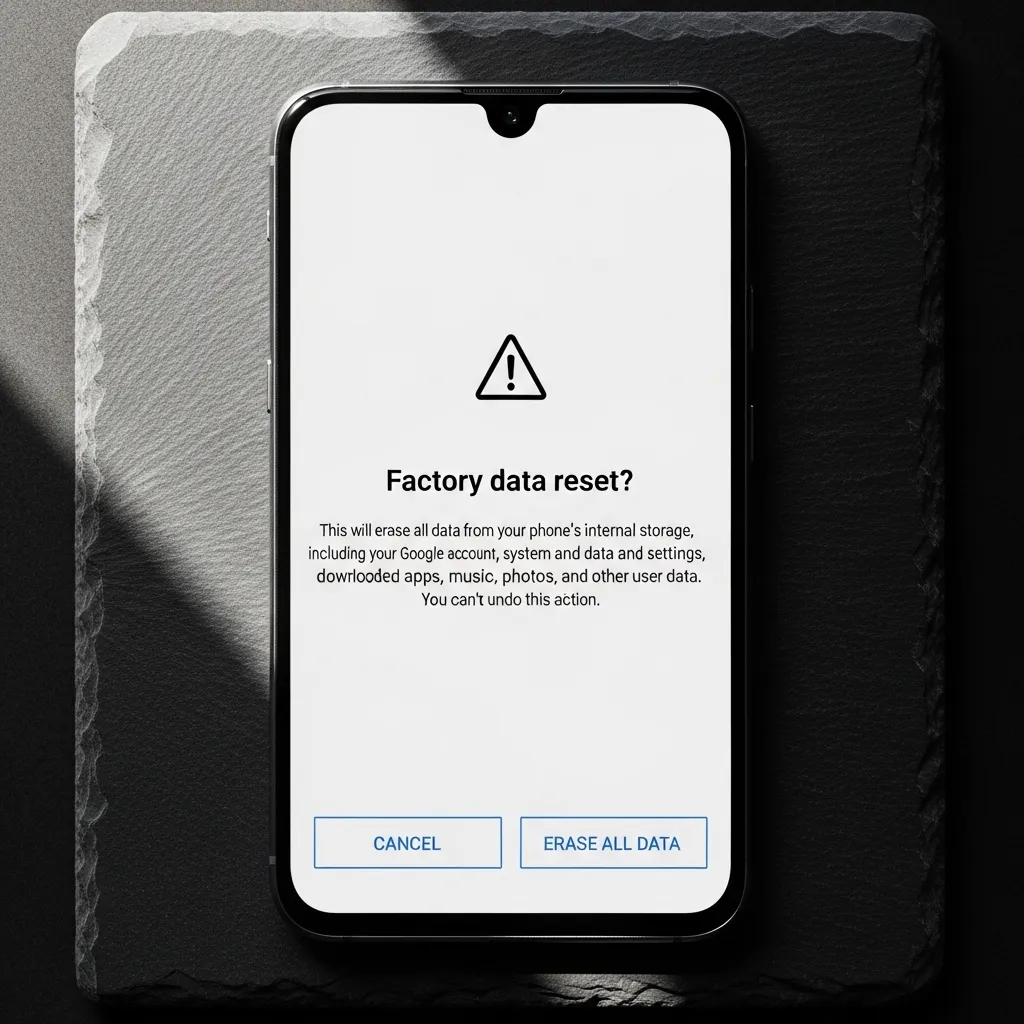
If nothing else has worked, a factory reset will wipe your phone back to its original out-of-the-box state, removing any deep-seated software corruption. This is a big step, so it’s truly a last resort.
CRUCIAL: Before you do this, make sure all your photos, contacts, and important files are backed up to Google Drive or another cloud service. To perform the reset, go to Settings > System > Reset options > Erase all data (factory reset). After the phone restores, set it up as new and test a call before restoring your apps, to see if the problem is gone.
Conclusion: Stay Connected
Missing calls doesn’t have to be your new normal. Start with the simple fixes like checking silent mode and your Do Not Disturb settings, then work your way down the list. Most of the time, the solution is in the settings, not a hardware failure. By methodically trying these steps, you’ll likely find the culprit and get your phone ringing loud and clear again.
Quick FAQ
Q: Why do calls go straight to voicemail on my Android?
A: This usually points to Do Not Disturb being on, call forwarding being active, or your SIM card having an issue. Check those first.
Q: Can a screen protector or case block my signal?
A: It’s very rare with modern phones, but a metal or very thick case could potentially interfere. Try removing your case briefly to test.
Q: I only miss calls from certain contacts. Why?
A: You likely have those specific numbers saved in your “Blocked numbers” list or marked as “Spam” by mistake. Check your block list in the Phone app settings.
Q: Will clearing my phone app data delete my contacts?
A: No. Your contacts are stored in your Google Account or SIM card, not in the app’s temporary data. You’re safe to clear the cache and data.
Q: How do I know if it’s a carrier problem and not my phone?
A: Try your SIM card in another phone. If the problem persists, contact your carrier. Also, check their service outage map or social media to see if others are reporting issues.