Nearby Share Not Working on Android? Let’s Fix It Together
I love using Nearby Share to quickly send photos or files to a friend. It feels like magic when it works! But when that “Looking for devices” message just spins forever, or the transfer fails, the magic disappears fast. You’re not alone—this is a common hiccup for many of us.
The good news is, it’s almost always something simple we can fix ourselves. I’ve been through this plenty of times and have collected the best fixes that actually work. Let’s walk through them step-by-step and get your sharing back on track.
1. Double-Check Your Basics First
Before we dive deep, let’s cover the absolute essentials. Nearby Share needs three things to even have a chance: Bluetooth, Location, and Wi-Fi must all be turned ON. Yes, even if you’re not connected to a network, Wi-Fi needs to be enabled for the direct peer-to-peer connection.
Also, make sure both devices are unlocked and the screens are awake. It sounds obvious, but I’ve “fixed” this more than once by simply tapping my screen!
2. Toggle Airplane Mode On & Off
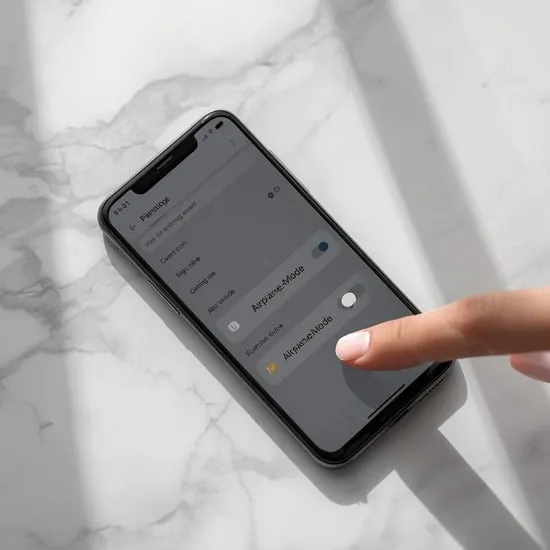
This is my go-to first real fix. It’s like giving your phone’s connectivity a quick reboot. Turn on Airplane Mode for about 15 seconds. This will shut off Bluetooth, Wi-Fi, and mobile data.
Then, turn Airplane Mode off. Your phone will re-establish all its connections fresh. This clears up minor glitches and is surprisingly effective. Try Nearby Share again right after.
3. Restart Bluetooth and Wi-Fi Separately
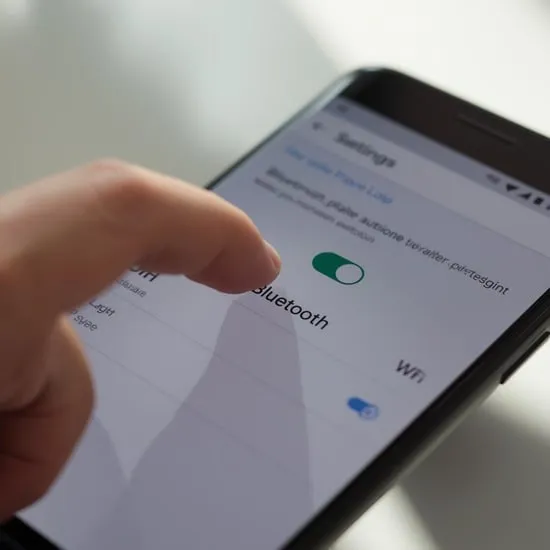
If Airplane Mode didn’t do the trick, let’s get more specific. Head to your Quick Settings panel and turn Bluetooth OFF. Wait a moment, then turn it back ON. Do the same for Wi-Fi.
Sometimes, one of these services gets stuck in a weird state. A simple off-and-on cycle forces them to reset their connections, which is exactly what Nearby Share relies on.
4. Verify Your Visibility Settings
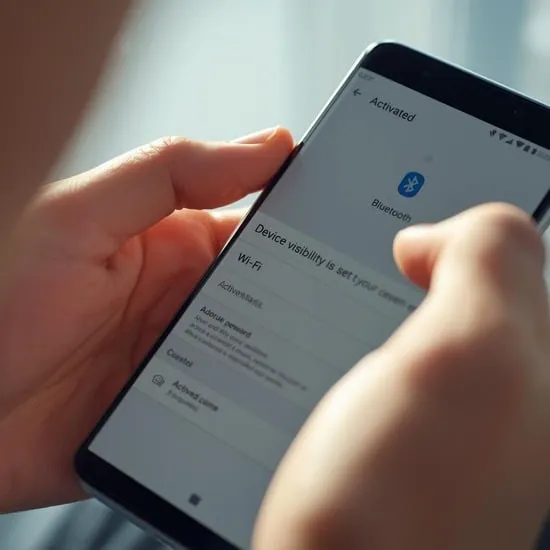
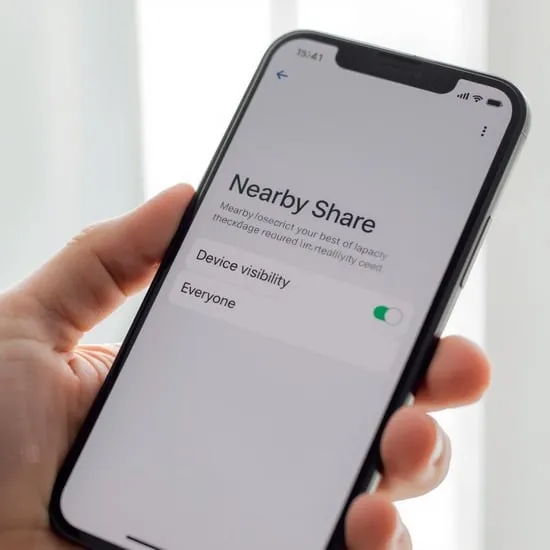
This is a big one! Open Nearby Share settings (usually under “Connected devices” or “Google”). Tap on “Device visibility.” You have a few options here:
- Everyone: Best for troubleshooting.
- Contacts: Only people in your contacts can see you.
- Hidden: You won’t appear at all.
For testing, set both devices to “Everyone.” Once it’s working, you can change it back for security.
5. Update Everything in Sight
Outdated software is a common culprit. Check for updates in a few places:
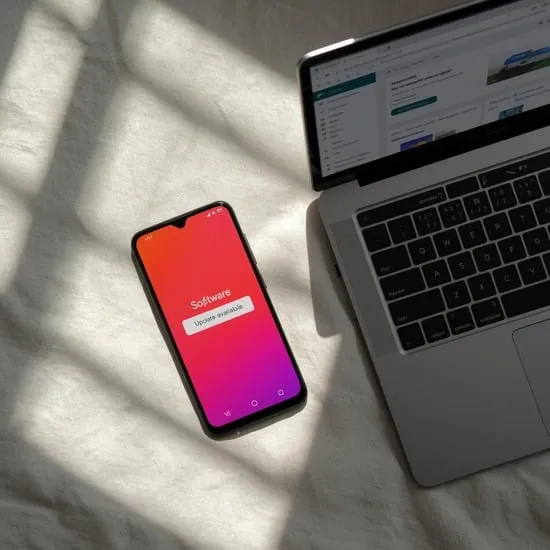
- Your Android system updates (Settings > System > Software update).
- The Google Play Services app (Play Store > My profile > Manage apps & device > Updates available).
- The “Files by Google” app if you use it.
An update often includes crucial bug fixes for connectivity features like this.
6. Clear the Cache for Key Apps
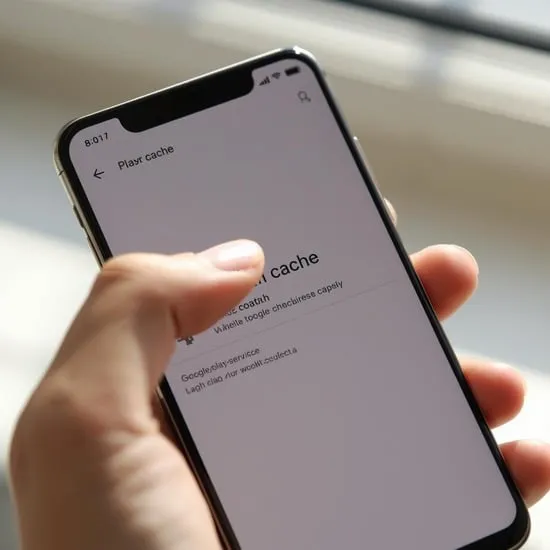
Cache data helps apps run faster, but it can become corrupted. Let’s clear it for the main players. Go to Settings > Apps.
- Find and select “Google Play Services.” Tap “Storage & cache” > “Clear cache.”
- Do the same for “Files by Google” or “Google” if you see it.
Don’t worry, clearing cache won’t delete your personal data. It just removes temporary files that might be causing trouble.
7. Check for Physical Interference
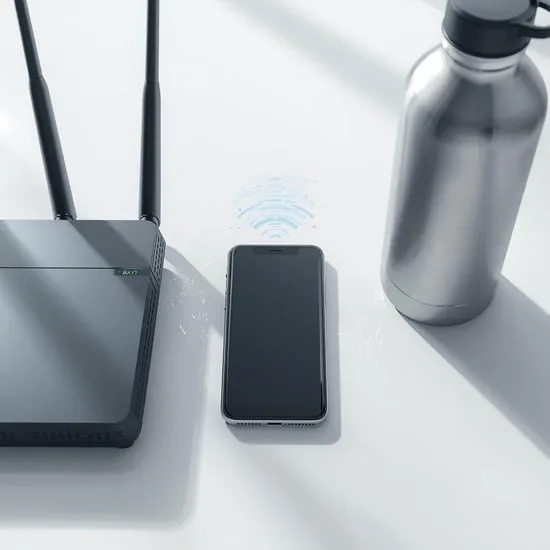
Nearby Share uses a mix of Bluetooth and Wi-Fi Direct, which are both sensitive to interference. Make sure the devices are within a meter (about 3 feet) of each other to start.
Also, move away from potential disruptors like:
– Microwaves
– Crowded Wi-Fi areas
– Large metal objects
Getting into the same room with a clear line of sight can make all the difference.
8. Reset Your Network Settings
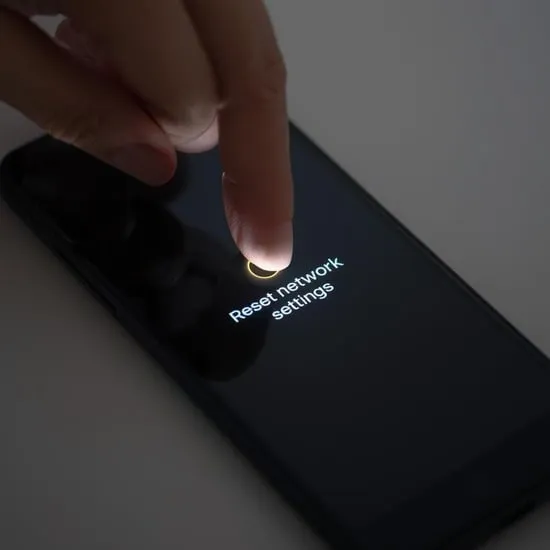
This is a stronger step, but it works wonders. Going to Settings > System > Reset options > Reset Wi-Fi, mobile & Bluetooth will erase all your saved networks, Bluetooth pairings, and cellular settings.
You’ll have to reconnect to your Wi-Fi and re-pair Bluetooth devices like headphones, but it gives your network stack a completely clean slate. It’s solved the most stubborn Nearby Share issues for me.
9. Ensure Both Devices Are Compatible
Nearby Share works on most Android devices running Android 6.0 or later with Google Play Services. However, very old devices or some customized manufacturer versions (like older Huawei phones without Google services) might not support it.
Double-check that the feature is available in the settings on both phones. If one device is a Chromebook or Windows PC with the Nearby Share app, make sure that app is updated too.
10. The Final Step: Restart Both Phones
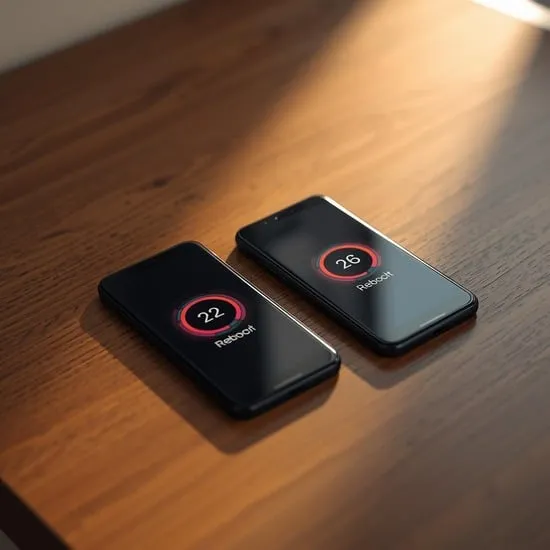
Never underestimate the power of a full restart! If you’ve tried everything and it’s still not working, power down both phones completely. Wait a full minute, then turn them back on.
A fresh boot clears out system memory and stops any background processes that could be interfering. Once they’re back up, try the transfer immediately. This classic fix works more often than not.
Conclusion
Getting Nearby Share working again is usually about methodically checking connections, settings, and software. Start with the simple toggles and work your way down the list. I find that 90% of the time, it’s fixed by step 4 or 5. The key is to be patient and try one fix at a time. Happy sharing!
Quick FAQ
Q: Why does Nearby Share keep saying “Waiting for connection”?
A: This usually means one device isn’t accepting the transfer. Check the notification shade on the receiving phone for a prompt to accept the file.
Q: Do both phones need to be on the same Wi-Fi?
A: No! That’s the beauty of it. They just both need Wi-Fi and Bluetooth turned on. They create their own direct network.
Q: Can I use Nearby Share with an iPhone?
A: Not directly. Nearby Share is for Android/Chromebooks/Windows. For iPhone, you’d use AirDrop.
Q: Is Location really necessary?
A: Yes, for device discovery. It uses location services to find nearby devices securely. You can turn it off after sharing.
Q: My transfer is very slow. What’s wrong?
A: Speed depends on distance and interference. Move the phones closer together and away from other electronics. Large files will also take time.