Set Up Personal Voice iPhone | Step-by-Step Guide
Set Up Personal Voice iPhone: My Honest Experience
The first time I heard about the option to set up Personal Voice iPhone, I felt curious and emotional at the same time. The idea that my iPhone could create a voice that sounds like me felt almost unreal. It made me appreciate how powerful accessibility features have become. 💛
I decided to set up Personal Voice iPhone not just out of curiosity, but because I wanted to understand how it works. Whether for accessibility needs or future planning, this feature feels deeply personal and meaningful.
What Is Personal Voice on iPhone?
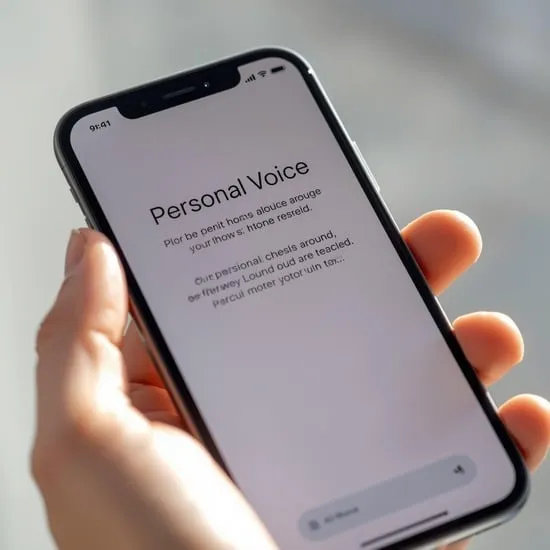
Before I tried to set up Personal Voice iPhone, I wanted to understand what it actually does. Personal Voice is an accessibility feature that allows you to create a digital version of your voice using machine learning and on-device processing.
It works together with Live Speech, so you can type words and have your iPhone speak in a voice that sounds like you. Knowing that everything is processed securely on the device made me feel safe about using it.
Requirements Before You Set Up Personal Voice iPhone
When I prepared to set up Personal Voice iPhone, I learned that it requires iOS 17 or later. You also need a quiet room and about 15 to 20 minutes to record the required phrases clearly.
Your iPhone uses these recordings to build your custom voice profile. I made sure my battery was charged and notifications were silenced so the process would not be interrupted.

How to Set Up Personal Voice iPhone Step by Step
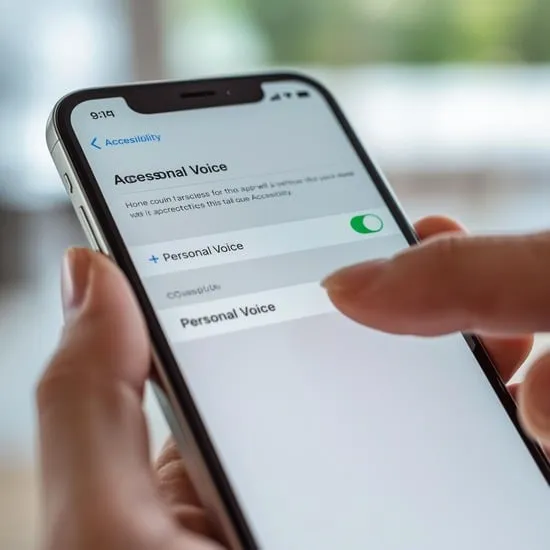
To set up Personal Voice iPhone, I went to Settings, tapped Accessibility, then Personal Voice under Speech. From there, I selected Create a Personal Voice and followed the on-screen instructions carefully.
I had to read a series of random phrases aloud. It felt a little strange at first, but after a few minutes, I got comfortable. The recording process was simple, and the instructions were easy to follow.
What Happened After Recording My Voice
After I finished the phrases, my iPhone started processing the data. When you set up Personal Voice iPhone, the voice generation happens in the background while your phone is charging and locked.
I remember feeling excited while waiting for the notification saying my Personal Voice was ready. When I finally heard it, it sounded surprisingly natural and emotional.
Using Personal Voice with Live Speech
Once you set up Personal Voice iPhone, you can use it with Live Speech. I enabled Live Speech in Accessibility settings and selected my newly created voice as the default voice.
Typing a message and hearing it spoken in my own voice felt incredibly powerful. This feature can be life-changing for people who may lose their ability to speak, and that realization truly touched me. ✨
Privacy and Security of Personal Voice
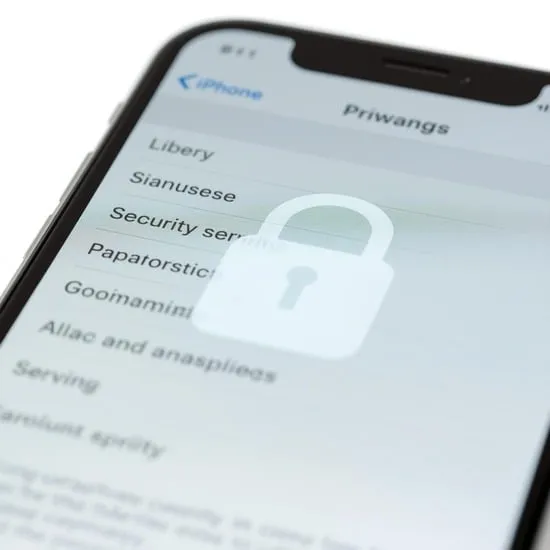
One thing that reassured me when I decided to set up Personal Voice iPhone was knowing that Apple processes everything securely on-device. My voice recordings are not uploaded or shared externally.
This focus on privacy makes the feature even more meaningful. It feels safe, controlled, and respectful of personal data, which is so important in today’s digital world.
Is It Worth Setting Up Personal Voice on iPhone?
For me, choosing to set up Personal Voice iPhone was about more than testing a feature. It felt like creating a digital piece of myself. Even if I never need it urgently, knowing it exists gives me comfort.
If you value accessibility, future planning, or simply exploring meaningful iOS features, I truly recommend taking the time to try it. It is simple, emotional, and surprisingly powerful. 💫