Speed Up Haptic Touch iPhone | Faster Touch Tips
Speed Up Haptic Touch iPhone: My Simple Fix
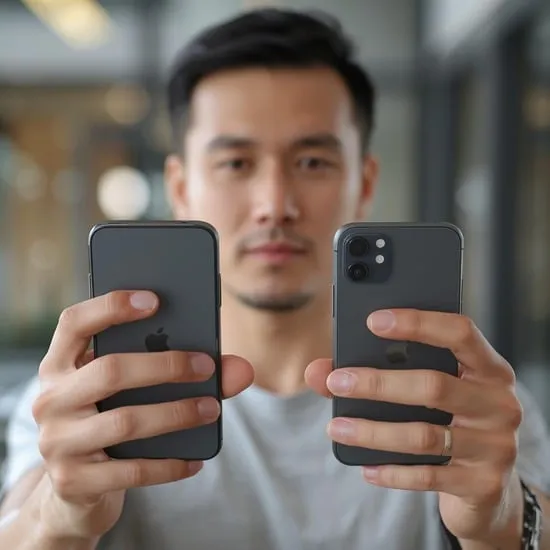
I did not realize how much Haptic Touch was slowing me down until one day I compared my phone to a friend’s. Mine felt slightly delayed when opening quick actions or previewing links. That is when I searched how to speed up Haptic Touch iPhone and honestly, it changed everything. 📱
Once I understood that the touch duration setting controls the response speed, I felt relieved. The fix was simple, and I only wish I had discovered it sooner. If your iPhone feels a bit sluggish when long pressing apps, you might need this tweak too.

What Is Haptic Touch on iPhone?
Before I tried to speed up Haptic Touch iPhone, I wanted to understand how it works. Haptic Touch allows you to press and hold the screen to access quick actions, preview notifications, and open shortcut menus. It replaces 3D Touch on newer models.
The feature relies on a press-and-hold gesture combined with haptic feedback. While it feels smooth, the default touch sensitivity can sometimes feel slow. That slight delay is what made me look for a faster response.
Why My Haptic Touch Felt Slow
I noticed the delay most when opening camera shortcuts or app quick menus. Even though it was only a fraction of a second, it felt longer during daily use. That is when I knew I needed to speed up Haptic Touch iPhone for better responsiveness.
Sometimes the default setting is set to “Slow,” especially after updates or device resets. The good news is that adjusting the touch duration is quick and does not require any extra apps or complicated steps.
How to Speed Up Haptic Touch iPhone
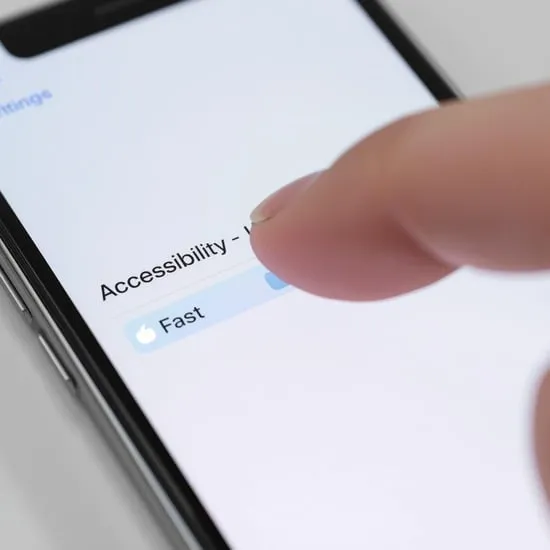
To speed up Haptic Touch iPhone, I went to Settings, then Accessibility, and tapped Touch. Inside that menu, I found the Haptic Touch option with two choices: Fast and Slow.
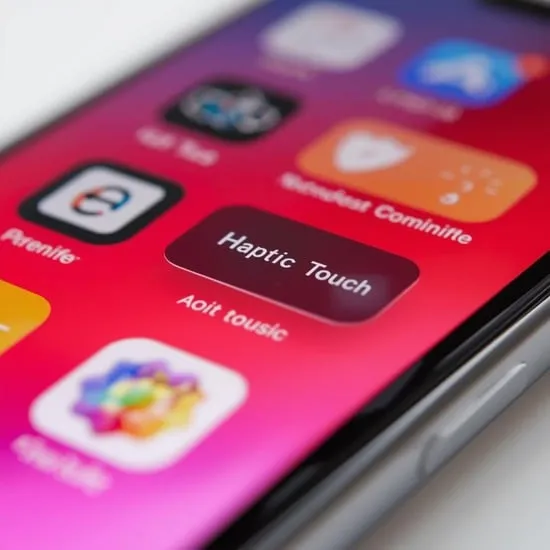
I switched the setting to Fast and immediately tested it using the image preview example shown on the screen. The difference was noticeable right away. My phone felt quicker and more responsive. ⚡
Other Settings That Improve Touch Response
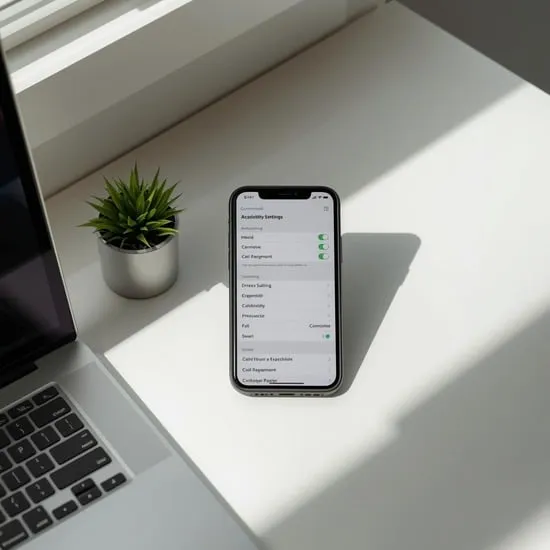
While learning how to speed up Haptic Touch iPhone, I also explored other touch settings. Reducing motion effects and keeping my iOS updated helped maintain smoother performance overall.
I made sure my storage was not overloaded and background apps were minimized. Sometimes performance issues are not just about touch sensitivity but overall device optimization and system health.
Does Speeding Up Haptic Touch Affect Battery?
I wondered if choosing the Fast option would impact battery life. After using it for weeks, I did not notice any unusual battery drain. The haptic feedback still worked perfectly without extra power consumption.
Speeding up Haptic Touch iPhone mainly adjusts the duration required for activation. It does not increase processing load in any major way, so you can enjoy faster interaction without worrying.
How It Changed My Daily iPhone Experience
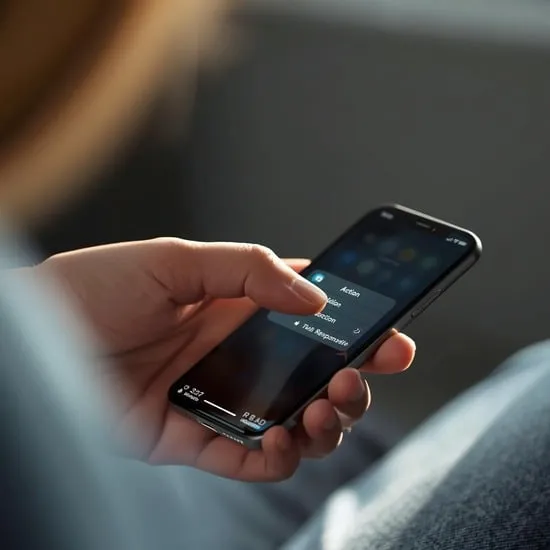
After I decided to speed up Haptic Touch iPhone, everyday tasks felt smoother. Opening quick actions, copying text, and previewing links became effortless. That tiny delay disappearing made a bigger difference than I expected.
Sometimes small tweaks create the biggest comfort. My iPhone now feels more responsive and aligned with my pace, and that simple adjustment honestly made my daily use feel more satisfying. ✨

My Honest Recommendation
If your device feels slightly slow when long pressing, I truly recommend trying to speed up Haptic Touch iPhone. It takes less than a minute and instantly improves touch responsiveness.
Not every iPhone needs this change, but if you value speed and smoother navigation, it is worth testing. That small setting gave me a surprisingly refreshing experience with my phone. 😊