That Annoying “This App May Not Be Optimized” Message? Let’s Fix It.
You’re excited to download a new app, tap open, and bam—a warning pops up: “This app may not be optimized for your device.” It’s frustrating, right? You’re left wondering if it’ll crash, look weird, or just drain your battery.
Don’t let that message stop you. I get this all the time on my older tablet and phone. Most of the time, the app works just fine. That warning is often more of a gentle heads-up than a hard stop. Let’s walk through the simple fixes I use to get past it and start using the app.
1. First, Just Try the App Anyway
My very first step is always to tap “OK” or “Continue” and just see what happens. That optimization warning isn’t always a deal-breaker.
Often, the app runs perfectly. The message might just mean the developer hasn’t tested it on your specific model recently. If it works, great! Problem solved. If it’s glitchy or crashes, then move on to the next steps below.
2. Update Your Device’s Operating System
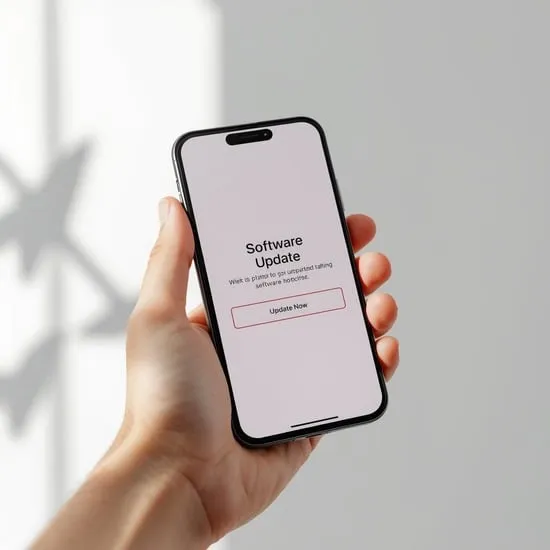
This is the most powerful fix. That warning often appears because your Android or iOS version is outdated. The app was built for a newer OS.
Head to your settings:
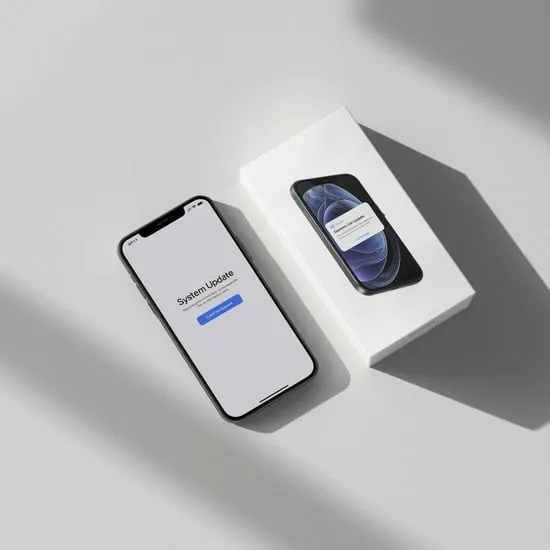
- On iPhone: Settings > General > Software Update.
- On Android: Settings > System > System Update.
Install any available updates. A newer OS can make your device compatible with tons more apps instantly.
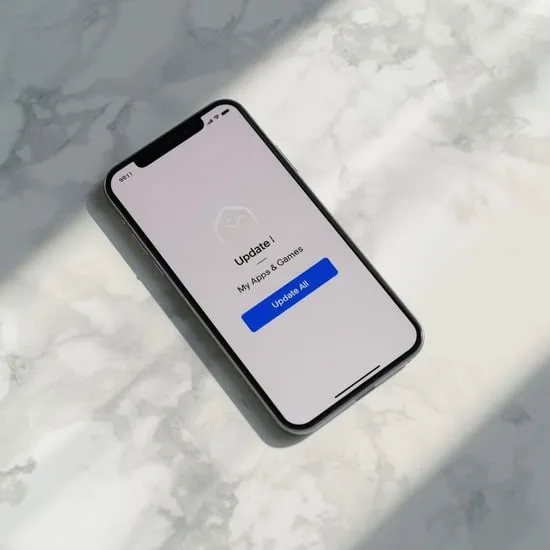
3. Update the App Itself
You might have an old version of the app installed. Developers constantly release updates to fix bugs and improve compatibility.
Open your app store (Google Play or App Store), go to your profile or “My Apps,” and check for updates. Install the latest version for the app giving you trouble. This clears up the warning more often than you’d think.
4. Clear the App Store’s Cache & Data (Android)
Sometimes, the Google Play Store holds onto old, glitchy data. Clearing it can refresh its connection and make compatibility warnings disappear.
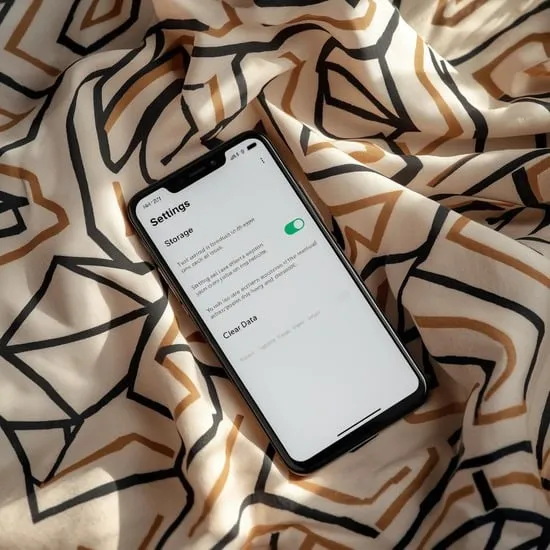
Go to Settings > Apps > Google Play Store. Tap “Storage & cache,” then hit “Clear cache.” If that doesn’t work, try “Clear storage” or “Clear data” (this won’t delete your apps). Then reopen the Play Store and try again.
5. Restart Your Device – The Classic Fix
Never underestimate a simple restart! It clears out temporary glitches and refreshes all your device’s systems.
Hold down the power button and tap “Restart.” Once your phone or tablet boots back up, try opening the app again. It’s a five-second trick that works for so many random tech issues.
6. Check for a Device Manufacturer Update
Beyond the core Android OS, companies like Samsung, LG, or OnePlus release their own firmware updates. These can include crucial compatibility patches.
Check in your Settings > Software Update one more time. Sometimes a major update is waiting there that your device hasn’t auto-fetched yet. Keeping this current is key.
7. Reinstall the App From Scratch
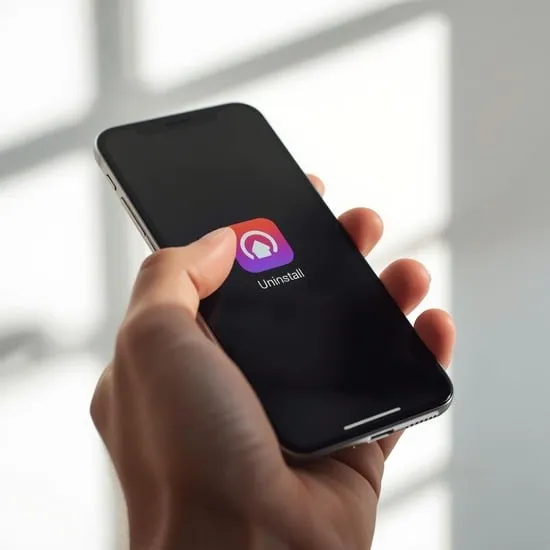
If updating didn’t help, a fresh install can work wonders. Uninstall the problematic app completely.
Then, go back to the app store and download it again fresh. This ensures you get the cleanest, newest version without any corrupted files from the old install.
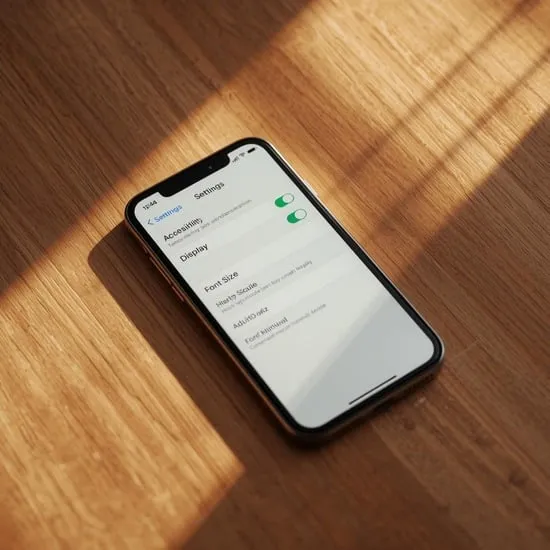
8. Adjust Your Display Settings (Especially for Zoom)
If the app opens but looks “off,” your display settings might be the culprit. Some devices have a display zoom or font size setting that apps don’t play nice with.
Go to Settings > Display. Try setting your font size and display zoom to “Default” or “Standard.” Then reopen the app to see if it looks normal.
9. Contact the App Developer Directly
If you’ve tried everything and the app is still problematic, let the developer know. They might not even be aware of the issue on your device model.
Find the “Contact Us” or “Support” link in the app’s listing on the app store. Send a polite message mentioning your device model and the error. You might get a helpful tip or prompt them to fix it in the next update.
10. Accept It & Find an Alternative App
Sometimes, an app is truly not built for older hardware. If it constantly crashes or drains your battery after all your fixes, it’s okay to let it go.
Search the app store for similar apps. Look at the “Similar Apps” section on the listing. There’s almost always another great option that’s optimized for your device. Don’t waste time fighting an app that just won’t cooperate.
Wrapping Up
That “not optimized” message is usually a speed bump, not a roadblock. Start by trying the app, then update everything—your device OS and the app itself. Simple resets and reinstalls handle most of the rest. Remember, your goal is to use the app, not fight with it. If one won’t play nice, another one will.
Quick FAQ
Q: Does this warning mean the app is unsafe?
A: Not usually. It’s mostly a compatibility notice, not a security warning. It comes from the app store, not a virus scanner.
Q: Will ignoring the message harm my phone?
A> It’s very unlikely to cause physical harm. The worst case is the app might crash, run slowly, or use more battery.
Q: I have the latest OS but still see the message. Why?
A> The app developer may need to update their app to fully support the very latest OS version. It can take them a little time.
Q: Is this more common on Android or iPhone?
A> You’ll see it more on Android due to the huge variety of devices and models. iPhones have fewer models, so optimization is simpler for developers.
Q: Can I prevent this message from ever appearing?
A> Keeping your device’s operating system consistently updated is the best prevention. It ensures maximum compatibility with new apps.