iPhone Flashlight Not Working? Let’s Fix It in 10 Simple Steps
There’s nothing more frustrating than needing a light and tapping that little flashlight icon, only for nothing to happen. I’ve been there, fumbling in the dark, wondering why such a simple feature decided to quit. Before you panic or book a Genius Bar appointment, take a deep breath. Most of the time, this is a quick software hiccup you can fix yourself.
Your iPhone’s flashlight is tied to the camera’s LED hardware and the software that controls it. When it stops working, it’s rarely a permanent hardware failure. It’s usually the system getting a little confused. I’ve put together this practical guide with the fixes that have worked for me and countless others, from the simplest reboot to a few deeper settings checks. Let’s get your light back on.
1. The Classic Restart: Your First & Best Move
Never underestimate the power of turning it off and on again. A simple restart clears out temporary glitches and refreshes all your iPhone’s systems, including the one controlling the flashlight. It’s the digital equivalent of a good night’s sleep for your phone.
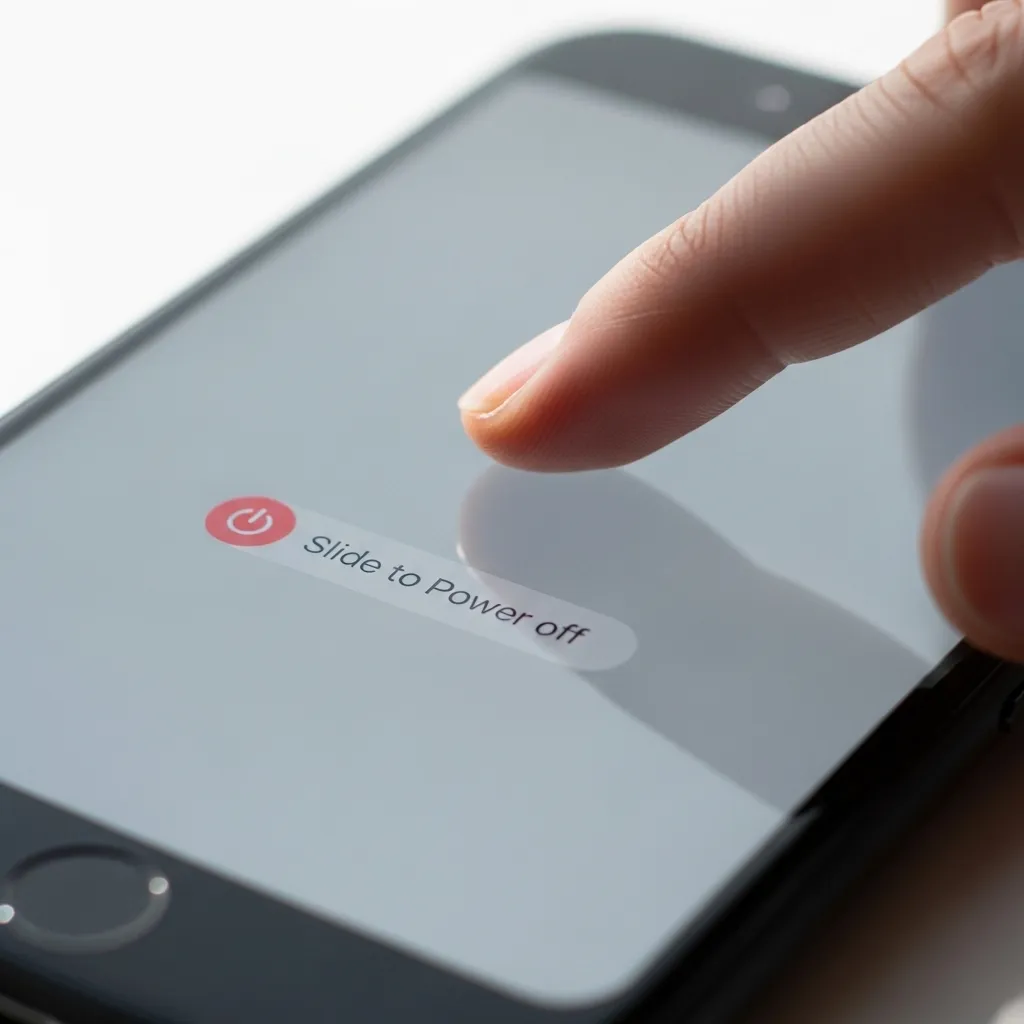
Just hold the side button and either volume button until the power slider appears. Slide to power off, wait about 30 seconds, then press the side button again to turn it back on. Give it a moment, then try the flashlight from the Control Center. This fixes the issue more often than you’d think.
2. Check Your Control Center Toggle
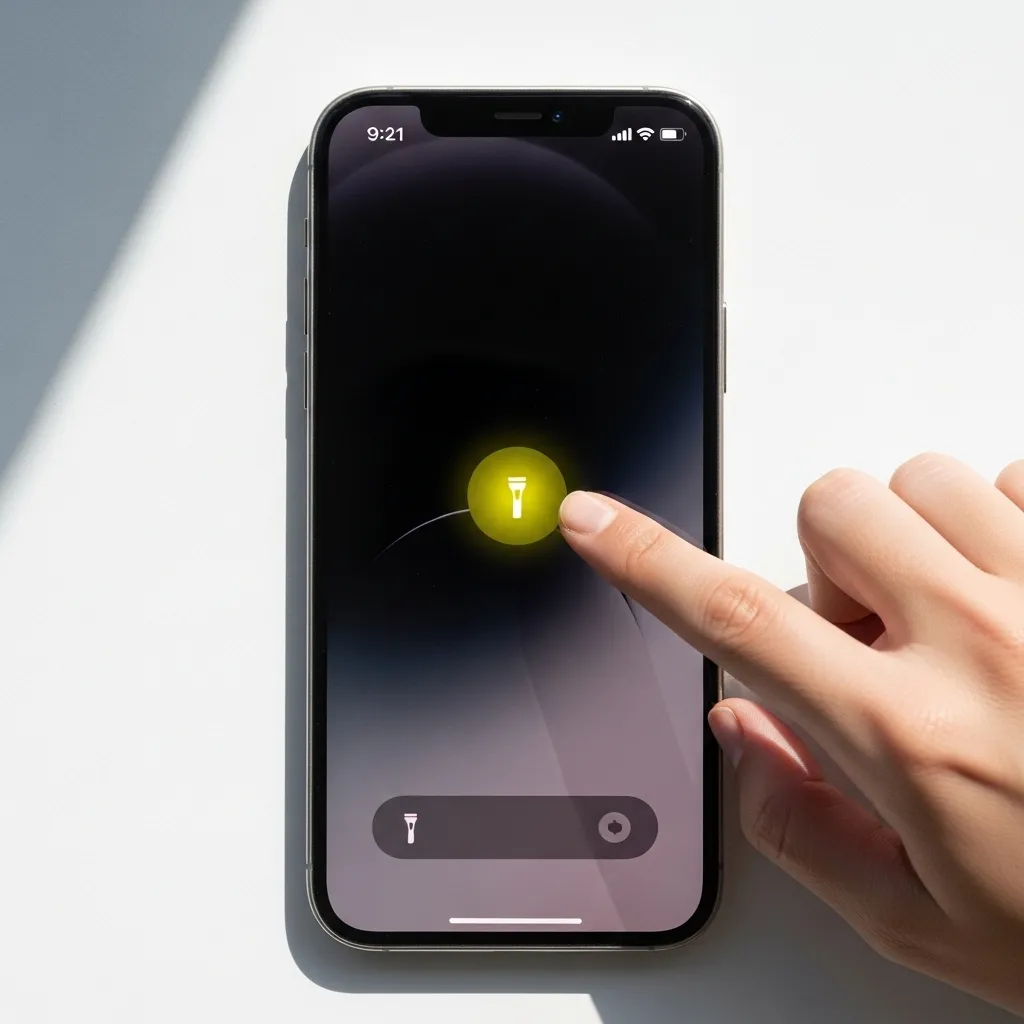
It sounds obvious, but let’s make sure the flashlight is actually turned on. Sometimes a stray tap in your pocket or bag can toggle it off. Swipe down from the top-right corner (or up from the bottom on older models) to open Control Center.
Look at the flashlight button. Is it highlighted? If it’s gray or outlined, tap it once to turn it on. If it’s already highlighted and the light isn’t on, try tapping it off and then on again. This manually resets the command.
3. Close All Apps, Especially the Camera
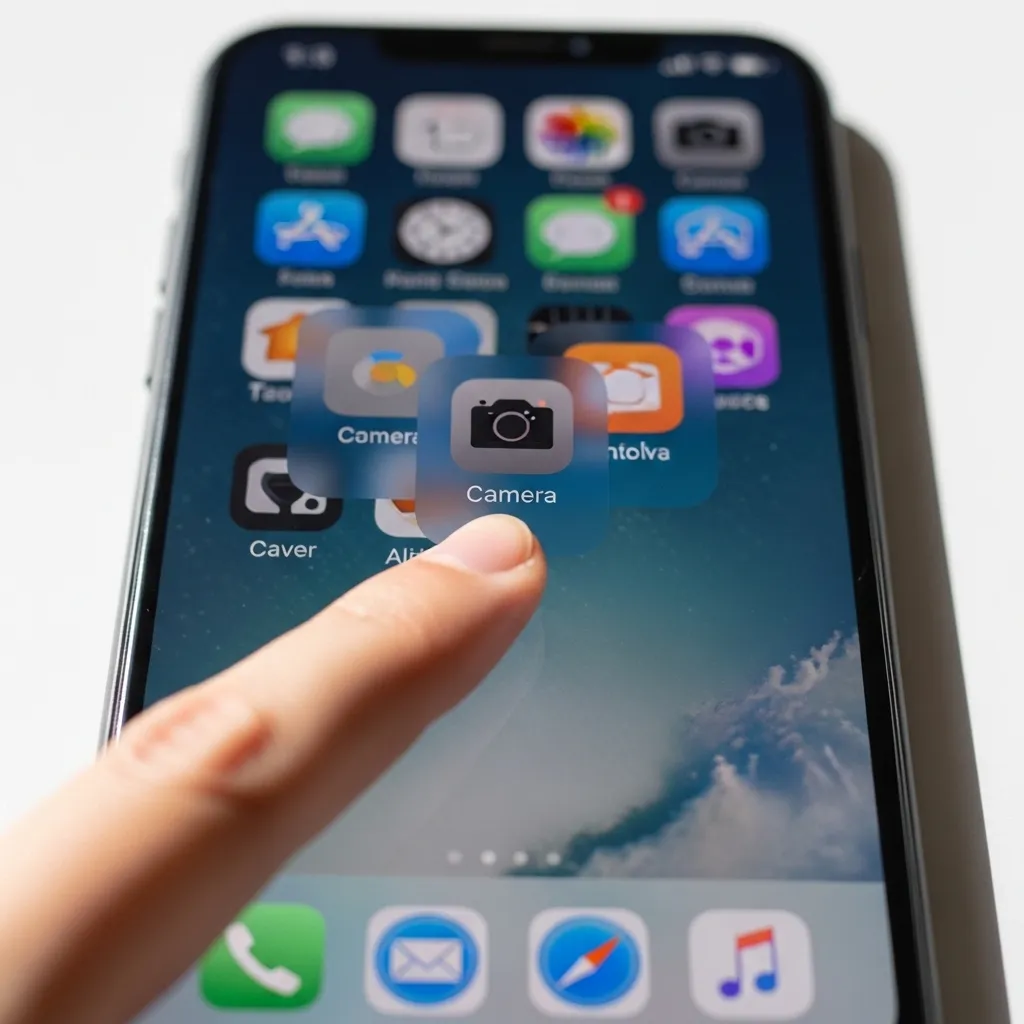
Since the flashlight uses the camera’s LED, if the Camera app is frozen or stuck, it can lock the flash from being used elsewhere. Swipe up from the bottom of your screen and pause in the middle to enter the app switcher.
Swipe through and close the Camera app by swiping it up and off the screen. It’s a good idea to close any other apps you were recently using, too. Then, try the flashlight again. This frees up the resource so the system can access it.
4. Update Your iOS Software
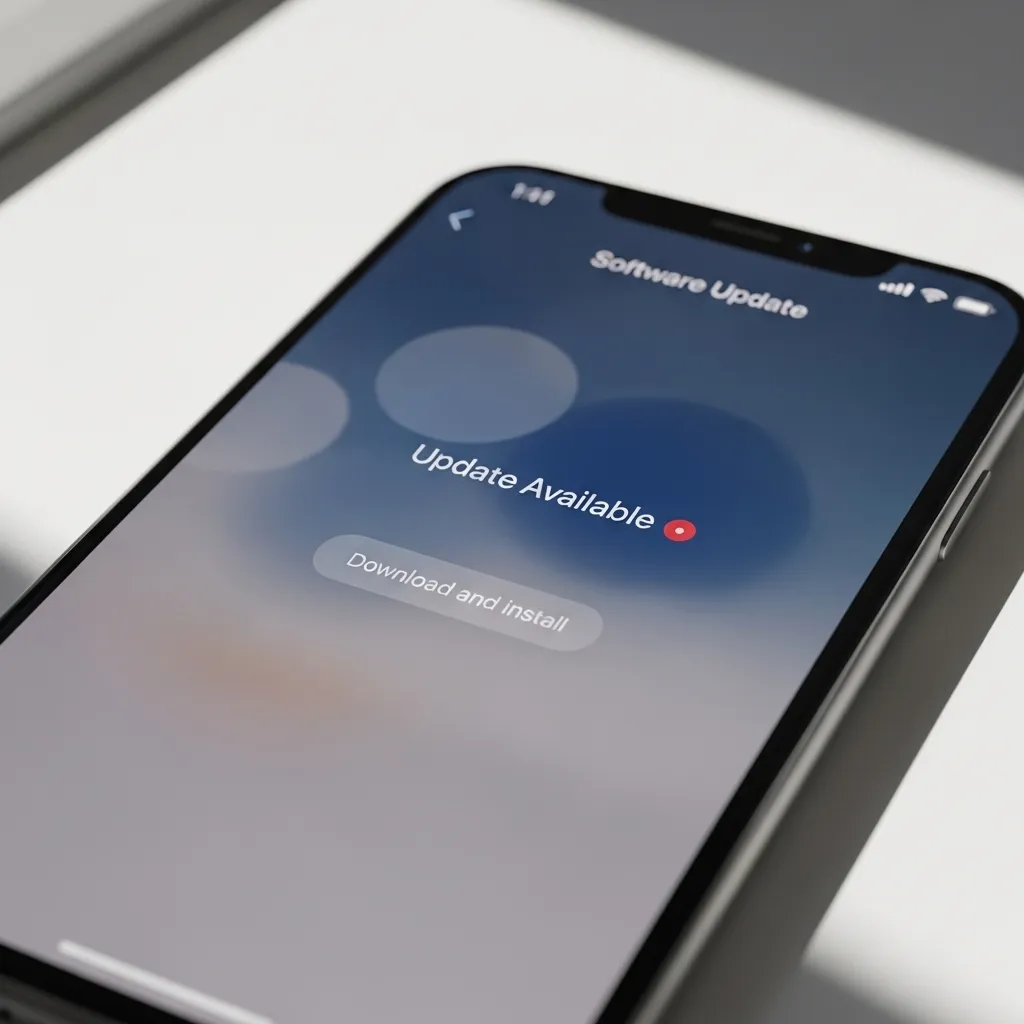
Outdated software can have bugs that affect minor features like the flashlight. Apple regularly releases updates that include fixes for these kinds of problems. Making sure you’re on the latest version is a crucial troubleshooting step.
Go to Settings > General > Software Update. If an update is available, connect to Wi-Fi and plug in your charger. Download and install the update. A new iOS version can quietly resolve the underlying conflict causing your flashlight to fail.
5. Check for Overheating Warnings
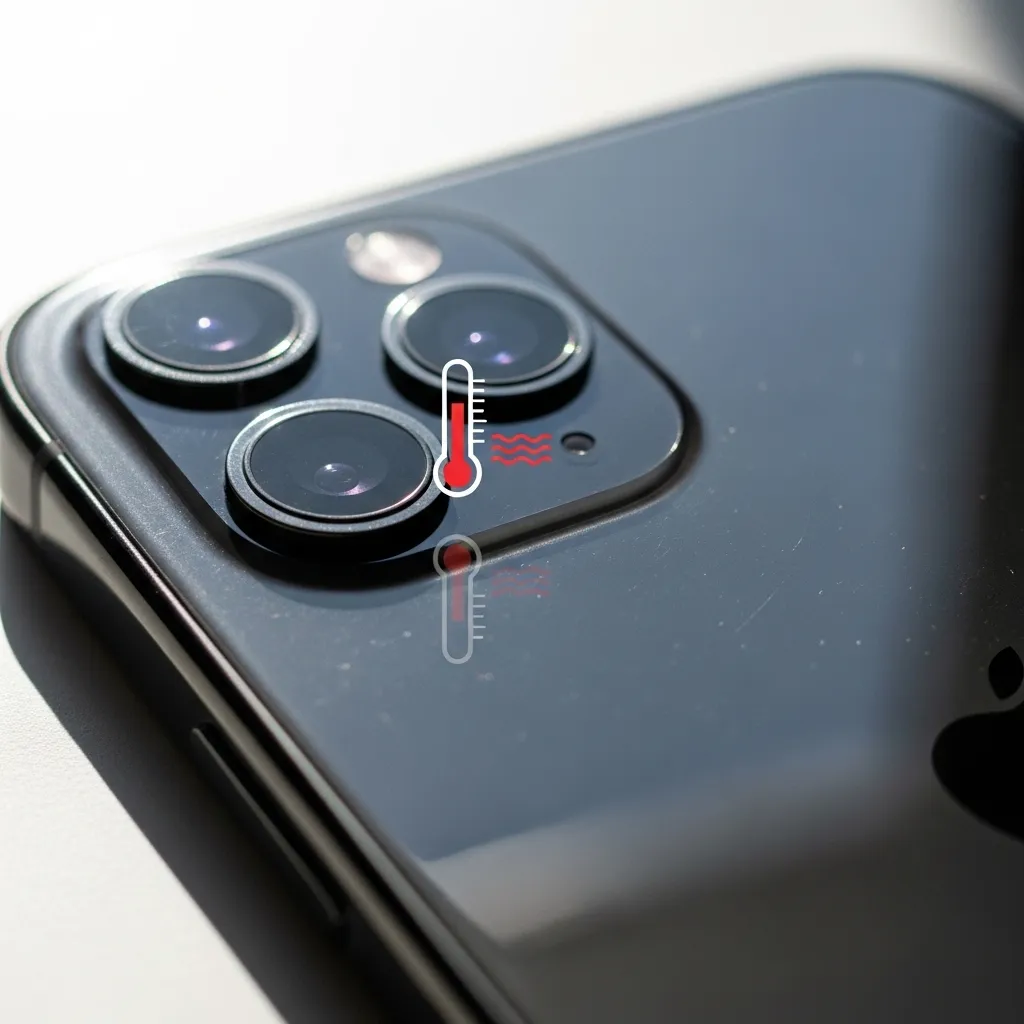
Your iPhone is designed to protect its components. If the device gets too hot, it will automatically disable certain features—including the flash—to prevent damage and cool down. Have you been in direct sunlight or using graphics-intensive apps?
If your phone feels warm and the flashlight won’t turn on, this is likely the cause. The fix is simple: stop using it, move it to a cooler spot, and let it rest for 15-20 minutes. The function should return once the temperature normalizes.
6. Disable Low Power Mode
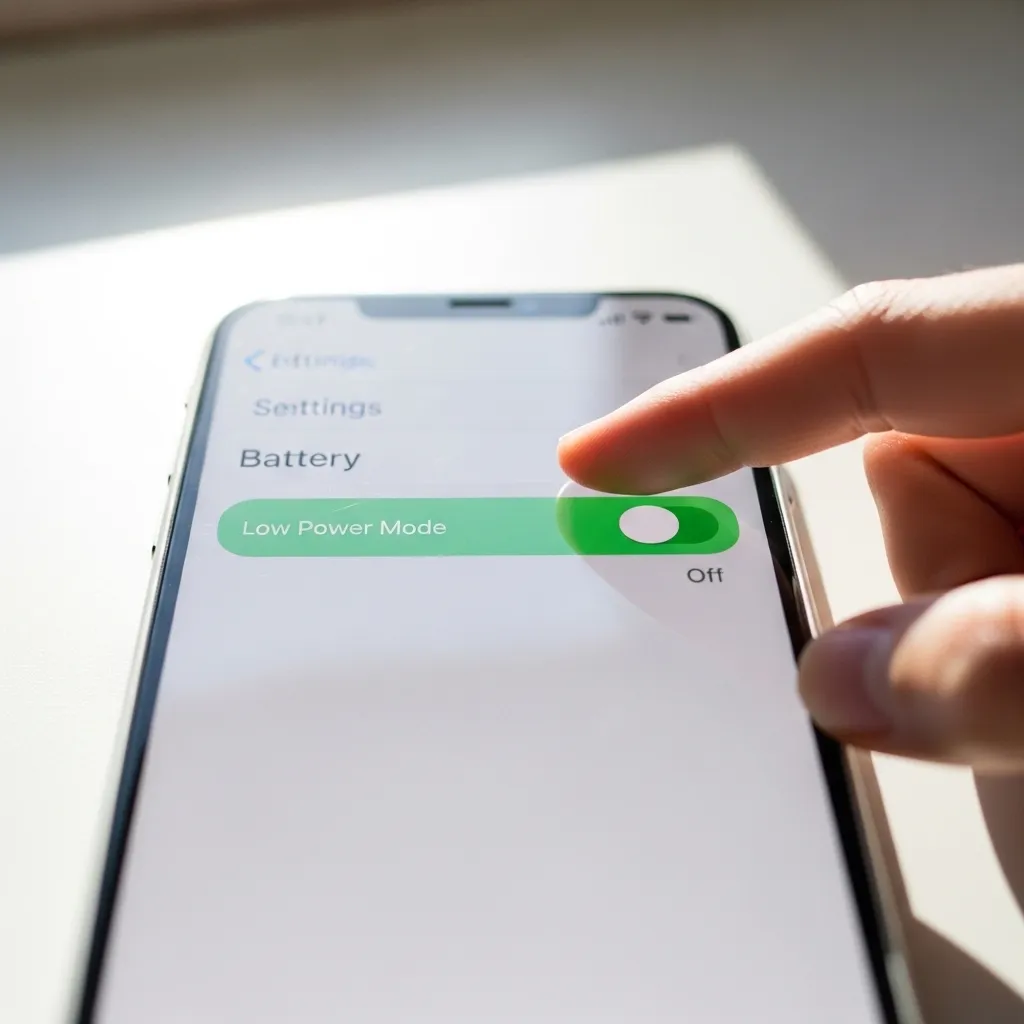
Low Power Mode is fantastic for saving battery, but it conserves energy by limiting background processes and some non-essential functions. In some cases, it can interfere with the flashlight’s operation.
Head to Settings > Battery and make sure Low Power Mode is toggled off (the switch will be gray). Alternatively, you can ask Siri to “Turn off Low Power Mode.” After disabling it, test your flashlight immediately.
7. Reset All Settings (The Big Fix)
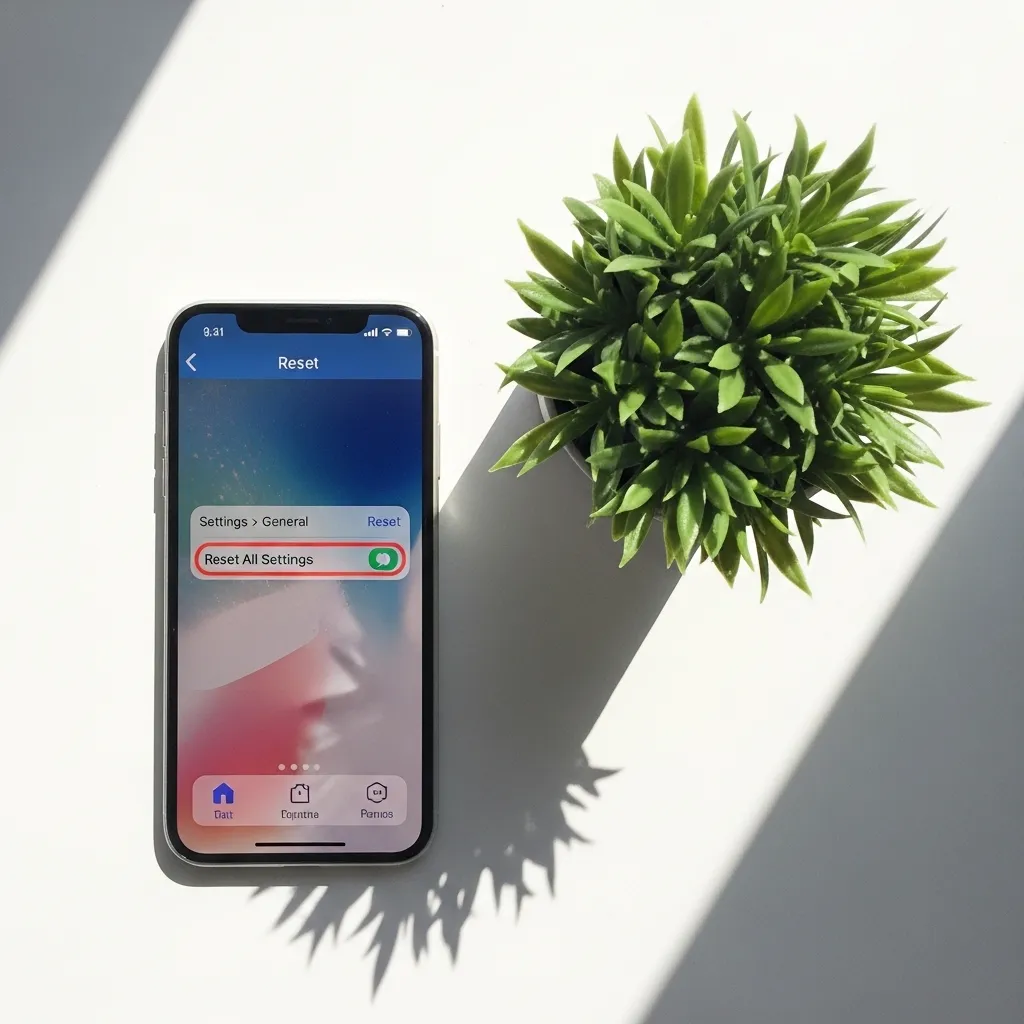
If nothing else has worked, a deeper software reset might be needed. Don’t worry—this won’t delete your photos, apps, or personal data. It simply resets all your system settings (like Wi-Fi passwords, wallpaper, and notifications) back to factory defaults.
Go to Settings > General > Transfer or Reset iPhone > Reset. Then, choose Reset All Settings. You’ll need to enter your passcode. After the phone restarts, reconfigure your basic preferences and check the flashlight. This often clears stubborn glitches.
8. Inspect the Flash LED for Obstructions
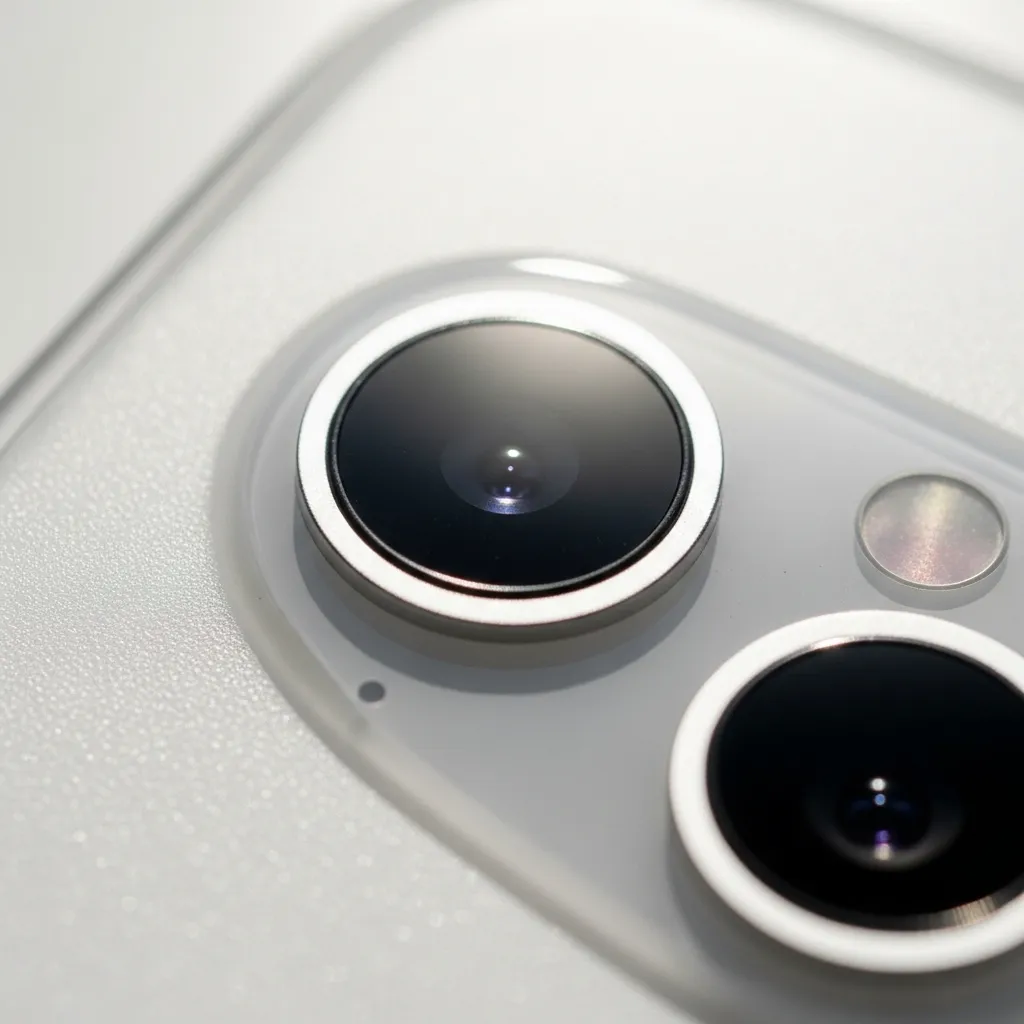
Take a close look at the small circular LED flash next to your camera lenses. Is it perfectly clean? Sometimes a tiny bit of lint from your pocket, a smudge of lotion, or a case that doesn’t align perfectly can physically block the light.
Gently wipe the area with a soft, dry, lint-free cloth. Make sure your phone case isn’t covering any part of the flash module. A physical blockage is a simple but often overlooked reason the light seems “off.”
9. Test the Flash with the Camera App
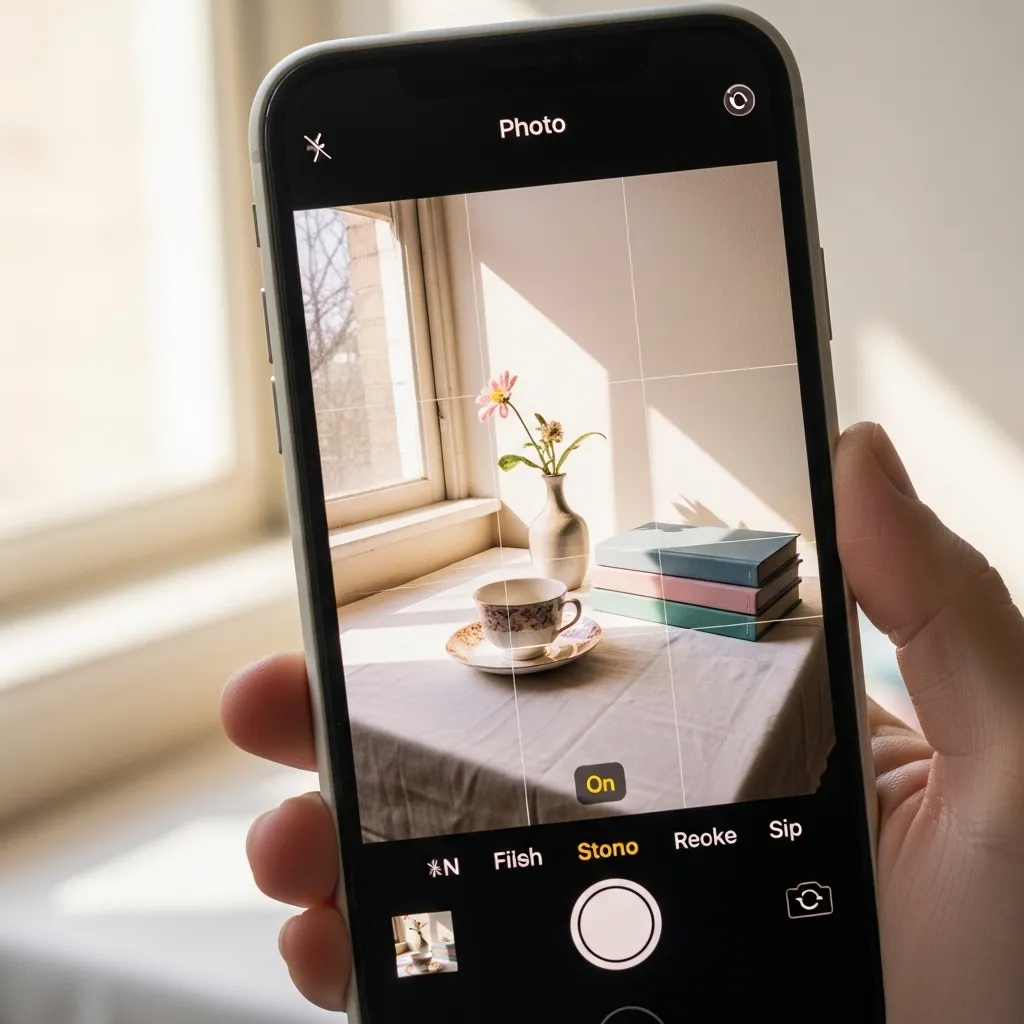
Let’s see if the hardware itself is working. Open your Camera app. Switch to photo mode (not video). Look for the flash icon (a lightning bolt) in the top corner. Tap it and cycle through the options: Auto, On, and Off.
Set it to “On.” Now take a picture of your hand or a wall. Does the flash fire? If it works in the Camera app, then the LED hardware is fine, and it’s purely a software/control issue with the flashlight toggle. This is good news!
10. When All Else Fails: Contact Apple Support
If you’ve tried every step here and your flashlight still won’t turn on—and it also doesn’t work in the Camera app—it’s time to consider a hardware issue. The LED itself could be damaged or disconnected, which is rare but possible.
You can start by using the Apple Support app on your phone or visiting Apple’s website. They can run remote diagnostics or help you set up a repair. Before you go, back up your iPhone, just in case.
Conclusion: Light at the End of the Tunnel
In almost every case, a non-working iPhone flashlight is a temporary software problem, not a broken phone. Start with the easy fixes: restart, check Control Center, and close your apps. Move to updates and settings resets if needed. I’ve found that a simple restart or closing the Camera app does the trick 90% of the time. Your reliable flashlight is almost certainly still there, just waiting for the right nudge to shine again.
Quick Flashlight FAQ
Q: Can a bad battery cause the flashlight to fail?
A: Indirectly, yes. An old, degraded battery can cause unexpected behavior, including feature glitches. If your battery health is low (below 80%), consider a replacement.
Q: I dropped my phone and now the flash doesn’t work. What now?
A> Physical damage is likely. The LED or its connection may be loose. You’ll need to have the hardware inspected by a professional.
Q: Why does my flashlight turn off by itself?
A> It’s likely a safety feature to prevent overheating. The flashlight automatically turns off after a few minutes of continuous use to protect the LED.
Q: Will resetting all settings delete my photos?
A> No. “Reset All Settings” only resets system preferences. Your photos, messages, apps, and accounts remain completely safe.
Q: The flash works for photos but not as a flashlight. Why?
A> This confirms the hardware is fine! It’s a software glitch. Focus on the software fixes in this list, especially the restart, closing apps, and resetting all settings.