One AirPod Not Charging? Here’s Your Fix-It Guide.
There’s nothing more frustrating than pulling out your AirPods case, only to find one side is completely dead. You’re left with a lopsided audio experience, and that “low battery” warning is the last thing you want to hear. I’ve been there, staring at the charging light, willing it to work.
Before you assume the worst or rush to buy a new pair, take a deep breath. Most of the time, a single AirPod not charging is a simple glitch you can fix at home. It’s usually about connection, not a catastrophic failure. Let’s walk through the most effective solutions, from the quick 10-second trick to the deeper cleans.
[[IMG:IMG01]]
1. The Classic Reset: Your First & Best Move
This is the digital equivalent of turning it off and on again, and it works wonders. A full reset clears out any minor software bugs that might be preventing a proper charge cycle.
Here’s how I do it:
- Put both AirPods in the case and close the lid.
- Wait 30 seconds, then open the lid.
- On your iPhone, go to Settings > Bluetooth, tap the “i” next to your AirPods, and select “Forget This Device.”
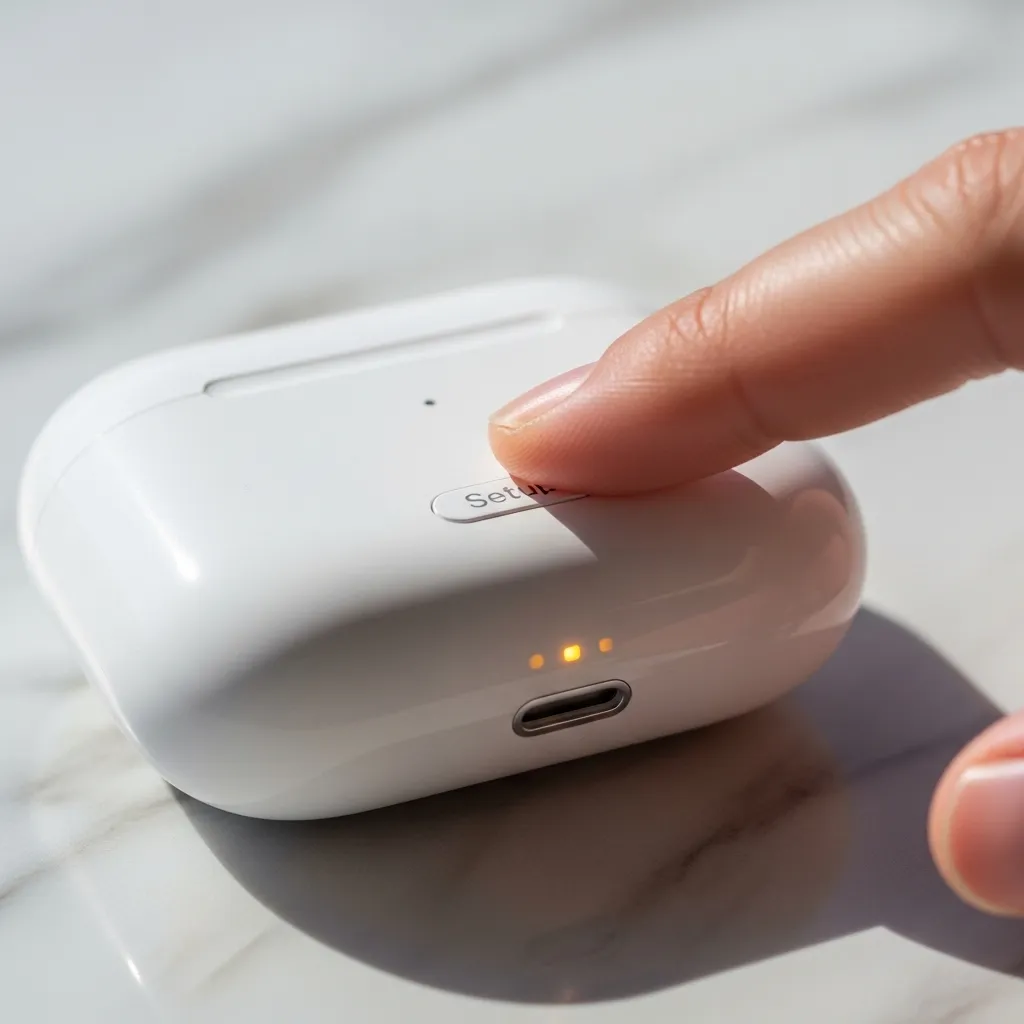
- With the lid still open, press and hold the setup button on the back of the case for about 15 seconds, until the status light flashes amber and then white.
Re-pair them with your phone. This often solves the issue immediately by establishing a fresh connection.
2. Give That Case a Power Boost
Sometimes, the case itself is too low on power to charge the AirPods properly. It might prioritize one bud over the other, leaving the second one stranded.
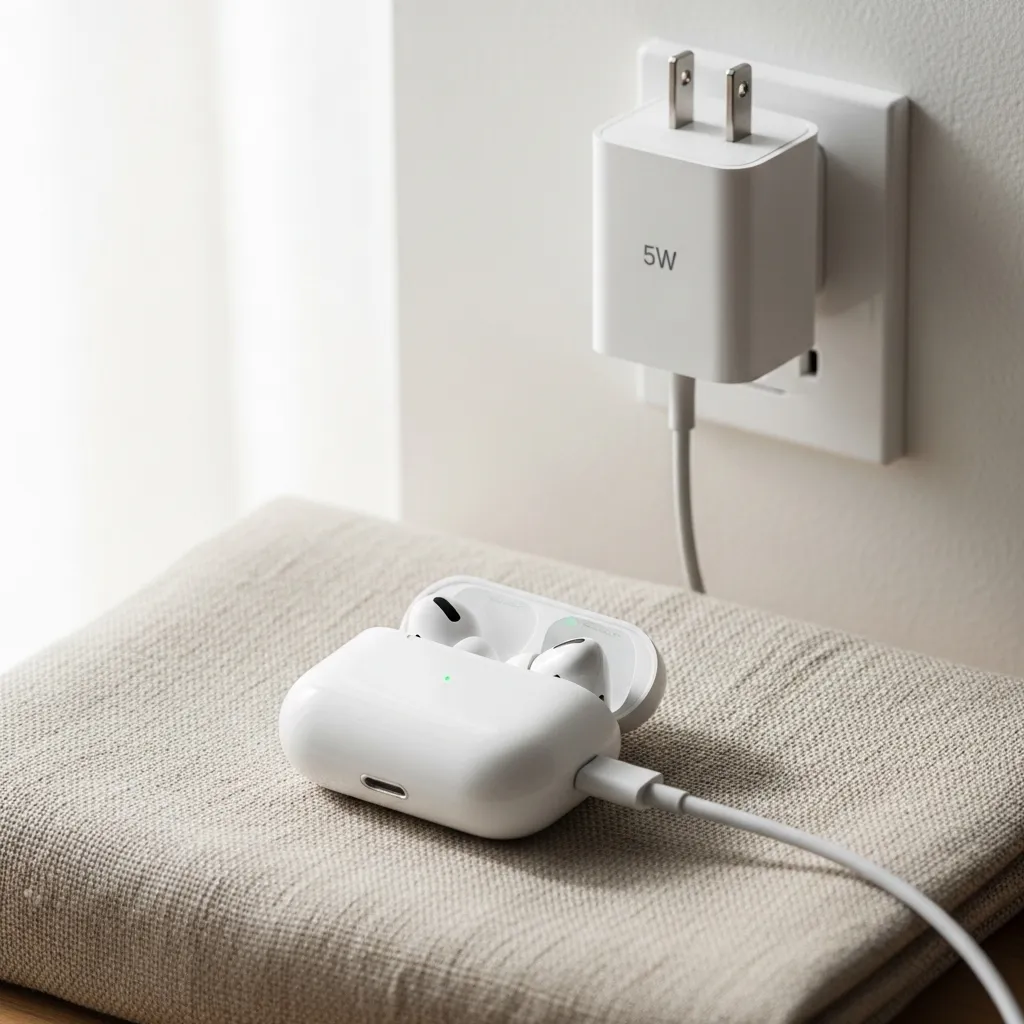
Plug your charging case into a power source using a certified cable and adapter. Let it charge for at least 30 minutes, even if the light comes on. Then, check the battery widget on your iPhone to see if both AirPods are now receiving a charge. A full case is a happy case.
3. The Magical Switcheroo Trick
This simple physical trick is my secret weapon. It helps reseat the AirPod and can reset the charging sensors.
Take the AirPod that is charging out of the case. Place the non-charging AirPod into that now-empty slot. Close the lid for 10 seconds. Then, put the first AirPod back into its original spot. It sounds too easy, but this reorientation often kickstarts the connection.

4. Inspect & Clean the Charging Contacts
This is the most common culprit. Tiny metal contacts on the AirPod stem and inside the case must touch perfectly. Lint, pocket fuzz, or earwax can block this connection.
Grab a dry, soft-bristled brush (a clean, dry toothbrush is perfect) or a cotton swab. Gently brush the small circular contacts on the bottom of the AirPod stem. Then, look inside the case—shine a light to see the small pins in each slot. Brush them gently to dislodge any debris. Avoid liquids!
[[IMG:IMG05]]
5. Check for Physical Damage
Take a really close look. Are the contacts on the AirPod scratched, dented, or discolored? Is there any visible damage to the stem or the case’s interior?
A bent contact pin in the case can be the issue. You can try to very, very gently nudge it back into place with a toothpick, but be extremely careful. Obvious physical damage often means a trip to Apple Support is needed.
[[IMG:IMG06]]
6. Mind the Temperature
Extreme cold or heat can mess with lithium-ion batteries. Did you leave your AirPods in a hot car or out in the freezing cold?
Let them return to room temperature naturally. Don’t try to speed it up by putting them on a heater or in the fridge. Once they’ve acclimated for an hour, try charging again. Batteries are sensitive, and temperature can temporarily affect performance.
[[IMG:IMG07]]
7. Update Your Firmware
AirPods update their firmware automatically, but sometimes the process gets stuck. An outdated version can cause charging bugs.
To trigger an update, place your AirPods in their case, connect the case to power, and place your paired iPhone or iPad right next to it. Leave them alone for 30 minutes. The update happens silently in the background when all conditions are met.
[[IMG:IMG08]]
8. Test with a Different Cable & Power Source
Rule out power supply issues. Your cable or wall adapter might be faulty, providing inconsistent power to the case.
Try a different Apple-certified Lightning or USB-C cable. Also, try plugging into a different outlet, a computer USB port, or even a wireless charging pad if your case supports it. Eliminate the variables.
[[IMG:IMG09]]
9. Check the Battery Widget for Clues
Your iPhone’s battery widget is a diagnostic tool. Open your Today View (swipe right from the Home Screen) and scroll to the Batteries section with your case open nearby.
It should show three items: the left AirPod, the right AirPod, and the case. If one AirPod is missing from this list or shows 0% while in the case, it confirms a charging connection problem. This tells you where to focus your efforts.
[[IMG:IMG10]]
10. When All Else Fails: Contact Apple Support
If you’ve tried every step and one AirPod still refuses to charge, it’s likely a hardware issue. This could be a failed battery in the AirPod itself or a damaged charging circuit in the case.
Check your warranty status. Even if it’s expired, Apple Support can run diagnostics and offer repair options. It’s better to get a definitive answer than to keep struggling with a faulty product.
[[IMG:IMG11]]
Wrapping It Up
Don’t let one uncooperative AirPod ruin your vibe. Start with the simple reset and clean, then work your way down the list. In my experience, 9 times out of 10, it’s a connection issue solved by a good clean or a reset. Save the trip to the store as a last resort.
Quick FAQ
Q: Why does only one of my AirPods charge to 100%?
A: This usually points to dirty charging contacts. The one at 100% is making a good connection; the other isn’t. Clean both the AirPod stems and the case slots.
Q: Can I charge just one AirPod in the case?
A: Yes, absolutely. The case is designed to charge each AirPod independently. If one is broken, you can still use and charge the other.
Q: How do I know if my AirPod or the case is broken?
A> Try the non-charging AirPod in the other slot. If it charges, the original slot in the case is likely the issue. If it still doesn’t charge, the problem is with the AirPod itself.
Q: Is there a way to force a firmware update?
A> Not manually. Just ensure your AirPods are in the case, connected to power, and near your paired iPhone. The update will happen automatically when available.
Q: My AirPod gets warm but doesn’t charge. What does that mean?
A> Slight warmth is normal during charging. If it gets unusually hot, stop charging immediately. This could indicate a battery fault, and you should contact Apple Support for safety.