Fix “Android Process ACORE Has Stopped” for Good
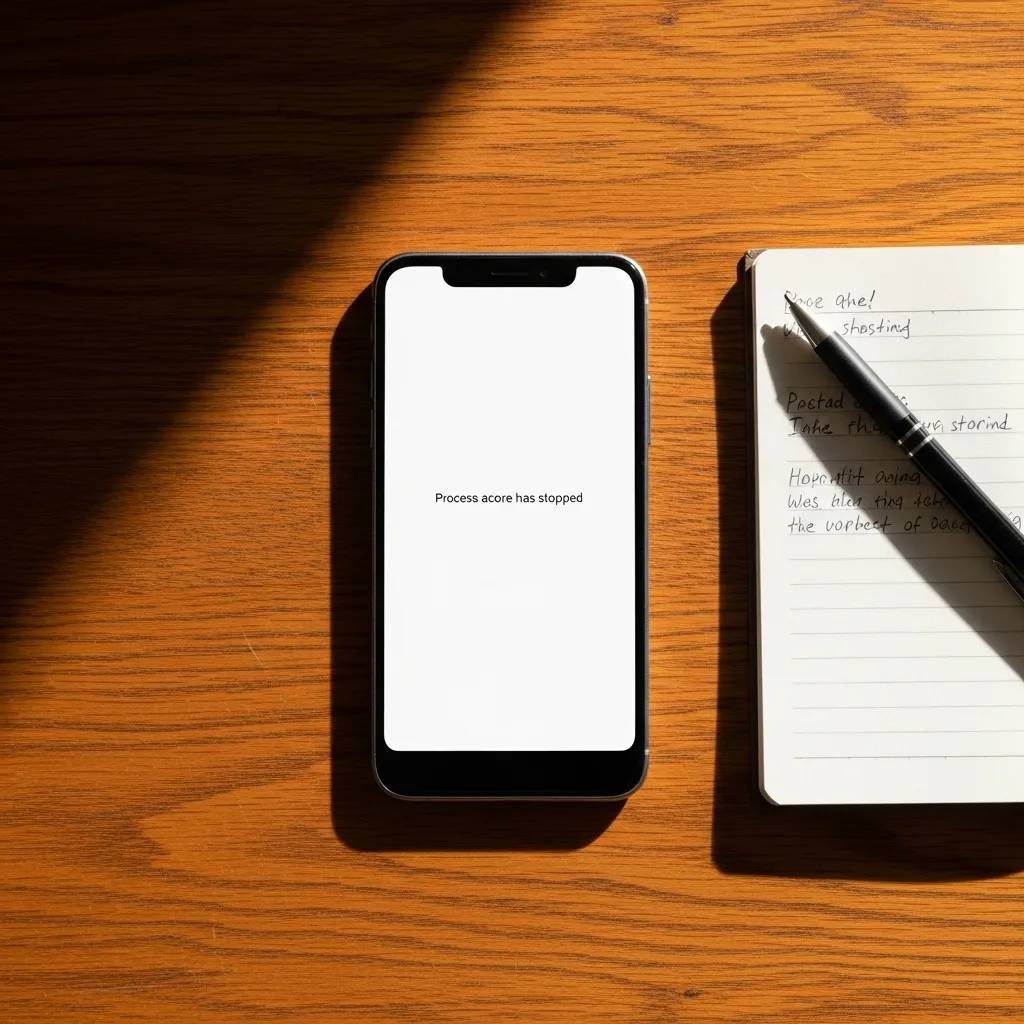
If you’re seeing that frustrating “Unfortunately, Android process acore has stopped” error, you’re not alone. It pops up out of nowhere, making your phone nearly impossible to use. I’ve been there, tapping “OK” only for it to reappear seconds later.
This error is tied to your device’s core contact and storage data. It usually happens after an update or when that data gets corrupted. The good news? You don’t need to be a tech expert to fix it. These solutions start simple and get more advanced, so you can find the one that works for you.
Let’s get your phone back to running smoothly. Grab your device, and let’s walk through the fixes together, step by step.
1. Start Simple: Restart Your Phone
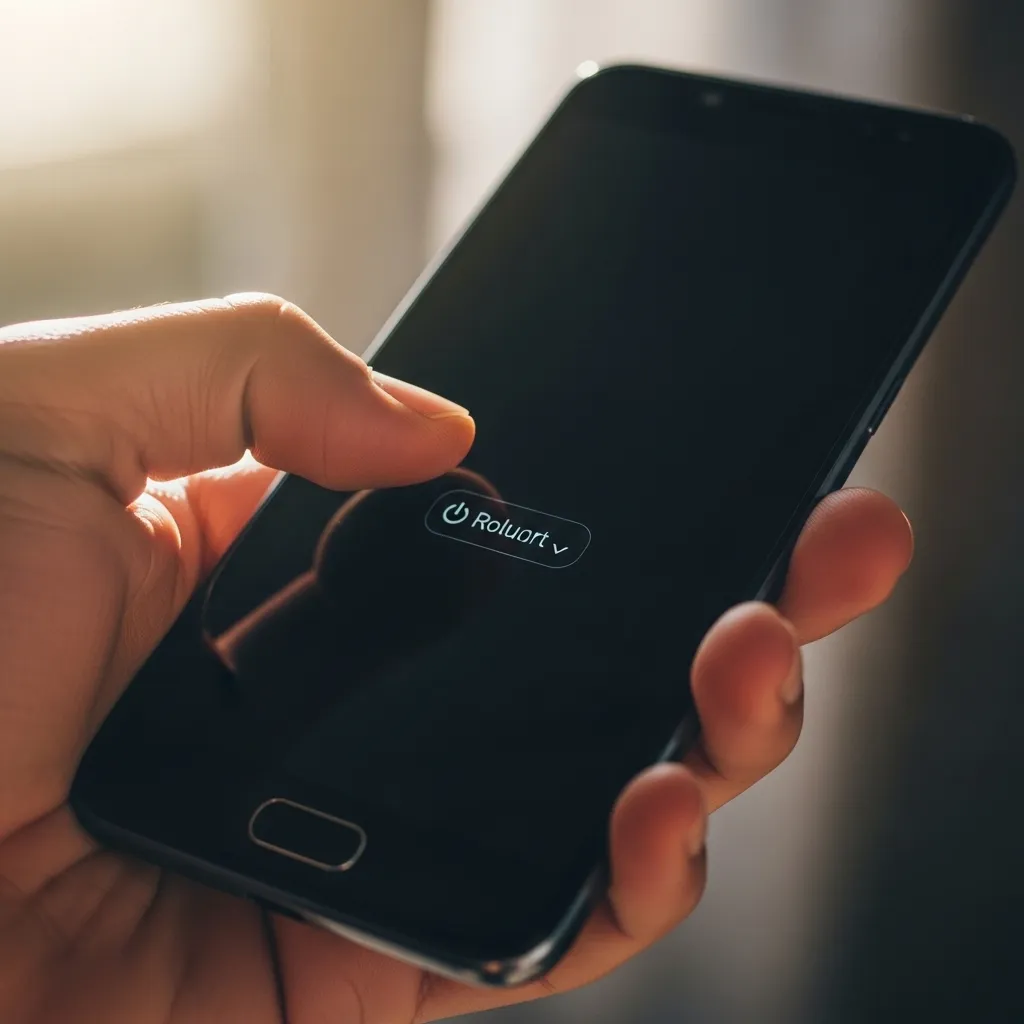
Never underestimate the power of a fresh start. A simple reboot can clear out temporary glitches and stop the error loop. It’s the fastest thing to try and often works.
Just hold down your power button until the menu appears, then tap “Restart.” If your screen is unresponsive, hold the power and volume down buttons together for about 10 seconds to force a reboot. Give it a minute to fully start up again.
2. Clear the Cache for Contacts & Contacts Storage
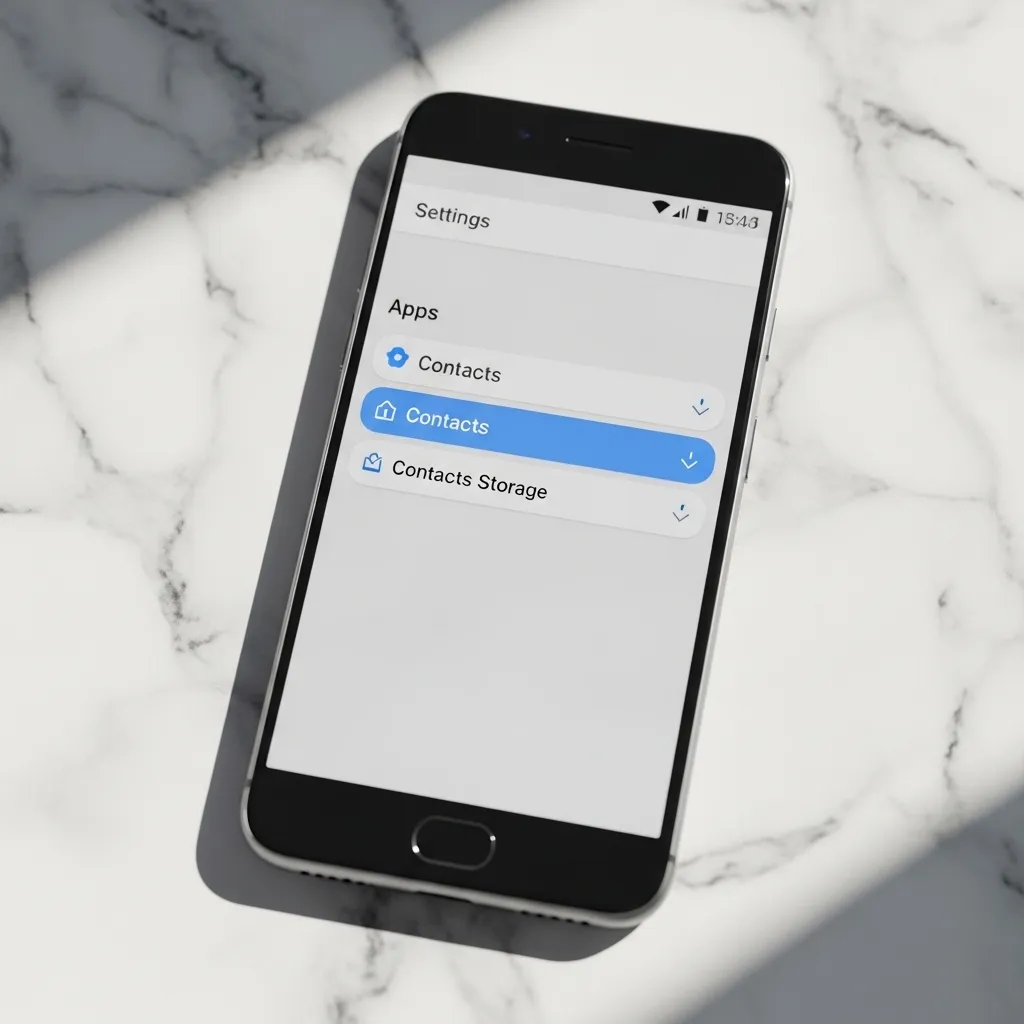
Corrupted cache data is a prime suspect. Clearing it forces the apps to rebuild fresh, clean files without deleting your actual contacts.
Go to Settings > Apps. Tap “See all apps” or the menu to show system apps. Find and select Contacts. Tap Storage & cache, then Clear Cache. Do the exact same thing for the Contacts Storage app. This is a safe and effective first repair step.
3. Update Your Apps, Especially Contacts
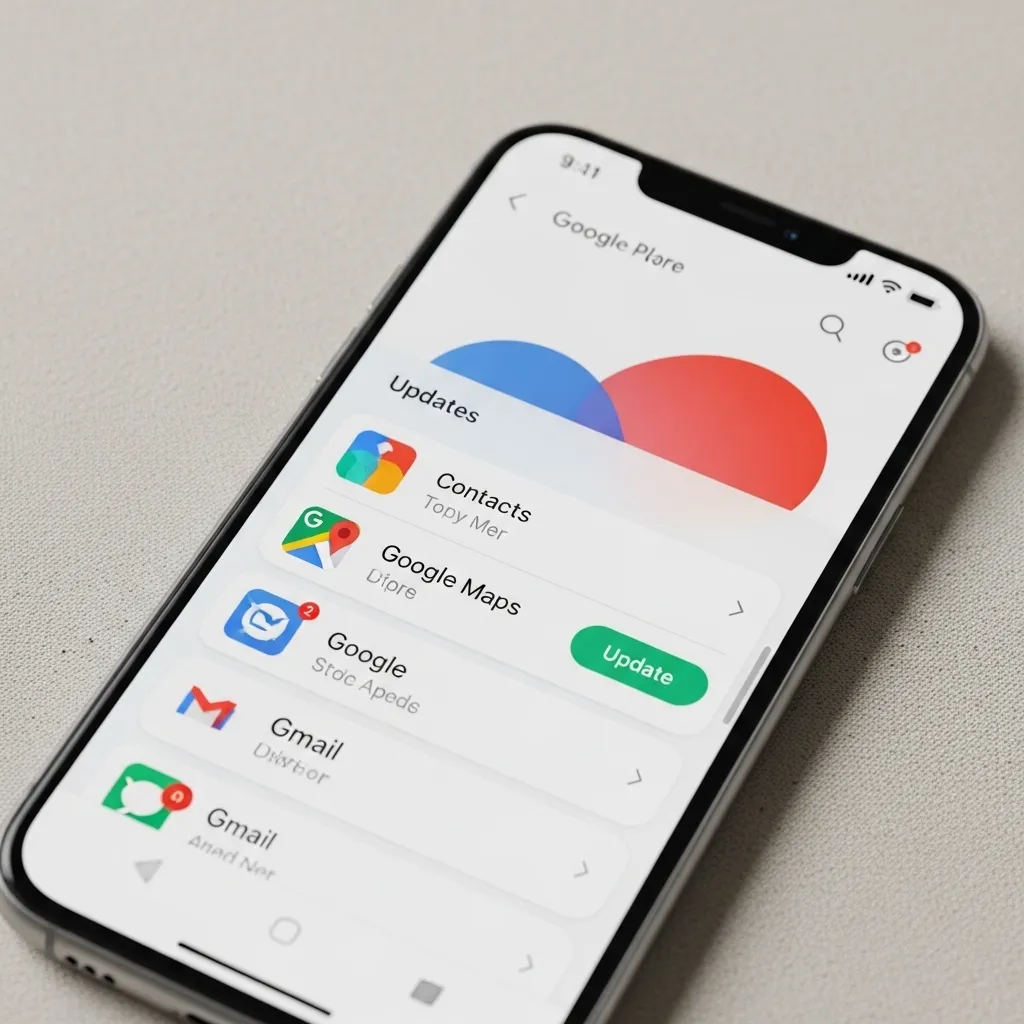
An outdated app can clash with your Android system. Making sure everything is current resolves a lot of hidden compatibility bugs.
Open the Google Play Store and tap your profile icon. Go to Manage apps & device and update all available apps. Pay special attention to any “Contacts” or “Phone” app updates. Keeping apps updated is a great habit to prevent future errors.
4. Check for a System Software Update
Sometimes the bug is in the Android system itself, and the manufacturer has already released a patch. Installing the latest software can wipe the error away.
Head to Settings > System > System update (the path might vary slightly). Tap “Check for update.” If one is available, connect to Wi-Fi and let it install. Your phone will restart, and hopefully, the “acore” message will be gone for good.
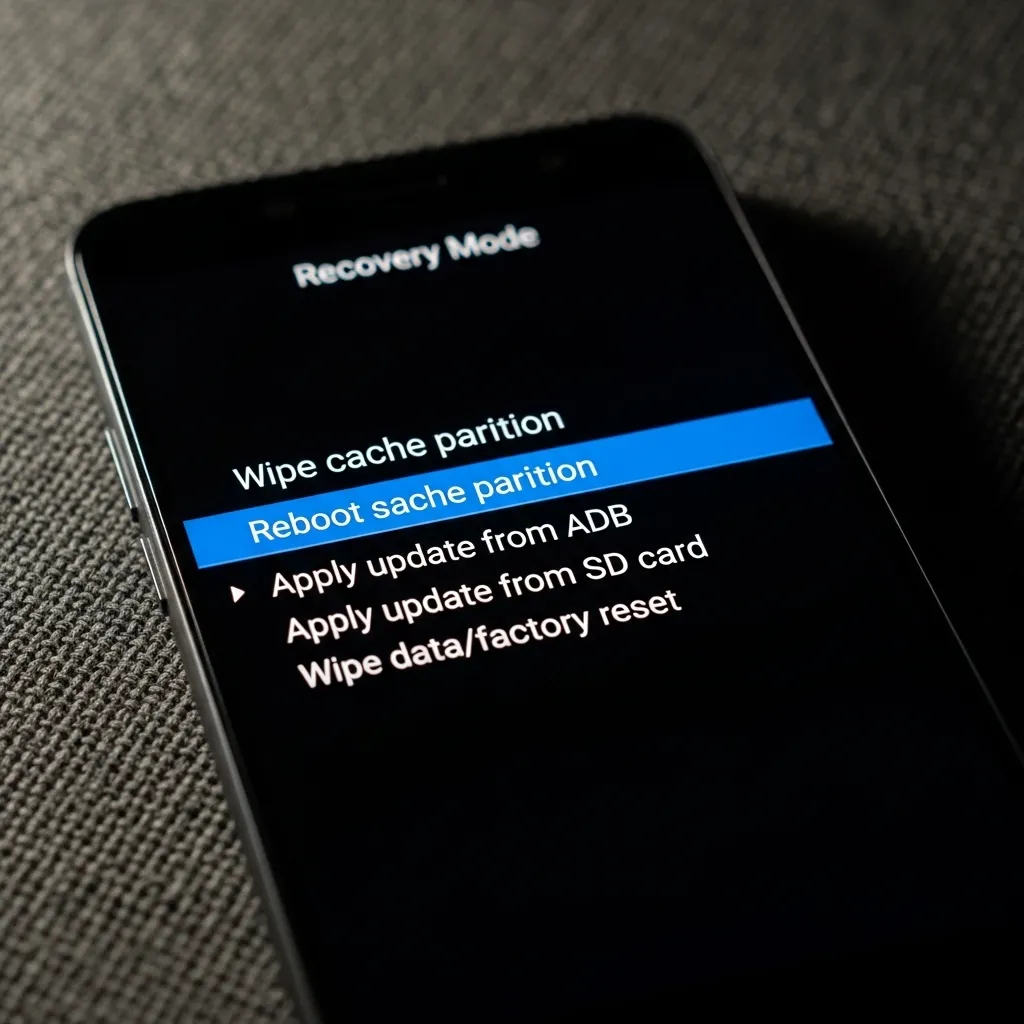
5. Wipe the Cache Partition (Safe & Powerful)
This clears temporary system files from a special recovery menu. It’s deeper than clearing a single app’s cache and won’t touch your personal data or settings.
- Power off your phone completely.
- Press and hold Power + Volume Up (or the combo for your model) to boot into Recovery Mode.
- Use volume keys to highlight Wipe cache partition and press the power button to select it.
- Confirm, then reboot. It’s a powerful refresh for your system.
6. Remove Problematic Third-Party Contacts Apps
Did you install a new contacts, dialer, or caller ID app just before the error started? It might be the culprit. Third-party apps can interfere with the core contacts process.
Try uninstalling any recent or non-essential contacts-related apps. Go to Settings > Apps, find the app, and select Uninstall. Reboot your phone afterward. You can always reinstall it later to test if it was the cause.

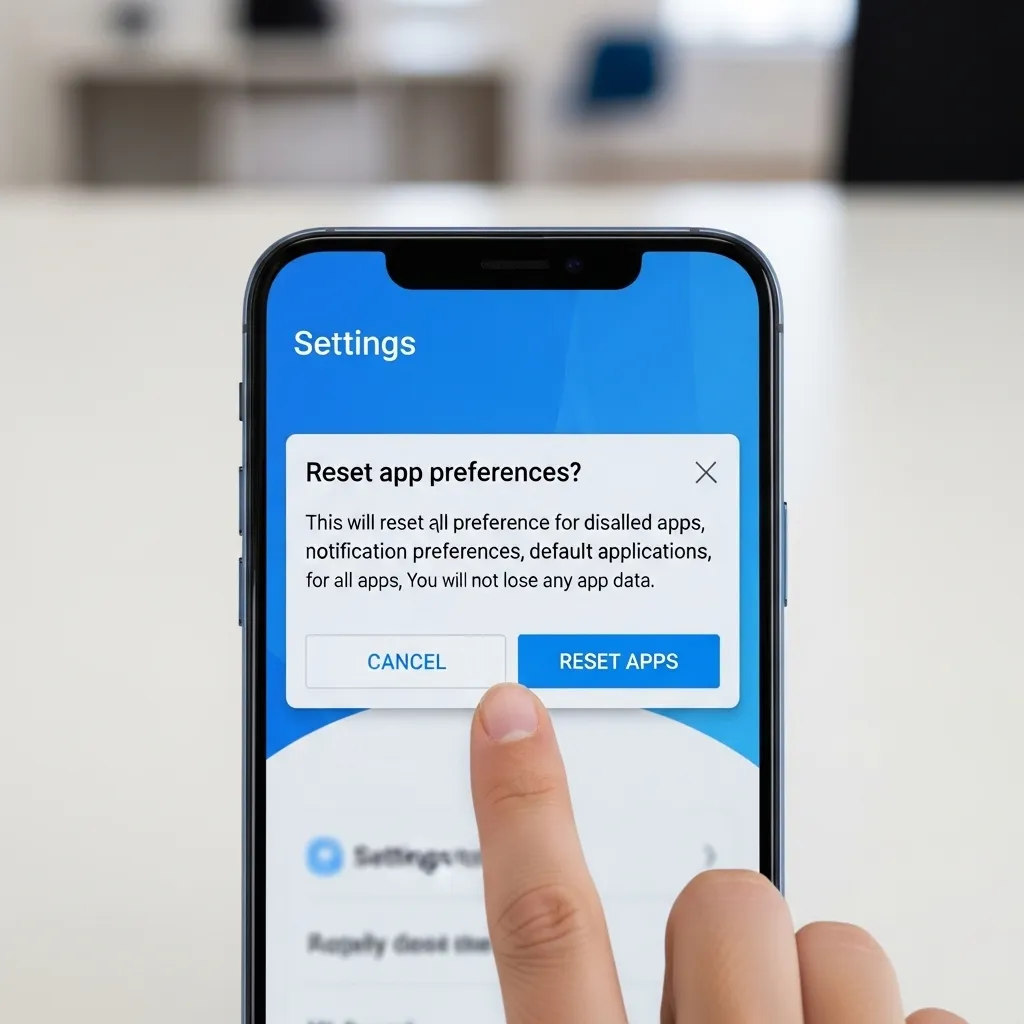
7. Reset App Preferences (No Data Loss)
This resets all your app permissions, default apps, and background data restrictions back to factory defaults. It fixes issues caused by a wrong setting you might have changed unknowingly.
Navigate to Settings > System > Reset options. Tap Reset app preferences. Confirm. You’ll need to re-grant permissions for apps when you use them next, but it’s a small price to pay for a fix that doesn’t delete anything personal.
8. Remove and Re-add Your Google Account
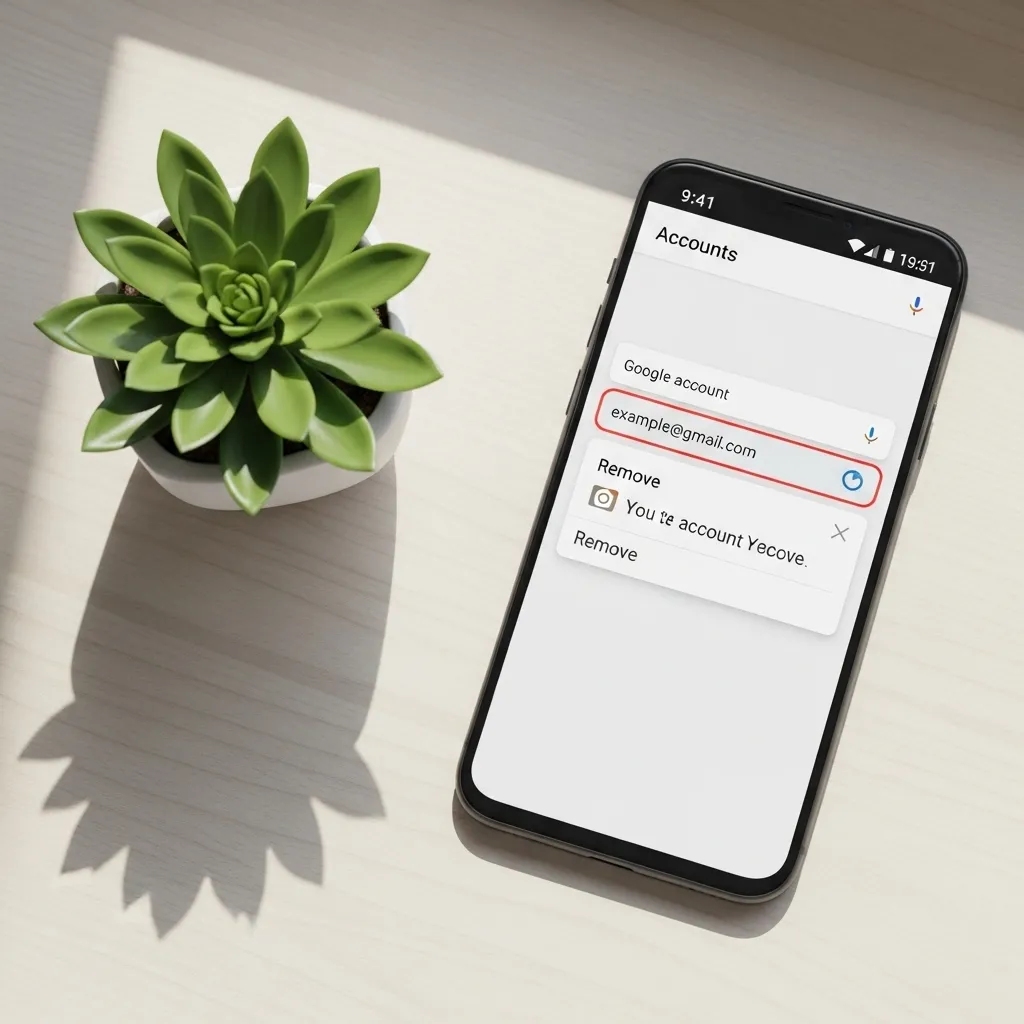
Since the ACORE process syncs contact data, a glitch with your Google account can trigger the error. Removing and re-adding it re-establishes a clean sync connection.
Go to Settings > Passwords & accounts. Select your Google account, then Remove account. Don’t worry, your contacts are safe in the cloud. Restart your phone, then go back and Add account to sign back in. Give it a moment to sync.
9. Boot in Safe Mode to Find a Bad App
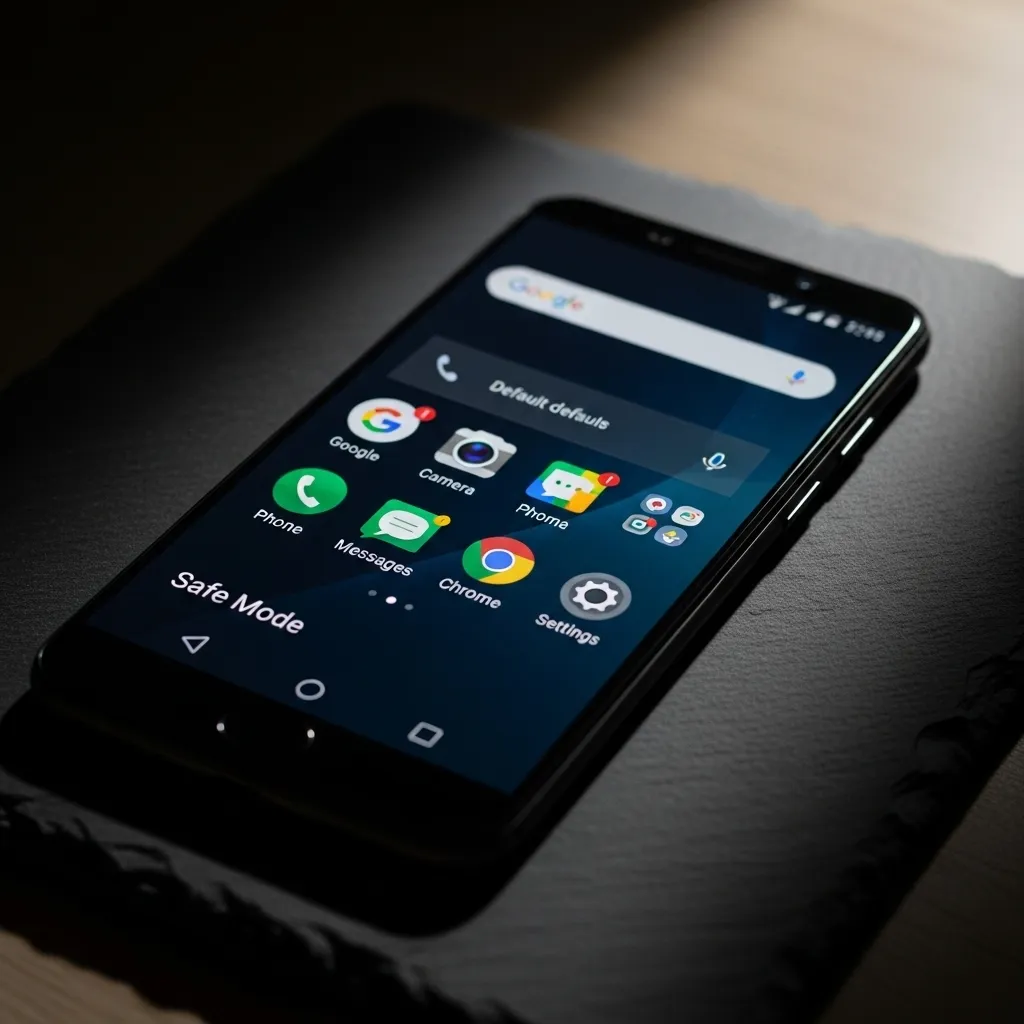
Safe Mode starts your phone with all third-party apps disabled. If the error stops here, you know a downloaded app is causing the problem.
- Press and hold the power button until the power off menu appears.
- Long-press the “Power off” option on your screen until you see a prompt to reboot to Safe Mode. Tap OK.
- If the error is gone in Safe Mode, uninstall apps one by one (starting with the most recent) to find the troublemaker.
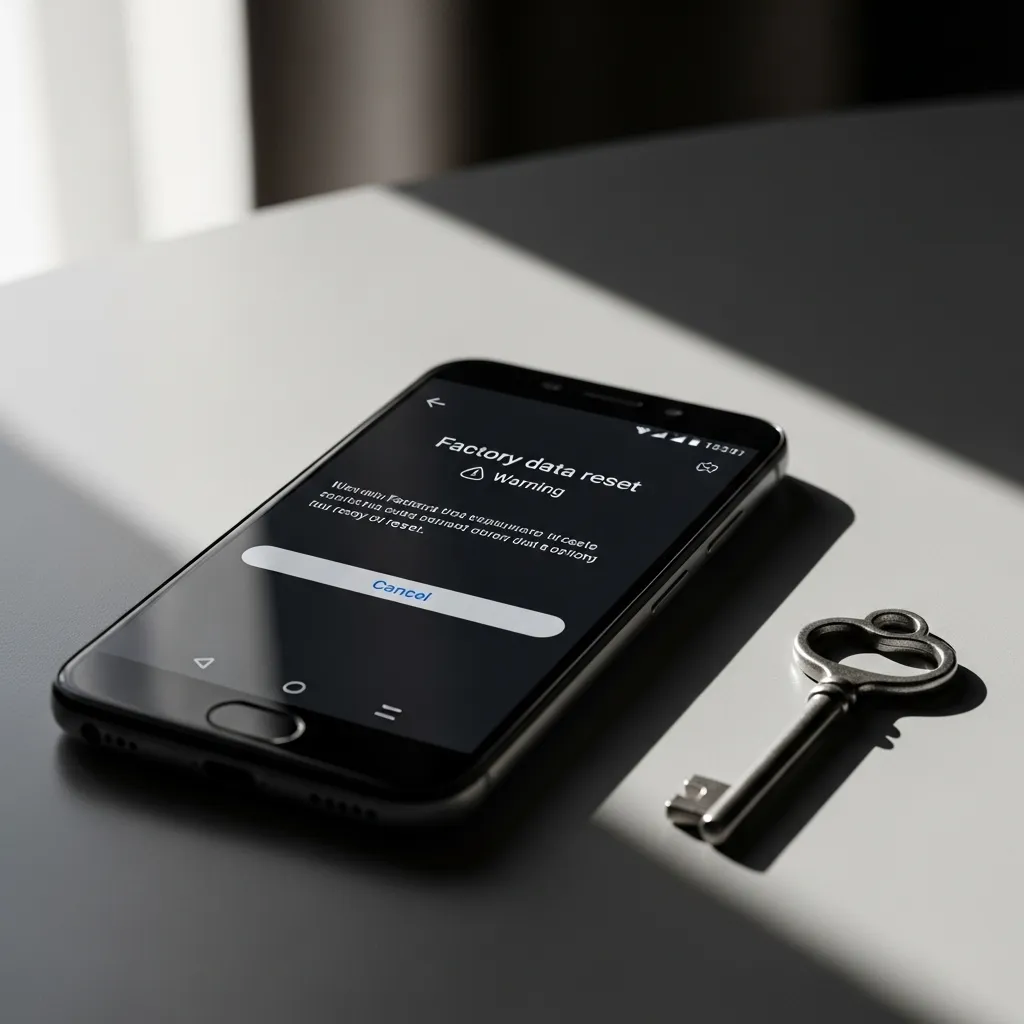
10. The Last Resort: Factory Reset
If nothing else works, a factory reset will absolutely fix the “acore” error by returning your phone to its original state. This will erase all your data, so it’s crucial to back up everything first.
Go to Settings > System > Reset options > Erase all data (factory reset). Follow the prompts. After the reset, set up your phone as new or from your backup. This is a clean slate and will remove any deep-rooted corruption.
Conclusion & Final Tips
Fixing the “Android process acore has stopped” error is all about methodically trying solutions, from the simplest to the most thorough. In most cases, clearing cache or updating software does the trick. I always recommend working through these steps in order.
To prevent it from coming back, keep your system and apps updated, and be cautious with apps that request deep contact permissions. Your phone should be running smoothly again in no time!
Quick FAQ
Q: Will I lose my contacts if I fix this?
A: No! The first 9 solutions do not delete your personal contacts. Only a factory reset (the last option) will, so always back up first.
Q: What exactly is the “ACORE” process?
A: It’s a core Android system process that manages contact and address book data in the background, syncing and storing your information.
Q: Can a virus cause this error?
A> It’s very rare. This is almost always a software glitch or data corruption, not malware. The fixes above are the right path.
Q: Do I need a computer to fix this?
A: Not at all. Every single fix here can be done directly on your Android phone.
Q: The error keeps coming back after I fix it. Why?
A: This usually points to a deeper system corruption or a problematic app you haven’t found yet. Try Safe Mode to isolate the bad app, or consider the factory reset.