How to Restart Your iPhone: The Simple Guide You’ll Actually Use
Let’s be honest, we’ve all been there. Your iPhone starts acting glitchy, an app freezes, or things just feel… slow. Before you panic or start searching for a genius bar appointment, there’s one incredibly simple trick that solves a surprising number of problems: restarting your phone.
I used to just let my phone battery die and hope for the best, but that’s not the right way. A proper restart clears out temporary memory and gives your iPhone a fresh start. Think of it like a quick power nap for your device. It’s the first step I always take when troubleshooting, and it works more often than you’d think.
This guide covers every single way to restart any iPhone model, from the newest iPhone 15 to older favorites. I’ve broken it down so it’s super clear, no matter which phone you have in your hand right now.
1. The Universal Restart (For Most iPhones)
This is the classic method that works on a huge range of models, from the iPhone 6 all the way up to the iPhone 15. It’s my go-to move because it’s the same every time and feels satisfyingly complete.
Here’s the simple two-button combo:
- Press and hold the Side button (on the right) and either Volume button (up or down) at the exact same time.
- Keep holding them until you see the “slide to power off” slider appear on your screen.
- Drag the slider to the right. Wait about 30 seconds for the phone to fully power down.
- To turn it back on, just press and hold the Side button again until you see the Apple logo.
It’s that easy! This method is perfect for a standard refresh when your phone is just feeling a bit sluggish.
2. For iPhone SE (2nd & 3rd Gen), 8, or 7: The Home Button Way
If you have a beloved iPhone with a home button, like the SE or the iPhone 8, the process is slightly different. I love the tactile feel of this method.
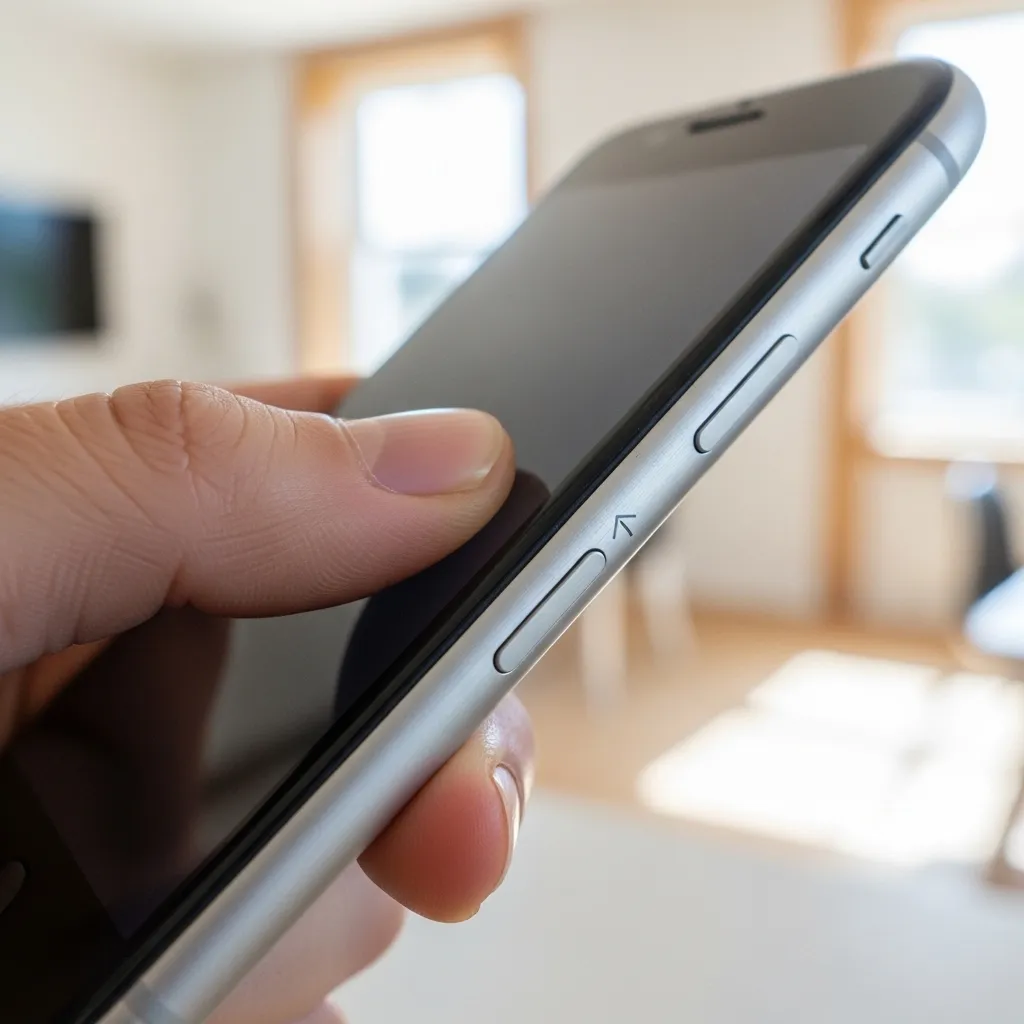
Don’t look for a Side button here. Instead, you’ll use the button on the top or side, depending on your model.
- Press and hold the Top button (or the Side button on an SE) until the power-off slider appears.
- Slide to power off. Wait for the screen to go completely black.
- To restart, press and hold that same Top or Side button again until the Apple logo pops up.
It’s just as straightforward, just using a different button. The home button itself isn’t used for the restart, which is a common point of confusion.
3. When Your Screen is Frozen: The Force Restart
This is the lifesaver. When your screen is totally frozen, unresponsive, or stuck on the Apple logo, the normal shutdown slider won’t appear. That’s when you need a force restart (sometimes called a hard reset).
Important: This doesn’t delete any data! It just forces the hardware to reboot. The steps vary by model, so find yours below.
For most modern iPhones (without a home button), quickly press and release the Volume Up button, then the Volume Down button, then press and hold the Side button until you see the Apple logo. It’s a quick, rhythmic sequence that does the trick.
4. Force Restart for iPhone 8, 7, or SE (2nd/3rd Gen)
If your home-button iPhone is frozen, don’t worry. The force restart process for these models is a single, sustained button press.
Simply press and hold both the Side (or Top) button and the Volume Down button at the same time. Keep holding them even after you see the power-off slider—continue holding for about 10 seconds until the screen goes black and the Apple logo appears.
Then you can let go. Your phone will boot up normally. This has saved me from many a panic moment when an app completely locked up my screen.
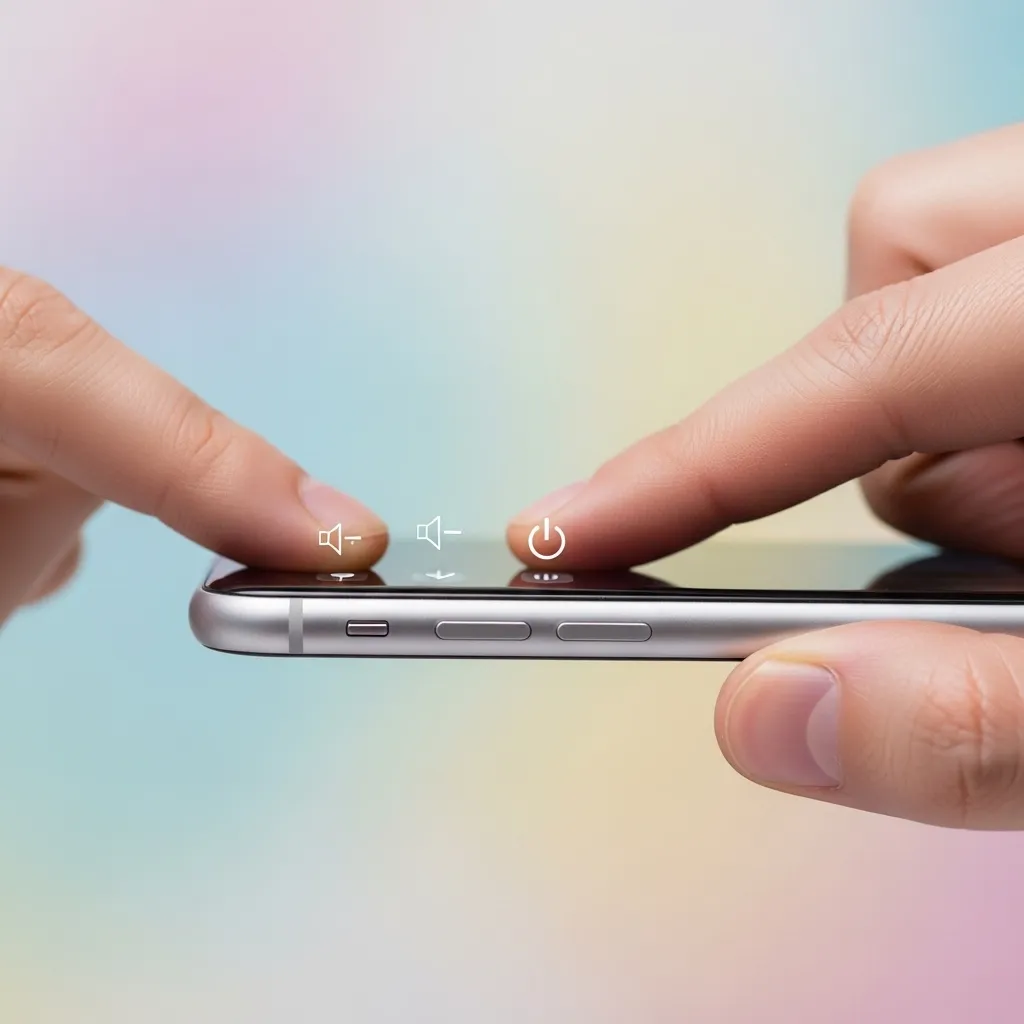
5. Force Restart for iPhone 6s, SE (1st Gen), or Earlier
For the classics! If you’re still rocking an older model like the iPhone 6s or the original SE, the force restart method is a different two-button combo that feels nostalgic.
Press and hold the Home button and the Top (or Side) button together. Hold them both down firmly until you see the iconic Apple logo appear on the screen.
Once you see the logo, you can release the buttons and let your phone finish starting up. It’s a reliable fix that has worked for generations of iPhones.
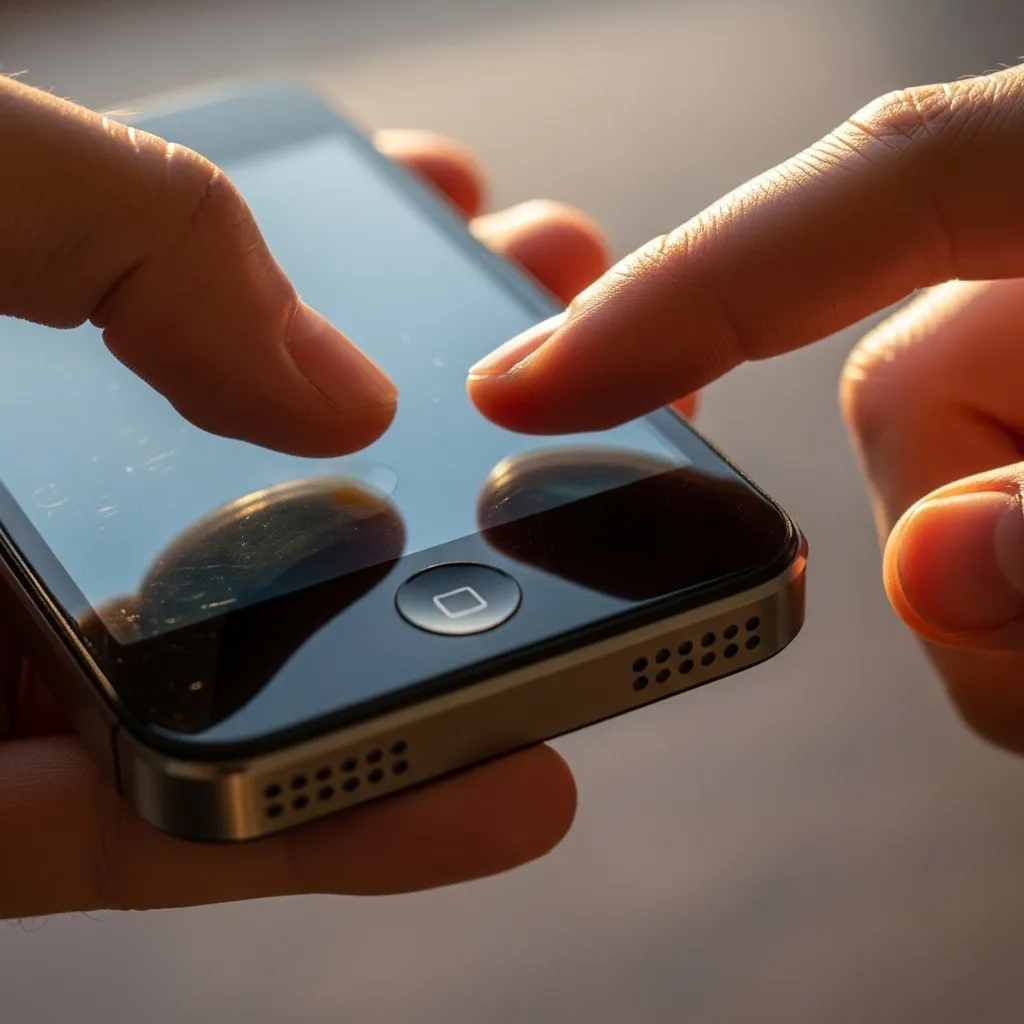
6. Using Settings for a “Soft” Restart
Did you know you can restart your iPhone without touching any physical buttons at all? It’s perfect if a button is sticky or if you just prefer using the screen.
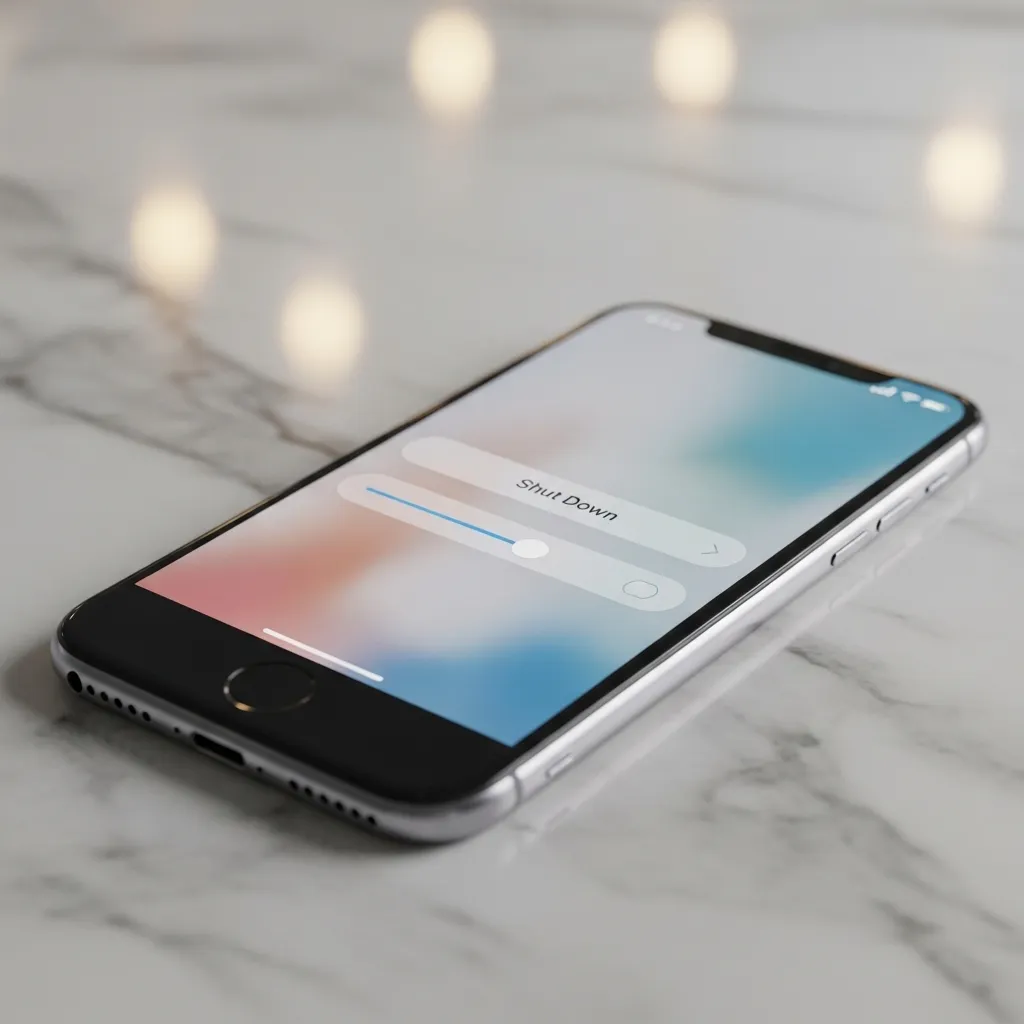
Go to Settings > General > Shut Down. You’ll see the same power-off slider appear on your screen. Slide it to turn off your phone.
After it powers down completely, you’ll need to use a physical button to turn it back on (press and hold the Side or Top button). I use this method when I want to be extra gentle with the hardware or am showing someone less tech-savvy how to do it.
7. Letting Your Battery Drain (The Last Resort)
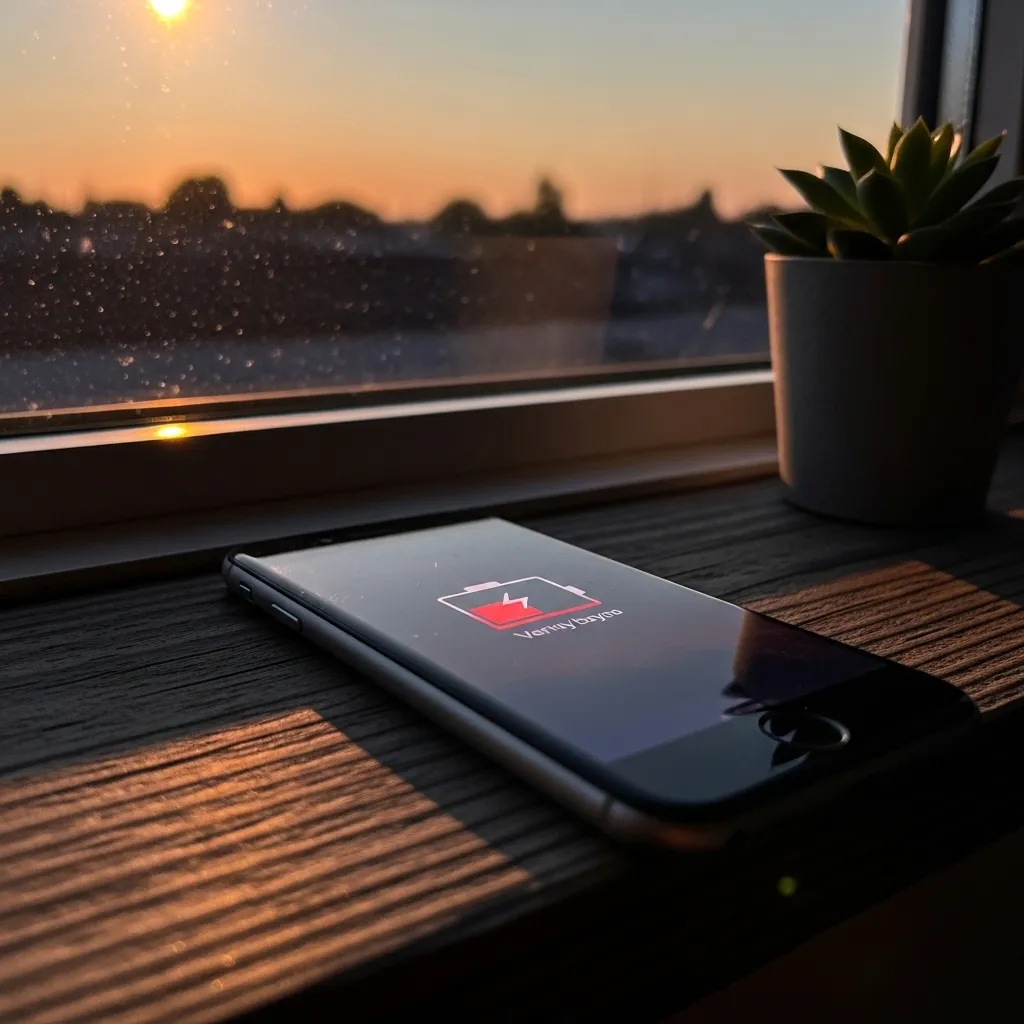
This isn’t a recommended restart method, but it’s what happens if you ignore all the others! If your iPhone battery dies completely, it will power off on its own.
To restart it, just plug it into a charger. You’ll usually see a low-battery symbol first. After charging for a few minutes, press and hold the Side/Top button to turn it back on.
I only mention this because it is a form of restart, but it’s not good for your battery’s long-term health to do this regularly. Use the button methods instead!
8. Why Restarting Fixes So Many Issues
You might wonder why such a simple action works. When your iPhone runs for days or weeks, little bits of temporary data and app processes can build up in the memory (RAM).
A restart clears all that out. It’s like closing all the hidden browser tabs on your computer. It can fix minor software glitches, improve speed, and even help with connectivity issues like Wi-Fi or Bluetooth acting up.
I make it a habit to restart my phone once a week, just as a little maintenance check. It keeps everything running smoothly.
9. Restart vs. Reset: Know the Crucial Difference
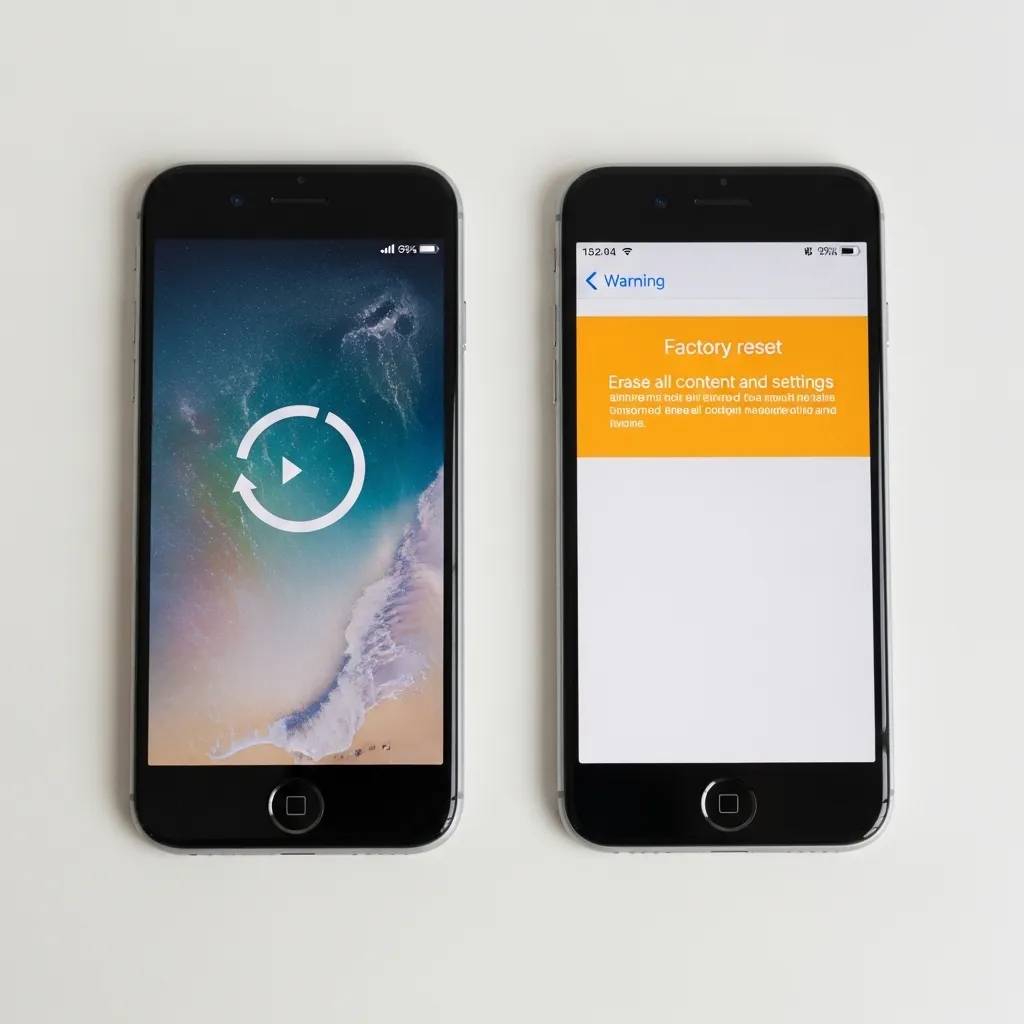
This is super important! Restarting (what this guide is about) just turns your phone off and on. It doesn’t delete anything.
Resetting (found in Settings > General > Transfer or Reset iPhone) is completely different. Options like “Reset All Settings” or “Erase All Content and Settings” will change or delete your data.
Always choose a simple restart first. Only look at reset options if a restart doesn’t solve a major, persistent problem, and you’ve backed up your phone first.
10. Pro Tip: Schedule a Weekly Restart
Want to keep your iPhone feeling fresh without thinking about it? You can use a feature called Shortcuts to automate a weekly restart.
Open the Shortcuts app, tap Automation, and create a new personal automation. Choose “Time of Day,” set it for a time you’re not using your phone (like 3 AM every Sunday), and add the action “Set Volume” to 0% (to silence it) followed by “Shut Down.”
Your phone will prompt you to confirm, but it’s a great reminder to do this bit of digital housekeeping regularly. It’s the ultimate set-it-and-forget-it trick.
Conclusion: Your First Step for a Happier iPhone
So next time your iPhone is acting up, don’t stress. Just give it a quick restart using the method that matches your model. It’s the simplest, safest, and most effective first step for solving glitches, boosting speed, and maintaining your device. Bookmark this guide so you always have the right steps on hand!
Quick Restart FAQ
Q: Will restarting my iPhone delete my photos or apps?
A: No! A normal restart or force restart does not delete any of your personal data, photos, or apps. It’s perfectly safe.
Q: How often should I restart my iPhone?
A: I recommend doing it once a week for general maintenance. If you notice it getting slow or buggy, restart it right away.
Q: My screen is black and won’t turn on. What do I do?
A> First, try charging it for at least 30 minutes. Then, attempt a force restart using the button sequence for your specific iPhone model (see sections 3-5 above).
Q: What’s the difference between the Side button and the Power button?
A> They’re the same thing! On newer iPhones, the button on the right side is called the Side button. On older models, it’s often called the Sleep/Wake or Power button. It serves the same purpose.
Q: I only see a spinning wheel after restarting. Is that normal?
A> Seeing the Apple logo is normal. A continuous spinning wheel (or being stuck on the logo for more than 5 minutes) isn’t. In that case, try a force restart again. If it persists, your phone may need further troubleshooting.