How to Turn Off Voicemail on Your iPhone: A Simple Guide
I remember the first time I missed a call and that little red notification popped up on my Phone app. Voicemail can be helpful, but sometimes it just feels like another inbox to manage. If you’re like me and prefer texts or callbacks, you might be wondering how to just turn it off.
The process isn’t as straightforward as a simple toggle in Settings, but it’s absolutely possible. Whether you want a permanent solution or just a temporary pause, I’ve gathered all the methods that actually work. Let’s reclaim your peace and quiet.
1. The Direct Carrier Method: Call Customer Service
This is the most reliable way to disable voicemail completely. Your carrier controls this feature on the network level, not Apple. I picked up the phone and called my carrier’s customer service to get it done.
Just ask the representative to deactivate your voicemail service. They might ask for your account PIN for security. Within a few minutes, callers will hear a message saying the person is unavailable instead of being sent to voicemail.
2. Use the Visual Voicemail Screen to Redirect
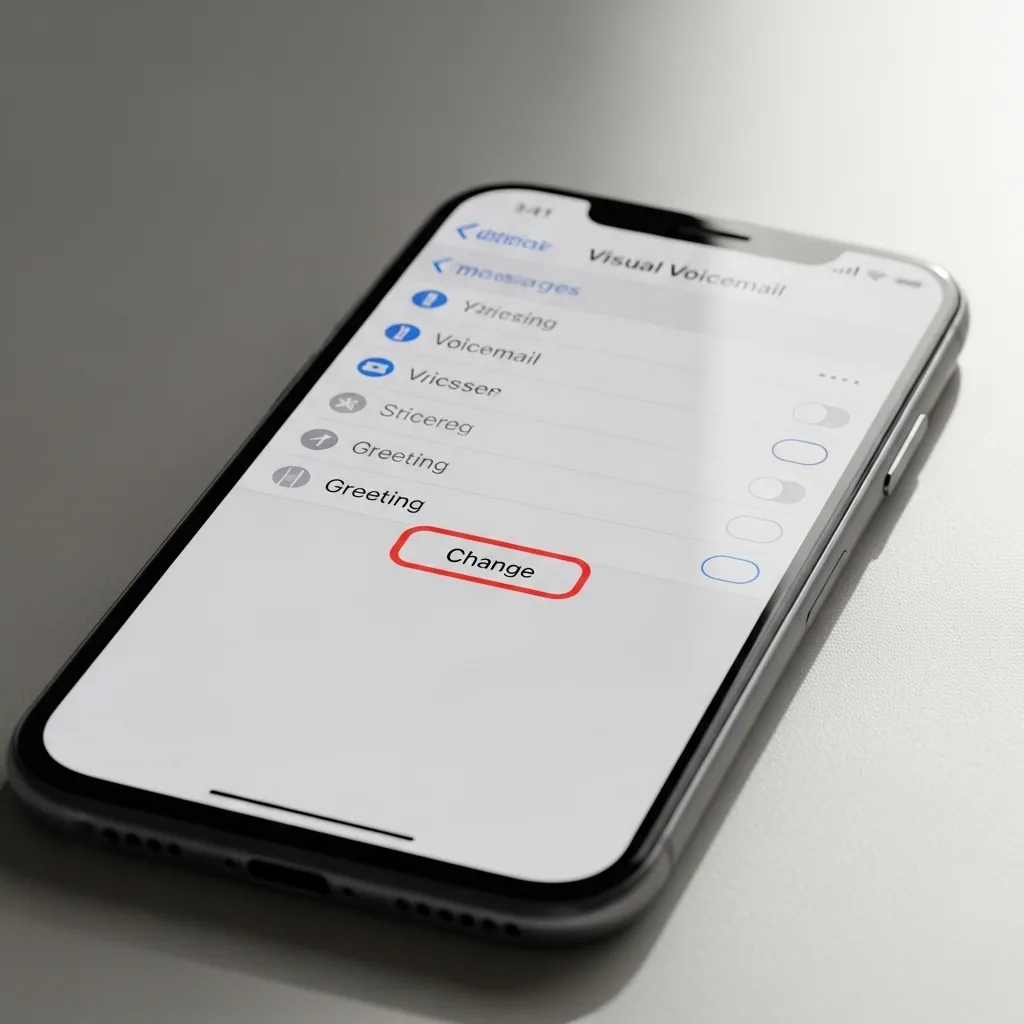
Open your Phone app and tap the “Voicemail” tab in the bottom right. If you see a “Greeting” or “Change Greeting” button, you can use a trick here.
Record a new custom greeting. In it, you can politely say you don’t check voicemail and to please text or call back later. This doesn’t turn it off, but it manages caller expectations beautifully.
3. Forward Calls to a Non-Existent Number
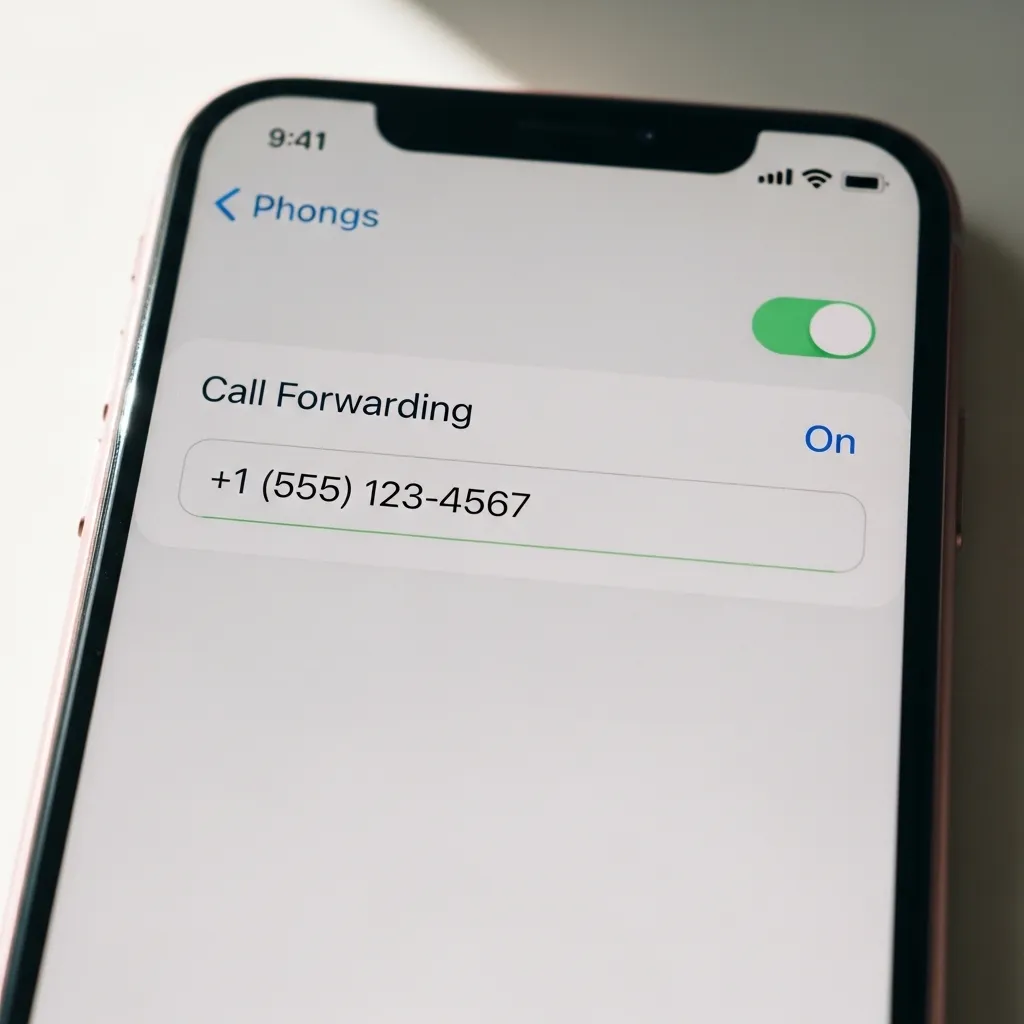
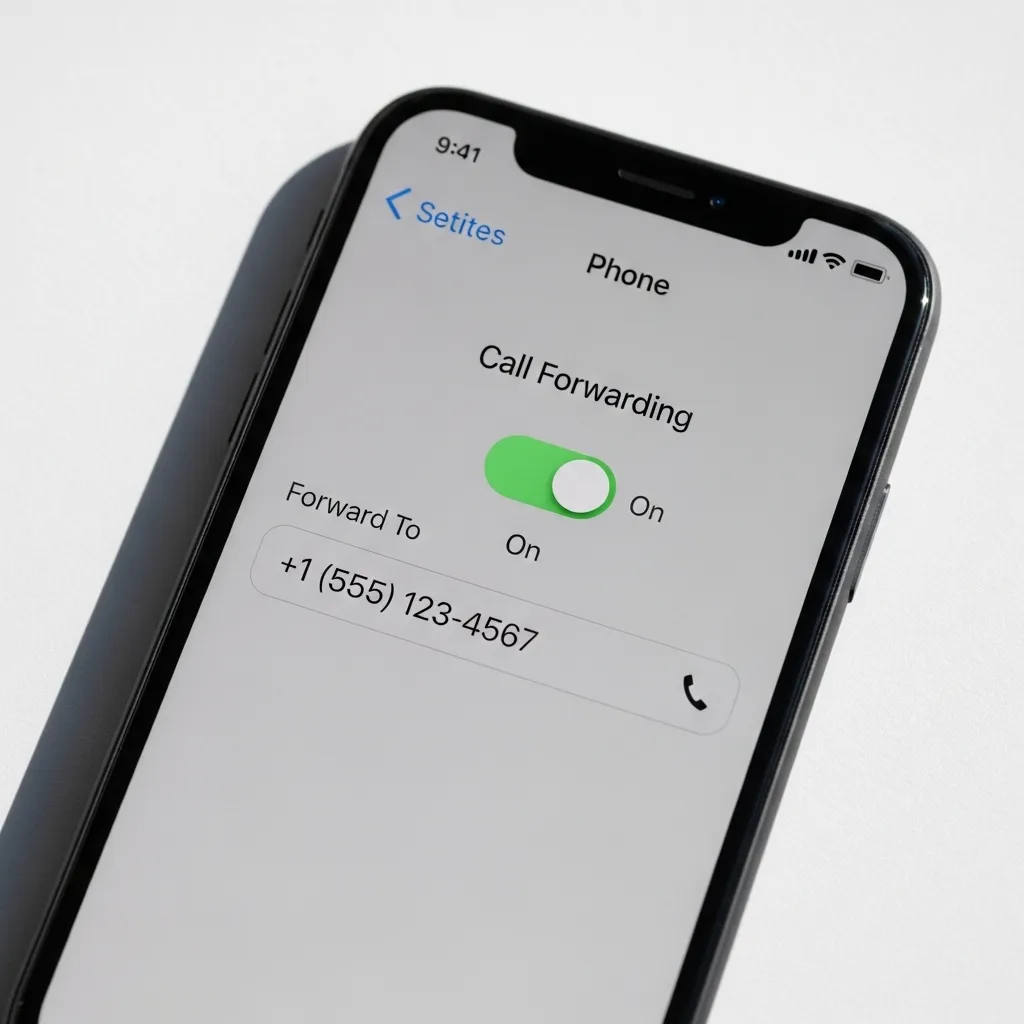
This is a clever workaround. Go to Settings > Phone > Call Forwarding and turn it on.
Forward your calls to a number that is disconnected or never set up voicemail, like an old number you remember. When calls are forwarded there, they can’t reach your iPhone’s voicemail box. Just remember to turn Call Forwarding off when you want normal service back.
4. Fill Your Voicemail Box to Capacity
If you want to stop new messages without calling your carrier, try this. Let your voicemail box fill up completely by not deleting any old messages.
Once it’s full, new callers will hear a “mailbox is full” message and won’t be able to leave a message. It’s a passive, set-it-and-forget-it approach that works for a temporary block.
5. Disable “Do Not Disturb” Bypass for Calls
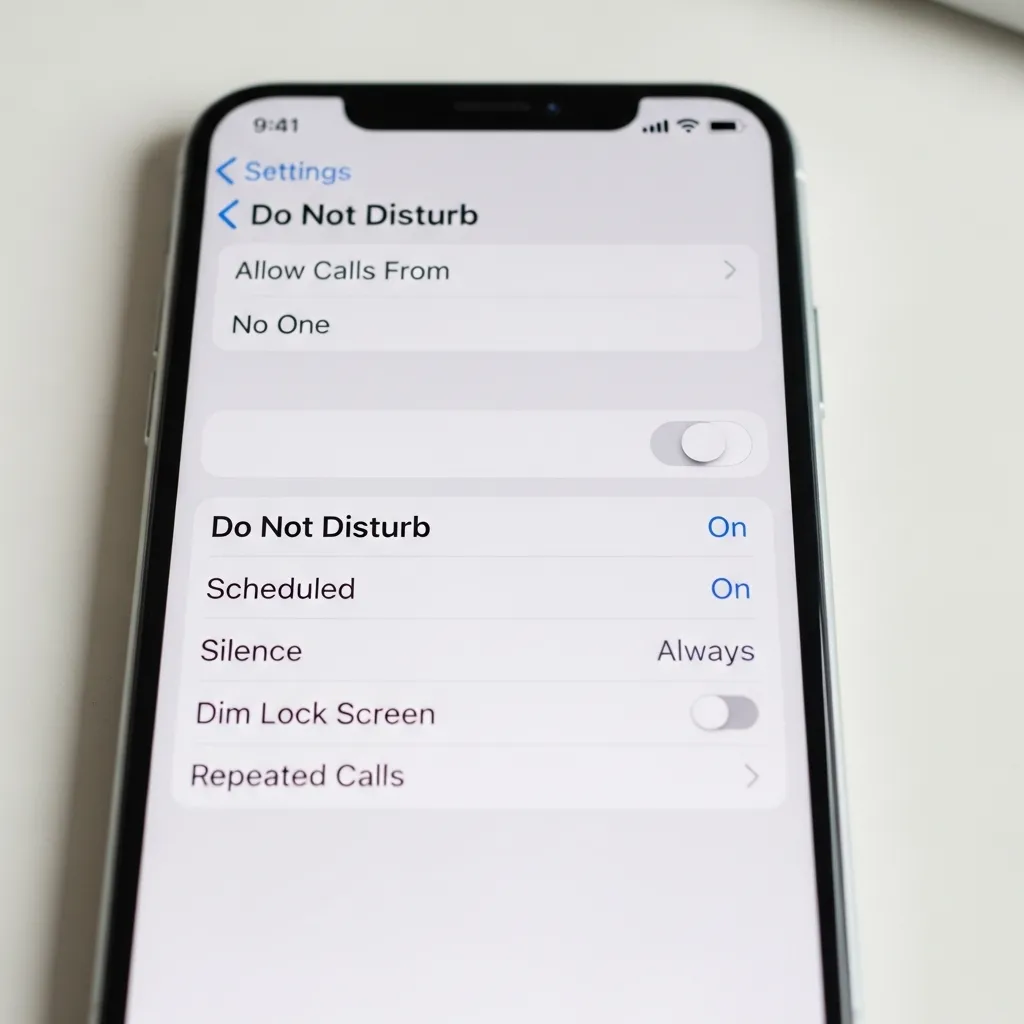
This method is perfect for getting uninterrupted focus time. When you turn on Do Not Disturb (the crescent moon icon in Control Center), calls go straight to voicemail by default.
To make sure, go to Settings > Focus > Do Not Disturb > People. Make sure “Allow Calls From” is set to “No One.” This way, all calls silently go to voicemail whenever this focus mode is active.
6. Silence Unknown Callers
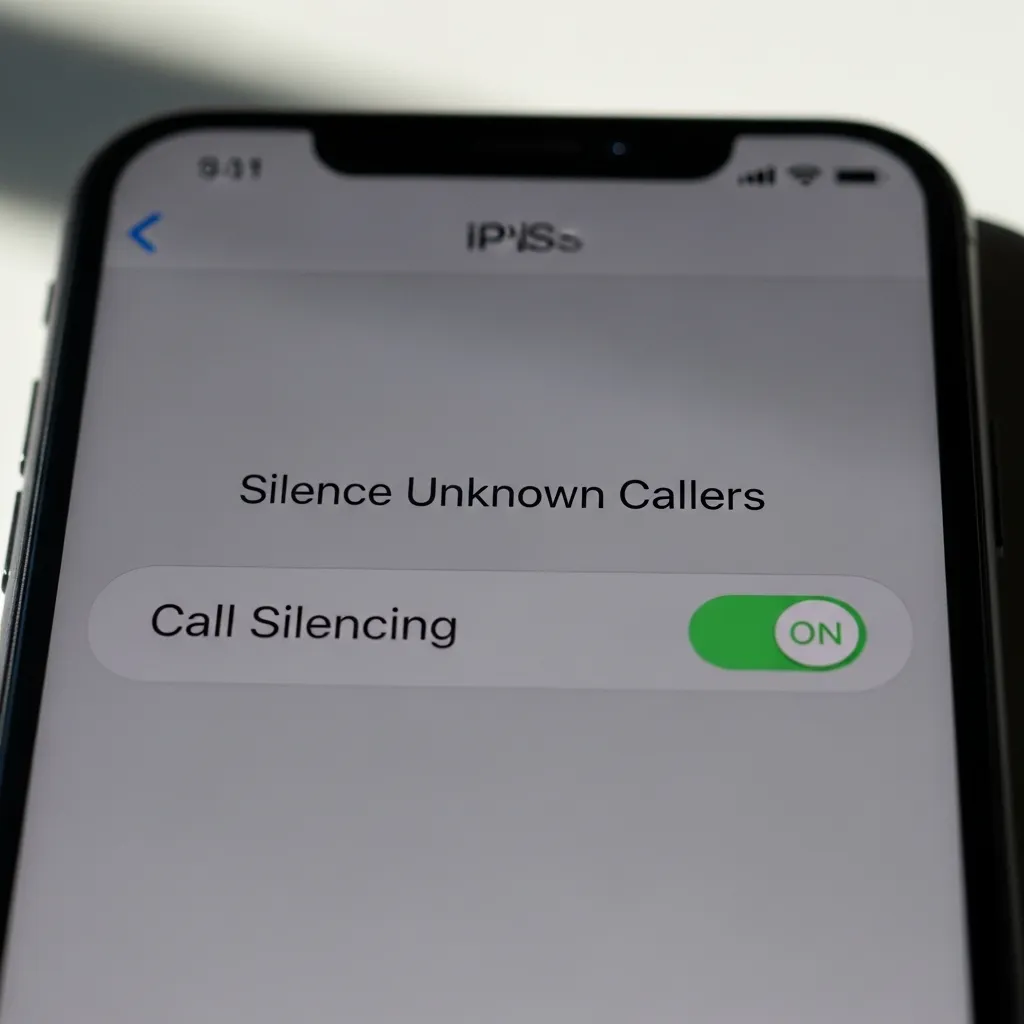
This iOS feature is a game-changer for spam. Go to Settings > Phone and scroll down to “Silence Unknown Callers.” Turn it on.
Calls from numbers not in your contacts, Mail, or Messages will be silenced and sent directly to voicemail. It dramatically cuts down on the voicemails you’ll actually receive.
7. Change Your Carrier Voicemail Password Incorrectly
Some users have found that changing their voicemail password to an incorrect one via their carrier’s website or app can break the voicemail setup.
Your iPhone will fail to authenticate with the voicemail server, potentially preventing access. This is a bit of a hack and may not work with all carriers, but it’s worth a try if you’re feeling techy.
8. Use a Third-Party Voicemail Service App
Consider replacing your carrier’s voicemail with an app like Google Voice or YouMail. Set up call forwarding to the app’s number.
These apps often have better features, like transcriptions sent to email, and you can choose to simply not set up a greeting, effectively creating a voicemail “off” state through the app.
9. Temporarily Use Airplane Mode
When you absolutely cannot be reached, swipe into Control Center and tap the airplane icon. With Airplane Mode on, your cellular connection is disabled.
Callers will immediately get a “call cannot be completed” message without ever hitting your voicemail. It’s the ultimate temporary disconnect for important meetings or family time.
10. Reset Network Settings as a Last Resort
If voicemail is glitching and you want to reset its connection, go to Settings > General > Transfer or Reset iPhone > Reset. Then tap “Reset Network Settings.”
This erases all network info, including voicemail passwords. You’ll have to re-enter Wi-Fi passwords, and it may temporarily disrupt voicemail. It doesn’t always turn it off permanently, but it can clear errors.
Wrapping It Up
Turning off voicemail on an iPhone requires a little effort, but you have options. For a permanent fix, calling your carrier is the gold standard. For smart management, try silencing unknown callers or using a custom greeting. Choose the method that fits your lifestyle best and enjoy the silence.
Quick FAQ
Q: Will turning off voicemail stop calls?
A: No, not at all. Callers can still ring your phone. They just won’t be able to leave a recorded message after you don’t answer.
Q: Can I turn it off directly in iPhone Settings?
A: Unfortunately, no. There’s no “Voicemail Off” switch in Settings because the feature is managed by your mobile carrier.
Q: What do callers hear if my voicemail is off?
A: They typically hear a standard automated message like, “The person you have called is not available. Please try your call again later.”
Q: Is turning off voicemail free?
A> Usually, yes. Your carrier should not charge you to disable this basic service, but it’s always good to ask when you call them.
Q: Can I get my voicemail back later?
A> Absolutely. Just contact your carrier again and ask them to reactivate your voicemail service. It’s typically a quick process.