iPhone Personal Hotspot Not Working? Let’s Fix It Together.
We’ve all been there. You’re out and about, need to get your laptop online, and you confidently turn on your iPhone’s Personal Hotspot… only to be met with the dreaded “No Internet” message on your other device. It’s beyond frustrating.
As someone who relies on my iPhone hotspot for work on the go, I’ve troubleshooted this issue more times than I can count. The good news? It’s almost always something simple. The even better news? You don’t need to be a tech wizard to fix it.
Let’s walk through the most effective fixes, from the quick checks to the deeper solutions. Grab your iPhone, and let’s get your hotspot back up and running.
1. The Classic On-Off Toggle (Always Try This First!)
It sounds almost too simple, but this is the digital equivalent of taking a deep breath. A full restart can clear out minor software glitches that are blocking the connection.
First, turn off your Personal Hotspot in Settings. Then, power down your iPhone completely and turn it back on. Once it’s rebooted, head back to Settings and toggle your hotspot on again. It’s amazing how often this basic reset does the trick.
2. Check Your Cellular Data Connection
Your hotspot can’t share what it doesn’t have. If your iPhone itself has a weak or no cellular signal, your hotspot will fail.
Open a webpage in Safari on your iPhone. Can you load it? If not, you’ve found the core issue. Try moving to a location with better reception. Also, ensure your cellular data plan is active and paid up—sometimes the problem is with the carrier, not the phone.
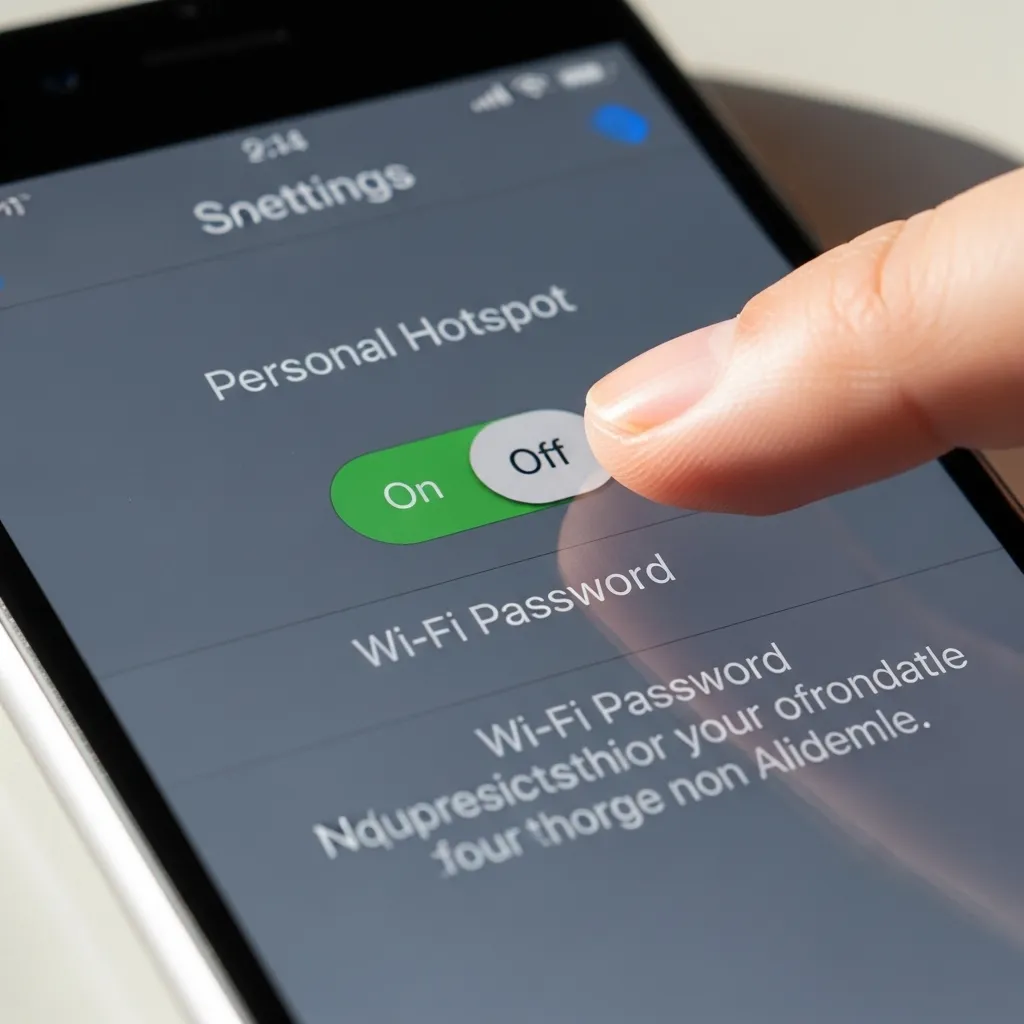
3. Verify Your Hotspot Password
An incorrect password is one of the most common reasons other devices can’t connect. It’s an easy mistake to make, especially if you’ve changed it before.
Go to Settings > Personal Hotspot and tap on “Wi-Fi Password.” Make sure it’s something you know. Remember, the password needs to be at least 8 characters long. If you’re unsure, change it to something simple temporarily to test the connection.
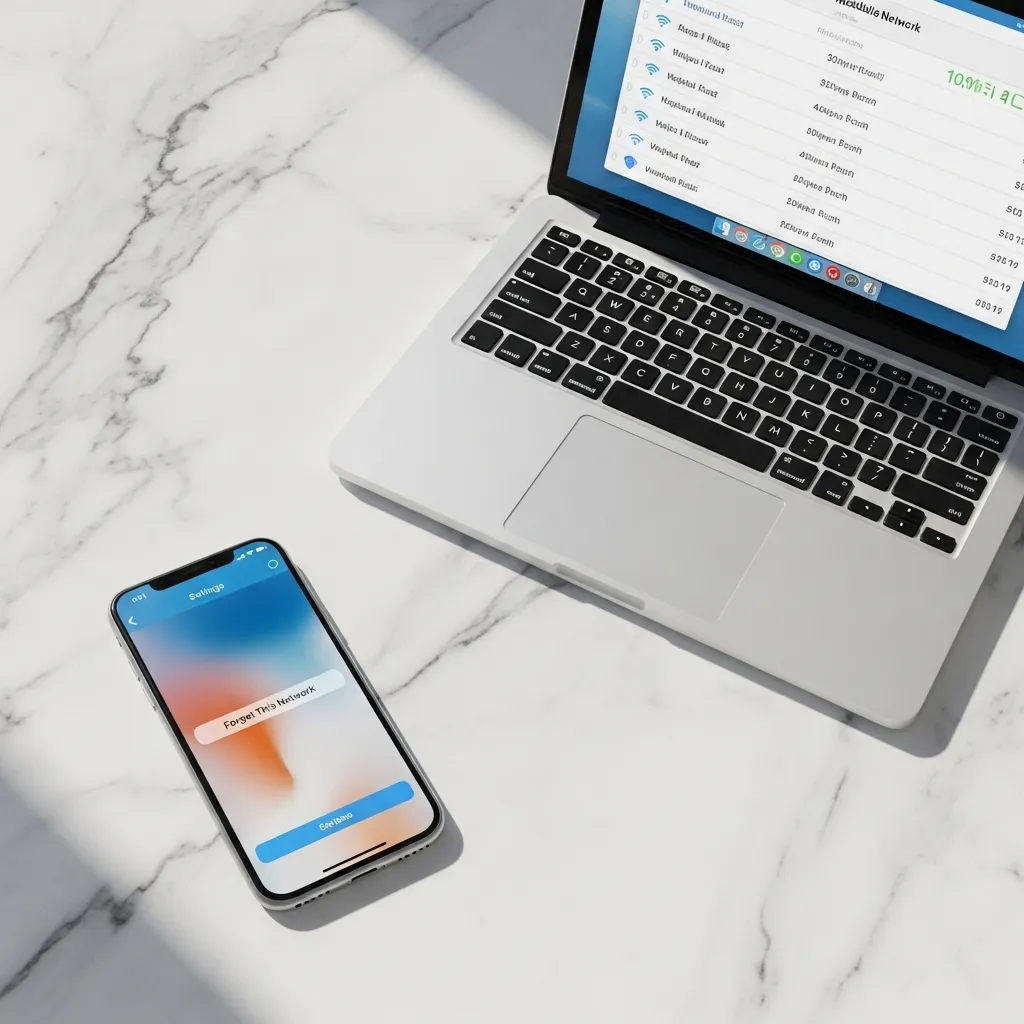
4. Forget & Reconnect on the Other Device
Sometimes the issue lies with the laptop or tablet trying to connect, not your iPhone. That device might have saved an old, incorrect network configuration.
- On your laptop, go to network settings and “forget” your iPhone’s hotspot network.
- On an iPad, go to Settings > Wi-Fi, tap the (i) next to your iPhone’s name, and select “Forget This Network.”
Then, search for networks again and reconnect fresh, entering the password carefully.

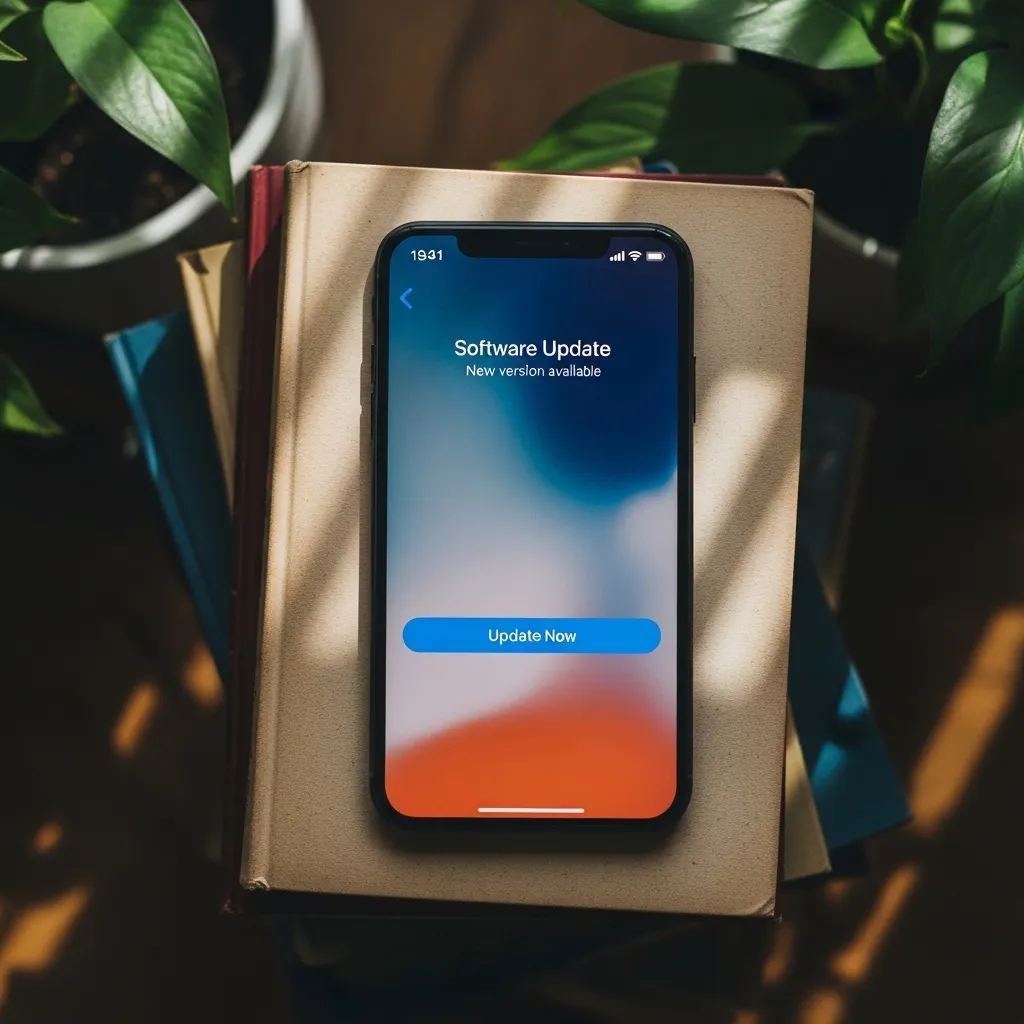
5. Update Your iPhone’s Software
Outdated iOS software can contain bugs that affect features like Personal Hotspot. Apple frequently releases updates that include fixes for connectivity issues.
Head to Settings > General > Software Update. If an update is available, install it. Make sure your iPhone is connected to Wi-Fi and has plenty of battery life first. This single step has resolved persistent hotspot problems for me in the past.
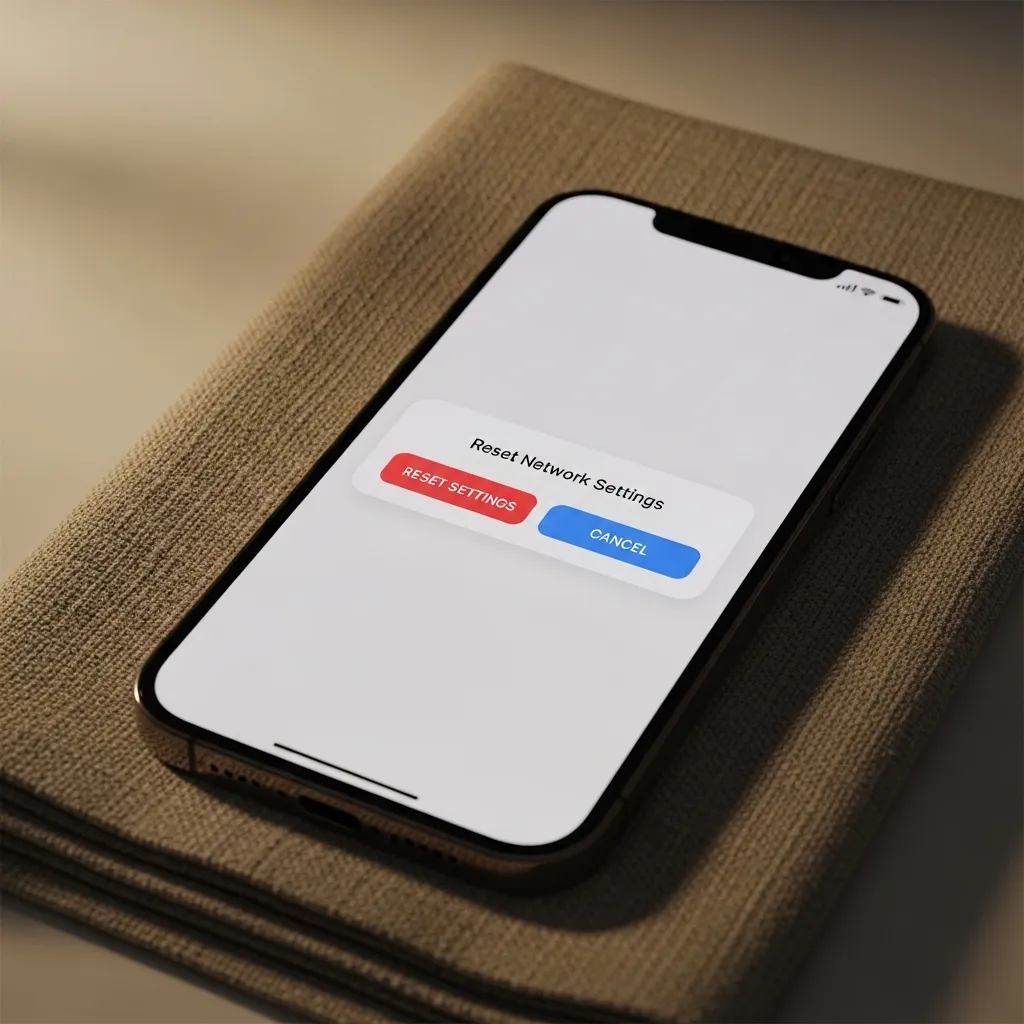
6. Reset Your Network Settings
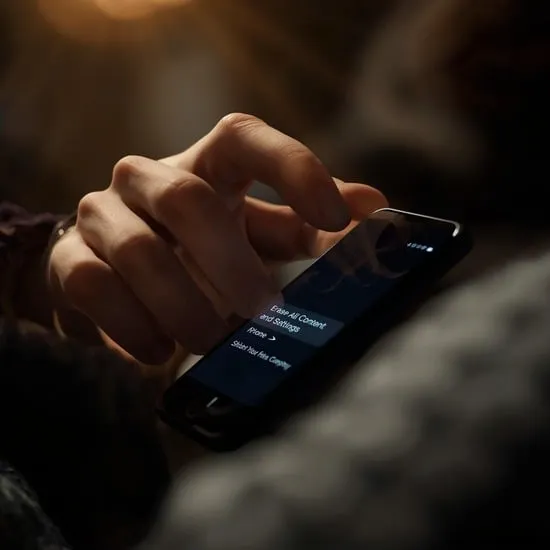
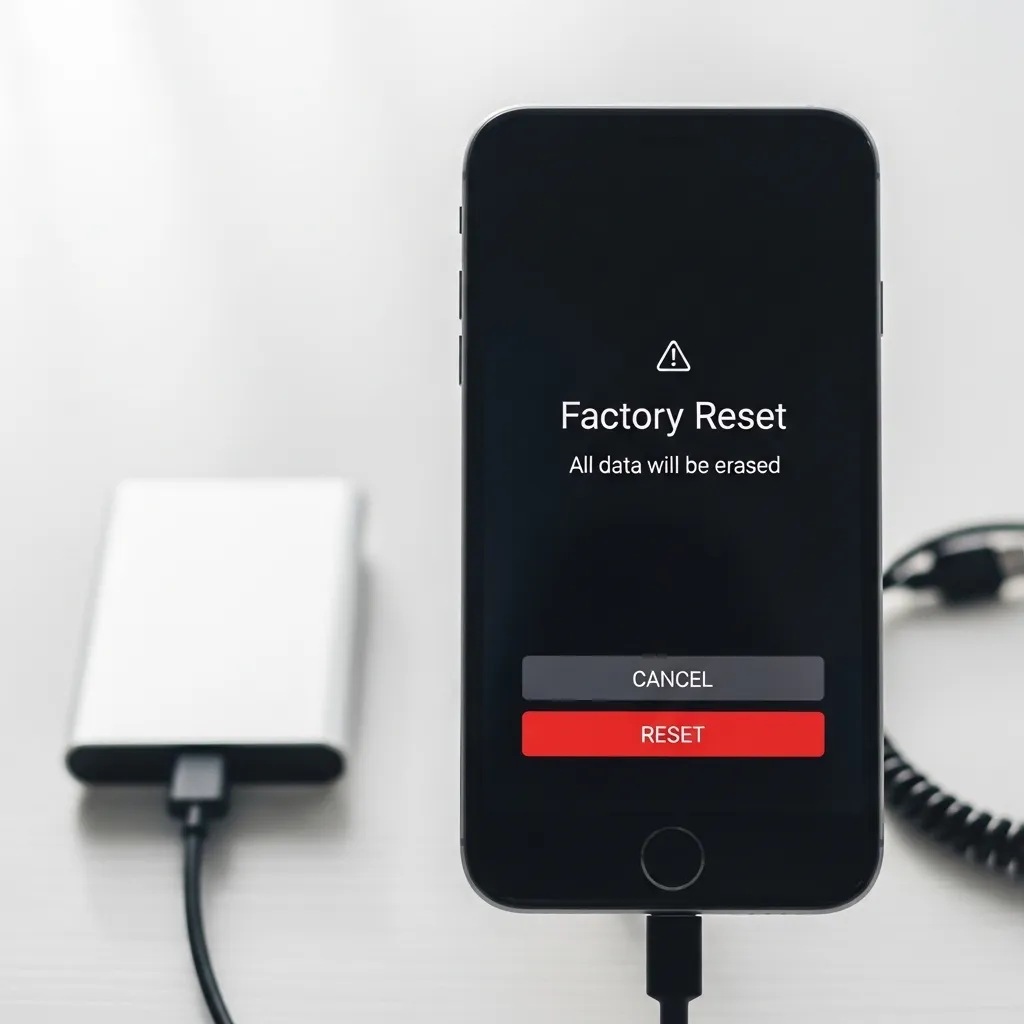
This is a more powerful step. It will erase all your saved Wi-Fi networks, passwords, and cellular settings, but it often clears up stubborn network problems.
Go to Settings > General > Transfer or Reset iPhone > Reset. Then, choose Reset Network Settings. Your iPhone will restart. Afterward, you’ll need to re-join Wi-Fi networks and re-enable your Personal Hotspot. It’s a hassle, but it works.
7. Check for a Carrier Settings Update
Your carrier (like Verizon, AT&T, or T-Mobile) occasionally pushes small updates that fine-tune network features, including hotspot functionality.
To check, make sure your iPhone is connected to Wi-Fi or cellular. Sometimes these updates install automatically. You can also try going to Settings > General > About. If an update is available, a prompt will appear. This is a behind-the-scenes fix many people miss.
8. Look at Your Data Plan & Hotspot Allowance
Some mobile plans have a separate data allowance just for hotspot use. It’s possible you’ve simply used up your allotted hotspot data for the billing cycle.
Contact your carrier or check their app to confirm your plan includes Personal Hotspot and that you haven’t exceeded any limits. They can also refresh your connection on their end, which can sometimes help.
9. Try Connecting via USB or Bluetooth
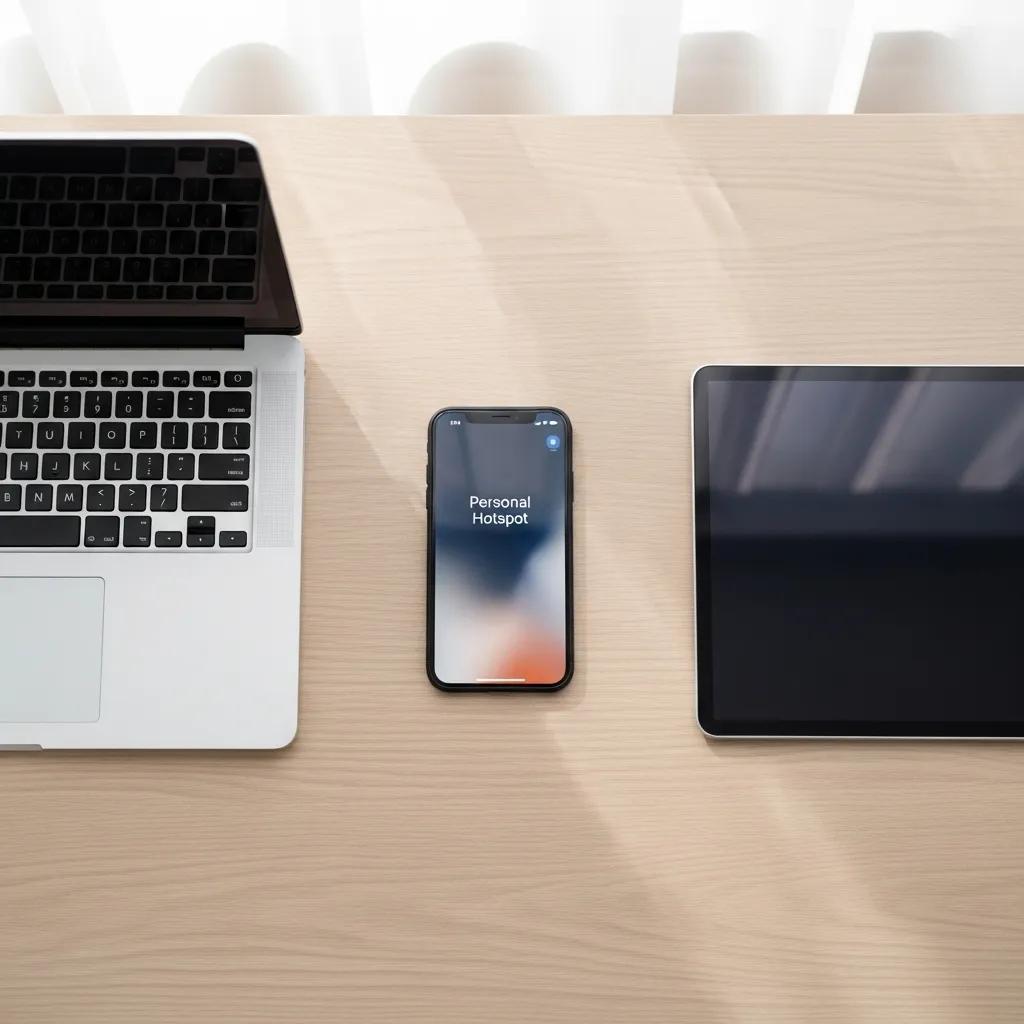
If Wi-Fi hotspot is being finicky, you have two other ways to connect! Plugging your iPhone into your laptop with a USB cable often provides the most stable connection.
You can also pair your devices via Bluetooth and enable “Internet Tethering.” The speeds might be slower, but it’s a great backup method when Wi-Fi just won’t cooperate.

10. The Ultimate Reset: Restore iPhone
This is a last resort, but if nothing else has worked, a full restore via a computer can eliminate deep-seated software corruption. First, make a complete backup of your iPhone to iCloud or your computer.
Then, connect to a computer, open Finder (Mac) or iTunes (PC), and choose “Restore iPhone.” This installs a fresh copy of iOS. Afterward, you can restore your data from the backup. It’s a process, but it solves the unsolvable.

Conclusion
Getting your Personal Hotspot working again is usually a matter of patience and trying these steps in order. Start with the simple toggles and password checks before moving to resets and updates. Nine times out of ten, one of these solutions will get you back online.
Remember, you’re not alone in this—it’s a common hiccup with a lot of straightforward fixes. Save this guide for the next time you see that spinning wheel of doom on your laptop!
Quick Hotspot FAQ
Q: Why does my hotspot keep turning off by itself?
A: It often turns off automatically when no devices are connected to save battery. Also, check if “Low Data Mode” is on or if you have a very weak cellular signal.
Q: Can other people see my hotspot network?
A: Only if you have “Allow Others to Join” enabled in your hotspot settings. For maximum privacy, keep this off and use the family sharing feature or connect via USB/Bluetooth.
Q: My laptop says “No Internet” even when connected. Why?
A: This almost always means your iPhone itself has no cellular data. Check your iPhone’s signal and try loading a page in Safari first.
Q: Does using a hotspot drain my iPhone battery fast?
A> Yes, it does. It’s using the cellular radio and broadcasting a Wi-Fi signal. For long sessions, keep your phone plugged into a charger.
Q: I updated iOS and now my hotspot won’t work. What do I do?
A> Try the “Reset Network Settings” step outlined above. A new iOS update can sometimes conflict with old network configurations, and a reset clears the slate.