AI Automation Tools for Beginners: A Practical Guide to Getting Started in 2026
AI Automation Tools for Beginners: A Practical Guide to Getting Started in 2026
I remember the first time I tried to set up an automation. It was 2019, before AI made these tools accessible to normal people, and I spent four hours trying to get Zapier to automatically save email attachments to Dropbox. The whole experience felt like trying to program a VCR while the instruction manual was written in another language.
Fast forward to 2026, and AI has completely changed the game. Automation tools that once required technical knowledge now work through simple conversations. Tasks that took hours to configure can be set up in minutes. The barrier to entry has dropped so dramatically that “I’m not technical enough” is no longer a valid excuse.
But here’s what nobody tells you when they’re evangelizing automation: the ease of setup doesn’t mean you should automate everything, and more automation doesn’t automatically mean better results. I’ve seen people create elaborate automated systems that actually made their work more complicated, not less.
What I want to share here is what I’ve learned helping dozens of people set up their first automations—what actually works for beginners, what’s worth your time, and what mistakes to avoid.
What AI Automation Actually Means (Without the Hype)
Before we dive into specific tools, let me clarify what we’re talking about, because “AI automation” gets thrown around loosely.
Traditional automation follows rigid “if this, then that” logic. If an email arrives from a specific sender, forward it to a folder. If a form is submitted, add the data to a spreadsheet. These are rules you set up manually, and they execute exactly as programmed.
AI automation adds intelligence to this process. Instead of you defining every rule and possibility, the AI can:
- Understand context and make decisions based on content, not just triggers
- Handle variations and exceptions without breaking
- Learn patterns from your behavior
- Process unstructured information like text, images, and voice
- Adapt to situations you didn’t explicitly program for
A practical example: Traditional automation might move all emails from “boss@company.com” to a priority folder. AI automation can read emails from anyone, understand which ones are actually urgent based on content and context, and surface those—even if they come from someone you’ve never corresponded with before.
The difference is flexibility and intelligence versus rigid rules.

Why Beginners Should Care About Automation (The Real Benefits)
I’m going to be honest about what automation can and can’t do for you, because the hype often oversells the benefits.
What automation genuinely does:
Eliminates genuinely tedious, repetitive tasks. If you do the same thing more than twice a week, it’s probably automatable. I automated my weekly report compilation—pulling data from three different tools, organizing it, and formatting it into a template. This saved me 90 minutes every single week. Over a year, that’s 78 hours.
Reduces human error on routine tasks. People make mistakes when doing repetitive work, especially when tired or distracted. Automated systems execute consistently. A friend who runs an e-commerce business automated her order confirmation emails. Before automation, she occasionally forgot to send them when things got busy. Now they go out within minutes of every order, 100% of the time.
Frees mental space. Beyond time savings, automation removes tasks from your mental to-do list. Not having to remember to backup files, follow up on emails, or update tracking spreadsheets reduces cognitive load.
Improves response times. Automated systems work 24/7. A customer service automation can acknowledge support tickets immediately rather than waiting for someone to be at their desk.
What automation doesn’t do:
Replace strategic thinking or creativity. Automation handles execution, not judgment. It can send your newsletter, but it can’t decide what perspective will resonate with your audience this week.
Magically fix broken processes. Automating a bad process just means you do the bad process faster and more consistently. Figure out the right approach first, then automate it.
Work perfectly without maintenance. Systems change, APIs update, processes evolve. Automations break and need adjustment. Factor this in.
Save time if you automate the wrong things. Setting up automation takes time upfront. If you automate a task you only do monthly and the setup takes three hours, you’ll need years to break even on that time investment.
The key is being selective about what to automate.
The Best AI Automation Tools for Beginners (What I Actually Recommend)
Based on helping beginners get started and watching what they stick with versus abandon, here are the tools I recommend:
Zapier
Zapier has been around since before AI integration became standard, but they’ve evolved significantly and remain the most beginner-friendly automation platform.
What it does: Connects different apps and services to automate workflows. “When this happens in App A, do this in App B.”
Why it’s good for beginners: The interface is intuitive. You select a trigger (the thing that starts the automation), choose an action (what happens as a result), and connect the apps. No coding required. The AI features they’ve added help by suggesting automations based on your apps and identifying potential improvements to your workflows.
Real example from my life: I set up a Zapier automation that watches for new podcast episodes I publish (RSS trigger), automatically posts about them on LinkedIn and Twitter with custom messages for each platform (social media actions), and adds the episode details to my content calendar spreadsheet (Google Sheets action). This replaced 15 minutes of manual work I was doing after publishing each episode.
Starting point for beginners: Begin with simple two-step automations. “When I get an email attachment, save it to Google Drive” or “When someone fills out my contact form, add them to my email list.” Once you’re comfortable, add complexity.
Limitations: The free tier allows only basic automations with a limited number of tasks per month. For serious use, you’ll need a paid plan ($29.99/month and up as of 2026). Also, while AI features help, the core setup still requires understanding how your apps connect.
Best for: Small business owners, freelancers, anyone connecting mainstream apps and services.
Make (formerly Integromat)
Make is more powerful than Zapier but with a steeper learning curve. I include it here because once beginners get past the initial complexity, many prefer it.
What it does: Similar to Zapier but with visual workflow building and more sophisticated logic.
Why it’s worth the learning curve: Make’s visual interface shows you the entire workflow as a flowchart, which helps you understand how automations work. You can see data flowing through the system, making troubleshooting easier. It’s also generally cheaper than Zapier for equivalent functionality.
My experience teaching it: I’ve had better success teaching Make to people who think visually. If you like mind maps, flowcharts, or visual organization, Make clicks faster than text-based automation builders.
Real scenario: A nonprofit director I worked with automated her volunteer coordination using Make. When someone signs up to volunteer (form submission), the automation checks their skills and interests (filtering and routing), adds them to the appropriate communication lists (email platform action), schedules an orientation (calendar integration), and sends customized welcome materials based on the type of volunteering they selected (conditional logic). This replaced hours of manual coordination weekly.
Cost: Free tier is genuinely usable. Paid plans start around $9/month.
Best for: Visual thinkers, people who need complex multi-step workflows, budget-conscious users.
Microsoft Power Automate
If you’re in the Microsoft ecosystem (Outlook, Teams, OneDrive, SharePoint), Power Automate is the most seamless choice.
What it does: Automation platform integrated across Microsoft 365 and hundreds of other apps.
Why it matters for beginners: If you’re already using Microsoft tools for work, Power Automate integrates without additional accounts or authentication complexity. The AI features include AI Builder, which lets you add capabilities like form processing, object detection in images, and text classification to your automations.
Practical use case: I helped a small HR department automate their onboarding. When a new hire is added to their HR system, Power Automate creates their Microsoft 365 account, adds them to appropriate Teams channels, sets up their email signature, creates their OneDrive folder structure, and sends them a welcome email with first-day information. Everything within the Microsoft ecosystem they already use.
Limitation: Works best if you’re already Microsoft-centric. If you’re using Google Workspace or other platforms primarily, the integration gets more complicated.
Cost: Basic automations included with Microsoft 365 subscriptions. Advanced features require Power Automate plans ($15-40/month).
Best for: Anyone already using Microsoft 365, businesses standardized on Microsoft tools.
IFTTT (If This Then That)
IFTTT is the simplest automation tool, which makes it perfect for absolute beginners.
What it does: Connects apps, devices, and services with simple “if/then” logic.
Why it’s great for first-timers: IFTTT uses pre-built “applets” that you can enable with one click. Want to automatically save Instagram photos you’re tagged in to Dropbox? There’s an applet for that. Want your phone to text you when the International Space Station passes over your location? There’s an applet for that too.
You can also create custom applets, but the pre-built library means you can start automating immediately without building anything.
My recommendation: Start here if automation feels intimidating. Enable a few applets that sound useful, see how they work, get comfortable with the concept. Then graduate to more flexible tools when you need capabilities IFTTT doesn’t offer.
Real use: I use IFTTT for simple personal automations: automatically archiving my liked tweets to a spreadsheet, saving my favorite Reddit posts to Pocket, backing up my Instagram posts to Google Drive. Simple stuff that would be annoying to do manually but takes seconds to set up in IFTTT.
Cost: Free tier includes up to 2 applets. Pro plan ($2.50/month as of 2026) allows unlimited.
Best for: Complete beginners, personal use cases, simple smart home automations.
n8n
n8n is an open-source automation tool that requires more technical skill but offers more control.
Why I’m including this for “beginners”: Because some beginners are technically inclined but new to automation specifically. If you’re comfortable with basic technical concepts, n8n offers powerful capabilities without ongoing subscription costs.
What makes it different: n8n is self-hosted (you run it on your own server) or cloud-hosted with their service. You have complete control over your automations and data. The workflow builder is visual and intuitive despite being powerful.
Honest assessment: Don’t start here if technology intimidates you. But if you’re a developer, technically-minded entrepreneur, or someone who prefers open-source tools and doesn’t mind a learning curve, n8n is worth exploring.
Cost: Free if self-hosted. Cloud hosting starts at $20/month.
Best for: Technical beginners, developers new to automation, privacy-conscious users, people building complex or custom workflows.
Bardeen
Bardeen takes a different approach—it’s a browser extension that automates tasks within your web browser using AI.
What it does: Automates repetitive tasks in your browser like scraping data from websites, filling forms, copying information between web apps, and managing tabs.
Why it’s beginner-friendly: Bardeen uses natural language. You describe what you want to automate, and it builds the workflow. “Scrape all the names and email addresses from this page and save them to a Google Sheet.” It figures out how to do it.
Real scenario: A recruiter I know uses Bardeen to automate LinkedIn research. She tells Bardeen to collect information about prospects (name, company, title, LinkedIn URL) from search results and save it to her recruitment database. This replaced an hour of manual copying and pasting daily.
Limitation: Browser-based means it only works for tasks within the browser. Can’t automate email, file systems, or standalone apps unless they have web interfaces.
Cost: Free tier with limitations. Paid plans start around $10/month.
Best for: Knowledge workers doing repetitive web research, data entry from websites, anyone spending lots of time copying/pasting between web apps.
ChatGPT with Plugins/GPTs
This isn’t traditional automation, but ChatGPT’s custom GPTs and plugin ecosystem enables forms of automation that are worth mentioning.
What it enables: You can create custom GPTs that automate specific workflows through conversation. For example, a GPT that takes meeting notes and automatically formats them, extracts action items, and drafts follow-up emails.
How it works for beginners: Less about traditional automation and more about AI assistance for repetitive tasks. You interact conversationally, but the GPT handles the structured work automatically.
My use case: I created a custom GPT that formats my rough article notes into structured outlines following my preferred template. Instead of manually organizing thoughts, I dump everything into the GPT, and it structures it according to my process. Saves 20-30 minutes per article.
Limitation: Requires ChatGPT Plus ($20/month). Less automated than true automation tools—you still initiate the process rather than it running automatically. Better thought of as “assisted automation.”
Best for: ChatGPT users looking to streamline repetitive tasks through AI assistance rather than traditional automation.

Getting Started: Your First Automation (A Step-by-Step Approach)
Here’s how I recommend beginners actually start, based on what I’ve seen work:
Week 1: Identify One Actually Annoying Task
Don’t try to automate your entire life. Find one specific thing you do repeatedly that annoys you. Criteria:
- You do it at least weekly
- It follows a predictable pattern
- It doesn’t require complex judgment
- It involves apps or tools that integrate with automation platforms
Examples: Saving email attachments to cloud storage, posting the same content to multiple social platforms, compiling weekly reports, backing up files, adding form submissions to spreadsheets.
Week 2: Choose Your Tool and Build Your First Automation
For most beginners, I recommend starting with Zapier or IFTTT. Pick one. Create an account. Build one simple automation for the task you identified.
Start with a two-step automation: Trigger → Action. Don’t add complexity yet.
My typical recommendation: “When a file is added to this specific folder in Dropbox, send me a Slack notification.” Simple, useful, teaches the concept.
Week 3-4: Test and Refine
Watch your automation run. See where it works and where it doesn’t. Adjust as needed.
Common issues I see beginners hit:
- The trigger doesn’t catch all the cases they expected
- The action does something slightly different than intended
- Timing isn’t quite right (immediate vs. scheduled)
This is normal. Automation requires iteration.
Month 2: Add Complexity Gradually
Once your first automation works reliably, add a second step, then a third. Introduce conditional logic: “If the email subject contains ‘urgent,’ send it to my phone; otherwise, just save it to the folder.”
Month 3: Automate a Second Task
Now that you understand how automation works, identify and automate a second task using the same process.
This gradual approach prevents overwhelm and builds genuine competence.
Real-World Automation Examples for Beginners
Let me share specific automations I’ve helped beginners implement successfully:
For Freelancers and Solopreneurs
Client onboarding automation:
- Trigger: New client signs contract (via DocuSign or similar)
- Actions: Create client folder in Google Drive, add client to project management tool, send welcome email with intake form, add meeting to calendar, create invoice template
Time saved: About 45 minutes per new client
Social media cross-posting:
- Trigger: New post on primary platform (Instagram, for example)
- Actions: Reformat and post to Twitter, LinkedIn, Facebook with platform-appropriate adjustments
Time saved: 10-15 minutes per post (adds up quickly if you post daily)
For Small Business Owners
Lead capture and follow-up:
- Trigger: Contact form submission on website
- Actions: Add to CRM, send automated thank-you email, create task for follow-up in 2 days, notify sales team via Slack
Value: Immediate response and no leads falling through cracks
Invoice and payment processing:
- Trigger: Payment received (via Stripe, PayPal, etc.)
- Actions: Update accounting spreadsheet, send receipt to customer, create invoice record in QuickBooks, send notification to bookkeeper
Time saved: 15-20 minutes per transaction
For Content Creators
Content publication workflow:
- Trigger: New blog post published on website
- Actions: Post announcement on all social media platforms (with unique text for each), send to email newsletter list, add to content calendar, backup to cloud storage, ping Google for indexing
Time saved: 30-40 minutes per post
Asset organization:
- Trigger: New photo/video uploaded to creation folder
- Actions: Automatically tag with metadata, resize for different platforms, backup to cloud storage, organize into date-based folder structure
Time saved: Varies, but eliminates a lot of manual file management
For Personal Productivity
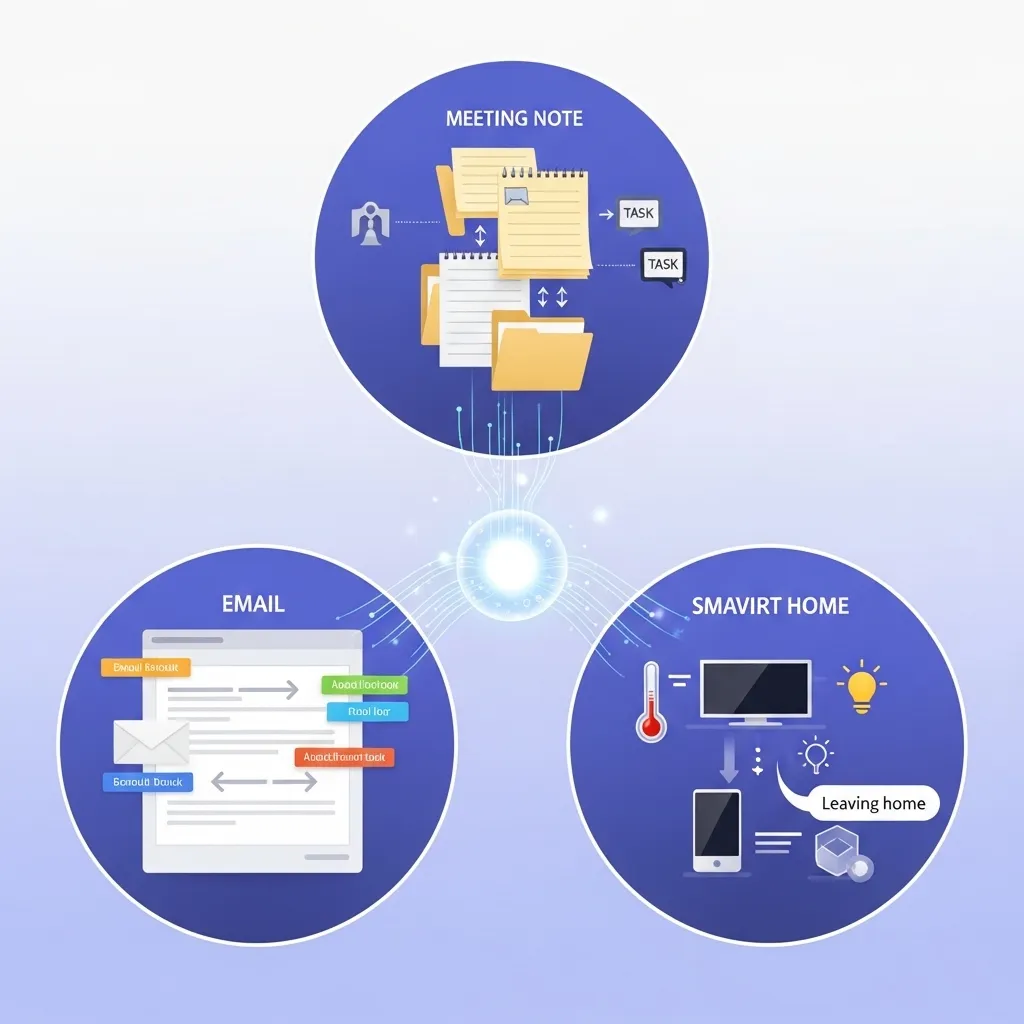
Meeting notes automation:
- Trigger: Calendar event ends
- Actions: Create notes document from template, save to appropriate project folder, extract and create tasks for action items, send summary to attendees
Inbox management:
- Trigger: New email arrives
- Actions: Based on sender/subject, automatically label, forward to appropriate team member, archive, or surface for immediate attention
Smart home integration:
- Trigger: Leave home (phone location)
- Actions: Set thermostat to away mode, turn off lights, arm security system, pause music
These aren’t aspirational—these are actual automations people I know use daily.
Common Mistakes Beginners Make (And How to Avoid Them)
After watching dozens of people start with automation, I’ve seen the same mistakes repeatedly:
Mistake 1: Trying to Automate Everything at Once
Enthusiasm leads people to create 15 automations in their first week. Most break or don’t work as expected. They get overwhelmed and give up.
Better approach: One automation at a time. Get it working, live with it for a week, refine it, then move to the next.
Mistake 2: Automating Before Optimizing
I’ve watched people automate terrible processes, then realize the automation just made them do the terrible process more efficiently.
Better approach: Figure out the best way to do something manually first. Once you’ve refined the process, then automate it.
Mistake 3: Setting and Forgetting
Automations break. Apps update, APIs change, business processes evolve. People set up automations, forget about them, and months later realize they haven’t been working.
Better approach: Calendar monthly reviews of your automations. Check that they’re still running and still serving their purpose.
Mistake 4: Not Testing Edge Cases
An automation works great for typical scenarios, then fails completely when something unusual happens. A form automation works fine until someone leaves a field blank. A file-processing automation works until someone uploads a different file type.
Better approach: Test your automation with weird inputs. What happens if a field is empty? What if the file is too large? What if two triggers fire simultaneously? Build in error handling.
Mistake 5: Automating Things That Need Human Judgment
I’ve seen people automate responses to customer inquiries, then wonder why customers are upset. The automation sent technically correct but contextually inappropriate responses.
Better approach: Automate execution, not judgment. Use automation to draft responses a human reviews, not to send responses automatically.
Mistake 6: Ignoring Security and Privacy
Connecting accounts to automation platforms means granting access to your data. People don’t think about what they’re authorizing.
Better approach: Review permissions carefully. Use automation platforms with good security reputations. Don’t automate workflows involving sensitive data unless you understand the security implications.
Mistake 7: Building Overly Complex Automations
Beginners sometimes create elaborate multi-step automations with extensive conditional logic. These are hard to debug and maintain.
Better approach: Keep automations as simple as possible. If an automation needs ten steps, consider whether it could be two simpler automations instead.
Understanding Costs: What’s Actually Worth Paying For
AI automation tools range from free to expensive. Here’s my honest take on what’s worth money:
Start with free tiers. Every tool I’ve mentioned has a free tier or trial. Don’t pay until you’ve confirmed the tool solves your actual problem.
Upgrade when you hit limits, not before. Free tiers have task limits, automation limits, or feature restrictions. Use the free tier until you’re genuinely constrained, then upgrade.
What’s worth paying for:
Time savings that justify the cost. If an automation tool costs $30/month but saves you 5 hours monthly, that’s $6/hour. If your time is worth more than $6/hour, it’s worth it.
Mission-critical automations. If an automation handles important business functions (lead capture, payment processing, customer communication), paying for reliability and support is worth it.
What’s probably not worth paying for:
Automations you use occasionally. If you’re only running a few automations and not hitting free tier limits, there’s no rush to upgrade.
Tools with lots of overlap. Don’t pay for three automation tools that do similar things. Pick one and master it.
My actual spending: I pay for Zapier ($40/month) because I use it heavily for business-critical automations. I use IFTTT’s free tier for simple personal automations. I tried Make and found Zapier more intuitive for my needs, so I don’t pay for both. Total automation tool spending: $40/month, saves me conservatively 10-15 hours monthly.

The AI Advantage: How AI Makes Automation Better
Traditional automation required precise configuration. AI-enhanced automation is more forgiving and capable:
Natural language setup: Tools like Bardeen let you describe what you want in plain English rather than configuring every detail manually. “Scrape email addresses from this page” instead of defining selectors and extraction patterns.
Intelligent decision-making: AI can read email content and categorize it, understand image content and route accordingly, or analyze text and extract specific information automatically.
Error recovery: When something breaks or doesn’t match expected patterns, AI-enhanced tools can often adapt rather than failing completely.
Content understanding: AI can summarize text, extract key information, generate responses, or transform content automatically—things that required human intervention before.
Example of the difference:
Traditional automation: “If email subject contains ‘invoice,’ move to folder.”
AI-enhanced automation: “Understand email content, identify if it’s actually an invoice regardless of subject line, extract key details (amount, due date, vendor), add to accounting system, and notify me only if amount exceeds $1000.”
The second approach handles more complexity with less manual configuration.
Ethical and Practical Considerations
Using automation responsibly means thinking about implications:
Job displacement concerns: Automation eliminates certain tasks. If you’re automating tasks that others do, consider the impact. In your own work, automation should elevate what you do, not just eliminate your role.
Customer experience: Automating customer interactions can make processes efficient but impersonal. Balance automation with human touch where it matters.
Data privacy: When you connect tools through automation platforms, you’re granting access to your data. Understand what you’re authorizing and whether it’s appropriate for the type of information involved.
Dependence and brittleness: Over-relying on automation means you’re vulnerable when it breaks. Always have a manual backup process for critical functions.
Quality control: Automated processes can perpetuate errors at scale. Build in quality checks and human oversight for important work.
When NOT to Automate
Automation isn’t always the answer:
Don’t automate if:
- You only do the task monthly or less frequently (unless it takes hours each time)
- The task requires nuanced human judgment
- The process isn’t standardized yet and keeps changing
- Automation would take longer to set up than doing the task manually for the next year
- The task provides valuable thinking or creative time
- You don’t understand the underlying process well enough to explain it clearly
Sometimes manual is better. I write thank-you notes to clients by hand. Could I automate that? Sure. Should I? Absolutely not. The personal touch is the point.

Learning Resources That Actually Help
If you want to learn automation beyond this article:
For Zapier: Their blog and YouTube channel have excellent beginner tutorials. The “Zapier Learn” section walks through concepts step-by-step.
For Make: Their academy offers free courses from beginner to advanced. The visual approach makes complex concepts understandable.
For general automation thinking: Process Street’s blog covers process optimization and automation. Understanding good processes makes you better at automating them.
YouTube channels: “The Automation Guy” and similar channels show real automation builds, not just theory.
Communities: Automation communities on Reddit and dedicated forums let you ask questions and see what others are building.
My learning approach: Watch someone build one automation end-to-end, then build it yourself. Don’t just read—actually do it. You’ll encounter issues the tutorial didn’t cover, and solving them is where learning happens.
Building Your Personal Automation System
Once you’re comfortable with basic automations, think systematically:
Document your automations: Keep a list of what you’ve automated, what each automation does, and when it last worked correctly. When something breaks, you’ll know where to look.
Start with categories:
- Communication (email, messaging, notifications)
- File management (backups, organization, sharing)
- Data collection and organization
- Social media and content distribution
- Task and project management
- Personal productivity
Within each category, identify your most time-consuming repetitive tasks. Automate the highest-value ones first.
Create templates: Once you’ve built a successful automation, document the pattern. You can reuse similar logic for related tasks.
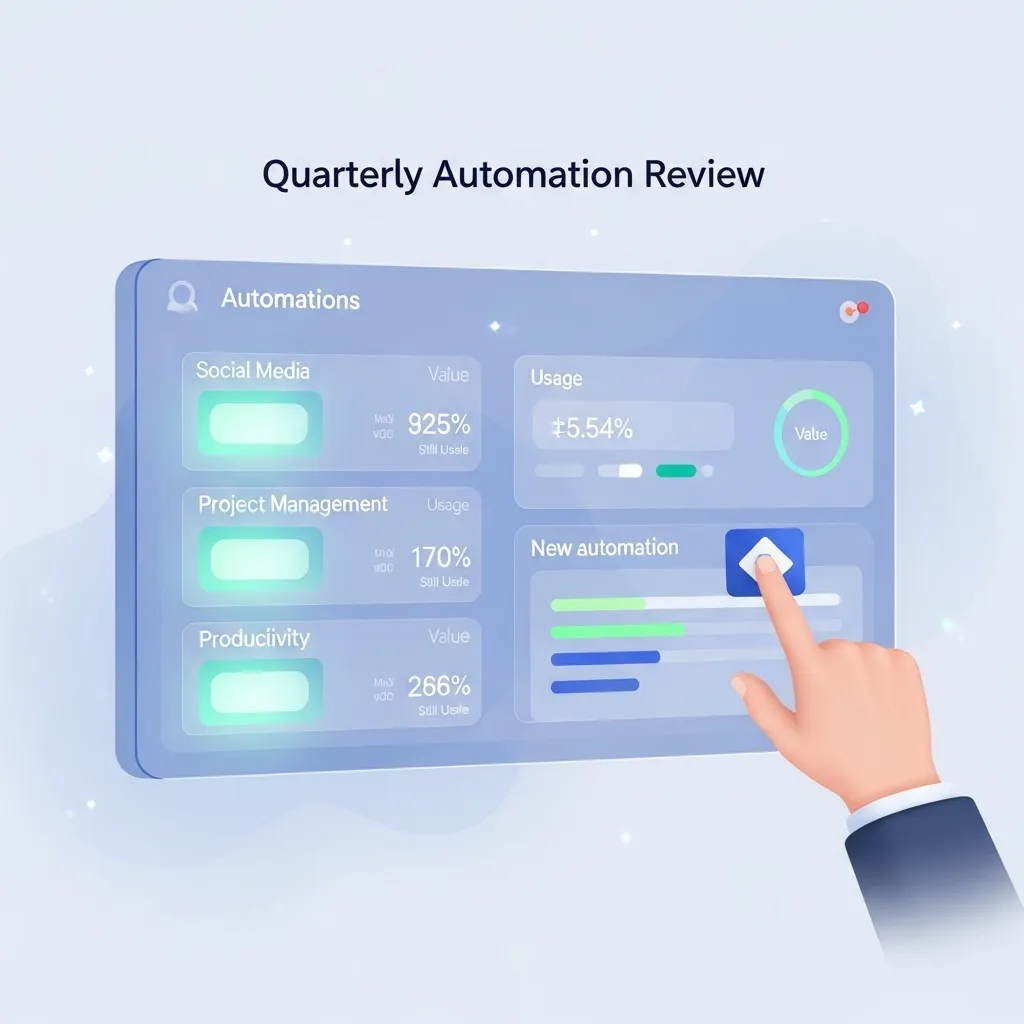
Review quarterly: Every three months, assess your automations. Which ones are still useful? Which have you outgrown? What new tasks have become repetitive enough to automate?

The Future of AI Automation (What’s Coming)
The automation landscape is evolving quickly. Trends worth watching:
More conversational setup: Expect automation tools to increasingly let you describe what you want rather than configure it. “I want my meeting notes automatically organized and action items turned into tasks” will build the automation without you touching settings.
Multimodal capabilities: Automation handling not just data but understanding images, audio, and video. Automatically transcribing video, extracting insights, and distributing highlights, for example.
Better error handling: AI that can troubleshoot broken automations and suggest fixes, or even fix them automatically.
More integration: Every platform adding automation features natively. Instead of third-party automation tools, you’ll automate directly within the apps you already use.
Easier complexity: Building sophisticated multi-step automations becoming as simple as current two-step automations.
For beginners in 2026, this means automation is only getting more accessible. Starting now positions you to leverage improvements as they arrive.
My Honest Recommendation for Complete Beginners
If you’re reading this as someone who has never automated anything:
Week 1: Sign up for IFTTT. Enable three pre-built applets that sound useful. See how it feels to have things happen automatically.
Week 2: Sign up for Zapier’s free tier. Build one simple two-step automation for a task you actually do regularly. Email → Spreadsheet, or Form → Email, or something similar.
Week 3-4: Live with that automation. See where it helps and where it doesn’t. Refine it.
Month 2: Build a second automation, slightly more complex (three steps instead of two, or with one conditional).
Month 3: Assess whether automation is helping. If yes, identify your third automation to build. If not, reassess whether you’re automating the right things.
This pace feels slow, but it builds real competence without overwhelm.
Don’t: Sign up for five automation tools, try to automate twenty tasks, get overwhelmed, and give up. I’ve seen this pattern too many times.
Do: Start small, build confidence, expand gradually.
The Bottom Line
AI automation tools have reached a point where beginners can genuinely benefit without needing technical expertise. The barriers that made automation a specialist skill are largely gone.
But—and this is important—automation is a tool, not a magic solution. It makes good processes faster and bad processes faster. It eliminates tasks but doesn’t think strategically for you. It saves time on execution but requires thoughtful setup.
The best approach:
- Start simple with one task that genuinely annoys you
- Use beginner-friendly tools (IFTTT, Zapier, or platform-specific tools you already use)
- Build competence gradually rather than trying to automate everything at once
- Focus on automations that save meaningful time or eliminate real friction
- Review and maintain your automations regularly
- Stay thoughtful about what should and shouldn’t be automated
For beginners willing to invest a few hours learning, automation can genuinely improve productivity and reduce tedious work. It won’t revolutionize your life overnight, but it will make certain parts of your work and personal life noticeably smoother.
That’s worth the effort for most people.
Start with one automation this week. See how it goes. Build from there.
FAQs
Q: Do I need to know how to code to use AI automation tools?
No. Modern AI automation tools are designed for non-technical users. Platforms like Zapier, IFTTT, and Make use visual interfaces where you select triggers and actions from dropdown menus. The AI features often let you describe what you want in plain English. Some automation tools (like n8n) benefit from technical knowledge but aren’t representative of what beginners should start with. If you can use a web app and understand basic logic (if this happens, do that), you can build automations. Start with simple tools like IFTTT that have one-click pre-built automations to build confidence.
Q: How much do AI automation tools cost for someone just getting started?
Most automation tools have genuinely useful free tiers. IFTTT allows up to 2 automations free, Zapier’s free tier includes 100 tasks monthly across 5 automations, Make offers 1,000 operations monthly free, and Microsoft Power Automate basics are included with Microsoft 365. You can automate several useful tasks without paying anything. Expect to spend $10-30/month if you upgrade beyond free tiers. My recommendation: start free, upgrade only when you hit limits. If you’re not getting value from free tiers, paying won’t change that—you’re probably automating the wrong things.
Q: What’s the easiest first automation for a complete beginner?
The easiest and most universally useful first automation is automatic file backup: “When I add a file to this specific folder on my computer, automatically save a copy to cloud storage (Google Drive, Dropbox, etc.).” This teaches the trigger → action concept without complexity, provides immediate value (files backed up automatically), and has obvious success indicators (files appear in cloud storage). Alternative beginner-friendly automations: email attachments automatically saved to cloud storage, form submissions automatically added to spreadsheet, or social media posts automatically cross-posted to other platforms. Pick something you actually need, not just something that sounds cool.
Q: How do I know if something is worth automating or if I should just do it manually?
Use this decision framework: Automate if you do it at least weekly AND it follows a predictable pattern AND it doesn’t require nuanced judgment AND the automation won’t take longer to set up than doing the task manually for a year. Calculate simple math: if a task takes 10 minutes weekly and automation setup takes 2 hours, you’ll break even after 12 weeks (3 months). Worth it for ongoing tasks, not for one-off projects. Don’t automate tasks where the manual process provides valuable thinking time, requires creativity, or involves important human relationships (like personalized client communication). When unsure, default to manual until the repetition becomes genuinely annoying.
Q: What happens when my automation breaks? How do I fix it?
Automations break for predictable reasons: apps update and change how they share data, services change authentication requirements, or the pattern you automated no longer matches what actually happens. Most automation platforms send you error notifications when something fails. To fix: check the error message (often tells you exactly what broke), verify that connected apps are still authorized, test whether the trigger is still firing, and confirm the action still works. Simple fixes: reconnect accounts, update authentication, or adjust triggers to match current patterns. If stuck, automation platform help documentation usually covers common issues. Prevent breaks by reviewing automations monthly and updating them as your processes change. Build error notifications into critical automations so you know immediately when something stops working.