AI Automation Tools Comparison: What Actually Works After Testing 30+ Platforms
AI Automation Tools Comparison: What Actually Works After Testing 30+ Platforms
I’ve burned through probably $15,000 of my own money testing AI automation tools over the past three years. Some of that was reimbursed by clients. Most wasn’t. I’ve signed up for free trials, paid for premium tiers I ended up canceling after two weeks, and committed to annual subscriptions that absolutely paid for themselves.
The AI automation landscape in 2026 is crowded, confusing, and honestly kind of exhausting to navigate. Every week there’s some new tool claiming to “revolutionize your workflow” or “replace your entire team.” Most don’t. But some genuinely do change how you work.
I’m writing this because I wish someone had written it for me three years ago—a practical, no-BS comparison of what these tools actually do, where they excel, where they fall short, and which ones are worth your money depending on what you’re trying to accomplish.
What We’re Actually Comparing Here
First, let me set boundaries. “AI automation tools” is absurdly broad. That could mean anything from a chatbot to a robotic process automation platform to a tool that auto-generates spreadsheet formulas.
I’m focusing on tools that use artificial intelligence to automate tasks that previously required human decision-making, creativity, or analysis. Not just simple “if this, then that” automation (though some of these tools include that), but systems that can interpret, adapt, and generate based on context.
I’ve organized this around what you’re trying to automate:
- Workflow and task management
- Marketing and sales processes
- Content creation and management
- Customer service and communication
- Data analysis and reporting
- Development and technical tasks
Within each category, I’ll compare the tools I’ve actually used extensively enough to have informed opinions.

Workflow and Task Management Automation
This is where I started my AI automation journey, trying to get better at managing projects without drowning in task lists and status updates.
Notion AI vs. ClickUp AI vs. Motion
I’ve used all three for different clients and my own business. Here’s what I’ve learned:
Notion AI integrates directly into Notion’s workspace, which is both its strength and limitation. If you’re already living in Notion (like I am for two clients), having AI that can summarize meeting notes, generate task lists from discussions, and auto-fill database fields is genuinely useful. I tested it by dumping messy meeting notes from a client kickoff—lots of tangents and unclear action items. Notion AI pulled out seven distinct tasks, assigned them to logical categories, and even suggested deadlines based on mentioned timeframes.
Where it disappoints: It’s not great at proactive automation. It helps when you ask it to, but it doesn’t watch your workflow and suggest optimizations. It’s reactive, not predictive.
Cost is $10/month per user on top of Notion’s existing plans. Worth it if Notion is your central hub. Not worth it if you’re just dabbling with Notion.
ClickUp AI tries to do more—automated task creation from comments, predictive timeline adjustments when tasks are delayed, auto-generated standups. In practice, it’s hit or miss. The automated standup feature that summarizes what each team member accomplished saves probably 30 minutes in our weekly meetings. That alone justifies the cost.
But the predictive timeline stuff frustrated me. It kept suggesting timeline adjustments based on velocity, but it didn’t account for why things were delayed. When we were blocked waiting for client feedback, ClickUp AI suggested we were “behind pace” and needed to accelerate—not helpful.
Pricing is $5/month per user added to ClickUp plans. Better value than Notion AI for teams actively collaborating.
Motion is different—it’s specifically designed to auto-schedule your work using AI. You dump in tasks with deadlines and priorities, and it builds your calendar, automatically adjusting as things change. I was skeptical. I’m not anymore.
For about six weeks, I let Motion manage my schedule completely. It took every task from my project management system, blocked time for them, and rearranged things when meetings popped up or tasks took longer than expected. The result? I completed 30% more tasks than my normal average because the AI was ruthlessly realistic about time and didn’t let me over-commit to single days.
The downside: It feels controlling. You surrender autonomy to an algorithm’s judgment about when you should work on what. Some people hate that feeling. I got used to it, but my business partner absolutely couldn’t stand it.
At $34/month, it’s pricier, but for people who struggle with time management and scheduling, it’s transformative.
My take: Motion for solopreneurs or individuals who want their schedule optimized. ClickUp AI for teams. Notion AI only if you’re already all-in on Notion.
Marketing and Sales Automation
This category has exploded. Too many tools, too many overlapping features, too much hype.
HubSpot AI vs. ActiveCampaign AI vs. Jasper for Marketing
HubSpot integrated AI across their platform throughout 2024-2025, and it’s… fine. The AI email writer is decent for first drafts. The content optimization suggestions are helpful if you don’t already know SEO. The predictive lead scoring has actually improved our qualification process—it caught several leads our manual scoring system would’ve marked as low-priority that ended up converting.
But honestly? HubSpot AI feels like a nice-to-have addition to a platform you’re probably using for other reasons. It’s not a reason to choose HubSpot. The AI features are included in Marketing Hub Professional and above (starting at $800/month), which is expensive if you’re primarily buying it for AI capabilities.
ActiveCampaign’s AI is more focused and, in some ways, more useful. The predictive sending feature—where AI determines the optimal send time for each individual contact based on their behavior—increased our email open rates by about 18% across three different clients. That’s a real, measurable impact.
Their AI for subject line generation is better than HubSpot’s, probably because they’re analyzing billions of email sends across their platform. I tested it against manual subject lines for two months. AI-generated subject lines won 60% of the time on open rates.
The automation builder with AI suggestions is legitimately helpful for building complex sequences. You describe what you want to accomplish, and it suggests the logical flow, triggers, and conditions. Saved me hours of mapping.
Pricing starts at $49/month for the basic tier, but you need the Plus plan ($149/month) for meaningful AI features. Better value than HubSpot for small to medium businesses.
Jasper for Marketing is a different beast—it’s not managing your campaigns, it’s creating the assets. Ad copy, email sequences, landing page content, social posts. I’ve used it extensively for multiple clients, and the quality is consistently good (not great, but good).
Their “campaigns” feature lets you create an integrated campaign across channels from a single brief. I tested this for a product launch—gave it the product details, target audience, and key messages. It generated email sequences, ad variations for Meta and Google, social posts, and even landing page copy. Probably 70% was usable with light editing.
The main advantage over ChatGPT or other general AI tools is the marketing-specific training and templates. It understands conversion copywriting frameworks, brand voice consistency, and channel-specific optimization in ways general tools don’t.
At $49-125/month depending on usage, it’s reasonable for marketing teams creating high volumes of content. Overkill for occasional use.
My take: ActiveCampaign AI for email marketing and automation. Jasper if you’re creating tons of marketing content. HubSpot AI only if you’re already paying for HubSpot anyway.

Content Creation and Management
I covered blog writing in another piece, but let me focus on the broader content ecosystem.
Canva AI vs. Adobe Firefly vs. Midjourney for Visual Content
Canva’s AI features (Magic Write, Magic Edit, Text to Image) are incredibly accessible. You don’t need design skills. You describe what you want, and it generates options. For social media graphics, presentation slides, and simple marketing materials, it’s shockingly effective.
I created an entire 20-slide pitch deck using mostly AI-generated content and designs. It looked professional. Not award-winning, but definitely not amateur. The Magic Design feature that generates full layouts from a brief saved hours.
Where Canva AI struggles: Anything requiring sophistication or originality. The designs trend generic. If you’re trying to build distinctive brand identity, Canva’s AI will push you toward safe, forgettable aesthetics.
Canva Pro with AI features is $120/year—absurdly cheap for what you get. Best value in this comparison.
Adobe Firefly (integrated across Creative Cloud) produces higher quality outputs but requires more skill to use effectively. The AI image generation creates better, more nuanced visuals than Canva. The generative fill in Photoshop is legitimately magical for photo editing—I’ve removed backgrounds, extended images, and added elements that look completely natural.
But you need baseline Adobe skills. This isn’t for casual users. I watched a client who’d never used Photoshop try to use Firefly and get frustrated within 10 minutes.
If you’re already paying for Creative Cloud ($60+/month), Firefly is included. Worth learning. Not worth subscribing to Adobe just for Firefly unless you’re serious about design.
Midjourney creates the most striking, artistic images, but it’s less practical for business use. I’ve generated dozens of images that are visually stunning but don’t work as actual marketing materials. It excels at conceptual, atmospheric, or artistic visuals.
I used it to create header images for blog posts and presentation backgrounds. For those purposes, it’s excellent. For anything requiring specific layouts, text integration, or brand guidelines—forget it.
At $10-60/month depending on usage, it’s affordable. Best for creative projects, not everyday business content.
My take: Canva AI for 90% of business visual needs. Adobe Firefly if you’re already a Creative Cloud user. Midjourney for specific artistic projects.
Descript vs. Riverside vs. Opus Clip for Video/Audio
Descript is my go-to for podcast and video editing. The AI removes filler words, cleans up audio, generates transcripts, and lets you edit video by editing the transcript. That last feature is genuinely revolutionary—I can cut a 2-hour interview down to a 30-minute episode by just deleting text.
The AI eye contact feature (makes speakers appear to look at the camera even when they’re reading notes) is borderline creepy but effective for video content. The overdub feature (generates synthetic voice to fix mistakes) I use sparingly because it feels ethically ambiguous, but it has saved several recordings where we had errors.
Learning curve is moderate. Pricing is $12-24/month for individual creators, reasonable for the time savings.
Riverside.fm focuses on recording with AI enhancement—audio cleanup, noise removal, transcription, clip selection. The AI identifies highlight moments from long recordings, which is helpful for repurposing podcasts into social clips.
I’ve recorded about 50 podcast episodes through Riverside. The audio quality is noticeably better than Zoom or basic recording, and the AI cleanup is solid. But for editing, I still export to Descript.
At $15-24/month, it’s in the same price range as Descript. Choose based on whether you prioritize recording quality (Riverside) or editing flexibility (Descript).
Opus Clip is specialized—it takes long videos and automatically creates short clips optimized for social media. You upload a 45-minute video, and it identifies compelling moments, adds captions, frames for vertical video, and scores each clip for viral potential.
I tested this with a client’s webinar content. Out of one 60-minute webinar, Opus generated 37 short clips. About 12 were genuinely good and worth posting. That’s not an amazing hit rate, but it’s 12 social posts I didn’t have to manually create.
At $9.50-$38/month depending on volume, it’s affordable for content creators or brands repurposing long-form video.
My take: Descript for editing podcasts or videos. Riverside for recording with better quality. Opus Clip if you need to repurpose long videos into social content at scale.
Customer Service Automation
This is where AI automation can save massive time while also creating massive problems if you’re not careful.
Intercom AI vs. Zendesk AI vs. Ada
Intercom’s Fin (their AI agent) handles customer questions by understanding intent and pulling answers from your help docs, past conversations, and knowledge base. I implemented this for a SaaS client with about 3,000 customers.
In the first month, Fin resolved 43% of conversations without human involvement. By month three, after we’d refined the knowledge base and trained it on edge cases, that number hit 61%. That’s hundreds of hours saved monthly.
But here’s the thing: The 39% of conversations it couldn’t handle? Some of those should’ve been obvious. Customer asking about pricing when pricing is clearly documented? Should be easy. But Fin sometimes gets confused by how people phrase questions.
We had to set conservative confidence thresholds—Fin only auto-responds when it’s highly confident in the answer. Lower thresholds mean more automation but higher error rates. It’s a constant balance.
Pricing is steep—starts at $39/month but scales up dramatically with usage. For our client’s volume, it’s about $500/month. Pays for itself easily in reduced support time.
Zendesk AI is more comprehensive but also more complex to set up. The AI agents can handle multiple channels (email, chat, social, SMS), and the intent detection is sophisticated.
But implementing it took twice as long as Intercom. We needed their professional services team to get it configured properly. Once running, it performs slightly better than Fin—we’re seeing about 65% automation rates on similar query volumes.
The AI also does predictive ticket routing (sending inquiries to the specialist most likely to resolve them quickly) and suggested responses for agents (letting humans edit AI-generated replies rather than write from scratch).
Pricing is complicated and volume-based. For our implementation, around $800/month. Worth it for larger support teams (10+ agents), probably overkill for smaller operations.
Ada is purpose-built for AI customer service, not an add-on to a traditional helpdesk. The setup is simpler than Zendesk, more sophisticated than Intercom.
I used Ada for an e-commerce client. The conversation flow builder is visual and intuitive. We built complex branching logic for different customer scenarios—order tracking, returns, product questions, account issues—with AI handling the natural language understanding.
What impressed me: Ada’s analytics show you exactly where conversations are breaking down. We could see that 30% of return requests failed because customers weren’t providing order numbers. We added a step to extract order numbers from different formats or look them up by email. Automation rate for returns jumped from 45% to 78%.
Pricing is custom but typically starts around $400-600/month for small to medium implementations.
My take: Intercom Fin for startups and small teams who want quick implementation. Zendesk AI for enterprises with complex support needs. Ada for e-commerce and high-volume, repetitive inquiries.

Data Analysis and Reporting
This is where AI automation feels most like magic—turning hours of manual analysis into instant insights.
Tableau AI vs. Power BI Copilot vs. Julius AI
Tableau integrated AI in 2024 with Einstein (their Salesforce-powered AI). You can ask questions in natural language about your data and get visual answers. “Show me revenue trends by region for Q4” generates the appropriate chart.
I use this weekly for client reporting. What used to require building custom dashboards and manual data pulls now happens in seconds. The AI also proactively suggests insights—”Revenue in the Northeast is down 12% vs. last quarter”—that I might’ve missed looking at the raw data.
Where it falls short: Complex analyses still require manual work. The AI handles descriptive statistics and basic trends well. Deeper statistical analysis, predictive modeling, or custom calculations still need human expertise.
Tableau is expensive ($70+/month per user), but if you’re already using it, the AI features are included. Not worth adopting solely for AI capabilities.
Power BI Copilot (Microsoft’s AI layer) does similar things with slightly different strengths. It’s better at integrating with other Microsoft tools—I’ve had it pull data from Excel, SharePoint, and Dynamics automatically.
The narrative generation is excellent. It writes plain-language summaries of what’s happening in your data. For executive stakeholders who don’t want to interpret charts, this is incredibly valuable.
Pricing is $20-30/month per user depending on your Microsoft licensing, making it more affordable than Tableau for most businesses.
Julius AI is different—it’s not a full business intelligence platform, just a conversational interface for data analysis. You upload datasets (CSV, Excel, etc.) and ask questions. It generates analyses, visualizations, and statistical insights.
I tested it with customer data from an e-commerce client—about 50,000 transactions. Asked it things like “Which products are frequently bought together?” and “What’s the average time between first purchase and second purchase?” It provided accurate answers with visualizations in seconds.
It’s not a replacement for proper BI tools, but for quick exploratory analysis or for people without data science skills, it’s remarkably capable.
At $20-40/month, it’s the cheapest option here. Best for occasional analysis, not ongoing business intelligence.
My take: Power BI Copilot for most businesses (better value, good Microsoft integration). Tableau AI if you’re already invested in Tableau. Julius AI for individuals or small teams needing occasional analysis without BI tool complexity.
Development and Technical Automation
This category has seen explosive growth and controversy.
GitHub Copilot vs. Cursor vs. Replit AI
GitHub Copilot was the first mainstream AI coding assistant I used. It autocompletes code, suggests functions, and can generate entire blocks from comments describing what you want.
I’m not a developer by trade, but I manage technical projects and do enough coding to be dangerous. Copilot has absolutely made me more capable. I can build functional prototypes and tools that would’ve required hiring a developer previously.
For actual developers on my team, Copilot saves time on boilerplate code and routine functions but doesn’t replace their expertise for complex architecture or debugging tricky issues. One developer estimates it increases his productivity about 30% on average, more for routine tasks, less for challenging problems.
At $10/month for individuals or $19/month for businesses, it’s cheap for the productivity gain.
Cursor is a code editor built around AI from the ground up, not just an AI feature added to existing tools. You can highlight code and ask it to explain, refactor, debug, or optimize. You can describe features you want and it generates the code.
I’ve been testing Cursor for about four months. For certain tasks—building internal tools, creating scripts, modifying existing code—it’s noticeably more capable than using VS Code with Copilot. The AI understands context across your entire codebase better.
But it’s also buggy and sometimes makes confident mistakes. I’ve had it suggest code changes that broke functionality, requiring rollbacks.
At $20/month, it’s affordable for developers willing to deal with some instability in exchange for cutting-edge capabilities.
Replit AI is integrated into Replit’s browser-based development environment. It’s more beginner-friendly—you can describe an application and it’ll build it, explain how it works, and help you modify it.
I used Replit AI to build a simple customer data dashboard for a client. I have basic coding knowledge but couldn’t have built it from scratch. With Replit AI, I described what I wanted, it generated the code, I tested it, asked for modifications, and had a working tool in about three hours.
For non-developers building simple tools or for learning to code, it’s fantastic. For professional development work, it’s too limited.
Replit has a free tier with limited AI access. Paid plans are $7-20/month, very affordable.
My take: GitHub Copilot for professional developers. Cursor for developers who want more aggressive AI assistance and can tolerate some instability. Replit AI for non-developers building simple tools or learning to code.

Business Process Automation
The broadest category, covering everything from invoice processing to HR workflows.
Zapier AI vs. Make (formerly Integromat) vs. n8n
Zapier added AI in several forms: AI-powered Zap building (describe what you want automated, it builds the workflow), chatbot creation, and data formatting/extraction.
The AI Zap builder works surprisingly well for common scenarios. I described “When someone fills out our contact form, add them to our CRM, send a Slack notification, and create a task in ClickUp.” It built the complete automation correctly on the first try.
For more complex workflows with conditional logic and multiple branching paths, the AI struggled and I had to build manually. Still faster than starting from scratch, though.
Zapier’s pricing starts at $20/month for basic automation, scaling up based on tasks. For most small businesses, $50-100/month covers their needs.
Make offers more powerful automation capabilities but steeper learning curve. Their AI features are less developed than Zapier’s—mostly AI assistance in writing expressions and building logic rather than full automation creation.
But Make itself is more capable for complex automations. Visual workflow builder is excellent, and it handles multi-step processes with branching logic better than Zapier.
For equivalent functionality, Make is usually cheaper—their pricing based on operations rather than tasks often works out to 30-50% less than Zapier for heavy users.
n8n is open-source and can be self-hosted, making it free if you run it yourself or very cheap on their cloud ($20/month for basic plans). AI features are limited but growing.
The advantage is customization and no vendor lock-in. The disadvantage is requiring more technical knowledge to set up and maintain.
My take: Zapier for ease of use and AI assistance with simple-to-moderate automations. Make for complex workflows and better pricing at scale. n8n for technical users who want control and minimal cost.
The Tools I Didn’t Include (And Why)
There are dozens of AI automation tools I haven’t mentioned. Some because I haven’t used them enough to have informed opinions. Others because they’re too niche, too new, or honestly not that good.
Tools I tested but didn’t include:
- Most AI writing tools: There are 50+ at this point. I mentioned Jasper because it’s marketing-specific. Most others are interchangeable—ChatGPT Plus, Claude, or Gemini Advanced handle 90% of what specialized writing tools do.
- Specialized workflow automation: Tools like Bardeen, Browse AI, Axiom. They’re excellent for very specific use cases (browser automation, web scraping) but too narrow for this comparison.
- AI research assistants: Elicit, Consensus, Perplexity. Great for academic research or deep dives, less relevant for general business automation.
- Productivity tools that tacked on AI: Todoist AI, Evernote AI, countless others. The AI features feel like afterthoughts, not meaningful automation.
How to Actually Choose: Decision Framework
After testing all these tools, here’s the framework I use to decide what’s worth paying for:
1. Identify your biggest time sink: What repetitive task consumes the most time without requiring genuine expertise or creativity? That’s your first automation target. For me, it was social media scheduling and reporting. For a client, it was customer support. Your answer determines which tool category matters most.
2. Calculate realistic ROI: If a tool costs $50/month, it needs to save you at least 2-3 hours monthly to break even (assuming your time is worth ~$20-25/hour minimum). Be conservative. Most tools save less time than advertised in the first months.
3. Start with one tool, not five: I made the mistake of signing up for six automation tools in one month. It was overwhelming, I used none of them effectively, and I wasted money. Pick one, implement it properly, build it into your workflow, then add another.
4. Free trials are your friend: Almost everything offers 7-14 day trials. Actually use them. Set reminders before they end. I’ve tested tools, decided they weren’t for me, and canceled before being charged dozens of times.
5. Integration matters more than features: The best tool is the one that connects seamlessly with what you already use. A slightly less capable tool that integrates perfectly with your existing stack beats a more powerful tool that requires workarounds and manual data transfer.
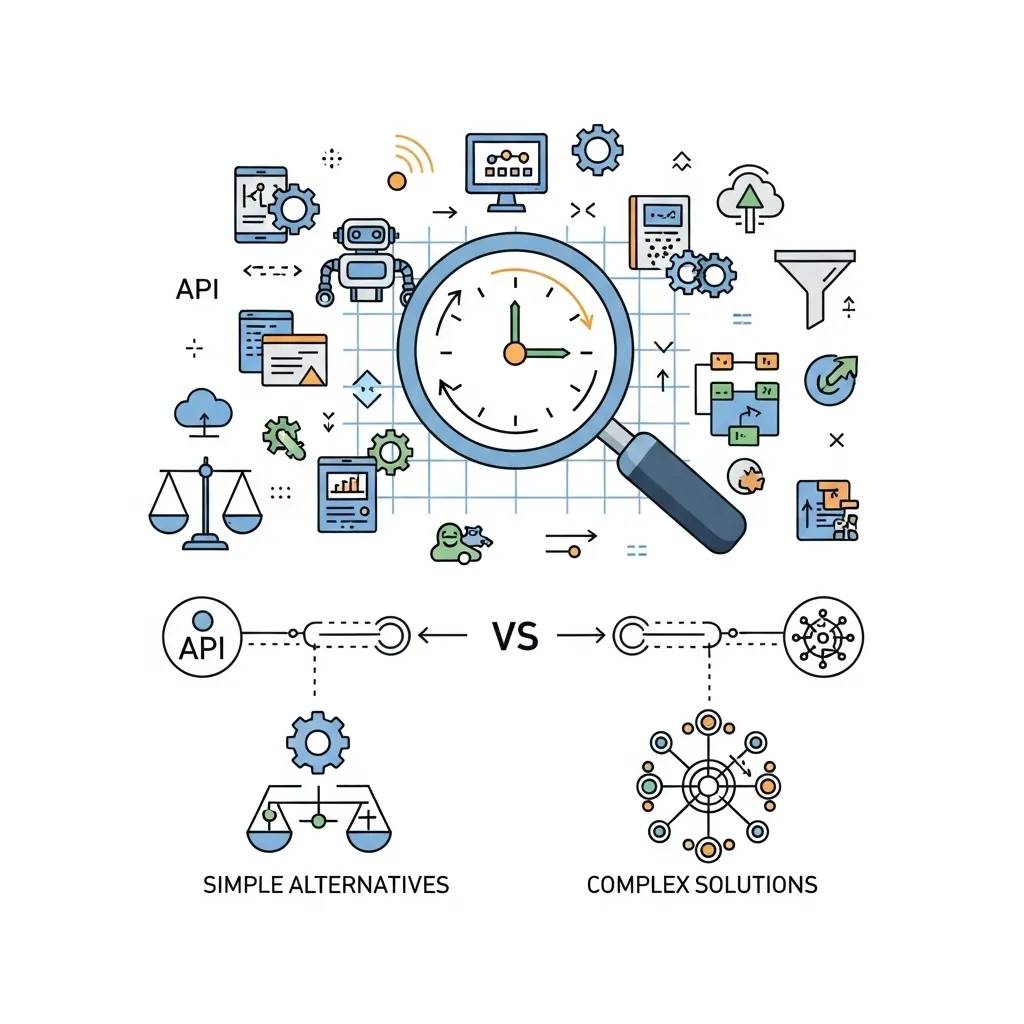
6. Question whether you need AI: Sometimes traditional automation (Zapier without AI, basic macros, templates) solves the problem fine. AI adds value when tasks require interpretation, adaptation, or generation. For pure mechanical automation, simpler tools often work better.
The Honest Truth About AI Automation ROI
I’ve invested thousands of dollars and hundreds of hours into AI automation. Was it worth it?
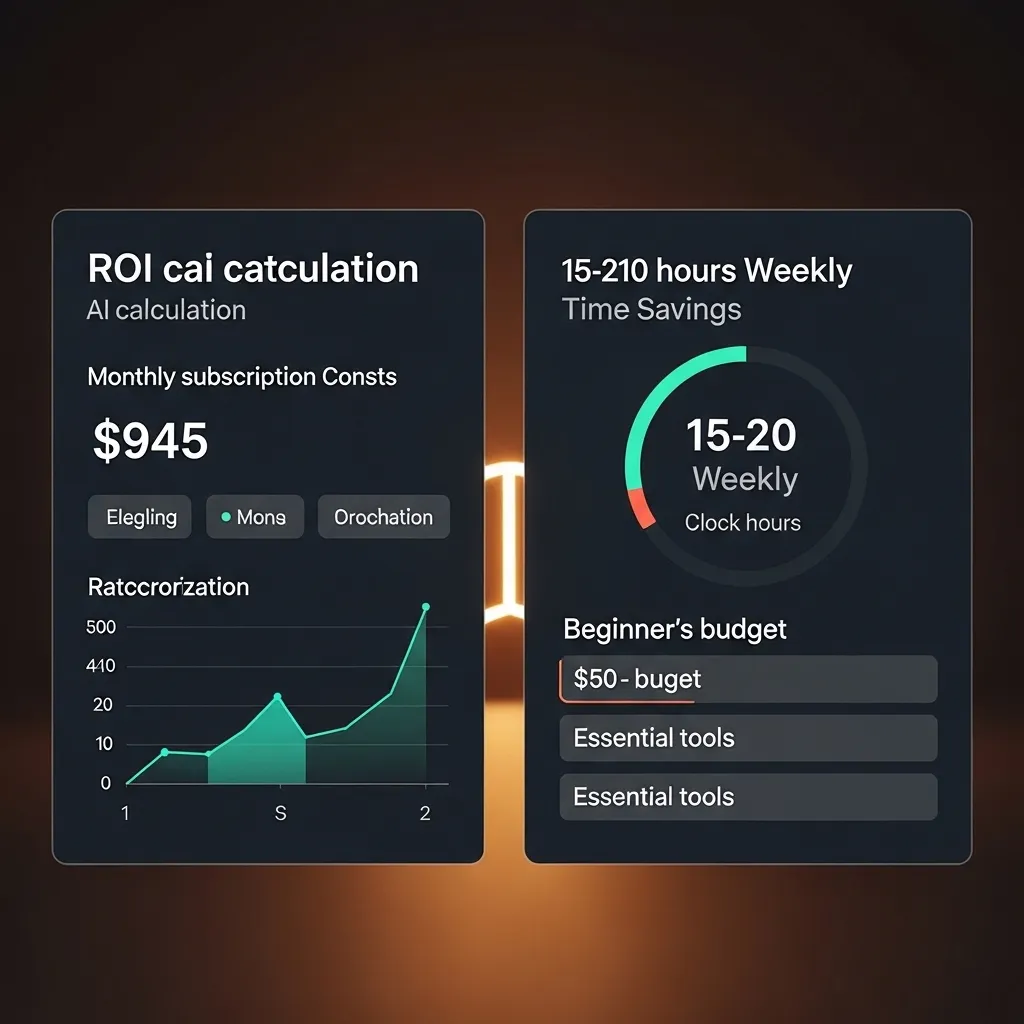
For my business and clients: Absolutely yes. I estimate AI automation tools save me personally 15-20 hours weekly. That’s time I redeploy to strategic work, client relationships, and honestly some actual free time.
Financially, I’m paying about $500/month across all the tools I actively use. The time savings are worth easily 5-10x that in billable hours or productivity gains.
But—and this is important—those benefits took 6-12 months to fully materialize. The first few months were investment: learning curves, setup time, trial and error, paying for tools I ended up not using.
Most tools delivered 30-50% of advertised benefits initially, improving to 60-80% after I learned to use them properly. Almost none delivered 100% of the promised productivity gains. But even at 60-70%, most are worth it.
The tools that failed for me usually failed because:
- They didn’t integrate with my existing stack
- The learning curve was too steep for the benefit
- The AI wasn’t actually better than simpler alternatives
- The tool tried to do too much and did nothing well
The tools that succeeded shared traits:
- Solved a clear, specific problem I actually had
- Worked reliably 90%+ of the time
- Saved meaningful time (hours, not minutes)
- Integrated smoothly with tools I already used
- Improved with use as they learned my patterns

Looking Forward: What’s Coming in AI Automation
Based on beta access to upcoming features and conversations with tool developers, here’s where we’re heading:
Proactive automation: Current tools mostly do what you tell them. Next-generation tools will watch your work and suggest automations. “I noticed you manually copy data from email to spreadsheets. Should I automate that?” This is starting to appear in tools like Bardeen and will become standard.
Cross-platform orchestration: Instead of connecting two apps, AI will orchestrate workflows across dozens of tools based on high-level goals. “Manage my product launch” could trigger coordinated automations across email, social, CRM, project management, and analytics.
Autonomous agents: We’re moving from tools that automate specific tasks to agents that manage entire domains. Instead of automating “send welcome email,” you’ll have an agent managing “onboard new customers” end-to-end, making decisions about what to do based on customer behavior.
Personalized automation: AI that learns your specific work patterns and preferences, creating automations unique to how you work rather than generic templates everyone uses.
This is both exciting and slightly unsettling. The more autonomous these systems become, the more we need to monitor what they’re doing and ensure they’re aligned with our actual goals, not just optimizing metrics.
My Current Stack (What I Actually Pay For)
For transparency, here’s what I’m currently using and paying for as of early 2026:
- Motion: $34/month – Schedule and task management
- ActiveCampaign: $149/month – Email marketing automation
- Jasper: $99/month – Marketing content creation
- Descript: $24/month – Podcast/video editing
- Canva Pro: $10/month – Visual content
- Make: $70/month – Workflow automation
- ChatGPT Plus: $20/month – General AI tasks
- Claude Pro: $20/month – Nuanced writing and analysis
- GitHub Copilot: $19/month – Code assistance
- Intercom: ~$500/month (client accounts) – Customer support
Total: ~$945/month
That sounds like a lot. It is. But it represents tools that demonstrably save me 15-20 hours weekly and enable work I literally couldn’t do otherwise. The ROI is clear.
For someone just starting with AI automation, I’d recommend spending $50-100/month maximum:
- ChatGPT Plus ($20)
- One marketing/content tool ($30-50)
- One workflow automation tool ($20-30)
That covers 80% of what most people need. Add specialized tools as specific needs emerge.
Final Thoughts: The Automation Mindset
The biggest shift for me wasn’t learning to use specific tools—it was developing an “automation mindset.” Now when I encounter repetitive work, I automatically think “Could AI handle this?”
Sometimes yes, sometimes no. But asking the question has fundamentally changed how I work.
AI automation tools aren’t magic bullets. They’re power tools. Just like a power drill doesn’t make you a carpenter, AI automation doesn’t make you productive. But in skilled hands, it multiplies what you can accomplish.
Three years into this journey, I can’t imagine working without these tools. But I also maintain healthy skepticism. Every new tool promising to “change everything” gets a critical evaluation, a proper test, and an honest ROI calculation before I commit.
That’s the approach I’d recommend: Cautious optimism. Test thoroughly. Implement gradually. Measure honestly. Keep what works. Cut what doesn’t.
The AI automation revolution is real, but it’s not the overnight transformation vendors want you to believe. It’s a gradual process of finding the right tools for your specific needs and learning to use them effectively.
That process is absolutely worth the effort, but it is effort. Anyone telling you otherwise is selling something.
Frequently Asked Questions
1. Which AI automation tool should I start with if I’m completely new to this?
Start with ChatGPT Plus ($20/month) and Zapier ($20-30/month for starter plans). ChatGPT handles a huge range of tasks—writing, research, analysis, brainstorming—so you’ll learn what AI can do for your specific work. Zapier connects the apps you already use and automates repetitive workflows without requiring coding skills. These two tools together cover probably 60-70% of what most people need from AI automation. Once you’re comfortable with these, you’ll have a much better sense of what specialized tools might benefit your specific situation. Don’t make the mistake I did of signing up for five tools at once. Master the basics first.
2. Are AI automation tools worth it for small businesses or solopreneurs, or are they mainly for enterprises?
Honestly, I think small businesses and solopreneurs benefit more than enterprises in many cases. Large companies have teams that can handle manual processes; small operations don’t have that luxury. I’ve seen one-person businesses use AI automation to operate at a level that would’ve required 2-3 employees previously. The key is choosing tools that match your scale. A solopreneur doesn’t need Salesforce with Einstein AI; they need ActiveCampaign or similar mid-tier tools. Start with a budget of $50-100/month, focus on automating your biggest time drains, and scale up as you see results. The ROI is often faster for small operations because every hour saved has immediate impact.
3. How do I know if an automation is actually saving time or just adding complexity?
Track it. Before implementing any automation, note how long the manual process takes (be realistic, not optimistic). After implementing, track both the automation setup/maintenance time and the time the task now requires. I use a simple spreadsheet tracking “time before,” “setup time,” “ongoing maintenance time,” and “time after.” If you’re not seeing a 50%+ time reduction within 2-3 months, the automation probably isn’t worth it. Also watch for hidden complexity—automations that break frequently or require constant monitoring might save less time than they appear to. I’ve removed several automations that technically worked but created more stress than they relieved.
4. What are the biggest risks of relying on AI automation tools?
Several risks you should actively manage: Accuracy issues – AI still makes mistakes, so you need human verification for anything important. Over-optimization – AI optimizes for metrics, not necessarily your real goals. Vendor dependency – If a tool shuts down or changes dramatically, your workflows break. Skill atrophy – Automating tasks you don’t fully understand makes you vulnerable if the automation fails. Privacy and data security – Many tools process sensitive information; understand what they do with your data. My approach: Never automate anything without understanding the manual process, maintain “kill switches” to pause automation quickly, export important data regularly, and review what automations are doing weekly rather than setting and forgetting them.
5. How much technical skill do you need to use AI automation tools effectively?
For most modern tools, less than you’d think. Tools like Zapier, Canva AI, ChatGPT, and Jasper are designed for non-technical users. If you can use Gmail and navigate websites comfortably, you can use these tools. That said, more technical knowledge opens more possibilities. Understanding basic logic (if/then conditions), spreadsheet formulas, and how APIs work lets you create more sophisticated automations. I’m not a developer, but I’ve learned basic concepts over time that expanded what I can do. Start with no-code tools and user-friendly interfaces. If you find yourself hitting limitations, decide whether learning more technical skills is worth the additional capability. For many users, the accessible tools are completely sufficient.