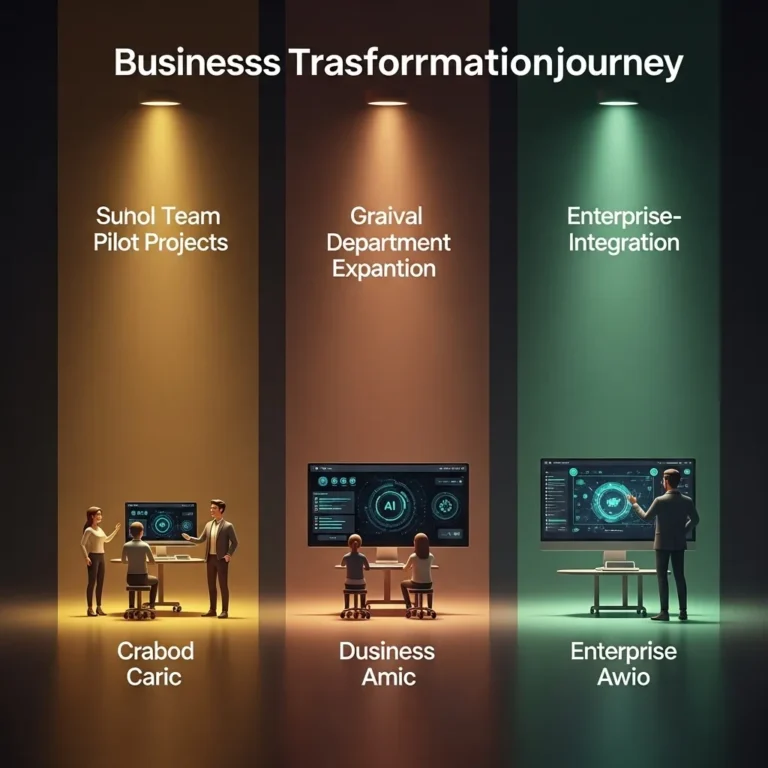
AI Productivity Tools for Work: A Practical Guide for 2026
AI Productivity Tools for Work: A Practical Guide for 2026
I’ll be honest—I was skeptical about AI productivity tools until about two years ago. As someone who’d built reasonably effective work systems over a decade, the prospect of overhauling everything for the latest tech trend felt more disruptive than helpful. Then I watched a colleague finish in two hours what normally took her a full day. Same quality, same attention to detail, just dramatically faster.
That got my attention.
Since then, I’ve systematically integrated AI tools into my own workflow and consulted with teams across industries doing the same. The productivity gains are real, but they’re not automatic. The difference between people who get massive value from AI tools and those who waste time on them comes down to knowing which tools to use, how to use them, and—just as importantly—when not to use them.
This isn’t a theoretical overview. This is what actually works in 2026 based on hands-on experience across different roles, industries, and team sizes.
The 2026 Landscape: What’s Different Now
The AI productivity tool space has matured significantly from the chaos of 2023-2024. Back then, new tools launched weekly, half of them disappeared within months, and integration was a nightmare. Now the market has consolidated around tools that actually deliver consistent value.
A few key shifts have made AI productivity tools genuinely practical for everyday work:
Integration has become seamless. Most AI tools now work directly within the software you already use—email, project management platforms, browsers, communication tools. You’re not constantly switching between applications.
Accuracy has improved dramatically. The embarrassing errors and hallucinations that plagued early AI tools are far less common. They still happen, but the error rate has dropped to the point where these tools are reliable enough for professional use with appropriate verification.
Pricing has stabilized. Most tools now offer functional free tiers plus business plans in the $15-30 per user per month range. The wild pricing swings have settled.
Enterprise security has caught up. Data privacy, compliance, and security features have reached levels where legal and IT departments are comfortable with adoption. This was a major blocker in 2023-2024.
The result? AI productivity tools have moved from “interesting experiment” to “standard business software” in most industries.

Communication and Writing Tools: Where Most People Start
Writing consumes enormous amounts of time in knowledge work—emails, reports, documentation, proposals, presentations. This is where AI tools provide the most immediate, measurable productivity gains.
Grammarly Business: Beyond Grammar Checking
I’ve used Grammarly for years, but the business version with AI features has evolved into something more sophisticated than the simple grammar checker it started as.
What it actually does now: Real-time writing assistance that goes far beyond catching typos. It analyzes tone, suggests clearer phrasing, helps you match communication style to context (formal report vs. casual Slack message), and can generate or rewrite content based on prompts.
Real-world application: Our marketing team uses it for everything from social media posts to client presentations. Last month, someone wrote a product update email that Grammarly flagged as “too technical for the intended audience.” She revised based on its suggestions, and customer response rates improved by about 30% compared to previous updates. Small change, measurable impact.
I personally use it most for tone checking. I write quickly and sometimes come across as blunt in emails. Grammarly catches this—”This may sound harsh”—and I can revise before sending. It’s saved me from several communications that would have created friction.
Pricing: Business plan around $15-20 per user/month. Worth it if writing is a significant part of your job.
Limitations: Can occasionally flatten your personal voice if you accept every suggestion blindly. Use it as guidance, not gospel. Also, like all AI tools, it sometimes suggests changes that are technically correct but contextually wrong.
Microsoft Copilot: Integrated AI Across Office Suite
Microsoft’s integration of AI across their entire productivity suite has been one of the most significant workplace changes I’ve seen in years.
What makes it useful: Copilot works directly in Word, Excel, Outlook, PowerPoint, Teams—tools most businesses already use. You’re not learning entirely new software; you’re augmenting existing workflows.
Real examples from my work:
In Outlook: I can write “draft response thanking them for the meeting and suggesting next steps” and Copilot generates a professional email based on the thread context. I edit for accuracy and send. What used to take 5-10 minutes now takes 2.
In Excel: I recently needed to analyze sales data across regions. I described what I wanted in plain English, and Copilot generated the formulas, created pivot tables, and built visualizations. Would this have been possible manually? Yes. Would it have taken me three hours instead of 30 minutes? Also yes.
In PowerPoint: Described the presentation structure I needed, Copilot generated slides with appropriate layouts. I then customized content and design. Again, massive time savings on the initial framework.
In Teams: Copilot summarizes long conversation threads and identifies action items. After a week-long text discussion on a project, I asked it to summarize decisions made and outstanding questions. Got a clean summary in seconds instead of scrolling through hundreds of messages.
Pricing: Included in Microsoft 365 Copilot license, approximately $30/user/month on top of standard Microsoft 365 subscription.
ROI consideration: Expensive, but if your team lives in Microsoft tools and does knowledge work, the time savings justify the cost. We calculated about 4-6 hours saved per person weekly in our team.
Gotchas: Works best when you’re already proficient with Microsoft tools. It augments your skills; it doesn’t replace the need to understand what you’re doing. Also, data privacy considerations mean you need proper licensing for sensitive business data.
Notion AI: Smart Workspace Management
Notion has evolved from a note-taking app to a comprehensive workspace platform with AI features that genuinely enhance productivity.
How teams actually use it:
Our project management team uses Notion as a central hub. The AI features help with:
- Converting meeting notes into organized action items
- Generating project briefs from brainstorming sessions
- Creating summaries of long documentation
- Drafting standard operating procedures from rough notes
A specific example: After a client kickoff meeting, we had pages of messy notes. Notion AI organized them into a clean project brief with objectives, scope, timeline, and open questions. What normally took an hour of manual organization took about 10 minutes with AI assistance plus verification.
Best use case: Teams that need centralized knowledge management and project documentation. Less useful for simple note-taking where basic tools suffice.
Pricing: AI features are an add-on to standard Notion plans, around $8-10 per user/month.
Integration note: Works well with other tools via API. We’ve connected it with our CRM and project management software for automated documentation.
Meeting and Communication Tools
Meetings are notorious time-sinks. AI tools can’t eliminate unnecessary meetings (that’s a management problem), but they can make necessary meetings far more productive.
Otter.ai: Meeting Transcription and Intelligence
I’ve been using Otter since before the AI boom, and it’s remained consistently valuable as features have expanded.
Core functionality: Joins your video meetings, records and transcribes conversations, identifies speakers, and generates summaries with action items.
Why this matters: Instead of splitting attention between participating in meetings and taking notes, you can focus entirely on the conversation. Review the transcript afterward for details.
A director I work with takes this further. She doesn’t attend certain recurring meetings anymore—Otter joins, captures everything, and sends her AI-generated summaries highlighting key decisions and action items relevant to her. She reviews summaries in a fraction of the meeting time and follows up as needed. Controversial? Maybe. Effective? Absolutely.
Practical applications:
- Client meetings where you need accurate records
- Training sessions you want to reference later
- One-on-ones where you’re coaching team members
- Interviews (with permission)
- Any meeting where you need to track commitments
Pricing: Free tier covers basic transcription; Business tier at $20-30/user/month adds advanced features and integrations.
Privacy consideration: Always inform participants when recording. It’s not just courtesy—it’s legally required in many jurisdictions.
Fireflies.ai: The Alternative with Better Integration
Fireflies does similar work to Otter but with particularly strong integration with CRM systems like Salesforce and HubSpot.
Where it shines: Sales teams love Fireflies because meeting notes, action items, and customer insights automatically log into their CRM without manual data entry.
A sales team I consulted with saved approximately 30 minutes per rep per day on CRM updates by using Fireflies. Over a 10-person team, that’s 50 hours weekly—more than a full-time position worth of time savings.
Best for: Sales teams, customer success teams, or anyone who needs meeting information flowing into other business systems automatically.
Pricing: Similar to Otter, with free tier and business plans around $20-30/user/month.
Tactiq: Lightweight Meeting Notes
For users who want something simpler than Otter or Fireflies, Tactiq offers browser-based meeting transcription with AI summaries.
The advantage: No app to install, no bot joining your meetings. It runs as a browser extension and captures transcripts from Google Meet, Zoom, or Teams.
I use this for quick internal meetings where I don’t need full Otter features. It’s less robust but also less obtrusive.
Pricing: Free tier available; Pro tier around $8-12/month.

Research and Knowledge Management Tools
Finding, synthesizing, and managing information efficiently makes the difference between productive knowledge work and drowning in information overload.
Perplexity Pro: AI-Powered Research
Perplexity has become my default starting point for research on any topic I’m unfamiliar with.
What makes it different from Google: Instead of giving you ten links to read, Perplexity synthesizes information from multiple sources and presents a coherent answer with citations. You can then dive deeper into specific sources or ask follow-up questions.
Real use case: Last month I needed to understand emerging regulations in a market we’re considering entering. Perplexity gave me a comprehensive overview with citations to specific regulatory documents, analysis from law firms, and recent changes. This would have taken hours of traditional research. Instead, I got oriented in about 20 minutes and knew exactly which specific documents to read in full.
Work applications:
- Market research
- Competitive analysis
- Understanding technical topics quickly
- Current events and industry trends
- Due diligence research
Pricing: Free tier available; Pro at $20/month offers more advanced models and higher query limits.
Critical limitation: Like all AI, it can occasionally present incorrect information confidently. Always verify critical facts, especially if you’re making business decisions based on the research.
ChatGPT Plus or Claude Pro: Versatile Thinking Partners
I maintain subscriptions to both ChatGPT Plus and Claude Pro and use them for different purposes.
ChatGPT strengths in work contexts:
- Faster for quick questions and brainstorming
- Better for creative problem-solving
- Strong coding assistance
- More conversational for ideation
Claude strengths in work contexts:
- Better for analyzing long documents
- More thorough for complex analysis
- Particularly good for writing and editing
- Excels at maintaining context in extended conversations
Practical work applications I use them for:
Strategy development: I’ll describe a business challenge and ask for framework suggestions, potential approaches, or angles I haven’t considered. This isn’t outsourcing my thinking—it’s using AI as a sparring partner to strengthen my analysis.
Document analysis: Upload contracts, RFPs, lengthy reports. Ask specific questions, request summaries, identify potential issues. Claude handles this particularly well.
Writing assistance: Drafting reports, proposals, documentation. I outline what I want to say, AI generates a draft, I heavily edit to ensure accuracy and add my expertise.
Problem-solving: Describe complex situations and get structured analysis, potential solutions, and considerations I might have missed.
Learning: When I need to quickly get up to speed on a new topic, I have detailed conversations that help me understand concepts, ask clarifying questions, and build knowledge.
Pricing: ChatGPT Plus and Claude Pro both run around $20-25/month.
ROI for professionals: If you’re billing $50+ per hour, these tools need to save you 30 minutes monthly to pay for themselves. Most knowledge workers I know save multiple hours weekly.
Mem: AI-Powered Second Brain
Mem takes a different approach to knowledge management—instead of organizing notes manually, it uses AI to automatically surface connections and relevant information when you need it.
The concept: Capture everything—meeting notes, ideas, articles, research—in Mem. The AI learns from your work and automatically surfaces relevant past notes when you’re working on related topics.
I’ve been testing this for about eight months. The “similar notes” feature has genuinely helped me make connections between projects I wouldn’t have consciously linked. When working on a marketing strategy, it surfaced notes from a completely different client who had solved a similar problem.
Best for: People who work across multiple projects and clients where cross-pollination of ideas adds value.
Limitations: Requires consistent use to build value. If you only occasionally take notes, the AI doesn’t have enough information to make useful connections.
Pricing: Starts around $10-15/month for individual use.
Creative and Visual Tools
Even for non-designers, visual communication has become essential. AI tools have made creating professional visual content dramatically more accessible.
Canva AI: Design for Non-Designers
Canva was already the go-to tool for non-designers creating visual content. The AI features have made it even more powerful.
Real workplace applications:
Our team creates social media content, presentation slides, infographics, and simple marketing materials. Before Canva AI, this required either hiring designers for everything or producing mediocre-looking materials ourselves.
Now someone can describe what they need—”LinkedIn post announcing our new product feature, professional tech aesthetic”—and Canva AI generates design options. They choose one, customize it, and have professional-looking content in minutes.
Specific features that save time:
- Magic Design: Generates complete designs from text descriptions
- Background removal: Clean product photos instantly
- Photo enhancement: Improve image quality automatically
- Brand kit: Maintains consistent branding across all materials
A marketing coordinator on our team went from spending 3-4 hours weekly creating social content to about 45 minutes for the same volume and better quality.
Pricing: Free tier is functional; Pro tier at $13-15/month per user unlocks AI features.
Skill consideration: You still need basic design sense. AI generates starting points, but you need to make it good.
Midjourney: Custom Visual Content Generation
Midjourney generates original images from text descriptions. I was skeptical about business applications, but I’ve found legitimate use cases.
Where we use it:
- Blog post headers and featured images
- Presentation visuals when stock photos feel generic
- Concept visualization for client presentations
- Internal documentation graphics
Last week I needed an image depicting “collaborative remote work with global team members.” Stock photos felt staged and unauthentic. Midjourney generated several options that better matched our vision. Total time: about 15 minutes versus hours searching stock photo libraries.
Pricing: Basic plans start around $10/month; Standard at $30/month includes commercial use rights.
Critical consideration: Understand copyright implications. AI-generated images exist in complex legal territory. For critical commercial use, consult legal counsel about appropriate usage.
Learning curve: Writing effective prompts takes practice. Expect a learning period before you consistently get good results.
Descript: Video and Podcast Editing
Descript has changed how our team handles video content. You edit video by editing a transcript—the video automatically changes to match.
Why this matters for productivity: Traditional video editing requires specialized skills and significant time. Descript makes basic editing accessible to anyone who can edit a document.
Real application: We create monthly video updates for clients. Previously, we’d send raw footage to a contractor who’d edit and return it (2-3 day turnaround, $200-300 cost). Now our project managers remove filler words, cut unnecessary sections, and polish videos themselves in under an hour.
The AI features include:
- Automatic filler word removal (“um,” “uh,” “like”)
- Overdub: Correct mistakes by typing the correct words (generates audio in your voice)
- Studio Sound: Improve audio quality automatically
- AI-generated captions
Pricing: Free tier available; Creator plan at $24/month; Pro at $40/month for teams.
Best for: Teams creating video or audio content regularly without dedicated editing staff.

Task and Project Management Tools
Project management AI features are newer and less mature than communication tools, but they’re starting to provide real value.
Motion: AI-Powered Scheduling
Motion uses AI to automatically schedule your tasks and manage your calendar based on priorities, deadlines, and available time.
The concept: Instead of manually scheduling when you’ll work on tasks, you tell Motion your tasks, deadlines, and priorities. It automatically finds time in your calendar and schedules work blocks, rescheduling dynamically when meetings pop up or priorities change.
I tested this for three months. The automatic rescheduling when my calendar changed was genuinely helpful—no more manual calendar Tetris every time a meeting moved.
Who benefits most: People with variable calendars who struggle with time management and prioritization. If you’re already excellent at time management, Motion might feel restrictive.
Pricing: Around $20-30/month per user. Expensive for task management, but potentially valuable if it significantly improves your time allocation.
Limitation: Requires you to actually use the system consistently. If you work outside the system, it breaks down.
Asana with AI: Enhanced Project Management
Asana has integrated AI features into their established project management platform.
AI features that add value:
- Smart summaries of project status
- Automatic task suggestions based on project type
- Risk identification (tasks that might cause delays)
- Intelligent assignment suggestions
Our operations team uses the summary feature extensively. Instead of spending 30 minutes preparing status reports, they generate AI summaries, verify accuracy, and add context. Time savings: about 60% on routine status reporting.
Pricing: AI features require Business tier, approximately $25-30/user/month.
Alternative consideration: If you’re not already using Asana, the learning curve plus cost might not be worth it solely for AI features. But if you’re already on Asana, the AI capabilities are valuable additions.
Data Analysis and Business Intelligence Tools
Making sense of data is increasingly central to business decisions. AI tools have made sophisticated analysis more accessible.
Excel with Copilot / Google Sheets with Gemini
Both Microsoft and Google have integrated AI into their spreadsheet applications in ways that genuinely enhance productivity for non-analysts.
What you can do now that was difficult before:
Describe analysis you want in plain English, and the AI generates formulas, creates visualizations, and identifies patterns.
I recently needed to analyze customer churn data. I described what I was looking for: “Show me churn rate by customer segment and identify which segments have increased churn over the past six months.”
Copilot created pivot tables, calculated rates, generated charts, and highlighted the concerning segments. Would I have gotten there manually? Eventually. How much faster was it with AI? Probably 70% time savings.
Democratization of data analysis: People who aren’t Excel power users can now perform analysis that previously required technical skills or data team support.
Limitation: You still need to understand what you’re looking for and whether the analysis makes sense. AI helps with execution; it doesn’t replace analytical thinking.
Tableau AI: Visual Analytics Enhancement
Tableau’s AI features help users create better visualizations and identify insights in data more quickly.
Einstein AI features:
- Automated insights that identify patterns you might miss
- Natural language queries (“Show me sales trends by region”)
- Explanation of statistical significance
- Automated clustering and segmentation
A business intelligence colleague swears by the automated insights feature. It regularly identifies patterns in data that warrant investigation—patterns that might have gone unnoticed in manual analysis.
Pricing: Included in Tableau subscriptions; licensing varies by deployment type.
Best for: Organizations already using Tableau for business intelligence. Not worth adopting solely for AI features.

Customer Service and Support Tools
AI has transformed customer service, both in terms of automated responses and supporting human agents.
Intercom with AI: Customer Support Platform
Intercom’s AI features help support teams handle higher volume more efficiently while maintaining quality.
Fin AI features:
- Automated responses to common questions based on your help documentation
- Suggested responses for support agents
- Intent classification (routing inquiries to appropriate teams)
- Summary generation of long customer conversations
A support team I advised implemented Intercom’s AI. Results after three months:
- 40% of common questions resolved by AI without human intervention
- Average response time decreased by 50%
- Agent satisfaction increased (less time on repetitive questions, more on complex issues)
- Customer satisfaction scores remained steady (key concern was that automation might hurt satisfaction)
Critical implementation note: Success requires well-maintained documentation. AI pulls from your help articles, so if they’re outdated or incomplete, AI responses will be too.
Pricing: Part of Intercom’s platform; specific AI features require higher-tier plans.
Zendesk AI: Support Ticket Intelligence
Similar to Intercom, Zendesk has integrated AI throughout their support platform.
Most useful features for productivity:
- Automated ticket categorization and routing
- Response suggestions based on ticket content
- Macro suggestions (templated responses for common issues)
- Intent and sentiment analysis
The automatic categorization alone can save support teams significant time previously spent manually sorting and routing tickets.
Pricing: AI features included in higher-tier Zendesk plans.
Sales and Marketing Tools
AI has created significant productivity gains in sales and marketing workflows.
HubSpot AI: Marketing and Sales Automation
HubSpot has embedded AI across their CRM, marketing, and sales platform in genuinely useful ways.
Content creation features:
- Email subject line optimization
- Social media post generation
- Blog post outlines and draft content
- Landing page copy suggestions
Sales features:
- Email personalization at scale
- Call transcription and analysis
- Meeting preparation (AI-generated briefings on prospects)
- Deal forecasting and pipeline insights
A marketing team I work with uses the content assistant to create first drafts of email campaigns and social posts. They’ve gone from sending 2 major email campaigns monthly to 6-8, with no additional headcount.
Critical note: The content requires significant editing. It’s a starting point, not a finished product. Teams that treat it as finished product create bland, generic content.
Pricing: AI features available across HubSpot tiers; costs vary by features needed.
Jasper: AI Marketing Content
Jasper focuses specifically on marketing content creation with templates for different content types.
Where teams find it valuable:
- Blog post drafting
- Ad copy variations for A/B testing
- Social media content calendars
- Product descriptions
- Email marketing campaigns
A content marketing manager I know uses Jasper to generate 10-15 variations of ad copy, then tests them to find what resonates. This volume of variation testing wasn’t practical when humans were writing every version.
Pricing: Plans start around $40-50/month; team plans scale with users.
Quality consideration: Output varies significantly based on how well you guide it. Effective use requires practice and refinement.
Code and Development Tools
Even for non-developers, these tools can be valuable for basic automation and technical tasks.
GitHub Copilot: AI Pair Programming
Our development team has unanimously adopted Copilot as a standard tool.
Productivity gains they report:
- 30-40% faster for routine coding tasks
- Significant help with boilerplate code
- Useful for learning new frameworks or languages
- Good at suggesting bug fixes
A senior developer noted that Copilot makes him feel like he has a junior developer watching and making suggestions. Sometimes the suggestions are wrong, but often they’re helpful starting points.
For non-developers: If you need to write simple scripts for automation, Copilot can help you create functional code even without deep programming knowledge.
Pricing: Individual plan at $10/month; Business at $19/user/month.
Important note: Developers still need to review and understand code Copilot generates. Blindly accepting suggestions without understanding them creates technical debt and potential security issues.
Cursor: AI-First Code Editor
Cursor has emerged as a popular alternative to traditional code editors, built from the ground up around AI assistance.
Why developers are switching:
- More context-aware than Copilot
- Better at understanding entire codebases
- Natural language code editing
- Intelligent refactoring suggestions
A development team I consult with switched to Cursor six months ago and reports it as their favorite productivity improvement of the past year.
Pricing: Free tier available; Pro at $20/month.
Best for: Developers willing to switch editors for better AI integration.

Implementation Strategy: How to Actually Get Value
I’ve watched dozens of teams implement AI productivity tools. The difference between success and failure usually comes down to implementation approach, not the tools themselves.
Start Small and Specific
The teams that struggle try to implement everything at once. Too many tools, too much change, too overwhelming.
Successful teams pick one specific pain point and address it with one appropriate tool.
Example: A team struggling with meeting follow-through implemented Otter for transcription and action item tracking. They mastered that over two months before adding anything else.
Once you’ve proven value and built habits with one tool, expand to the next pain point.
Focus on Integration, Not Replacement
AI tools work best when they integrate into existing workflows, not when you rebuild everything around new tools.
Ask: “Can this tool work within our current systems, or does it require us to change how we work?”
Tools that integrate with your email, calendar, project management, and communication platforms get adopted. Standalone tools that require separate workflows often get abandoned.
Measure Actual Impact
Don’t just assume tools are helping. Track specific metrics:
- Time spent on specific tasks before and after
- Volume of work completed in same timeframe
- Quality metrics relevant to your work
- Team satisfaction with workflows
A marketing team tracked content production before and after implementing AI tools. They expected massive gains but found only moderate improvement. The data helped them refine their approach and eventually achieve the productivity gains they wanted.
Train, Don’t Just Roll Out
Simply giving teams access to AI tools doesn’t mean they’ll use them effectively.
Successful implementations include:
- Initial training on tool capabilities
- Specific use case examples relevant to their roles
- Champions who can help colleagues when stuck
- Regular sharing of effective use cases
- Ongoing learning as capabilities expand
Address Concerns Directly
Some team members will be concerned about AI tools—worried about job security, skeptical about value, concerned about quality, or simply resistant to change.
Address these concerns directly rather than ignoring them:
Job security: AI tools augment capabilities; they don’t replace thinking professionals. Frame them as ways to eliminate tedious work and enable more valuable contributions.
Skepticism about value: Use pilot programs with specific metrics to demonstrate actual impact.
Quality concerns: Show verification processes that maintain standards while gaining efficiency.
Resistance to change: Start with volunteers, demonstrate value, let success create organic adoption rather than forced compliance.
Ethical Considerations and Best Practices
Using AI tools in professional contexts raises legitimate ethical questions that deserve serious consideration.
Data Privacy and Confidentiality
Not all AI tools handle data equally. Before using any tool with confidential business information, client data, or proprietary information, understand:
- Where does the data go?
- Is it used for model training?
- What are the security measures?
- Does it comply with relevant regulations (GDPR, HIPAA, etc.)?
- What are the terms of service regarding data ownership?
Many tools offer enterprise versions with different data handling terms. For sensitive work, enterprise versions with appropriate legal agreements are essential.
A law firm I know prohibits using standard ChatGPT for any client matters due to confidentiality concerns. They use enterprise AI tools with specific data handling agreements instead.
Accuracy and Verification
AI tools make mistakes. They can confidently present incorrect information, generate plausible-but-wrong analysis, or miss critical nuances.
The professional standard should be: AI-assisted work still requires human verification and accountability.
You remain responsible for the accuracy and quality of work you submit, regardless of which tools you used to create it. Using AI doesn’t transfer accountability to the AI.
Attribution and Transparency
When should you disclose AI use? This varies by context:
Generally should disclose:
- Published content with significant AI contribution
- Client deliverables where AI use might be relevant
- Formal reports or analysis where methodology matters
- When asked directly
Usually doesn’t require disclosure:
- Using AI for editing and refinement
- Using AI to understand concepts for your own learning
- Using AI for internal processes and efficiency
- Grammar checking and similar writing assistance
When in doubt, err toward transparency. Undisclosed AI use that later comes to light creates trust issues.
Bias and Fairness
AI tools can perpetuate or amplify biases present in their training data. This matters in contexts like:
- Hiring and recruitment
- Performance evaluation
- Customer service (different treatment for different customers)
- Content creation (whose perspectives are represented?)
Be aware of potential biases and actively work to mitigate them. AI should enhance fairness and objectivity, not undermine it.
Skill Development vs. Skill Atrophy
There’s legitimate concern that over-reliance on AI tools could atrophy professional skills.
The healthy approach: Use AI to handle routine tasks more efficiently, freeing time for higher-level work that develops expertise. Use AI to augment your capabilities, not replace skill development.
If you find yourself unable to do your job without AI tools, that’s a warning sign. The tools should make you more capable, not dependent.

Common Mistakes and How to Avoid Them
After watching teams implement AI tools, I’ve seen repeated patterns of mistakes. Learn from others’ errors:
Mistake 1: Tool Hopping Without Mastery
Constantly trying new tools without fully learning any of them. You spend all your time learning tools rather than getting work done.
Solution: Commit to tools for at least 60-90 days before evaluating alternatives. Real mastery takes time.
Mistake 2: Subscription Bloat
Signing up for multiple tools with overlapping functionality. Your team has five different AI writing assistants that all do basically the same thing.
Solution: Audit tools quarterly. Consolidate where possible. Most people need 3-5 AI tools maximum, not dozens.
Mistake 3: Blindly Trusting AI Output
Accepting AI-generated content, analysis, or code without verification.
Solution: Establish verification processes. AI gives you first drafts or suggestions, humans ensure accuracy and quality.
Mistake 4: Ignoring Integration
Choosing the “best” tools without considering how they work with your existing systems.
Solution: Prioritize integration capabilities in tool selection. A slightly inferior tool that integrates well is often more valuable than a superior standalone tool.
Mistake 5: Measuring Activity Instead of Outcomes
Tracking “number of AI interactions” or “percentage of team using tools” rather than actual productivity improvements or business outcomes.
Solution: Measure what matters—time saved, quality improved, revenue increased, costs reduced. Focus on outcomes.
Looking Ahead: Where AI Productivity Tools Are Going
Based on current trajectories and conversations with people building these tools, here’s where we’re heading:
Deeper integration: AI won’t be separate tools—it’ll be embedded throughout all business software. You won’t “use an AI tool”; you’ll have AI assistance everywhere.
Better personalization: Tools will learn your work patterns, preferences, and style, providing increasingly customized assistance.
Multimodal capabilities: Seamless work across text, voice, image, and video in integrated workflows.
Improved accuracy and reliability: The error rates will continue decreasing, making AI tools reliable enough for progressively more critical work.
Specialization: More industry and role-specific tools rather than general-purpose AI. Tools built specifically for lawyers, doctors, accountants, engineers, marketers, etc.
Collaborative AI: AI that facilitates team collaboration rather than just individual productivity. Think AI meeting facilitators, decision support systems, and collective intelligence tools.
The direction is clear: AI assistance will become standard in knowledge work, similar to how word processors and spreadsheets became standard. The professionals who learn to use these tools effectively will have significant advantages over those who resist.

Final Thoughts: Productivity Is Personal
I’ve covered dozens of AI productivity tools in this guide, but here’s the truth: You don’t need most of them.
You need the specific tools that address your actual pain points and integrate into your actual workflow. That combination will be different for everyone based on role, industry, work style, and preferences.
My personal toolkit includes about six AI tools I use regularly: ChatGPT for thinking and problem-solving, Grammarly for writing, Otter for meetings, Perplexity for research, Canva for visual content, and Microsoft Copilot for Office work. That’s it. Six tools that save me probably 8-12 hours weekly and make my work better.
Your toolkit should be equally focused. Start with your biggest time-sink or most frustrating workflow. Find an appropriate AI tool. Learn to use it well. Measure the impact. Then decide whether to expand.
The goal isn’t to use AI tools. The goal is to be more productive, effective, and capable in your work. AI tools are means to that end, not the end itself.
Use them thoughtfully, verify their output, maintain your own expertise, and remain accountable for your work. Done right, AI productivity tools can genuinely transform how you work. Done poorly, they’re expensive distractions that provide minimal value while creating new problems.
The difference lies not in the tools themselves, but in how intelligently you deploy them.
Frequently Asked Questions
Q: How much should a business budget for AI productivity tools per employee?
Based on current 2026 pricing and my experience with teams across different sizes, budget approximately $50-100 per employee monthly for a solid AI toolkit. This typically covers:
- One conversational AI (ChatGPT Plus or Claude Pro): ~$20-25
- One specialized writing/communication tool (Grammarly Business, Microsoft Copilot): ~$15-30
- One meeting/collaboration tool (Otter, Fireflies): ~$20-30
- Misc. specialized tools as needed: ~$10-30
However, start smaller. Begin with one or two tools, prove ROI, then expand. I’ve seen companies waste money on comprehensive toolkits that teams don’t use. Better to spend $20/month on tools people actually use than $100/month on tools they ignore.
Also, consider enterprise agreements if you’re a larger organization—many vendors offer significant discounts for company-wide licensing.
Q: How do we measure ROI on AI productivity tools?
Measuring ROI requires tracking specific metrics before and after implementation. Here’s what actually works:
Time-based metrics: Track time spent on specific tasks before and after. Example: “Email responses previously took 30 minutes daily, now take 15 minutes” = 15 minutes saved × 220 work days = 55 hours annually per person.
Output metrics: Measure volume of work completed in the same timeframe. Example: “Previously published 2 blog posts weekly, now publish 5 with same team” = 150% increase in output.
Quality metrics: Track error rates, revision cycles, customer satisfaction, or other quality indicators relevant to your work.
Cost avoidance: Calculate tasks you no longer outsource or additional hiring you’ve avoided due to productivity improvements.
A simple ROI formula: (Time saved in hours × hourly rate) – (tool cost) = monthly ROI. If someone billing $75/hour saves 5 hours monthly with a $25 tool, that’s $375 – $25 = $350 monthly return, or 1,400% ROI.
The challenge is actually tracking these metrics, which most companies don’t do rigorously. But even rough estimates usually show positive ROI for knowledge workers.
Q: What about data security and privacy with AI productivity tools?
This is a critical concern, especially for regulated industries or companies handling sensitive data. Here’s how to approach it:
Understand tool-specific data practices: Read privacy policies and terms of service. Know whether your data:
- Trains the AI model (most consumer tools) or doesn’t (most enterprise tools)
- Stays in your region or may be processed globally
- Is encrypted at rest and in transit
- Can be deleted upon request
Use appropriate tool versions: Many AI tools offer enterprise versions with stronger data protections, compliance certifications (SOC 2, ISO 27001, GDPR, HIPAA), and explicit contracts about data usage. For sensitive data, these are worth the additional cost.
Implement usage policies: Create clear guidelines about what data can and cannot be entered into AI tools. Example policy: “No customer PII, financial data, or proprietary code in consumer AI tools; only enterprise tools with appropriate agreements.”
Work with legal and IT: For regulated industries (healthcare, finance, legal), involve your legal and IT departments in tool selection and policy development.
Employee training: Make sure team members understand data sensitivity and know which tools are appropriate for which types of data.
The bottom line: AI tools can be used securely, but it requires intentional policies and appropriate tool selection, not just signing up for whatever’s popular.
Q: Will AI productivity tools make human workers obsolete?
No, but they will change what human workers do. Here’s what I’ve observed:
Automation of routine tasks: AI tools are excellent at repetitive, formulaic work—routine emails, data entry, basic analysis, content formatting, scheduling. These tasks are being automated.
Elevation of human work: As routine tasks get automated, human workers can focus on higher-value activities that require judgment, creativity, relationship-building, strategic thinking, and expertise.
Augmentation, not replacement: The pattern I see consistently is AI making humans more capable, not replacing them. One person with AI tools can do work that previously required a team—but that one person still needs deep expertise, good judgment, and professional skills.
Changing skill requirements: The valuable skills are shifting toward things AI can’t do well: creative problem-solving, nuanced communication, strategic decision-making, ethical judgment, relationship management, and the ability to effectively direct and verify AI tools.
The realistic concern isn’t that AI makes all workers obsolete—it’s that workers who learn to effectively use AI will outcompete those who don’t. The competitive advantage goes to humans augmented by AI, not to AI alone or humans alone.
Organizations will need fewer people to accomplish the same work, but those people will need to be more skilled, not less skilled.
Q: How do we get our team to actually use AI tools instead of ignoring them?
This is the most common implementation challenge I see. Here’s what works:
Start with volunteers: Don’t mandate tools company-wide initially. Start with people who are enthusiastic about trying new technology. Let them prove value and become internal champions.
Solve real problems: Choose tools that address genuine pain points your team already complains about. Tools solving theoretical problems get ignored; tools solving daily frustrations get adopted.
Provide practical training: Show specific use cases relevant to their actual work, not generic feature overviews. “Here’s how to use this for the client reports you create weekly” gets more traction than “Here are all the features.”
Share success stories: When someone saves significant time or achieves better results with AI tools, share that story. Real examples from peers are more compelling than management directives.
Make it easy: Integration matters enormously. Tools that work within existing workflows get used; tools requiring separate workflows get ignored. Choose tools that minimize friction.
Give it time: Behavior change takes time. Expect 60-90 days before new tools become habitual. Don’t declare failure after two weeks.
Address resistance directly: Some resistance is legitimate—concerns about quality, job security, complexity. Listen to these concerns and address them honestly rather than dismissing them.
Lead by example: If leadership doesn’t use the tools, team members won’t either. Executives and managers need to visibly use and benefit from AI tools.
Measure and share impact: When you can show “our team is saving 10 hours weekly” or “our output quality has measurably improved,” adoption accelerates.
The key is treating it as a change management challenge, not just a technology deployment. The tools are easy; getting humans to change habits is hard.