Best AI Tools for Beginners in 2026: A Practical Guide Based on Real Testing
Best AI Tools for Beginners in 2026: A Practical Guide Based on Real Testing
Last month, my sister called me frustrated. She’s a small business owner who’d been hearing about AI for the past three years but never jumped in because, in her words, “it all seems too complicated and I don’t know where to start.” After spending an afternoon walking her through a few tools, she texted me the next day: “I just saved three hours of work. Why didn’t I do this sooner?”
That conversation is exactly why I’m writing this. The AI landscape in 2026 has matured significantly from the chaotic early days of 2023-2024. The tools are more reliable, the interfaces are friendlier, and—most importantly for beginners—you don’t need a computer science degree to use them effectively.
I’ve spent the better part of two years testing AI tools across different categories, watching some disappear and others evolve into genuinely useful products. This isn’t a comprehensive list of every AI tool out there (that would be exhausting and unhelpful), but rather the ones I actually recommend to friends, family, and colleagues who are just getting started.
The Current State of AI Tools: What’s Changed Since 2024
Before diving into specific tools, let’s talk about how the landscape has shifted. If you tried AI tools a couple of years ago and bounced off them, or if you’ve been waiting for things to “settle down,” here’s what’s different now:
The quality gap has narrowed considerably. In 2023-2024, there was a massive difference between the best and worst tools. Now, most mainstream AI tools have reached a baseline of reliability that makes them actually useful rather than just impressive demos.
Pricing has stabilized. The early days saw wild price swings and changing subscription models. Now, most tools offer predictable pricing: usually a free tier that’s genuinely usable, plus paid options in the $10-30/month range if you need more.
Integration has improved dramatically. AI tools now play nicely with the software you already use. Many integrate directly with Google Workspace, Microsoft Office, Slack, and other everyday platforms.
The hype has died down, which is actually good. We’re past the “AI will replace everything” hysteria. Tools are marketed more honestly about what they can and can’t do.
Safety and accuracy have improved. The embarrassing mistakes and obvious hallucinations that plagued early tools are less frequent (though not eliminated—more on that later).
With that context, let’s look at the actual tools worth your time.

Best AI Writing Assistants for Beginners
Writing assistance is probably the most accessible entry point into AI, and it’s where I saw my sister get immediate value.
ChatGPT (OpenAI) – The Swiss Army Knife
What it is: A conversational AI that can help with writing, brainstorming, analysis, coding, and general problem-solving.
Why it’s good for beginners: ChatGPT’s interface is dead simple—just a text box where you type what you need. The free tier (currently running GPT-4o-mini) is surprisingly capable. You can literally type “I need help writing a professional email to a difficult client” and it’ll help you.
I use ChatGPT almost daily for everything from drafting emails to explaining complex topics. Last week, I used it to plan a workshop agenda, debug a Google Sheets formula, and brainstorm article ideas. That versatility makes it perfect for beginners who don’t know exactly what they need yet.
Real example: My dad (retired, not tech-savvy) uses it to write speeches for his Rotary Club. He’ll tell ChatGPT the topic and key points, and it gives him a draft he can edit. It’s become his go-to tool.
Cost: Free tier with daily limits; ChatGPT Plus at $20/month for higher limits and advanced features.
Gotchas: Can confidently state incorrect information. Always fact-check anything important. Also, the free tier sometimes has slower response times during peak hours.
Claude (Anthropic) – The Thoughtful Alternative
What it is: Another conversational AI, similar in concept to ChatGPT but with some different strengths.
Why it’s good for beginners: Claude tends to give more detailed, nuanced responses. If ChatGPT is your quick-thinking friend, Claude is your thorough colleague who thinks before speaking. For beginners working on longer-form content, research, or complex analysis, this thoughtfulness helps.
I’ve noticed Claude is particularly good at maintaining context across long conversations. I recently uploaded a 40-page research report and asked Claude questions about specific sections, connections between different parts, and potential implications. It handled that beautifully.
Real example: A teacher friend uses Claude to create lesson plans and generate discussion questions. She says Claude’s explanations are clearer for educational content than other tools she’s tried.
Cost: Free tier available; Professional at $22/month; Team plan at $28/user/month.
Gotchas: Sometimes overly cautious in its responses. It might decline reasonable requests or add excessive caveats.
Grammarly AI – Writing Improvement Made Easy
What it is: Writing assistant that’s evolved beyond grammar checking to include AI-powered rewriting, tone adjustment, and content generation.
Why it’s good for beginners: Grammarly works where you already write—email, Google Docs, social media, wherever. You don’t have to go to a separate website. The suggestions appear inline as you type, which feels natural and educational.
I’ve used Grammarly for years, and the AI features they’ve added over the past 18 months have genuinely improved my writing efficiency. The tone detection is surprisingly useful—it’ll tell you if your email sounds more harsh than you probably intended.
Real example: I watched a colleague go from writing emails that occasionally caused misunderstandings to consistently clear communication, largely because Grammarly helped her see how her writing came across.
Cost: Free version is functional; Premium at $12-15/month; Business at $15/user/month.
Gotchas: The AI suggestions can sometimes flatten your personal voice if you accept everything blindly. Use it as guidance, not gospel.
Notion AI – Writing Within Your Workspace
What it is: AI features built directly into Notion, the popular workspace and note-taking platform.
Why it’s good for beginners: If you already use Notion, the AI features are right there—no new tool to learn. You can generate content, summarize notes, extract action items from meeting notes, and more without leaving your workspace.
I use Notion for project management, and Notion AI has become invaluable for transforming my messy brainstorm notes into organized action plans. It’s particularly good at taking fragmented thoughts and structuring them coherently.
Real example: A startup founder I know uses Notion AI to draft investor updates. She dumps her thoughts and metrics into a page, then asks Notion AI to structure it into a professional update email.
Cost: Included with Notion plans; AI features are $8-10/month add-on.
Gotchas: Only useful if you’re already in the Notion ecosystem. Not worth joining Notion solely for the AI features.
Best AI Image and Design Tools for Beginners
Visual content creation has become accessible to non-designers in ways that seemed impossible just a few years ago.
Canva AI – Design for Non-Designers
What it is: Canva’s already-popular design platform now includes multiple AI features: Magic Design (generates complete designs from text), Magic Edit (AI photo editing), background removal, and more.
Why it’s good for beginners: Canva was already beginner-friendly, and the AI features just make it easier. You can describe what you want—”Instagram post for a coffee shop’s fall promotion”—and get usable designs in seconds.
My sister (the one I mentioned earlier) uses this for her business’s social media. She went from spending hours struggling with design software to creating professional-looking posts in minutes.
Real example: A friend created an entire presentation deck for a conference talk using Canva’s AI features. She described each slide’s purpose, and it generated layouts she then customized. Took maybe 20% of the time her usual process required.
Cost: Free tier is usable; Canva Pro at $15/month includes most AI features.
Gotchas: The AI-generated designs can look generic if you don’t customize them. Use them as starting points, not final products.
Midjourney – AI Image Generation Made Accessible
What it is: AI image generator that creates images from text descriptions.
Why it’s good for beginners: Midjourney (currently on version 7 as of 2026) has become significantly more intuitive. The web interface they launched in late 2024 is much easier than the Discord-based system they used to have. The image quality is consistently impressive.
I use it for blog headers, presentation images, and creative project visualization. Last month, I needed images for an article about urban gardening and generated exactly what I needed in about 10 minutes.
Real example: An indie author I know uses Midjourney for book cover concepts. She describes the scene and mood, gets several options, then works with a designer to refine her favorite. It’s sped up her concept development dramatically.
Cost: Basic plan around $10/month; Standard at $30/month for commercial use rights.
Gotchas: There’s still a learning curve to writing effective prompts. Also, you need to understand copyright and usage rights—AI-generated images exist in a complex legal space.
Adobe Firefly – Enterprise-Grade AI for Everyone
What it is: Adobe’s AI image generation and editing tools, now integrated across their Creative Cloud suite.
Why it’s good for beginners: Firefly is trained on licensed content, which means fewer copyright concerns. It’s particularly good for practical commercial use. The integration with Photoshop and other Adobe tools is seamless if you’re already in that ecosystem.
I’ve used Firefly extensively for quick image edits—removing backgrounds, extending images, generating fill content. It’s remarkably reliable for practical, non-artistic tasks.
Real example: A real estate agent I know uses it to virtually stage property photos and remove distracting elements from listing pictures. She’s not a Photoshop expert, but Firefly’s AI features make it manageable.
Cost: Free tier with monthly generation limits; Creative Cloud subscription at $20-55/month depending on plan.
Gotchas: Adobe’s subscription pricing can add up if you need multiple apps. For beginners who only want image generation, dedicated tools like Midjourney might be more cost-effective.

Best AI Video Tools for Beginners
Video editing and creation has traditionally required significant skill, but AI tools have lowered the barrier considerably.
Descript – Video Editing by Editing Text
What it is: Video and audio editor that works by editing a transcript. Change the text, and the video changes. Includes AI features for removing filler words, creating voiceovers, and more.
Why it’s good for beginners: Editing video by editing text is far more intuitive than traditional timeline-based editing. I can edit a video interview in a fraction of the time it used to take because I’m just removing sentences from a document.
The AI voice feature (Overdub) lets you correct mistakes by typing the correct words rather than re-recording. It generates audio in your voice that’s genuinely convincing.
Real example: A podcast host I know uses Descript exclusively. She records conversations, uploads them, and Descript transcribes, removes filler words, and creates video snippets for social media—all with minimal manual editing.
Cost: Free tier with limited features; Creator plan at $24/month; Pro at $40/month.
Gotchas: The AI features work best with clear audio. Poor recording quality can lead to transcription errors that make editing harder.
Runway ML – AI Video Effects and Generation
What it is: AI-powered creative suite for video, including features like background removal, motion tracking, frame interpolation, and even text-to-video generation.
Why it’s good for beginners: Runway has made professional-level video effects accessible without requiring technical expertise. The interface is clean, and most features work with simple uploads and minimal configuration.
I’ve used it primarily for background removal in video (green screen effects without a green screen) and extending video clips through AI interpolation. The results aren’t always perfect but they’re impressively good for how easy it is.
Real example: A content creator I follow uses Runway to create surreal B-roll footage for videos. She describes scenes, generates AI video clips, and incorporates them into her content in ways that would be impossible or prohibitively expensive otherwise.
Cost: Free tier with limited credits; Standard at $15/month; Pro at $35/month.
Gotchas: AI video generation is still imperfect. Expect occasional weirdness, especially with detailed movements or complex scenes.
OpusClip – AI Video Repurposing
What it is: AI tool that takes long-form video content and automatically creates short clips optimized for social media.
Why it’s good for beginners: If you create any video content—podcasts, webinars, presentations—OpusClip can extract the best moments and format them for TikTok, Instagram Reels, YouTube Shorts, etc. It’s extremely specific in its purpose, which makes it dead simple to use.
I use this for repurposing webinar content. Upload an hour-long webinar, and OpusClip identifies compelling segments, adds captions, and formats them appropriately. What used to take hours now takes minutes.
Real example: A marketing team I consult with uses OpusClip to extract social content from customer testimonial videos and product demos. It’s dramatically increased their social media output without additional production time.
Cost: Free tier with monthly limits; Starter at $19/month; Professional at $79/month for heavy use.
Gotchas: The AI doesn’t always identify the “best” moments correctly. Review the suggestions rather than auto-posting everything it generates.

Best AI Productivity and Business Tools for Beginners
These tools help with everyday work tasks and can provide immediate time savings.
Otter.ai – Meeting Transcription and Notes
What it is: AI transcription service that records meetings, generates transcripts, identifies speakers, and creates summaries.
Why it’s good for beginners: It just works. Install it, connect it to your calendar, and it automatically joins meetings, records, transcribes, and sends you notes. No configuration necessary.
I use Otter for every virtual meeting. Instead of trying to take notes while talking, I focus on the conversation and review the transcript later. It’s genuinely changed how I work.
Real example: A friend who conducts user research interviews uses Otter to capture everything. She can maintain eye contact and engage naturally with interviewees, then extract quotes and insights from transcripts later.
Cost: Free tier with monthly limits; Pro at $17/month; Business at $30/user/month.
Gotchas: Accuracy isn’t perfect, especially with technical jargon, accents, or multiple speakers talking over each other. Always review important transcripts.
Jasper – AI Marketing and Business Content
What it is: AI writing tool specifically designed for marketing content—ads, emails, social posts, blog outlines, and more.
Why it’s good for beginners: Jasper has templates for specific content types. Rather than a blank page, you fill in structured prompts like “product name,” “key benefits,” and “target audience,” and it generates marketing copy accordingly.
I’ve used it primarily for social media content and email subject lines. It’s particularly good at generating multiple variations so you can choose the best option or A/B test.
Real example: A solo entrepreneur I know uses Jasper to maintain a consistent content schedule across multiple platforms. She spends an hour weekly generating a week’s worth of posts, which she then schedules.
Cost: Creator plan at $49/month; Teams plan at $125/month; custom Business plan.
Gotchas: The output can sound generic if you don’t customize it. Use it to overcome blank-page syndrome, then edit to add your voice.
Mem – AI-Powered Note-Taking
What it is: Note-taking app with AI features that automatically organize notes, surface connections, and generate summaries.
Why it’s good for beginners: Unlike traditional note-taking apps that require manual organization, Mem uses AI to automatically connect related notes and surface relevant information when you need it.
I’ve been testing Mem for about six months. The “similar notes” feature has genuinely helped me discover connections between projects I wouldn’t have consciously made.
Real example: A researcher friend captures every article she reads, interview she conducts, and idea she has in Mem. The AI surfaces relevant past notes when she’s working on new projects, essentially creating a second brain that makes connections for her.
Cost: Individual plan at $10-15/month; Team plan at higher tiers.
Gotchas: Requires consistent use to build value. It’s not useful if you only occasionally take notes.
Fireflies.ai – Another Strong Meeting Assistant
What it is: Similar to Otter, Fireflies records, transcribes, and analyzes meetings. It also integrates with CRM systems and project management tools.
Why it’s good for beginners: Excellent integration with tools like Salesforce, HubSpot, Slack, and Asana. If you’re already using these platforms, Fireflies can automatically log meeting notes, action items, and insights where you need them.
Several teams I work with prefer Fireflies over Otter specifically because of the integrations. Meeting notes automatically appear in relevant project channels and CRM records.
Cost: Free tier available; Pro at $18/month; Business at $29/user/month.
Gotchas: Similar accuracy limitations to Otter. The integrations are powerful but require some initial setup.
Best AI Learning and Research Tools for Beginners
These tools help you learn new topics, conduct research, and synthesize information.
Perplexity AI – AI-Powered Research Assistant
What it is: Search engine meets AI assistant. Ask questions and get synthesized answers with source citations, follow-up questions, and the ability to dig deeper conversationally.
Why it’s good for beginners: Unlike ChatGPT, Perplexity has real-time internet access and provides sources for its claims. This makes it better for research and factual queries where accuracy matters.
I use Perplexity constantly for quick research. Instead of reading through ten articles to understand a topic, I ask Perplexity for a summary with sources, then dive deeper into whatever seems most relevant.
Real example: When I was researching retirement planning options, I used Perplexity to understand different account types, contribution limits, and tax implications. The cited sources let me verify everything and read deeper where I needed more detail.
Cost: Free tier available; Pro at $20/month for additional features and GPT-4 access.
Gotchas: While better than ChatGPT for factual accuracy, it’s still not perfect. Check important claims, especially on nuanced topics.
Elicit – AI Research Assistant for Academic Work
What it is: AI tool designed specifically for academic research. It helps find relevant papers, extract key information, and synthesize findings across multiple studies.
Why it’s good for beginners: Elicit understands academic paper structure and can answer questions like “What are the main findings of studies on X?” by actually reading research papers and extracting the relevant information.
I used Elicit heavily while writing a research-heavy article on sleep science. It saved me days of paper-reading by identifying the most relevant studies and extracting key findings.
Real example: A graduate student I know uses Elicit for literature reviews. Instead of manually reading hundreds of abstracts, she asks Elicit to find papers on specific topics and summarize their methodologies and conclusions.
Cost: Free tier with monthly limits; subscription plans for heavy use.
Gotchas: Best for scientific and academic research. Less useful for casual learning or non-academic topics.
Consensus – AI-Powered Academic Search
What it is: Search engine specifically for scientific research that uses AI to summarize findings across multiple studies.
Why it’s good for beginners: Consensus answers questions by analyzing actual peer-reviewed research and telling you what the scientific consensus is (or if there isn’t one).
When I needed to understand the research on intermittent fasting, Consensus gave me a balanced overview of what studies have found, including contradictory results and areas of uncertainty.
Real example: A health coach I know uses Consensus to stay current on nutrition research and verify claims before passing information to clients.
Cost: Free tier available; Premium at $9-12/month.
Gotchas: Only useful for topics with academic research. Won’t help with practical how-to questions or non-scientific topics.

Best AI Coding Tools for Beginners (Yes, Even If You Don’t Code)
You don’t need to be a programmer to benefit from these tools. They can help with basic automation, simple scripts, and understanding code.
GitHub Copilot – AI Programming Assistant
What it is: AI coding assistant that suggests code as you type, answers programming questions, and can generate entire functions from descriptions.
Why it’s good for beginners: If you’re learning to code, Copilot is like having an experienced programmer looking over your shoulder. It can explain code, suggest fixes, and generate examples.
I’m not a professional developer, but I’ve used Copilot to write simple scripts for automating repetitive tasks, creating Google Apps Scripts for spreadsheet automation, and understanding code examples I find online.
Real example: A marketing analyst I know used Copilot to learn Python for data analysis. When she got stuck, she’d describe what she was trying to do in plain English, and Copilot would suggest code she could learn from.
Cost: Individual plan at $10/month; Business plan at $19/user/month.
Gotchas: Can suggest code that works but isn’t best practice. Fine for learning and simple scripts, but seek expert review for anything critical.
Replit AI – Code in Your Browser with AI Help
What it is: Online coding environment with built-in AI assistance. Write code in your browser, get AI suggestions, and deploy simple applications without complex setup.
Why it’s good for beginners: Replit removes the complexity of setting up a development environment. You can start coding immediately with AI help for learning, prototyping, or building simple tools.
I’ve used Replit to create quick web-based tools—a simple calculator for a specific calculation I needed, a form for collecting information, basic data visualizations.
Real example: A teacher uses Replit to teach middle school students programming. The AI assistance helps students when they’re stuck without requiring the teacher to constantly help with syntax errors.
Cost: Free tier available; Hacker plan at $7/month; Pro at $25/month.
Gotchas: Limited in what you can build compared to professional development environments. Best for learning and simple projects.
v0.dev (Vercel) – Generate Web Interfaces from Descriptions
What it is: AI tool that generates complete web interfaces (with functional code) from text descriptions.
Why it’s good for beginners: You can describe a web page or component you want—”a contact form with name, email, and message fields”—and v0 generates working code you can customize.
I’ve used it to rapidly prototype web interfaces for projects. Instead of coding from scratch, I describe what I want, get a working version, then customize it.
Real example: A founder building an MVP used v0 to create the initial interface for her app. She described each screen, got working prototypes, then a developer refined them. It dramatically sped up the early stages.
Cost: Free tier with limited generations; paid plans for extended use.
Gotchas: Generated code isn’t always optimal and may need developer refinement for production use. Best for prototyping and learning.
How to Choose the Right Tools for You
With so many options, how do you actually decide? Here’s the framework I use:
Start with your biggest pain point. Don’t try to adopt five tools at once. What’s the single most frustrating or time-consuming task in your regular work? Find an AI tool that addresses that specifically.
For my sister, it was creating social media content—hence starting with Canva AI. For my dad, it was writing speeches—ChatGPT. For me initially, it was meeting notes—Otter.ai.
Try free tiers first. Almost every tool I’ve mentioned has a free version or trial. Use it for at least a week before paying for anything. You’ll know quickly whether it fits your workflow.
Focus on integration with existing tools. If you live in Google Workspace, prioritize tools that integrate well with Google Docs, Sheets, and Gmail. If you’re a Microsoft shop, look for tools with good Office integration.
Consider the learning curve vs. time savings. Some powerful tools require significant learning investment. Make sure the potential time savings justify the upfront learning cost.
Watch out for subscription fatigue. At $10-30 per tool per month, costs add up fast. Be realistic about what you’ll actually use regularly. I’ve subscribed to and cancelled dozens of tools when I realized I wasn’t using them enough to justify the cost.

Common Beginner Mistakes to Avoid
I’ve made these mistakes myself and watched others make them too:
Mistake #1: Expecting Perfect Results Immediately
AI tools are assistants, not magic wands. They give you starting points, suggestions, and time-saving automation—but they require your judgment and refinement.
I wasted a lot of time early on being disappointed that AI-generated content wasn’t immediately publishable. Once I adjusted my expectations to “solid first draft that needs editing,” I became much more productive.
Mistake #2: Not Fact-Checking AI Output
AI tools can confidently present incorrect information. Always verify factual claims, especially for anything you’ll share publicly or make decisions based on.
I’ve caught ChatGPT making up statistics, Midjourney generating text in images that’s gibberish, and transcription tools hilariously misinterpreting technical terms.
Mistake #3: Subscribing to Too Many Tools Too Quickly
Start with one or two tools. Master them. Then expand if needed. I’ve watched people subscribe to six AI tools simultaneously, get overwhelmed, and quit using all of them.
Mistake #4: Ignoring Privacy and Data Security
Read the privacy policies. Understand what happens to your data. Don’t paste confidential business information, private customer data, or sensitive personal information into tools unless you’ve verified their security practices and your right to share that data.
Many tools use inputs to train their models unless you specifically opt out or use enterprise versions with different terms.
Mistake #5: Using AI as a Replacement for Thinking
AI tools are thinking partners and productivity multipliers, not substitutes for your expertise, creativity, and judgment. Use them to work better, not to avoid the actual work of understanding and decision-making.
Practical Getting-Started Plan
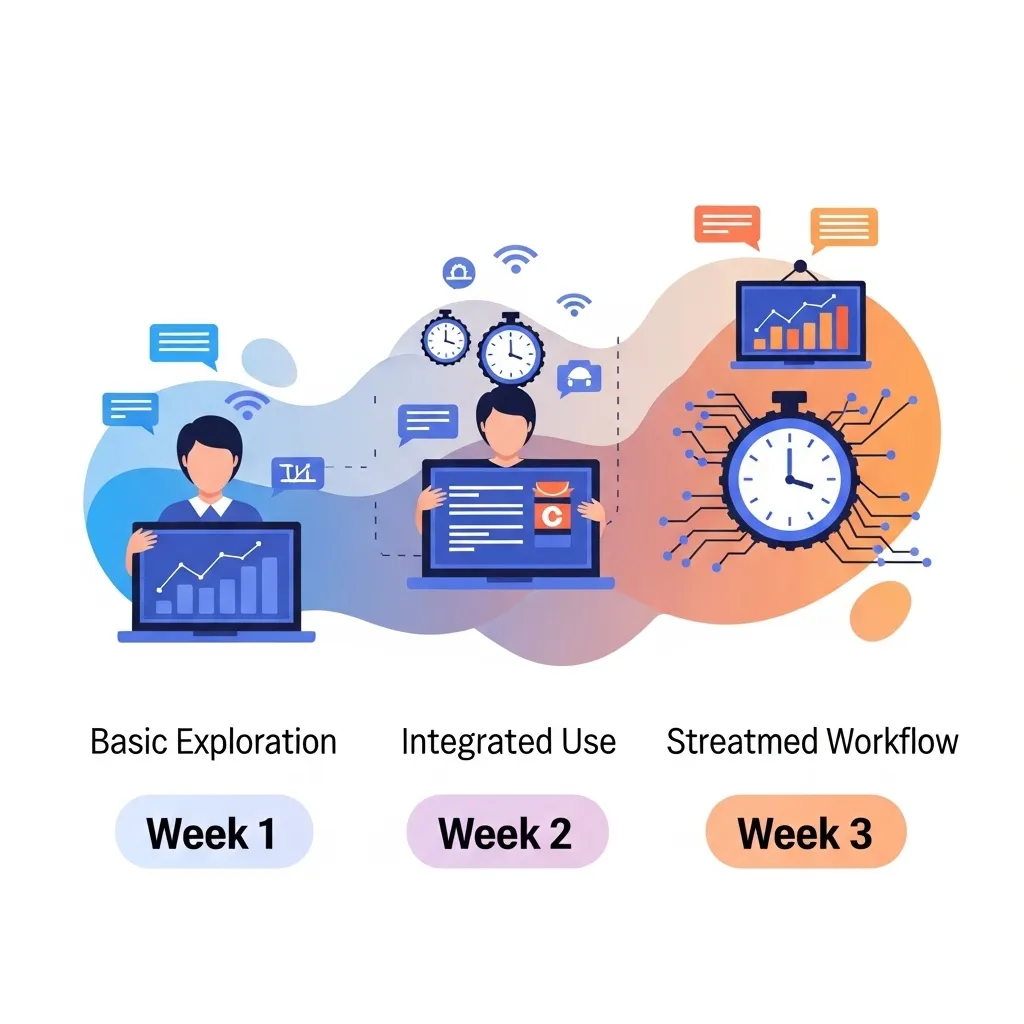
If you’re feeling overwhelmed, here’s a simple three-week plan:
Week 1: Conversational AI
- Sign up for ChatGPT or Claude (free tier)
- Use it for 3-5 real tasks this week (not practice—actual work you need to do)
- Pay attention to what works well and what doesn’t
Week 2: Add a Specialized Tool
- Based on what you learned in Week 1, choose one specialized tool that addresses your biggest need
- If you do a lot of writing/emails: Try Grammarly
- If you attend lots of meetings: Try Otter or Fireflies
- If you create visual content: Try Canva AI
- Use both tools (ChatGPT/Claude + your specialized tool) this week
Week 3: Establish Habits
- Identify the 2-3 specific use cases where AI genuinely saves you time
- Build those into your regular workflow
- Drop tools that aren’t proving valuable
- Consider upgrading to paid versions of tools you’re using daily
After three weeks, you’ll have a realistic sense of which AI tools actually fit your life versus which ones sound cool but don’t match your actual needs.
Looking Ahead: What’s Coming
The AI tool landscape continues evolving rapidly. Based on current trends, here’s what I expect to see more of in late 2026 and 2027:
Better multimodal integration: Tools that seamlessly handle text, images, video, and audio in combined workflows rather than as separate features.
More specialized industry tools: We’re already seeing AI tools built specifically for lawyers, doctors, teachers, accountants, etc. Expect this specialization to accelerate.
Improved accuracy and reliability: The hallucination problem continues to improve. Tools are getting better at knowing what they don’t know and expressing uncertainty.
Tighter integration with existing software: AI features built directly into the tools you already use rather than requiring separate AI applications.
More sophisticated personalization: Tools that learn your preferences, style, and needs over time without requiring constant instruction.
The fundamentals won’t change though: AI tools are productivity multipliers that work best when combined with human judgment, creativity, and expertise.

Final Thoughts: Just Start Somewhere
The biggest mistake I see beginners make isn’t choosing the wrong tool—it’s choosing no tool because they’re overwhelmed by options or worried about making the wrong choice.
Here’s the truth: there’s no wrong choice among the tools I’ve listed. They’re all legitimate, useful products that can save you time and extend your capabilities. The “best” tool is whichever one you’ll actually use consistently for problems you actually have.
My recommendation if you’re reading this and haven’t started yet: Stop researching. Open ChatGPT (it’s free and takes 30 seconds to sign up). Ask it to help you with something you need to do today. See what happens.
You can always try other tools later. You can switch if something doesn’t work. You can cancel subscriptions. Nothing is permanent, and you’re not committing to a lifelong relationship—you’re just trying a tool.
The AI tool landscape in 2026 is mature enough that beginners can jump in without extensive research or technical knowledge. These tools genuinely save time, extend capabilities, and make previously difficult tasks accessible.
But they’re still just tools. The value comes from using them thoughtfully to augment your own skills and judgment, not from the tools themselves.
So pick something from this list that addresses a real problem you have, spend 30 minutes trying it, and go from there. That’s how everyone starts, including the people who now seem like experts. We all began with that same blank text box, unsure what to type.
The difference between people who benefit from AI tools and people who don’t isn’t intelligence or technical skill—it’s simply whether they started using them. So start. Today, if possible.
Frequently Asked Questions
Q: Do I need to understand how AI works to use these tools effectively?
Not at all. You don’t need to understand the technical details of how AI works any more than you need to understand search algorithms to use Google. Focus on learning what each tool is good at and how to ask clear questions or give good prompts. The technical understanding can come later if you’re interested, but it’s not necessary for effective use.
I’ve taught people in their 60s and 70s to use these tools successfully. If you can use email and web browsers, you can use modern AI tools. The interfaces are designed for everyday users, not engineers.
Q: Are free versions of these tools worth using, or do I need to pay?
Free versions are definitely worth using and often sufficient for beginners. I used free tiers exclusively for my first few months. They let you learn, experiment, and figure out which tools actually fit your workflow before spending money.
The main limitations of free tiers are usually usage caps (number of queries per day/month) and access to less advanced models. For learning and occasional use, free tiers work fine. Upgrade to paid versions only when you’re consistently hitting limits or need specific features.
Q: How do I know if the information AI tools give me is accurate?
You don’t, which is why verification is crucial. Treat AI outputs the same way you’d treat information from an enthusiastic but sometimes unreliable colleague—useful for ideas and starting points, but requiring fact-checking for anything important.
For factual claims, verify with authoritative sources. For creative work and writing, use your own judgment. For code, test it thoroughly. For professional/medical/legal advice, consult actual qualified professionals. AI tools are productivity aids, not authoritative sources of truth.
I have a simple rule: if I’d fact-check it when written by a person, I fact-check it when generated by AI. This has saved me from embarrassing mistakes multiple times.
Q: Is using AI tools for work considered cheating or unethical?
This depends entirely on context. Using AI tools for work productivity is generally fine and increasingly expected—it’s no different than using calculators, spell-check, or search engines. However, there are important exceptions:
For students: Check your school’s academic integrity policies. Many institutions have specific rules about AI use. Using AI to help you learn is often fine; submitting AI-generated work as your own is typically plagiarism.
For professional work: Be transparent with clients/employers about your use of AI tools if relevant. Don’t claim AI-generated work as entirely your own creation if attribution matters.
For creative work: Understand copyright implications, especially for AI-generated images and content you plan to commercialize.
The ethical approach is to use AI tools to enhance your own work and capabilities, not to fake expertise you don’t have or misrepresent the source of work.
Q: What should I do if an AI tool suggests something harmful, biased, or just wrong?
First, don’t follow the suggestion. Trust your own judgment. AI tools can produce biased, incorrect, or occasionally bizarre outputs. They’re trained on internet data, which includes plenty of misinformation and bias.
If a tool suggests something that seems wrong, it probably is. Verify independently. If a tool produces biased or inappropriate content, most platforms have feedback mechanisms—use them. Your feedback helps improve the tools.
Also remember that most tools have built-in safety measures that decline certain types of requests. If you’re getting repeated refusals, that’s usually the AI’s safety systems working as intended, not a limitation to be worked around.
The key is maintaining your own critical thinking. AI tools should inform your decisions, not make them for you.